Video Conference Links
Connect your meetings with Zoom or Microsoft Teams to enable remote participation. This page covers detailed configuration and troubleshooting for video conferencing integrations.
Setup Requirements
For Zoom Integration
Before adding Zoom links to your meetings, install the Forma Build app in the Zoom Marketplace:
Sign in to your Zoom account and navigate to the Zoom Marketplace.
Search for Autodesk Forma.
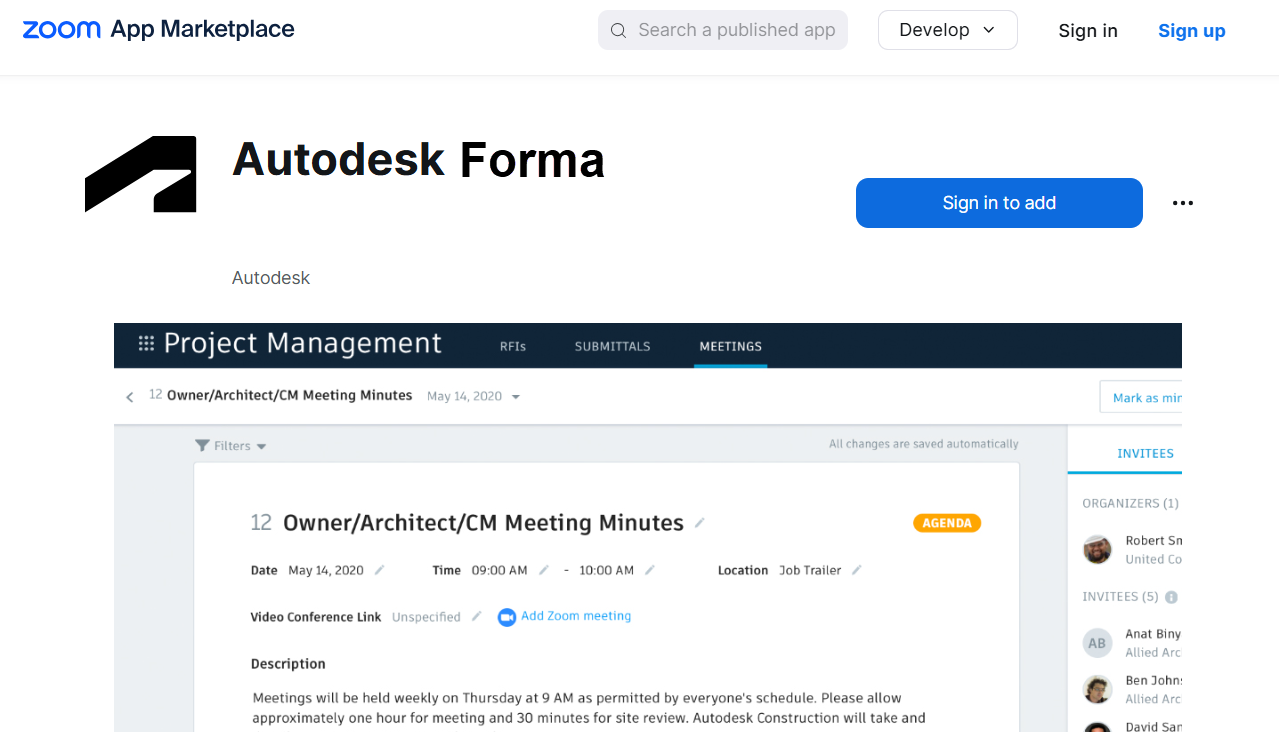
Click the app and select Install.
Click Authorise to grant access permissions.
Once installed, you can add Zoom links directly to your meetings.
For Microsoft Teams
No additional setup is required for Microsoft Teams integration. You can add Teams links directly to any meeting.
Add Video Conference Links
To add video conferencing to your meetings:
In Forma Build, click Meetings from the left navigation to open the Meetings tool.
Either:
- Click Create meeting to start a new meeting, or
- Open an existing meeting from your list
Click Add link and choose your preferred platform:
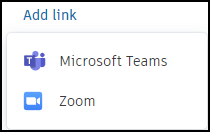
For Microsoft Teams:
- The system generates a Teams link automatically
- Edit the link as needed using the pencil icon

For Zoom:
- Sign in to your Zoom account when prompted
- Authorise Forma Build access (first-time setup only)
- The system creates a Zoom meeting and adds the link automatically
Complete the remaining meeting details. See Create Meetings for full setup instructions.
Using Video Conference Links
Join a Video Conference
To join the video conference during a meeting:
- Open your meeting in the Meetings tool.
- Click the video conference link being displayed in the meeting details.
- Your default browser opens the video conferencing platform.
Share Links with Participants
Video conference links are automatically included when you:
- Send meeting invitations
- Export meeting details
- Share meeting information with stakeholders
Manage Zoom Integration
Uninstall the Autodesk Forma App
To remove the Zoom integration:
- Sign in to your Zoom account and navigate to the Zoom Marketplace
- Either:
- Search for Autodesk Forma and click the app, or
- Navigate to Manage > Installed Apps
- Select Uninstall and confirm your choice
Troubleshooting
Microsoft Teams: ‘Need Admin Approval’ Error
When adding a Microsoft Teams link, you may see a ‘Need admin approval’ message stating that Autodesk Forma – Meetings needs permission to access resources in your organisation.
This error occurs because your Microsoft organisation requires IT administrator approval before the Meetings app can access Microsoft Teams on your behalf. This is a Microsoft organisation permission setting, not an Forma Build permission issue.
To resolve this issue:
- Contact your IT department and ask them to approve the Autodesk Forma – Meetings app.
- Your IT administrator needs to grant consent for the
OnlineMeetings.ReadWritedelegated permission in Microsoft Entra ID (Azure AD).
For technical details about the required permissions, IT administrators can refer to Microsoft's documentation on admin consent.
What's Next
After adding video conference links:
- Complete meeting setup with all details
- Invite participants to your meeting
- Run your meeting with video conferencing