Move Sheets to a Different Collection
Members with Edit permission or above can move sheets from a collection or Ungrouped sheets to a different collection.
If sheets are moved and the version set doesn't already exist in the target collection, the version set will be automatically created.
If version sets with the same name exists in the source and target collection but the issuance dates are different, members can choose to either not move the affected sheets, or move all sheets which will adopt the target collection version set issuance date.
Click on the Files tool.
Select either Ungrouped or the relevant collection in the Collection section.
Select the sheets you want to move.
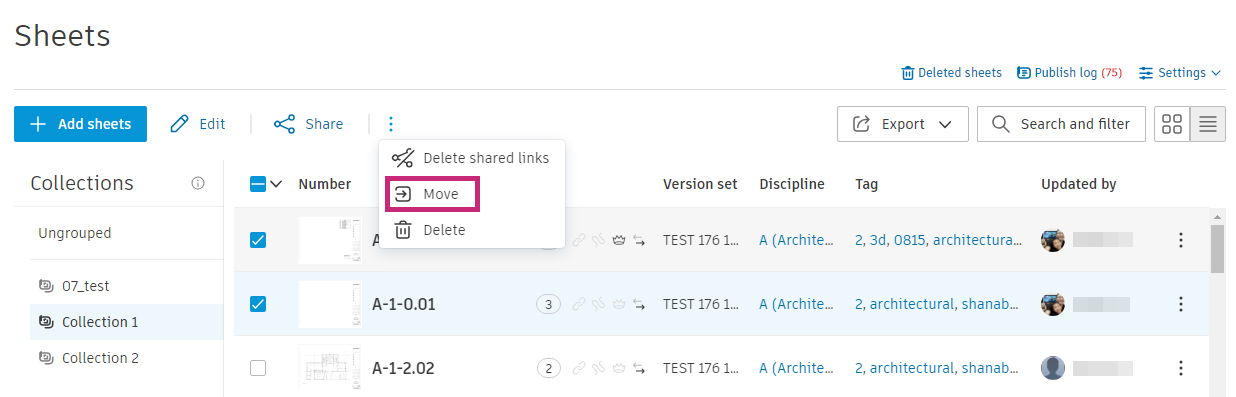
Click the More menu
 above the sheets list.
Click Move.
You can select a target collection and an option if your sheet version sets also exist in the target collection and their issuance dates don't match.
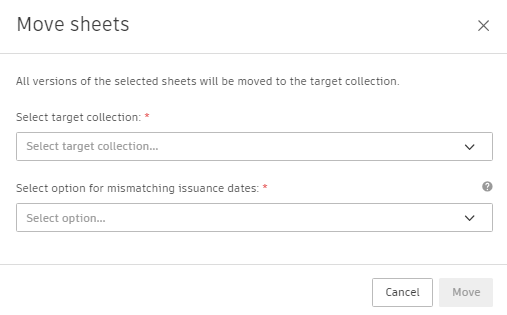
Select the target collection.
Note: You can't move sheets to Ungrouped or to the collection which already contains the sheets.All of your sheets will already belong to version sets in the source collection. The target collection may contain version sets with the same names as the source version sets. The issuance dates for these same source and target version sets may be different.
Select one of the following options if the sheets you are moving have version sets with the name but different issuance dates in the source and target collection.
- Move sheets with mismatching issuance dates: When moved, the sheets will adopt the issuance date of the version of the same name in the target collection.
- Don't move sheets with mismatching issuance dates: Any sheets whose version set issuance date is different in the source and target collection won't be moved.
Click Move.
You can view progress in the Move sheets panel.