Working with the Sheets List
All published sheets are displayed in the sheets list. In the Sheets tool there are many actions you can take to view, find and publish sheets.
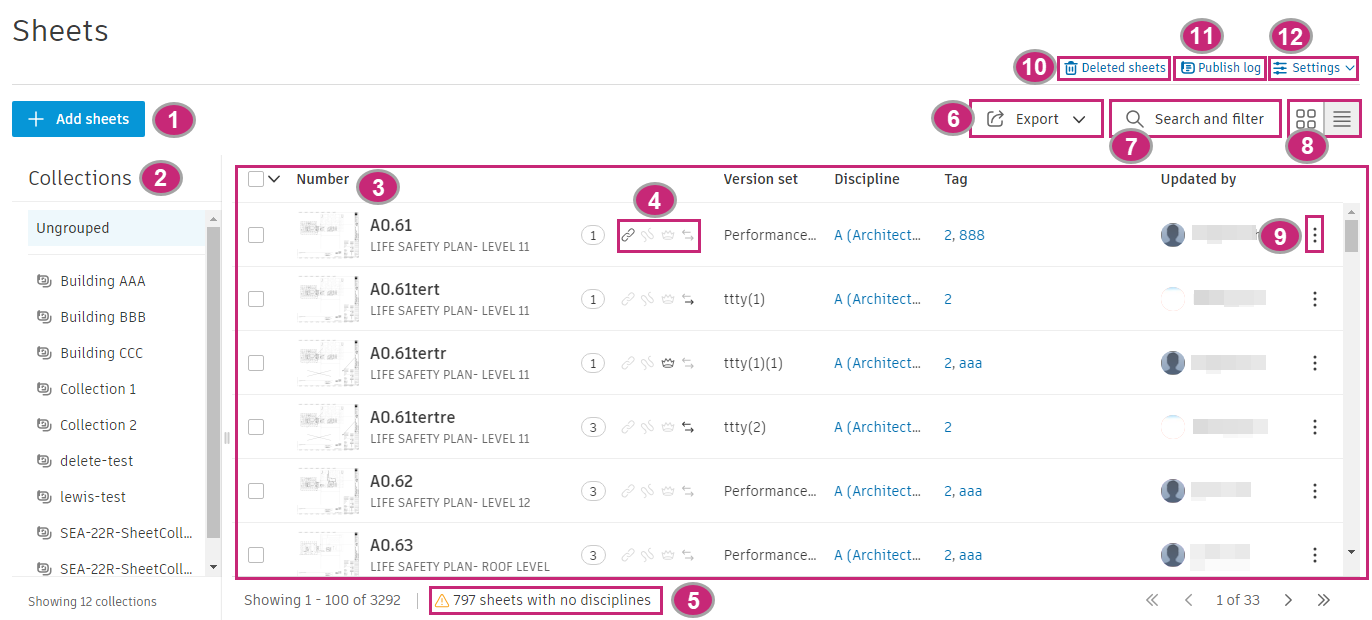
The following sections correspond with the numbered areas in the previous image.
1. Add Sheets
Members with Create + Upload permission or above can click Add sheets to add PDF or RVT files and publish sheets to the field. See Add and Publish Sheets to the Field for more information.
2. Collections
You can view the Collections area if a project administrator has enabled collections in your project.
Ungrouped contains any sheets which already existed in the project when collections was enabled. All created collections are listed under Ungrouped.
3. The Sheets List
The sheets are ordered by:
- Discipline order as defined in Settings > Disciplines.
- Followed by sheet number.
Each sheet is listed under the following attribute headings:
Number: This attribute displays:
- Thumbnail of the sheet. Click the thumbnail to open and view the sheet.
- Sheet number: The sheet number as published or edited after publication
- Sheet title: The sheet title as as published or edited after publication.
- Sheet version
- Sheets indicators. See section 3 for more details.
Version set: The version set of the current sheet version.
Discipline: The discipline of the current sheet version. You can click the discipline to add it to the search and filter panel.
Tag: The tags of the current sheet version. You can click a tag to add it to the search and filter panel.
Updated by: The name of the project member who last updated the sheet.
4. Sheets Indicators
Hover the indicator icons for the relevant sheet to view the following information:
| Icon | Information | Help topic |
|---|---|---|
 |
The sheet is or isn't shared with someone who isn't a project member. | Share with anyone |
 |
The number of your unpublished markups on the sheet. | Create and Style Markups |
 |
The number of published markups on the sheet. | Create and Style Markups |
 |
The sheet is or isn't shared/bridged either to or from another project. | Share with another project Manage Sheet Automations |
5. Sheets With No Disciplines
You can assign disciplines to sheets by adding or editing disciplines in sheet disciplines. Hover over the sheets with no disciplines message and choose to either view sheets with no discipline or open the discipline settings.
6. Export
Export Sheets
Members with View + Export permission or above can export a PDF copy of a sheet with their chosen markups to their local downloads folder. See Export and Print Sheets for more information.
Export Sheets Log
Members with View permission or above can export a log of all or selected sheets in the project. See Export Sheets Log for more information.
7. Search and Filter
Refine the sheets list by searching for keywords and applying filters for version set, discipline and tags. See Search and Filter Sheets for more information.
8. Grid or List View
Toggle the following icon to switch between grid and list view:

9. More Menu
Click the More menu  next to a specific sheet to view the following options:
| Option | Description | Permission required | Help topic |
|---|---|---|---|
| Edit | Edit the sheet number, title, version set and tags of a sheet. | Edit permission or above | Edit Sheet Details After Publication |
| Export | Export a PDF copy of the sheet with your chosen markups to your local downloads folder. | View + Export permission or above | Export and Print Sheets |
| Share | Share sheets with another project member, anyone else publicly, or share and bridge with another project. | View permission to share with project members View + Export permission to share publicly Project administrator permission for target project |
Share Sheets |
| Delete shared links | Delete all publicly shared links to this sheet, either the current or all versions. | View + Export permission | Delete links shared with anyone |
| Move | Move the sheet to a different collection (if collections is enabled) | Edit permission | Move Sheets to a Different Collection |
| Delete | Delete the sheet from the sheets list and add it to the Deleted items area. | Edit permission | Delete and Restore Sheets |
| View sheet activities | View and export all sheet actions on or involving the sheet. | Manage permission | Sheet Activities |
10. Deleted items
Members with Edit permission or above can access the Deleted items area and restore deleted sheets back to the sheets list. See Delete and Restore Sheets for more information.
11. Publish Log
Members with Create + Upload permission or above can access the publish log and view all activities, statuses and actions in the publishing process. See Publish Log for more information.
12. Sheets Settings
Click Sheets Setting to view the following drop-down options:
| Option | Actions | Permission required | Help topic |
|---|---|---|---|
| Collections | Create collections in collections enabled projects. | Create + Upload permissions or above | Collections |
| Version sets | Add, edit and delete version sets. | Create + Upload permissions or above | Version Sets |
| Disciplines | Add, edit and order sheets with disciplines. | Manage permissions or above | Sheets Disciplines |
| Permissions | Add and edit sheet permissions for project members. | Project administrator | Sheet Permissions |
| Advanced settings | Enable public sharing so sheet can be shared with anyone. | Project administrator | Enable Public Sharing |