Process Submittal Items
This page provides an overview of how to process submittal items within the Submittals tool once they have been created. It covers:
- Understanding the submittal workflow
- Working with the Workflow Table
- Adding attachments and annotations
- Providing review responses
- Closing, distributing and creating new revisions
The Submittals tool facilitates efficient processing of submittals through built-in workflows. Once a submittal item has been created, it goes through various review and approval stages tracked via the Workflow Table and workflow bar.
Workflow Bar:

- The workflow bar visually displays the current stage of the submittal in the review process.
- This allows you to quickly ascertain the progress of each submittal item.
- When an item is in review status, the bar shows "Pending review from" instead of "Reviewers" to better indicate who still needs to take action.
- The bar also displays "Responded: X" to show how many reviewers have already provided their response in the current review step.
- Hovering over "Pending review from" shows users who haven't responded yet, while hovering over "Responded" shows reviewers who have already completed their review.
- User avatars in the workflow bar represent people who still need to provide their review rather than all reviewers.
General Information Section:

- This section contains basic information about the submittal item such as description, type and spec section.
- It is essential for providing an overview of the submittal's context.
Workflow Table:
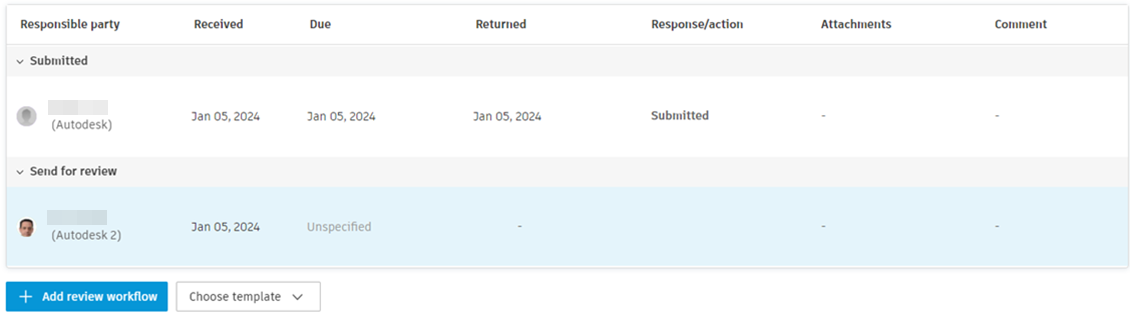
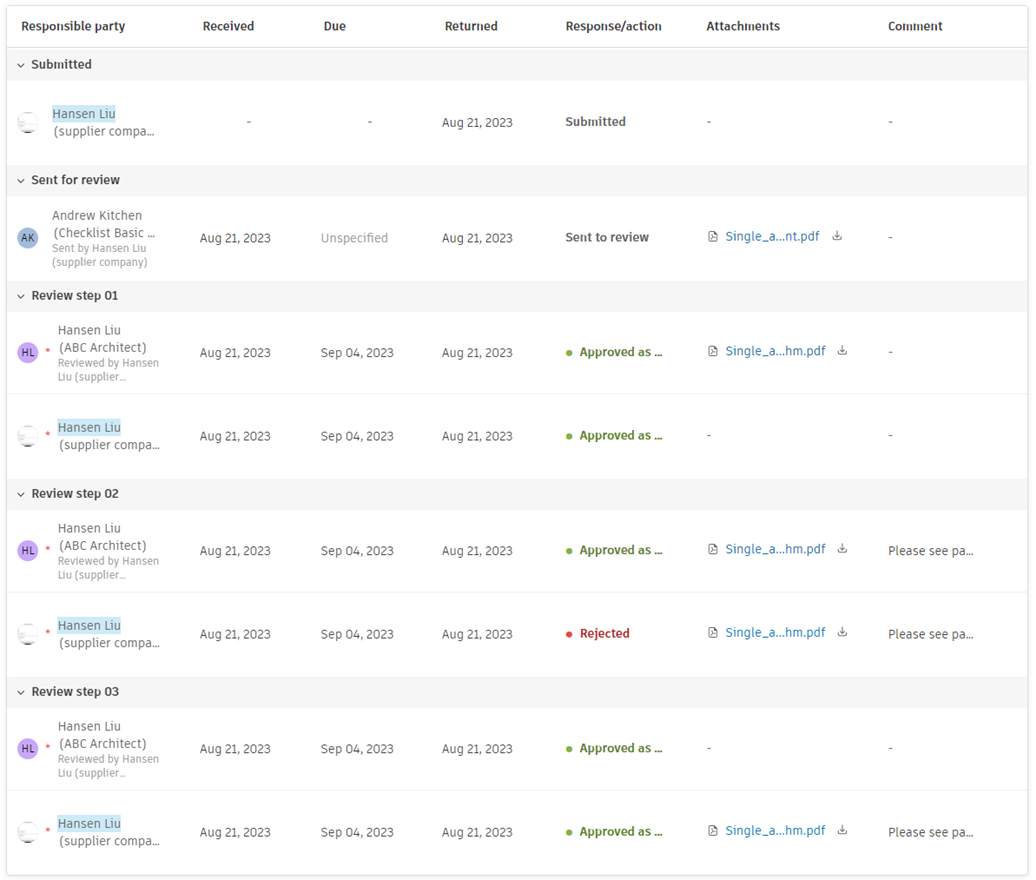
- Summarises the workflow with important dates, attachments and comments.
- For review steps that are in progress or completed, reviewers who have already responded are listed first, in chronological order of their response.
- The Response/Action column allows for actions to be taken on the submittal item, such as approval or request for revisions.
- Allows selecting Review template or editing review workflow for given submittal item.
Planning Section:
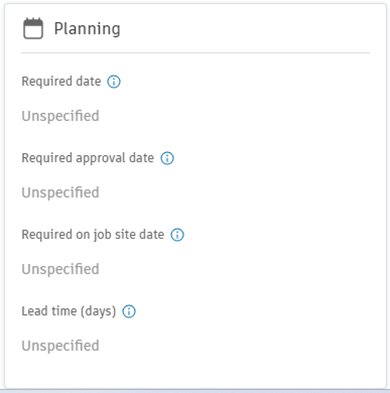
- Includes the following dates essential for planning and scheduling:
- Required Date
- Required Approval Date
- Required on Job Site Date
- The Lead Time
- Includes the following dates essential for planning and scheduling:
Activity Log Section:
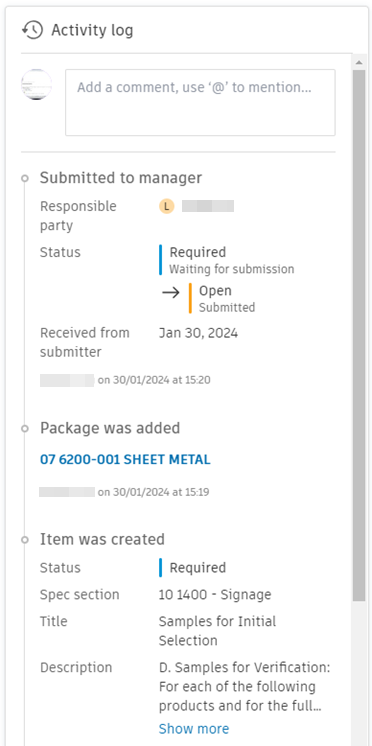
- Displays a history of all activity related to the submittal item.
- Allows users to comment and mention others using @ for effective communication and collaboration.
Reference Section:
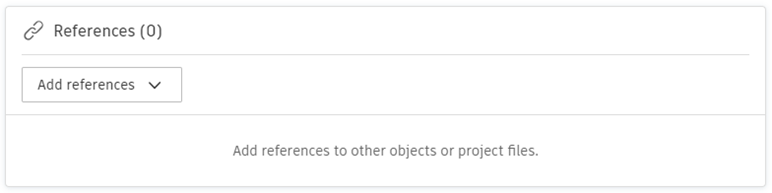
- Allows users to link the submittal item to other project elements such as Assets, Files, Forms, Issues, PCOs, Photos, RFIs, other Submittals, Schedule and Sheets.
- This enhances cross-referencing and ensures that the submittal is aligned with other project components.
Add references to Submittals on Mobile
You can add references to Submittals directly from the mobile app, improving traceability and data completeness in the field.
To add a reference to a Submittal:
- Open any tool other than Submittals.
- Tap Add reference in the section where all references are listed.
- Select the Submittal item you want to link.
- Tap Save.
References added on mobile sync immediately with the web application, ensuring all team members have access to complete submittal information.
The Submittals list view includes a new ‘Pending action from’ column placed after the ‘Ball in court’ column. This new column shows reviewers who haven't yet provided their review in the current review step.
When an item is not in review status, the ‘Pending action from’ column shows the same value as the ‘Ball in court’ column.
The ‘Pending action from’ column follows the same display format as the ‘Ball in court’ column:
Shows assigned users, roles or companies who still need to review the item
Highlights the current user if they are pending action
Displays ‘+X more’ when multiple reviewers are pending
Shows tooltip with complete list on hover
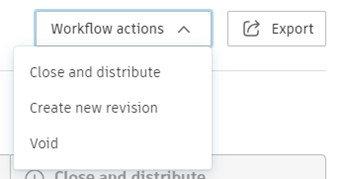
Close and Distribute:
- The Close and distribute button is used to formally conclude the review process of a submittal item.
- Upon closure, the submittal information is distributed to all individuals involved in the process.
- This action signifies that the submittal has been reviewed, and necessary feedback or approval has been provided.
Create New Revision:
- The Create new revision button enables users to generate a new version of the submittal item.
- When creating a new revision, users can:
- Assign a responsible contractor.
- Set a due date for the submitter.
- Add watchers who need to be informed or monitor the submittal.
Important:Submittal Managers and Project Administrators can create new revisions or close submittals regardless of their status, except for items marked as Draft or Void.
Void:
- The Void button is used to invalidate a submittal item.
- This action is typically taken when the submittal item is no longer relevant or necessary for the project.
- Voiding a submittal item indicates that it should not be considered in the ongoing project activities.
Assign roles and companies as Submittal Managers, Responsible Contractors and Reviewers to simplify your submittal workflows. With just a few clicks, you can now assign entire roles or companies to review submittals, rather than individual users. This gives you flexible management of reviews at the role/company level across your project.
You can assign Roles and Companies as Submittal Managers, Responsible Contractors and Reviewers in the following situations:
- When creating a submittal.
- Within Custom Review Templates.
- Within Review Builder.
- Within item details.
Follow these steps to assign roles and companies as reviewers:
- Open the submittal item.
The drop-down menu contains separate sections for Members, Roles and Companies.
- In the Manager, Reviewers or Responsible Contractor fields, click the drop-down menu.
- Tick the box next to the desired role or company to assign them.
Do not check individual users belonging to that role/company.
- Click Done to save the changes.
Once a role/company is assigned:
- All users belonging to that role/company will receive email notifications about the review assignment.
- Permissions are handled automatically – users in the role/company gain access and lose access if removed from it.
- For bulk actions, use the role/company name when assigning multiple items.
- Role/company names can also be assigned in review templates and workflows.
- The role/company name will be displayed in relevant columns on the items list and details pages.
- In the workflow table, role names will show the actual users who performed reviews: