As-built export
The As-built Export feature in Handover speeds up the handover process and improves the accuracy of your documentation.
Project administrators can export current project information into a ZIP file for handover, closeout and archiving. The export can include files, sheets, RFIs, submittals and more. You will be able to click local links to related project documents in the ZIP file and open them on your device.
You can also share as-builts with other Autodesk Forma projects using Bridge. Learn more about Bridge.
In this topic, you'll learn how to:
- Create As-built Exports
- Download As-built Exports
- View and Use Downloaded As-built Exports
- Share As-builts with Other Projects Using Bridge
Create As-built Exports
Project administrators can set up and export current as-built information for a project.
Go to Project Admin.
Click Handover in the navigation menu.
Click the As-built export tab.
Click Create as-built to set up an as-built export.

The following default options are pre-selected. These are the project items supported for an as-built export:
- Sheets – Current sheet versions and published markups
- RFIs – Closed RFIs
- Submittals – Closed submittals
- Files – Current file versions for basic file types (PDF, JPG, PNG, XLSX, DOCX), not including markups
- Issues – Closed issues
- Forms – Open, closed and archived forms
- Photos – All photos
Click Edit details to deselect items or change settings.

For each project item, select from these options:
Sheets
- Sheet versions – Include all sheets or only current sheet versions.
- Sheets markups – Include all markups, only published markups or only published markups linked to RFI references.
RFIs
- Include all RFIs (draft, open and closed, but not voided) or only closed RFIs.
Submittals
- Include all submittals (draft, required, open and closed, but not voided) or only closed submittals.
Files
- Include all files, basic file types (PDF, JPG, PNG, XLSX, DOCX), model files (RVT, DWG, NWC), or pick specific file types for current file versions, not including markups.
Note: You can include up to 15,000 files.Issues
- Include all issues (open, in review, pending and closed) or only closed issues.
Forms
- Include all forms or only closed and archived forms.
Photos
- Include all photos.
(Optional) If you don’t include all supported items, you can turn on Include references and attachments for unselected project items. This feature adds supported references and attachments to the as-built, even if you don’t select them.
For example, you create an as-built with only Issues. If you turn on this option and some issues have references to RFIs, the RFI references will be included in your export. References appear in a "Reference and attachments" folder in the downloaded export. You can access these references offline. Learn more about viewing as-built exports offline
Note: Forms, Issues and RFI Attachments are not supported in an as-built export.
Click Create.
You see a notification confirming the as-built export is in progress. It can take one to several hours to generate your export. You will get an email with a link to download the export when it’s ready.
Download As-built Exports
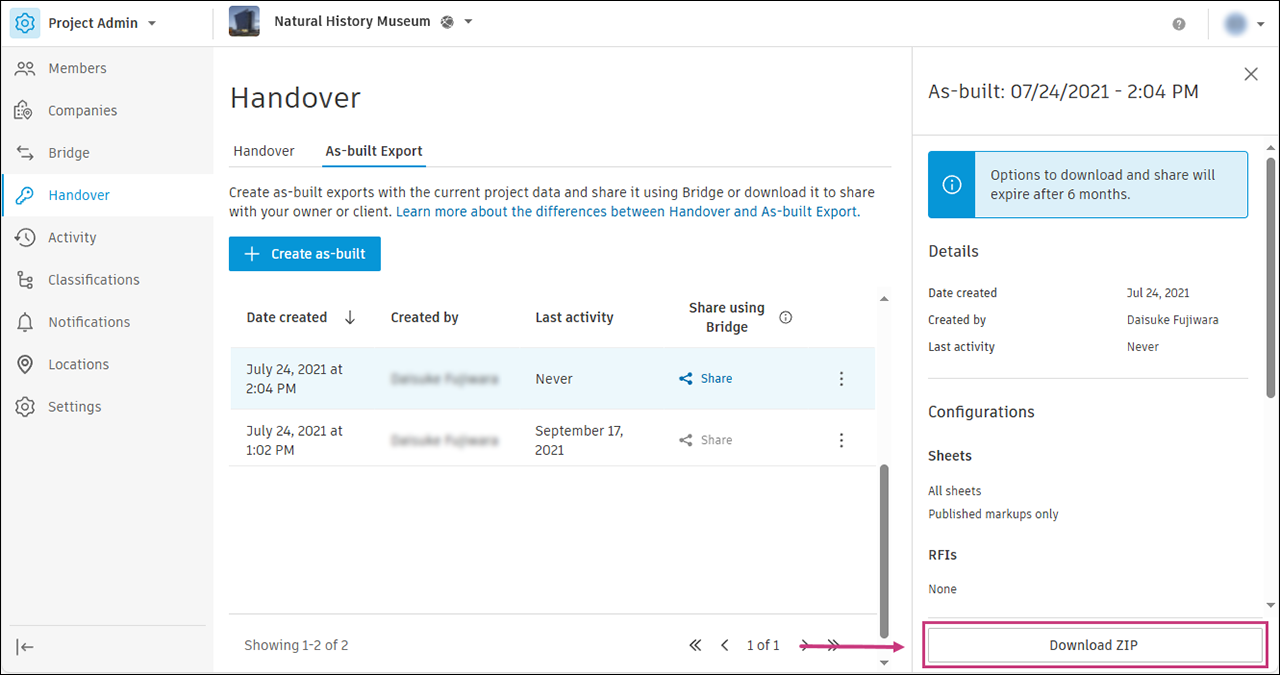
After you create an as-built export, the download link is in the As-built Export log.
On the As-built Export page, click the as-built. A panel opens.
Click Download ZIP at the bottom of the panel.
View and Use Downloaded As-built Exports
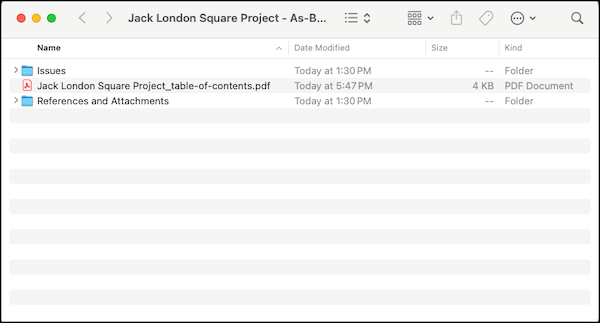
To access the as-built folders, unzip the downloaded file on your computer.
Each supported tool has its own folder. If you include references, you also see a "References and Attachments" folder. The following is a macOS example of an as-built with only Issues selected.
Local Linking in As-built Exports
The As-built Export feature supports local linking between files in the exported ZIP file. You can click links to referenced project items, and the corresponding downloaded file opens on your computer. This makes it easier so that you don't need to switch between the PDF export and Autodesk Forma on the web.
For example, if an issue has a form reference and that form was downloaded, clicking the link opens the downloaded form report.
- Links between RFIs and sheets are included as local URL links in the PDF.
- Photos linked to an RFI show up as thumbnails in the PDF.
- Titles of project items are not links, so they don’t open the item in Autodesk Forma on the web.
- Any links to unsupported references and attachments are disabled. For example, since Assets is not a supported reference type, a link to an asset is disabled. The colour of disabled links stays the same as that of active links.
The Preview app on Mac has these limits:
- RFI references on sheets are not available.
- Local links between files in the exported folder are not available.
Share As-builts with Other Projects Using Bridge
Bridge lets you share project information with other Autodesk Forma projects and hubs. Learn more about Bridge in About Bridge.
Project administrators can share as-builts with other projects where they are a project administrator or a member. You also need Edit permission or higher in the target folder.
Click Share on the As-built Exports log.

(Optional) Enter a title for this event. In the Outgoing tab of the Bridge tool, this title appears as a line item in the log to help your team track what was shared.
Note:<>:"/\|?*`are not allowed.Select a target project. If the project you want to share with is in a different data storage region, first click Select another data region.
Note:You can share as-builts within the following groups of regions.
- Group 1: United States, European Union and Australia
- Group 2: United Kingdom, Germany, Canada, India and Japan
However, you can’t share as-builts between these groups.
Select a target folder for the as-built.
Click Share. You will get an email when sharing is complete.
You can track the shared as-built in the Outgoing tab of the Bridge tool. Learn more.