Assemble Handover Package
You can use Handover to create a package with your project data. Export and share this package with project stakeholders when you close out your project.
The project data you can include in a Handover package depends on the products in your project. Use these tabs to see how to set up Handover packages for Autodesk Docs and Autodesk Build.
With Autodesk Docs, Handover packages can include project files and issues.
Add Files to Handover
You can add files from the Files tool or create a folder for files you want to export in Handover.
In the Handover tab, click Add.
Select Add from Files or Create folder.
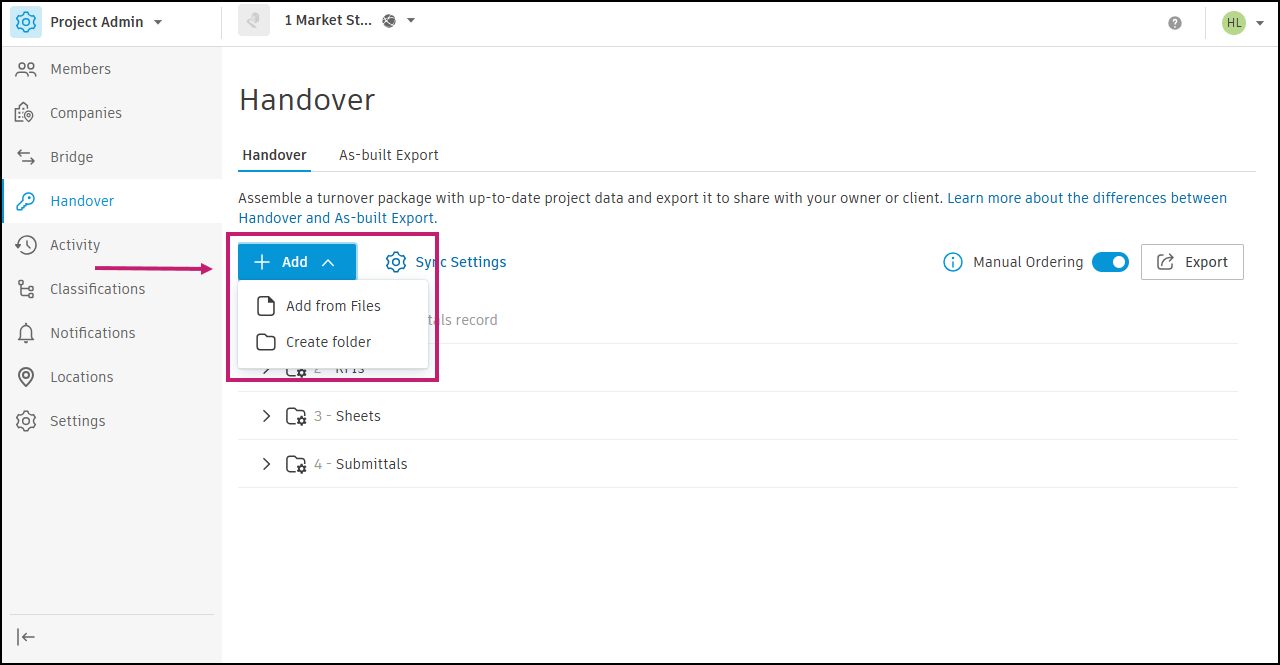
- Add from Files: Your project files from the Files tool appear in the window. Select files and folders to add. To select a range, click the first file, hold Shift, then click the last file. Tip: If you select a folder with subfolders or files, you can't move the subfolders and files. Select each subfolder and file instead of the top-level folder. This way, you can move each item in Handover. Note:
- If the selected files or folders change, they will sync and update them in Handover.
- If a file or folder shares a name with an existing one, Handover adds (1) to the end of the name.
- If a file or folder shares a name with a default folder (RFIs, Sheets, Submittals), you can't add it. Change the name and try again.
- Create folder: Enter a name and press Enter to save a folder that you can add files into.
- Add from Files: Your project files from the Files tool appear in the window. Select files and folders to add. To select a range, click the first file, hold Shift, then click the last file. Tip: If you select a folder with subfolders or files, you can't move the subfolders and files. Select each subfolder and file instead of the top-level folder. This way, you can move each item in Handover. Note:
Handover exports package contents in the order shown in the tool. By default, folders appear first, then files, in alphanumeric order.
Configure Issues for Handover
By default, the Issues folder in Handover includes all closed issues from the Issues tool in Autodesk Docs. Handover pulls the latest data so you can export it.
To choose which issues to include in your Handover package:
Click Sync Settings.
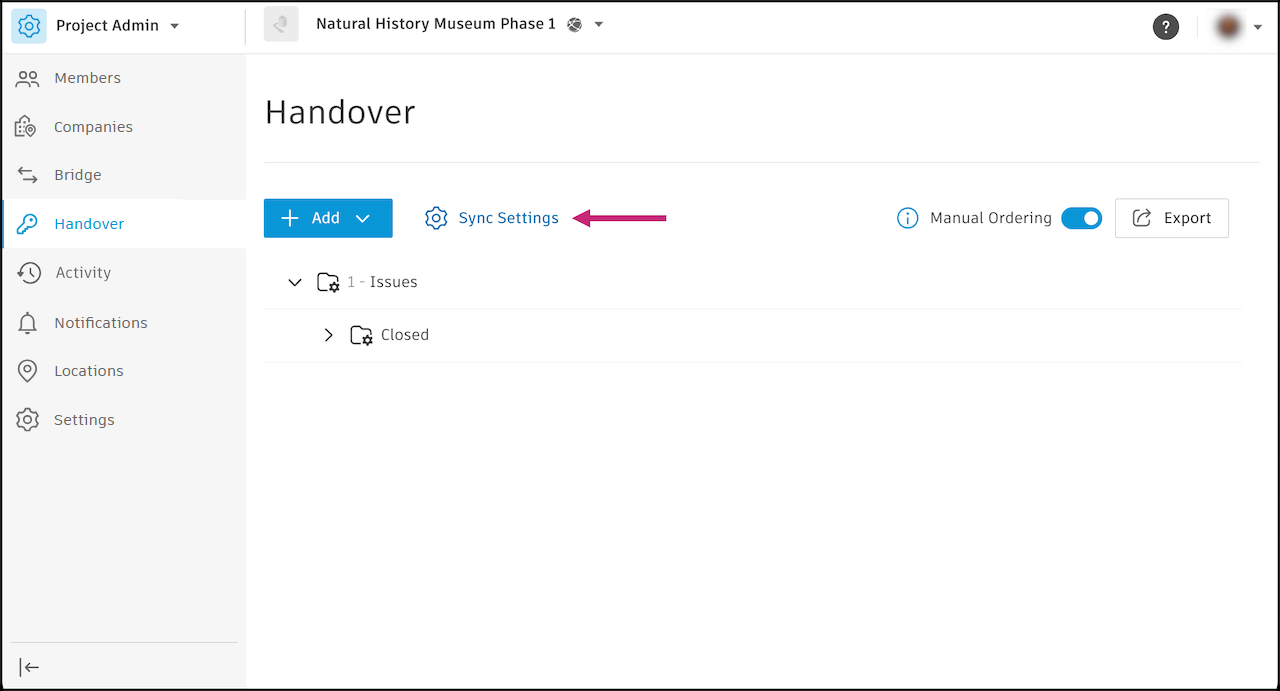
In the panel, click Issues.
Select All issues or Closed issues.
If you don't want to export issues, click Remove. You can add it back later.
Click Save.
Manage Folders in Handover
To see folder contents in Handover, click the arrow next to the folder name.
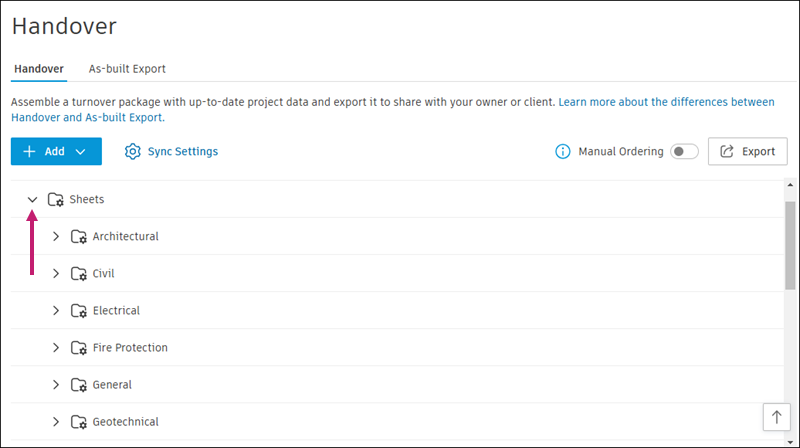
If a folder has no information, Handover shows that no items are available. These folders always sync, and changes to data appear here, such as new issues, closed submittals or added sheets.
Handover adds all folders and files in a default format. To customise the order of the package, you can turn on Manual Ordering. Learn about Manual Ordering.