Generate Location Areas with AI
AI area detection finds rooms and areas on a sheet and suggests polygons for you so you don't have to draw each one by hand. You review, edit and link the suggested polygons to your Location Breakdown Structure (LBS).
Once you have linked a polygon to a location, it becomes a location area you can use in location-based workflows.
You stay in control all the time: nothing becomes a location area until you link it.
Prerequisites
- You must be a project administrator or locations administrator to detect and manage areas.
- The sheet must have at least one location linked to it before you can detect areas.
Generate Areas with AI
Open a linked sheet in one of these ways:
In the Sheets tool, open a sheet linked to your LBS, then open the Locations tab.
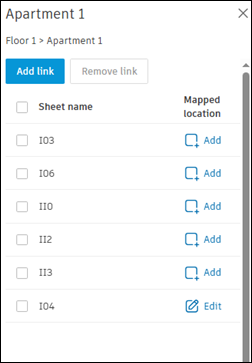
In Project Admin, click Locations in the left navigation, then click a linked sheet to open its details. Click Add or Edit to open the sheet.
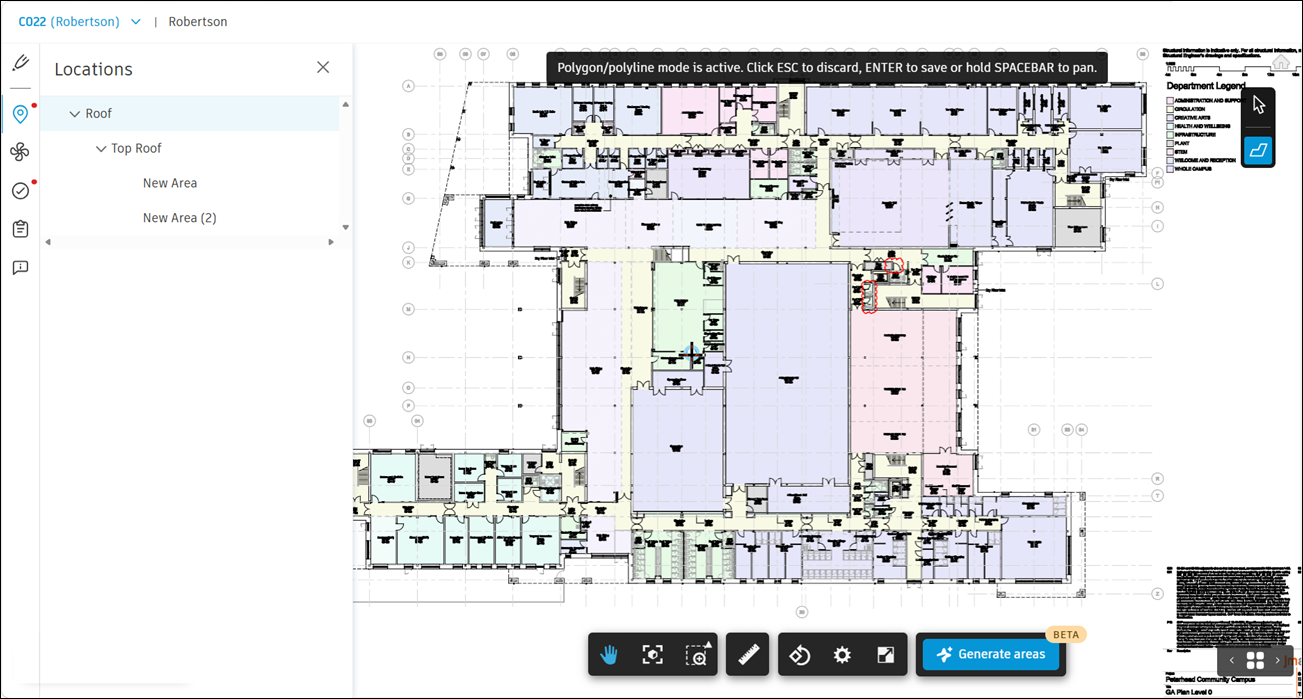
Click Generate areas to enter AI area mode.
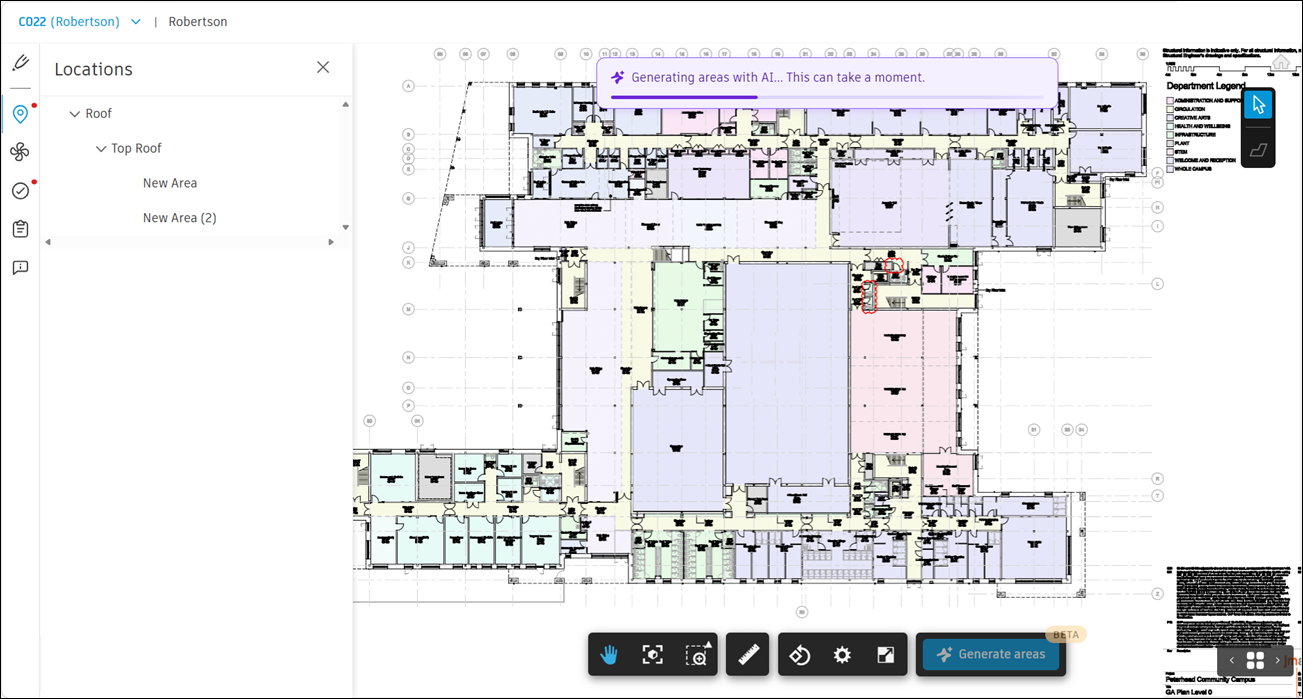
Area generation starts and can take a moment to finish.
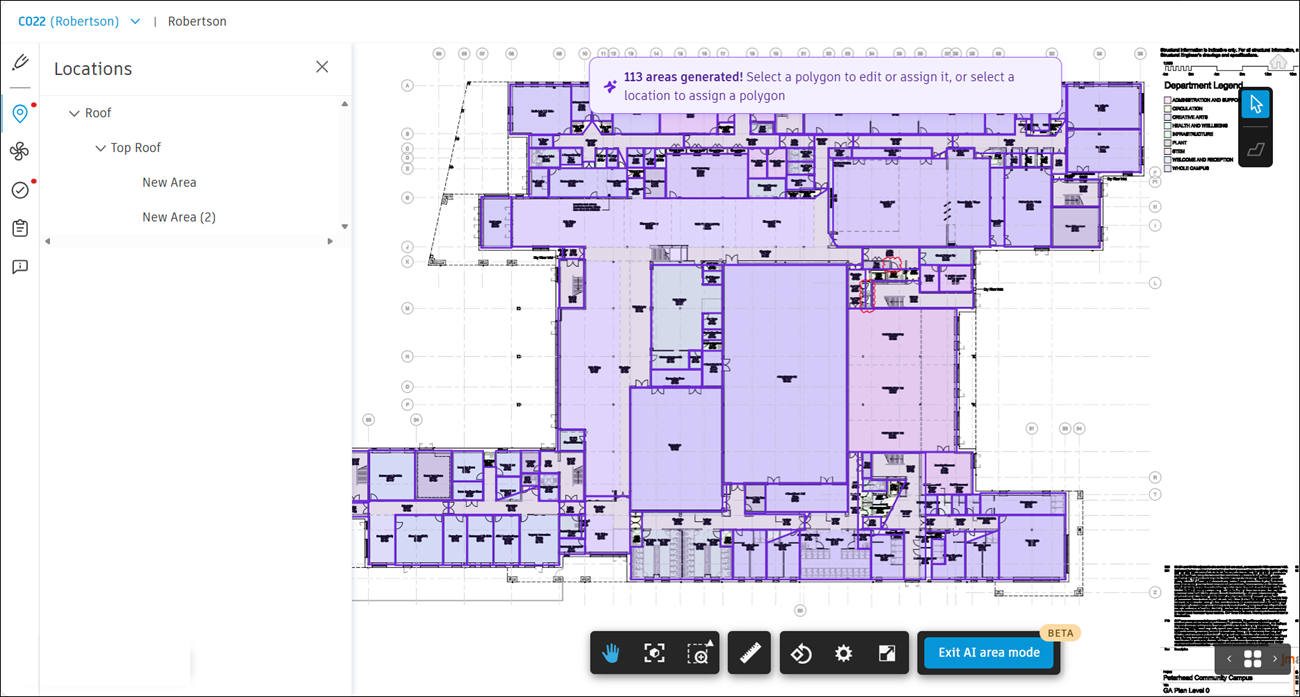
Once polygons have been generated, you can select a polygon to edit and link it to a location, or select a location to link a polygon to it.
Note the following detection-specific considerations:
When detection finishes, review the results. The sheet how many areas were detected – for example, 12 areas detected.
Detected polygons are temporary, user-specific and appear only in AI mode. Only you can see the polygons from your detection run; other project members don't see them until you link them to locations. They remain visually distinct from location areas you’ve already linked. Any location areas you linked earlier remain unchanged and are used as context to improve detection.
Review and Edit Polygons
You can refine the suggested polygons before you link them. Select a polygon to open the edit, link and delete actions. To select more than one polygon, hold Cmd, Ctrl or Shift as you click.
You can:
Move, add or remove vertices to adjust a polygon’s shape, just like you do in Markups.
Resize or rotate a polygon.
Merge two adjacent polygons into one.
Draw a new polygon if detection missed a room.
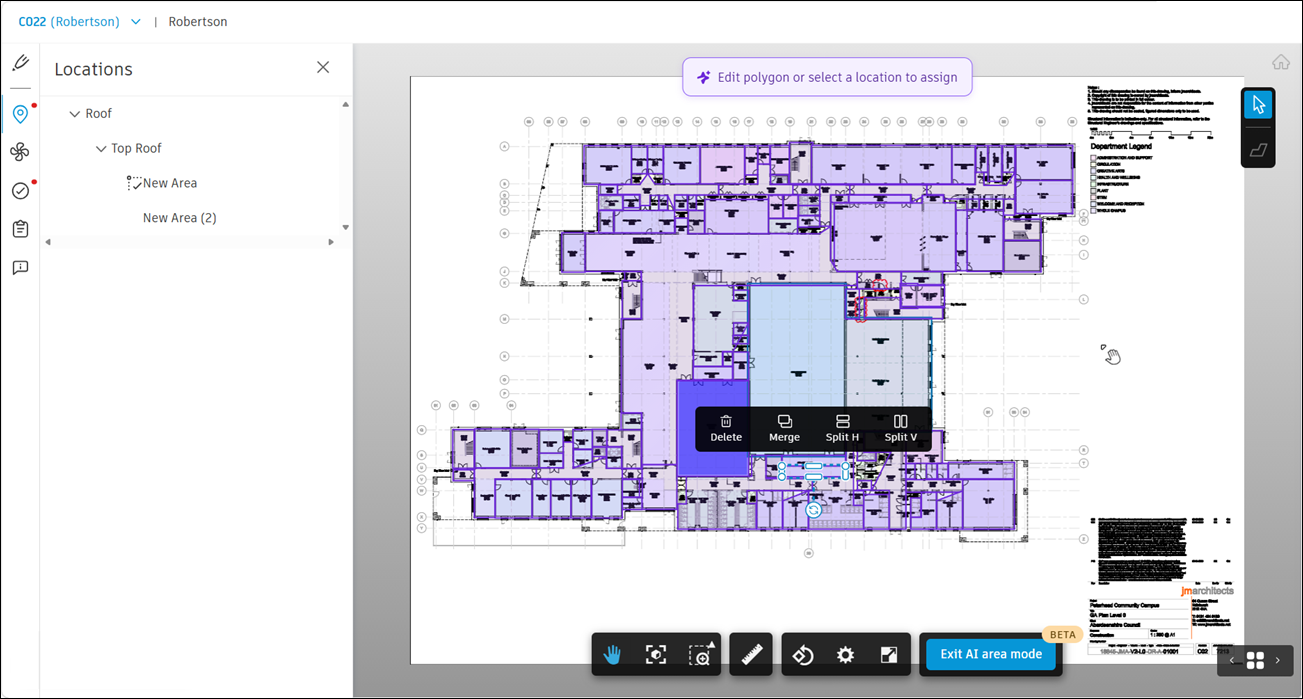
Merge Adjacent Polygons
Select a polygon, then select Merge.
When the banner appears, select an adjacent polygon – one that shares a border with the first.
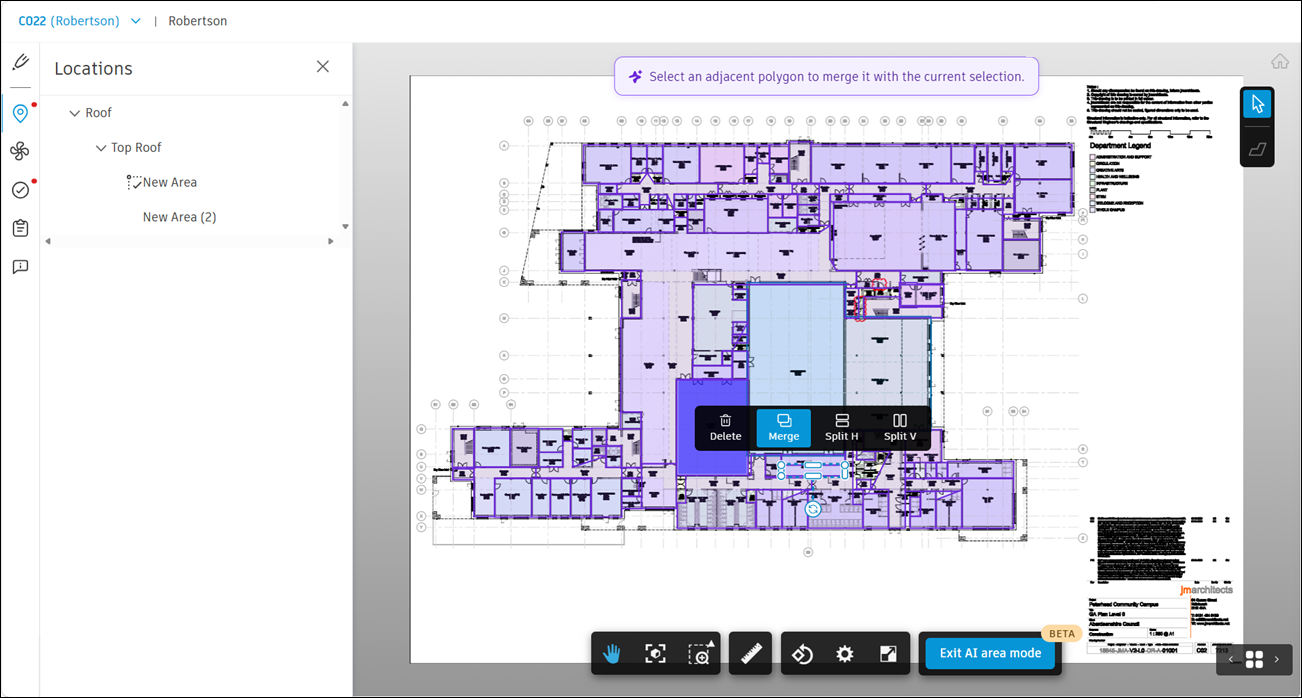
The two polygons combine into one, which remains selected.
Note: You can only merge polygons that share a border.To merge several polygons at once, select them all first. If they're all adjacent, select Merge.
Link a Polygon to a Location
Linking a polygon to a location in your LBS turns it into a location area.
Select a single polygon.
Link it to an LBS node or select an LBS node and link a polygon to it. Both directions work.
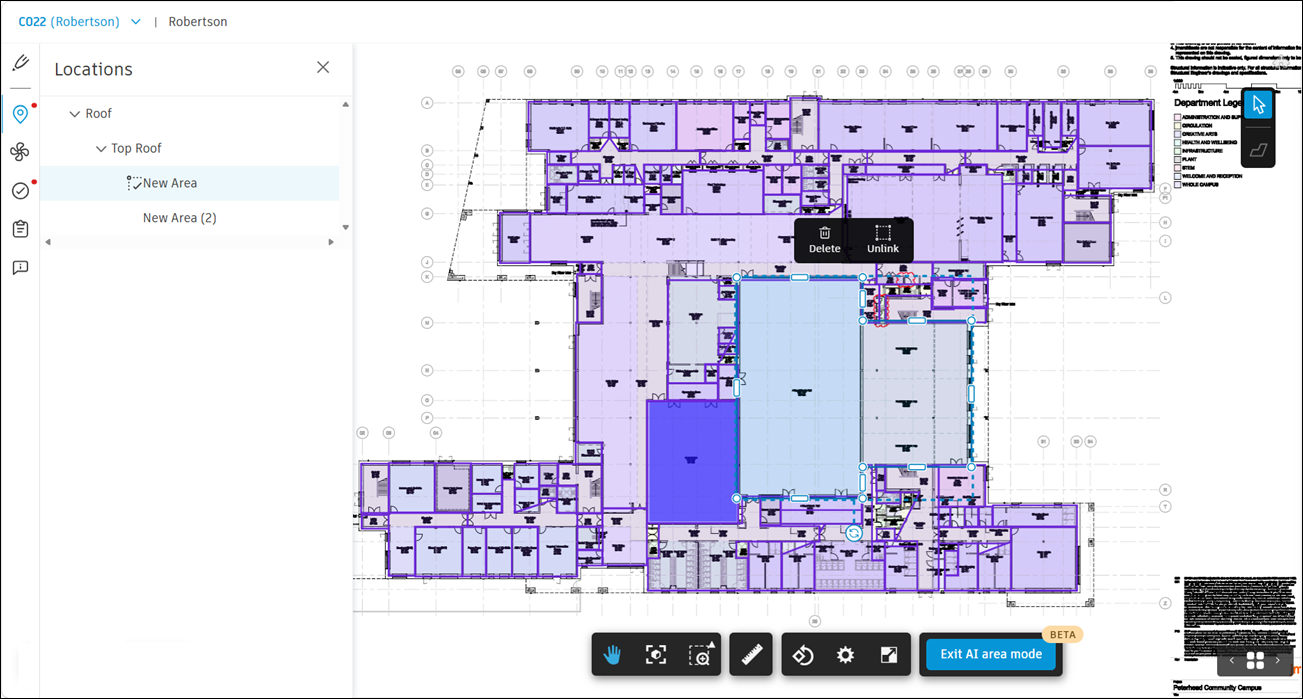
Note the following:
You can link only one polygon to one location at a time. You can’t link while more than one polygon is selected.
Once linked, a location area looks and behaves the same as any location area you drew manually, whether you’re in AI mode or not.
Run Detection Again
There’s no regenerate option. To get a new set of results, delete the current polygons, then run detection again.
- Select the polygons you want to remove, then select Delete.
- Select Generate areas to detect areas again.
Your location areas don’t change and are used as context to improve the new results.
Delete Polygons
To remove polygons, select one or more, then click Delete to delete them.
To delete a polygon, confirm when prompted. Deleting a location area removes the area and its link to the location, and it can’t be undone.
Unassign a Location Area
To fix linking without redrawing the location area:
- Select the location area.
- Select Unassign.
The polygon remains on the sheet but is no longer tied to a location.
Exit AI Mode
To exit AI mode, click Exit AI area mode at the bottom of the screen.
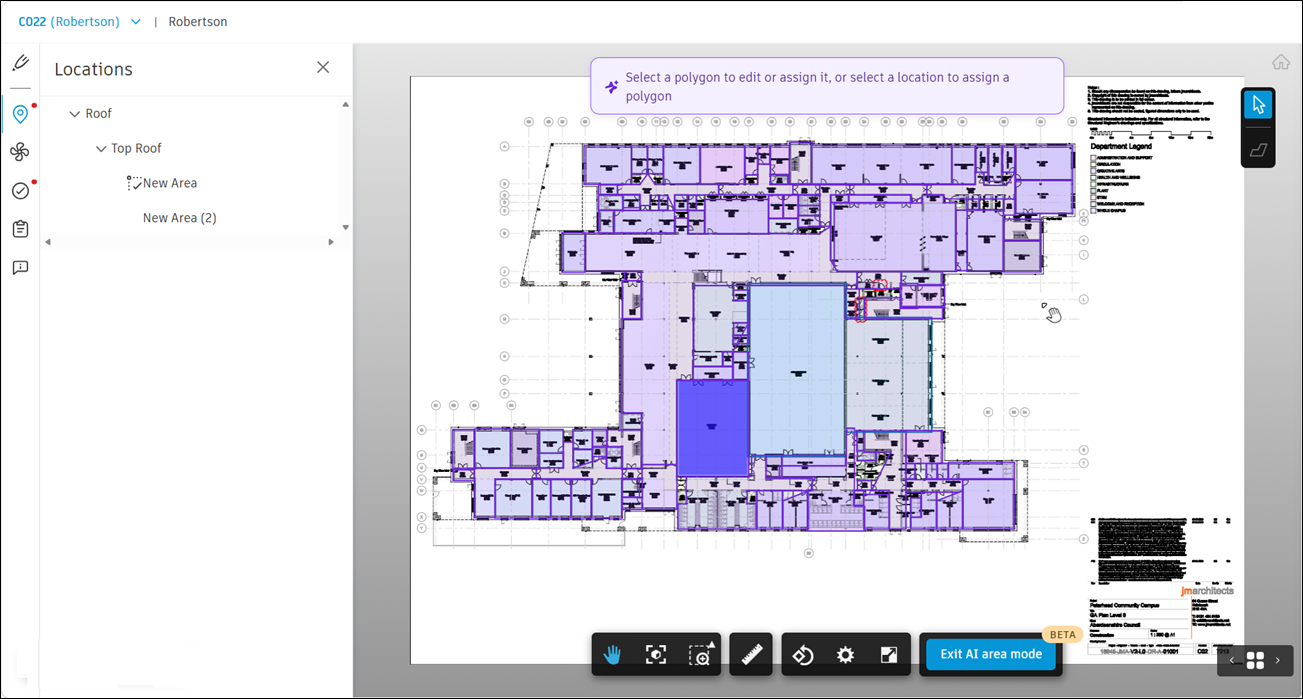
When you exit AI mode, only location areas appear on the sheet. Polygons are saved and hidden until you return.
When you re-enter AI mode, your latest results are restored, so you can pick up where you left off.