Locations on Autodesk Forma Mobile App (Android)
Use the Autodesk Forma mobile app to work with locations on your Android device.
View Locations on Mobile (Android)
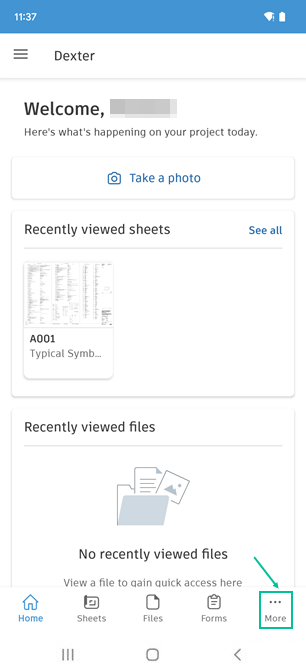
To access the Locations tool on Android, open a project, tap the More menu  and then tap Locations.
Tap the desired location or use the expand icon to get to the desired sub-location in order to access Issues, Forms, Assets, RFIs or Submittals associated with this location.
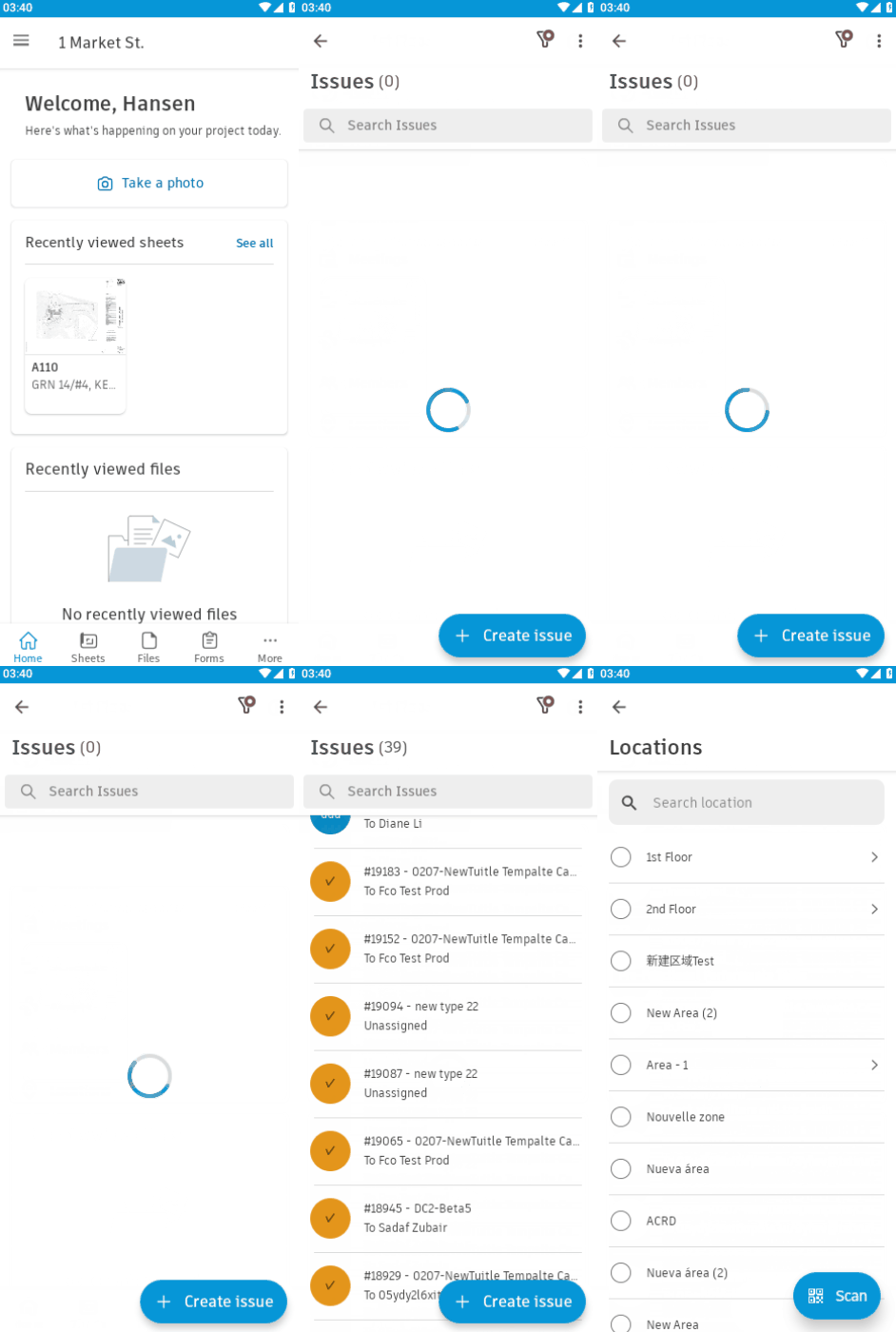
Add or Edit Locations on Mobile (Android)
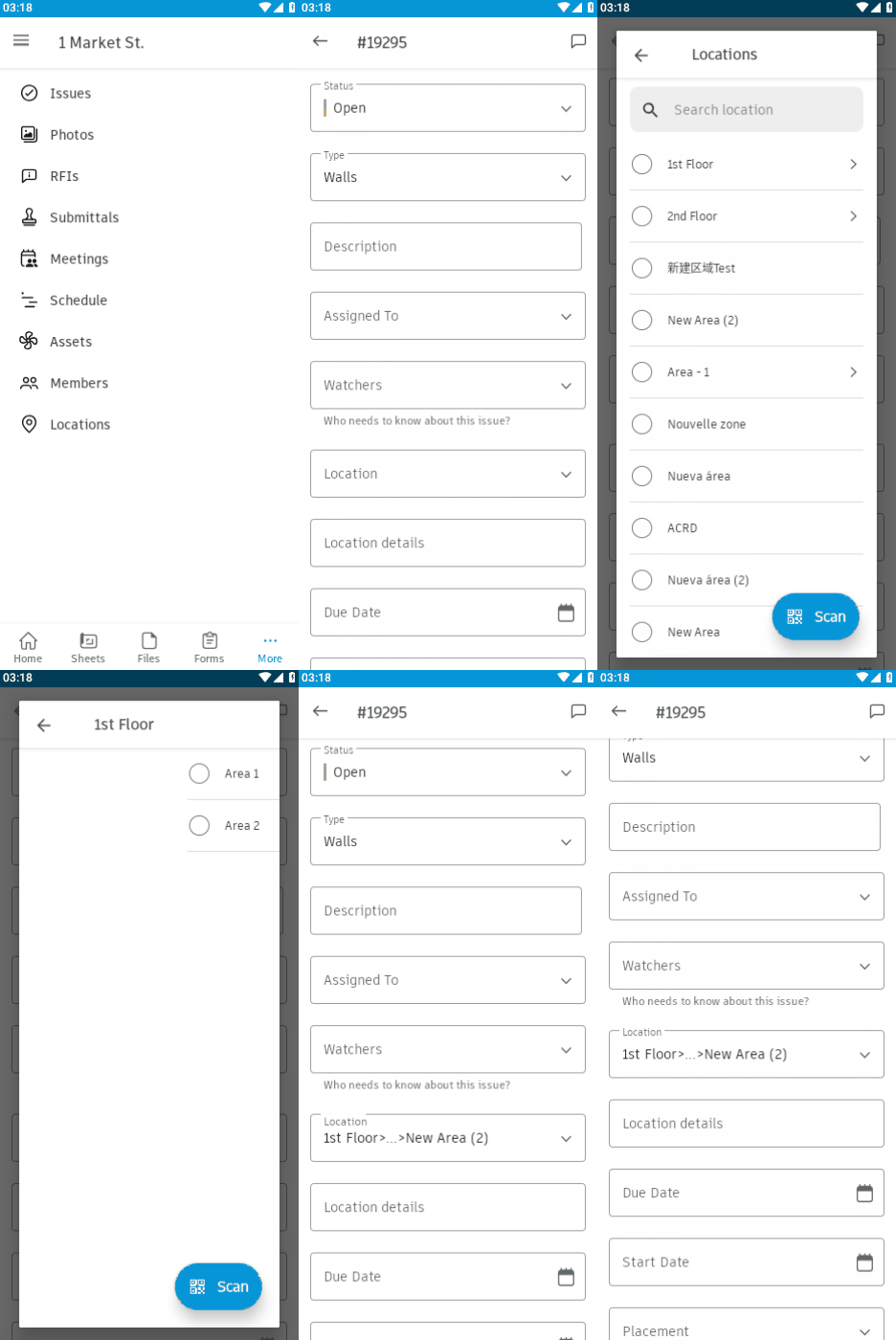
To add or edit a location:
Tap the relevant tool, such as Issues, RFIs, Submittals or Photos.
Tap the Location field and then tap the expand icon to get to the desired location.
The following example shows how to add a location to an issue.
Scan QR Code on Mobile (Android)
When a location is associated to a form, issue or asset, members can scan the created QR code to bring up those items in the Locations tab on mobile.
- Open the Autodesk Forma mobile app.
- Select a project.
- Tap the More menu .
- Tap Locations.
- Tap Scan.
- Scan the QR code.
See Link QR code to a Location for more information.