Project-Level File Attributes
Project administrators can manage system, custom and naming standard attributes at a project-level.
- Access Attributes Settings
- Navigate Attributes Settings
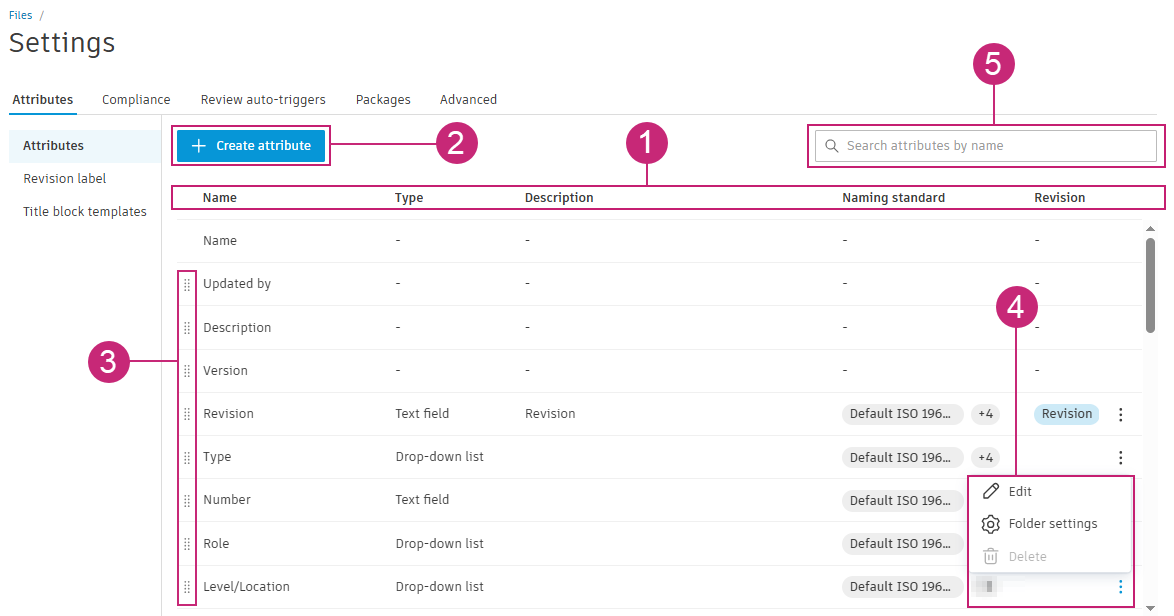
- 1. Attributes List Columns
- 2. Create Attribute
- 3. Set Default Attribute Order
- 4. Attribute More Menu Options
Access Attributes Settings
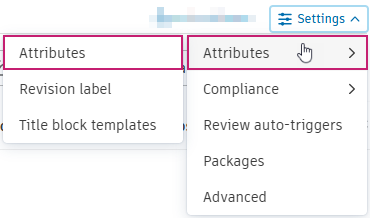
Click on the Files tool.
Click Settings.
Hover over Attributes.
Click Attributes.
Navigate Attributes Settings
1. Attributes List Columns
The Attributes setting lists all the attributes in the project with the following information:
| Column | Description |
|---|---|
| Name | The name of the attribute. |
| Type | The type of attribute: text field, date, drop-down list or large drop-down list. |
| Description | The description of the attribute. |
| Naming standard | If the attribute is part of a naming standard, the naming standard is named. If the attribute is part of multiple naming standards, hover over the number in the column for links to those naming standards. |
| Revision | If the attribute is used to display revision information next to the version number, a Revision badge will be displayed in this column. |
The listed attributes can be categorised in the following way.
System attributes
These are the default system attributes that are added to every project. System attributes can't be edited or deleted.
| System attribute name | Value displayed in the files list |
|---|---|
| Name | The name of the file or folder. For files in naming-standard-enforced folders, the Name attribute consists of the values of the Naming Convention attributes. |
| Description | The description of the file or folder. |
| Version | The current version number of a file. This may not be the latest version as a previous version may have been 'made current'. See Make Previous Version of File Current for more information. |
| Version added by | The member who added the current version of the file. |
| Markup | The number of unpublished and published markups on the supported file type. |
| Size | The size of the file. |
| Last updated | The time the file or folder was last updated. |
| Updated by | - The member's name if the file or folder was last updated by a member. - Forma system if the file or folder action is completed automatically by the system. This can include: Reviews: Add an unprocessed file to review which will automatically process file for viewing. Reviews: Review completion automatically copies files to a folder and updates the attributes if this is part of the workflow. Bridge: Files are synced and copied to the target folder. Building Connected: Files are imported or copied into a target folder. Library: Create a support files template which automatically adds the template file to folder. Cost Management: When the system creates an entity folder (for example, for a COR, OCO or Budget Payment Application), folder permissions are updated automatically. |
| Review status | Whether a file is In review, Approved or Rejected. See File Statuses and Reviews FAQ for more information. |
| Indicators | The following icons display when applicable. You can hover over the icon in the product for more details:  - Published. Either to the: - Published. Either to the: - Sheets tool in Build (PDF or RVT files); or - Specifications tool (PDF files only).  - Publicly shared. This will only appear if the file or folder is publicly shared and the public links to files is enabled in the Advanced settings. - Publicly shared. This will only appear if the file or folder is publicly shared and the public links to files is enabled in the Advanced settings. - Synced with Bridge to another project. This shows when the file or folder is shared and synced to another project. - Synced with Bridge to another project. This shows when the file or folder is shared and synced to another project.  - Synced with Bridge from another project. This shows when the file or folder is shared from another project. - Synced with Bridge from another project. This shows when the file or folder is shared from another project.  - Linked and shared to BuildingConnected. This shows when a folder or file is linked and shared to BuildingConnected. - Linked and shared to BuildingConnected. This shows when a folder or file is linked and shared to BuildingConnected.  - Linked and shared from BuildingConnected. This shows when a folder or file is linked and shared from BuildingConnected. - Linked and shared from BuildingConnected. This shows when a folder or file is linked and shared from BuildingConnected.  - Extracted to folders. This indicator shows when a PDF drawing file has had its pages and attributes extracted during the automated drawing extraction process. - Extracted to folders. This indicator shows when a PDF drawing file has had its pages and attributes extracted during the automated drawing extraction process.  - Added to file packages. This shows when a file has been added to a file package. - Added to file packages. This shows when a file has been added to a file package.  - Applied with review auto-trigger. This shows when folders have a review auto-trigger applied. - Applied with review auto-trigger. This shows when folders have a review auto-trigger applied. |
Custom attributes
These are attributes created specifically for the project and can be text fields, dates and drop-down list types. See the Create and Edit Custom Attributes help topic for more information.
Naming standard attributes
These are attributes which are part of a naming standard. The Naming standard column shows where a naming standards attribute has been added to.

See Edit naming standards for more information on naming standard attributes.
2. Create Attribute
Project administrators can create custom attributes at the project level, add them to folders and choose to set them as required as necessary.
See Create and Edit Custom Attributes for more details about how to create custom attributes.
3. Set Default Attribute Order
Project Administrators can change the order attributes for all project members (apart from the Name system attribute).
Hover over the relevant attribute.
Click
 and drag into the desired order.Note: Individual members can set their own attribute order as described in the Display Folder Attributes topic.
4. Attribute More Menu Options
Click the More menu  of an attribute for the following options.
Edit
Project Administrators can edit custom attributes after they've been created.
See Create and Edit Custom Attributes for more details about how to edit custom attributes.
When you edit or delete a custom attribute, a warning message displays if the attribute has been added to other folders. As a project administrator, you can make these changes, which will affect the other folders and associated subfolders that the attribute has been added to.
Folder settings
You can add most custom attributes to, or remove them from, any folder and choose to set them as required.
The following table shows how attributes can be added, removed and set as required in non-naming standard folders and naming standard folders:
| Attribute type | Non-naming standard folder | Naming standard folder | ||
|---|---|---|---|---|
| Added | Required | Added | Required | |
| Non-naming standard attributes | Can be added/removed | Can be set as required/not required | Can be added or removed | Can be set as required/not required |
| Naming convention attributes | Once added, can't be removed. | Can be set as required/not required | Always added | Always required |
| Related attributes (required in naming standard setting) | Once added, can't be removed. | Can be set as required/not required | Always added | Always required |
| Related attributes (optional in naming standard setting) | Once added, can't be removed. | Can be set as required/not required | Once added, can't be removed | Can be set as required/not required |
Click Folder settings.
If the attribute is already added to folders, those folders will already be selected.
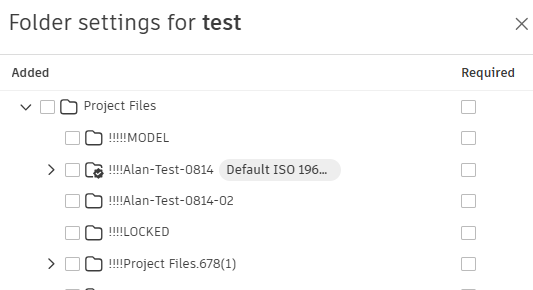
Add or remove the attribute as required by selecting or deselecting folders.
Select Required for any empty folders where you want the attribute value to be required. You can't select folders that contain files.
If you deselect the Required attribute after it was previously selected, and this action results in files in the holding area becoming compliant, these files will be automatically moved from the holding area to their respective folders.
Click Save.
By default, subfolders will automatically inherit their parent folder’s folder settings. This includes:
- Added or removed attributes
- Attributes set as required (does not apply to subfolders that contain files)
- Attributes set as optional