Changes to Viewing Files Uploaded by Desktop Connector FAQ
We have updated how and when many files uploaded to the Files tool through Desktop Connector are processed for viewing. This change is rolling out in phases, and the final phase is scheduled for 28 July 2026.
- What does ‘Processed for viewing’ mean?
- How is viewing in the Files tool changing when uploading files through Desktop Connector?
- What is not changing?
- Will any files uploaded through Desktop Connector be automatically processed for viewing?
- Can I still work with unprocessed files?
- What happens if I try to view unprocessed files on mobile devices?
- How can I process files for viewing on demand?
- How long will it take to process a file on demand?
- What does this mean for my workflows?
- When is my hub affected by these changes?
- Why are these changes being made?
- How has this approach been tested?
What does ‘Processed for viewing’ mean?
Files are checked in two stages when they are added to the Files tool.
Upload stage: Files are checked to confirm they can be added to the Files tool. For example, the system checks whether the file type is supported. Files that pass this stage are stored in their folders and can be managed with file actions. However, they can’t be viewed until they pass the processing stage.
Process for viewing stage: Files are checked to confirm they can be opened in the viewer. For example, the system checks whether the file is password protected, too large or corrupted. Files that pass this stage can be viewed normally.
These checks happen automatically for files added directly on web or mobile,. However, not all files added by using Desktop Connector are processed for viewing automatically.
How is viewing in the Files tool changing when uploading files through Desktop Connector?
Files uploaded through Desktop Connector are still uploaded and displayed in the Files tool. However, not all of them are processed for viewing automatically. Files remain available in Forma Data Management and can be processed on demand when your team needs them for review, coordination or publish workflows. If a file is not processed automatically, you can initiate processing for viewing when needed. See Process for viewing for more information.
What is not changing?
Files uploaded through Forma Data Management on web or mobile continue to be processed for viewing automatically.
Files published to Forma Data Management from Revit Cloud Worksharing continue to be processed for viewing automatically.
Your files are always stored in Forma Data Management. This change affects when processing happens, not whether the files are saved.
You can process any file on demand in Forma Data Management or Desktop Connector when your team needs it.
Will any files uploaded through Desktop Connector be automatically processed for viewing?
We have optimised our back-end services to support customer workflows. The following files will still be automatically processed for viewing when uploaded through Desktop Connector:
- Files used in a coordination space in Model Coordination will be automatically process for viewing so there won't be disruptions to the existing Model Coordination workflows.
- Files with extension .shared.dwg used in Civil3D > Revit Topology workflow.
- Navisworks (NWD) files.
- Certain PDF, DWG and RVT files in connected Forma workflows.
Can I still work with unprocessed files?
You can still work with unprocessed files in desktop apps. You can also take certain actions on the web, such as moving, copying and deleting files. The following actions require processing for viewing:
- Viewing
- File comparison – Publish to Build Sheets
- Markups
What happens if I try to view unprocessed files on mobile devices?
Files must be processed for viewing to be viewable on iOS and Android devices. When a Desktop Connector user intends to add files for mobile access, they can use the Process for viewing action in File Explorer. Any user with access to the files in Forma Data Management on web can also select the Process for viewing option to process the files for viewing.
How can I process files for viewing on demand?
Once your hub has been updated with these changes, you can process files for viewing in the following ways:
In Desktop Connector
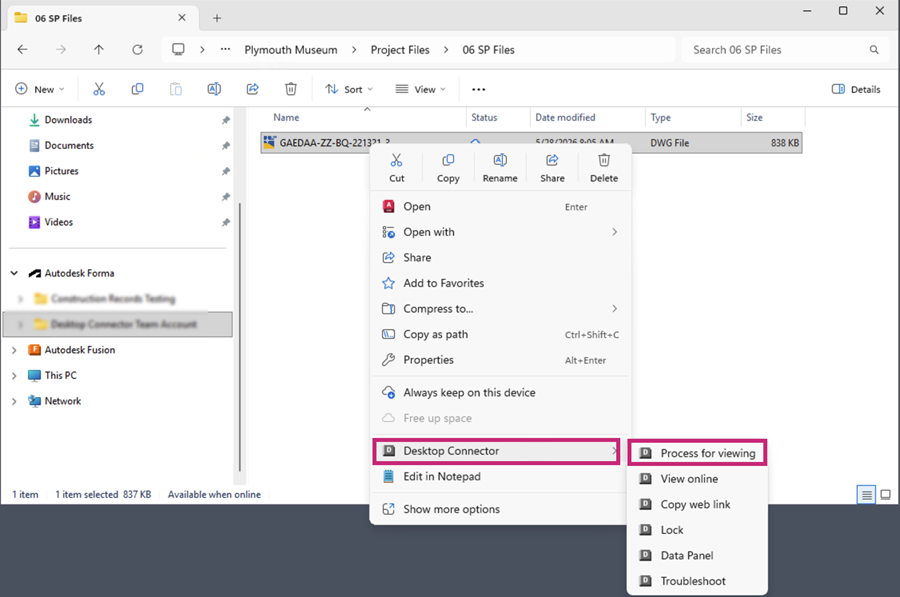
After uploading files using Desktop Connector v16.15 or later, members can:
Select one or multiple files in File Explorer
Right-click and hover over Desktop Connector menu option
Select Process for viewing to process the files for viewing on web or mobile.
This option applies to files only. Folders are not supported.
In the Files tool on web
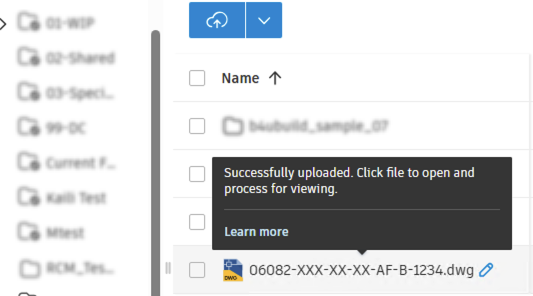
When you click on an unprocessed file, processing will start. You can click on the file again to enter the viewer to view the file.
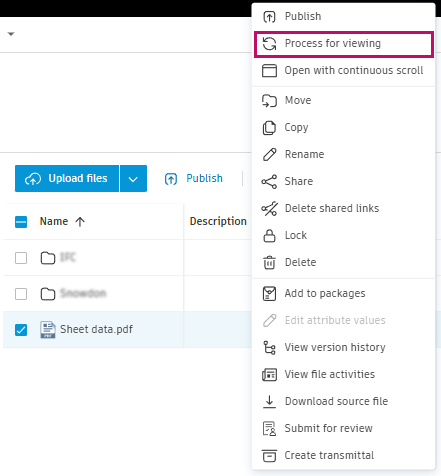
You can also bulk process files by selecting multiple files, then clicking Process for viewing. See Process for viewing help topic for more information.
How long will it take to process a file on demand?
Processing time depends on file type and complexity. For example:
- Most PDF files are ready within one minute
- About 80% of DWG files process in under two minutes
What does this mean for my workflows?
- Upload, save and edit from Desktop apps: Upload from Desktop Connector is unchanged. You don’t need to do anything extra to save files in Forma Data Management.
- View files on web: The file is stored after upload. If it isn’t processed yet, the first member who tries to open the file in the Files tool on web will trigger processing. They can also choose the Process for viewing file action.
- Field viewing on iOS or Android: Files must be processed for viewing for mobile. After an upload using Desktop Connector is completed, the user can select Process for viewing in Desktop Connector File Explorer, or in the Files tool on web. Files uploaded directly on web and mobile will be automatically processed for viewing.
- Reviews in Forma Data Management: Files selected at the start of a review workflow are processed for viewing immediately.
When is my hub affected by these changes?
This change started rolling out in September 2025. Autodesk gradually rolled it out to customers, and all affected customers were notified before each phased rollout. The final phase is scheduled for 28 July 2026.
There is no action you need to take. The new processing options appear when your hub is updated.
Why are these changes being made?
Until September 2025, nearly all files uploaded to the Files tool for design, preconstruction and construction workflows were processed for viewing automatically. That behaviour supported key AEC workflows, such as design review, coordination and publishing for construction.
During some project phases, teams often save work-in-progress versions to the Files tool using Desktop Connector. These files are not always ready for review or collaboration, and processing every version by default can slow down access to files that truly need to be viewed.
This change gives teams more flexibility and better performance when they manage work-in-progress files. It also keeps automated processing for files uploaded directly to the Files tool on web and mobile.
How has this approach been tested?
A select set of Forma Data Management users were involved in a beta testing phase and provided positive feedback on this approach. Since we have rolled out this change to a large number of Forma Data Management customers already, we have further validation that this approach supports Forma customer workflows. In addition, Autodesk Fusion has always embraced an on-demand processing model, giving users the flexibility to upload files without automatically triggering viewing workflows.
Fusion users have shown us that this approach works. It's fast, flexible and built around real workflows that improve performance and de-clutter queues. Now, Forma Data Management users can benefit from the same thoughtful design, one that enables them to:
- Stay in control of when files are ready for review or collaboration
- Reduce wait times for files that truly need to be viewed
- Work more efficiently, especially during iterative design processes, by constantly saving the design and creating multiple WIP versions.