Process for Viewing
Your files are automatically checked in two stages when they are added to the Files tool on web. Files have to pass the first upload check to move to the process for viewing check.
| Stage | What’s Checked | Common Reasons for Failure | What Happens If Failed | What Happens If Successful |
|---|---|---|---|---|
| Upload | Files are checked for: - File type support - Network connectivity - Server availability |
- Unsupported file type - No network connection - Server issues |
Files can’t be added to the Files tool. Click Retry to try again if network or server issues are resolved. |
Files appear in their folders and can be managed using file actions. However, files can’t be viewed until they pass the Process for viewing stage. |
| Process for viewing | Files are checked to ensure they can be opened in the viewer. | - Password protected files - PDFs exceeding 2,000 pages - Files over 5 TB - Corrupted files |
Files can’t be: - Viewed in the viewer - Compared - Published to sheets - Marked up - Exported Workaround: PDFs can be viewed using Open in browser or shared for download. |
Files can be used and viewed normally. |
The Process for Viewing action is used specifically for files that have passed the upload stage but haven’t yet been processed into a web‑viewable format (for example, for viewing in the viewer, thumbnails). This includes files uploaded using Desktop Connector.
- Desktop Connector File Uploads
- Process Files Uploaded With Desktop Connector On Demand
- Processing Errors
- Mobile Access Requirements
Desktop Connector File Uploads
Most files uploaded using Desktop Connector do not process for viewing automatically. This allows the files to upload and sync quicker to web where you can process files on demand.
The following files will be processed for viewing automatically when uploaded using Desktop Connector:
Files used in Model Coordination spaces
Files with extension
.shared.dwgfor Civil 3D workflowsNavisworks (NWD) files.
Certain PDF, DWG and RVT files in connected Forma workflows.
See Changes to Viewing Files Uploaded by Desktop Connector FAQ for more information about changes to viewing files uploaded using Desktop Connector.
Process Files Uploaded With Desktop Connector On Demand
You can process files uploaded by Desktop Connector on demand either in Desktop Connector or in the Files tool.
Process for Viewing in Desktop Connector
After adding files to Desktop Connector v16.15 or above, you can:
Select one or more files in File Explorer.
Right-click and hover over the Desktop Connector option.
Click Process for viewing to process the files for viewing on web.
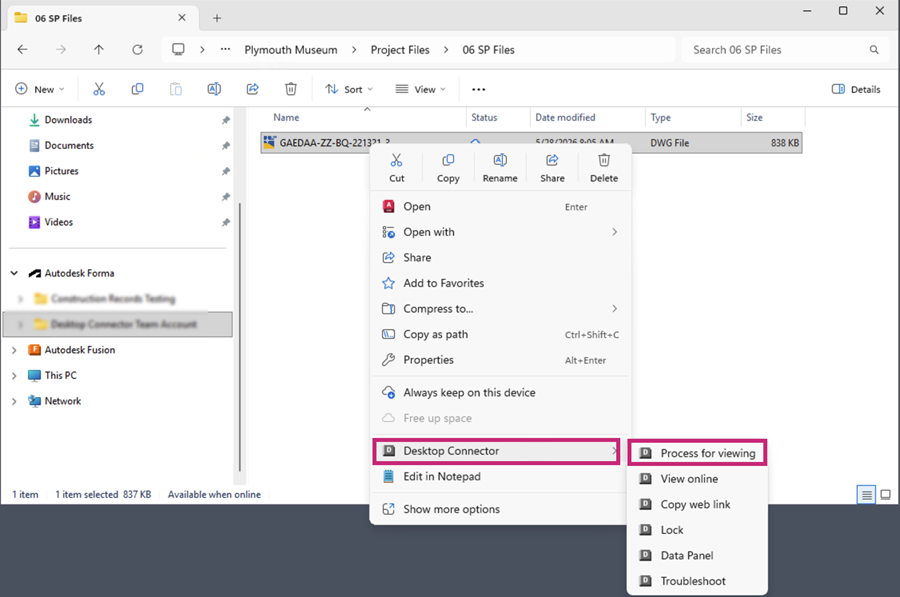 Note: This option applies to files only, folders are not supported.
Process for viewing in the Files tool
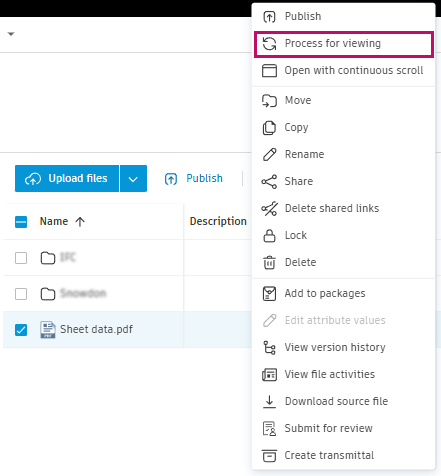
Process a single file in the files list
You can choose either of the following options to process a single file:
- Right-click a file from the files list and select Process for viewing.
- Click a file to open the viewer. The file will start processing in the viewer. Once processed, click the refresh icon to view the contents of the file.


Process multiple files in the files list
Select multiple files from the files list and click Process for viewing.
Processing Errors
You can encounter processing errors when uploading files on web or trying to process Desktop Connector files on demand.

Look for these indicators:
- Warning icon next to the file name
- Error details in tooltip when you hover over the warning icon
- Processing error message in the upload dialog
Mobile Access Requirements
Files which aren't processed for viewing won't display on mobile devices.
To view unprocessed files on mobile devices:
- Process files on web or in Desktop Connector.
- Wait for processing to finish.
- Sync to your mobile device.