View and Manage Transmittals
The Transmittals list displays created transmittals subject to the following:
Project administrators can view all transmittals.
Project members can view transmittals that they have sent or received.
See the Transmittal Permissions help topic for more information about permissions.
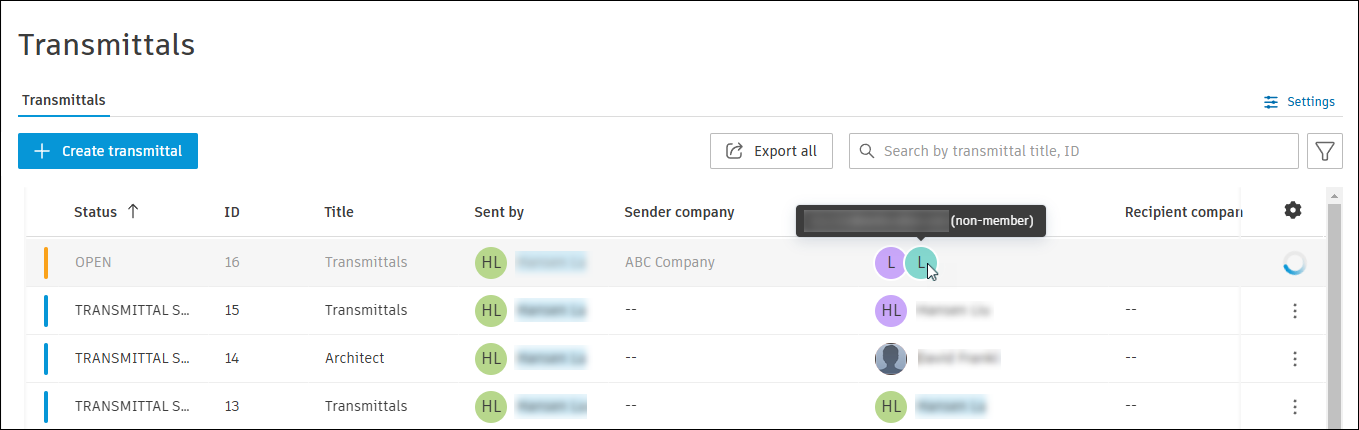 Note: The following sections detail how to interact with the transmittals list, and view and manage transmittals from the Transmittals tool.
- Transmittal Attributes
- Search and Filter Transmittals
- Individual Transmittal Options
- Export Transmittals Report
- Open and View a Transmittal
Transmittal Attributes
There are attributes heading the transmittal list to give you more information about each transmittal.
| Attribute | Description |
|---|---|
| Status | - OPEN – The transmittal is still being prepared before sending (can't be opened or viewed). - TRANSMITTAL SENT - Confirms the transmittal is sent and ready to view. - VOID - Something has gone wrong when the transmittal was being created. For example: - The transmittal creator no longer has permission to one or more folders. - An error occurred (including database or network issues). A voided transmittal can no longer be accessed or opened. If a transmittal becomes VOID, you can create a new transmittal using the same documents, folders and recipients as the previous one. This ensures that all intended recipients still receive the required files. |
| ID | A unique ID for each transmittal. |
| Title | The title of the transmittal. |
| Sent by | The sender of the transmittal. |
| Sender company | The sender company, if completed in the member's details. |
| Recipients | The recipients of the transmittal. Hover over the icon of a non-member to show their email address and confirmation that they are a non-member. |
| Recipient company | The companies of recipients who actually received the transmittal. |
| Viewed | The number of recipients who have viewed the transmittal. |
| Downloaded | The number of recipients who have downloaded the transmittal. |
| Created on | The date the transmittal was created. |
| Files | Number of files in the transmittal. |
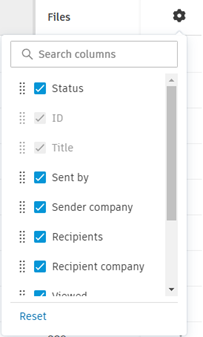
You can click the cog icon to reorder, hide and show attributes.
Search and Filter Transmittals
To refine the list of transmittals, click the filter icon:
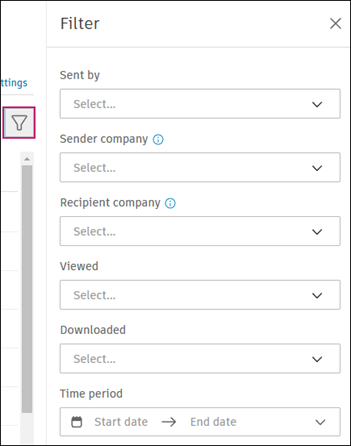
You can filter by:
| Filter | Description |
|---|---|
| Sent by | Filter by the sender of the transmittal. |
| Sender company | Filter by the sender's company. Only available for transmittals with sender company data. |
| Recipient company | Filter by the recipient's company. Only available for transmittals with sender company data. |
| Viewed | Filter by viewing status: - Not viewed yet - Viewed by some recipients - Viewed by all companies (at least one member from each company) - Viewed by all recipients |
| Downloaded | Filter by download status: - Not downloaded yet - Downloaded by some recipients - Downloaded by all companies (at least one member from each company) - Downloaded by all recipients |
| Time period | Filter by creation date using a single date or a date range. |
Click Apply when you've chosen your filters.
Individual Transmittal Options
Click the More menu  next to the relevant transmittal in the list.
Download ZIP file(s)
Download a local ZIP copy of all files in the transmittal.
You have a maximum of 89 days after a transmittal is created to download the prepared ZIP file. After 89 days, you'll need to prepare the ZIP file again by opening the relevant transmittal and clicking Try again to prepare ZIP file(s).
Ensure the browser is updated to the latest version.
When downloading, you may be prompted to make sure that your browser allows pop-up dialogue boxes.
If there are more than 1,000 files to be downloaded in one transmittal, enable pop-ups for Autodesk sites to allow multi-ZIP downloads.
Note: You can download a transmittal up to a maximum size of 30 GB and 4,000 files. Contact customer support for assistance downloading more files from one transmittal.
Export report
Export an XLSX report of the transmittal which includes the following sections:
| Cover page | Files* | Recipient action statuses |
|---|---|---|
| Report generated | Name | Name |
| Transmittal created | Description | Recipient type |
| By | Path | |
| ID | Version | Company |
| Title | Review status | Role |
| Total files | Last updated | Received |
| Status | Updated by | Viewed |
| Message | Downloaded | |
| Sender | ||
| Recipients |
* Files shows all the files included in the transmittal along with the default attributes and more attributes if the creator added an attribute group to the transmittal.
Add recipients
Project administrators and the transmittal sender can access this option. Project members can also access this option when Allow project member recipients to add more project members to this transmittal is selected in Recipient settings.
See Recipient Settings and Add Recipients to Sent Transmittals for more information.
Recipient settings
Choose whether project member recipients of this transmittal can see all other recipients or only themselves. Also, you can choose whether to allow project member recipients to add more project members to this transmittal. See Recipient Settings and Add Recipients to Sent Transmittals for more information.
Export Transmittals Report
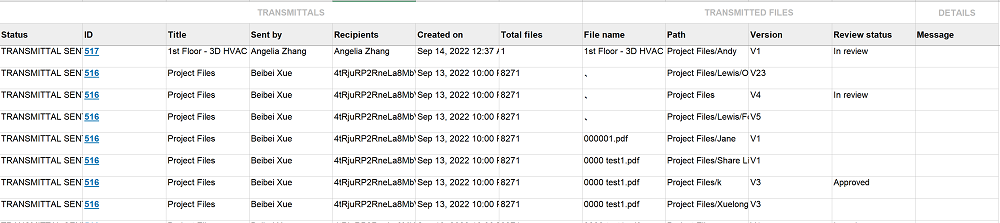
You can export an XLSX report of all or selected transmittals, which includes details of the transmittals and the transmitted files.
Click the Transmittals tool to access the list of transmittals.
Click Export all to export a report for all transmittals, or select specific transmittals and click Export (x)).
In the right panel, edit the title of the report if necessary.
Click Export.
You'll receive an email with a link to download the report when it's ready. The report includes the following column attributes shown below with example values:
Open and View a Transmittal
If members are sent a transmittal, they can open it from the email notification to access the transmittal in Data Management. Members can also access the Transmittal tool and click a transmittal directly from the list to open the transmittal details.
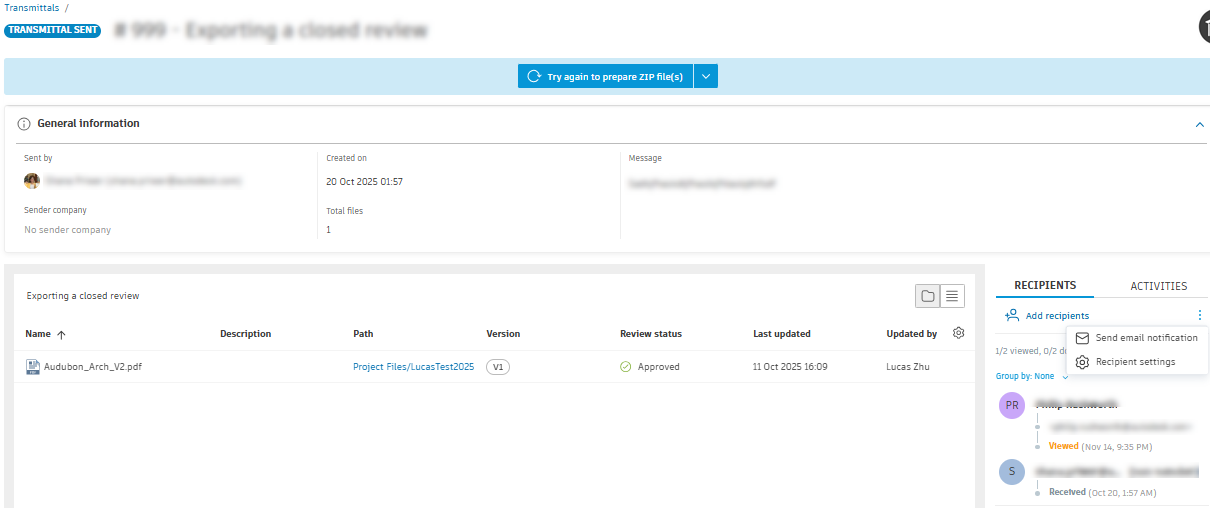
If non-members are sent a transmittal, they will need to verify their email address, enter a verification code and enter their details to access the transmittal and download files. See Transmittals Notifications for more details.
You can review the General information to see the sender, sender company, creation date and time, total files and any message included in the transmittal.
All files added to a transmittal will have the following attributes by default:
Name
Description
Path
Version
Review status
Last updated
Updated by
If the transmittal had an attribute group added, those attributes will also be displayed.
Note: The Description attribute only populates the value for transmittals created after 2 March 2022. This value is taken from the description column in the file list.If necessary, click a file to open it in the viewer.