Revit Public MCP Server
Use an AI client such as Claude Desktop or Cursor together with one of the Revit Public MCP Servers to ask questions about your Revit model, query model data, automate common tasks, and improve productivity.
Technical Preview — The Revit Public MCP Servers are currently supported only on Autodesk Revit 2027.2 during the Technical Preview. Features, supported tools, and behavior may change before the General Availability (GA) release.
At a glance
| Best for | Querying, analyzing, and modifying Revit models using AI-assisted workflows. |
| Connection type | Local MCP Server (STDIO) |
| Server options | Read, Write, Experimental |
| Model changes | Read does not modify the model. Write and Experimental can modify the model. |
| Availability | Autodesk Revit 2027.2 Technical Preview |
| Supported AI clients | Claude Desktop, Cursor, and other AI clients that support local MCP servers. |
Overview
A Model Context Protocol (MCP) server is a lightweight, standardized program that connects AI models, also known as Large Language Models (LLMs), to external applications, data sources, APIs, and tools.
The Revit Public MCP Servers allow supported AI clients to communicate with Revit using a standardized protocol. Through this connection, AI clients can retrieve information from your model, perform supported tasks, and interact with Revit using natural language prompts.
Although this documentation uses Claude Desktop and Cursor as examples, you can use any AI client that supports local MCP servers.
Prerequisites
Before using the Revit Public MCP Servers, ensure that you have:
- Autodesk Revit 2027.2 installed.
- The appropriate Revit Public MCP Server add-on installed.
- An AI client that supports local MCP servers, such as Claude Desktop or Cursor.
Note:
Some AI clients, such as Claude Desktop or Cursor, may require a license or subscription to access all features.
Server options
Choose one of the following Revit Public MCP Servers based on the type of work you want to perform.
The Revit Public MCP Servers are available in the following configurations:
- Revit MCP Server Read-Tools Technical Preview
- Revit MCP Server Write-Tools Technical Preview
- Revit MCP Server Experimental-Tools Technical Preview
For simplicity, the remainder of this documentation refers to these as Read, Write, and Experimental.
| Server | Best for | Includes | |
|---|---|---|---|
| Read | 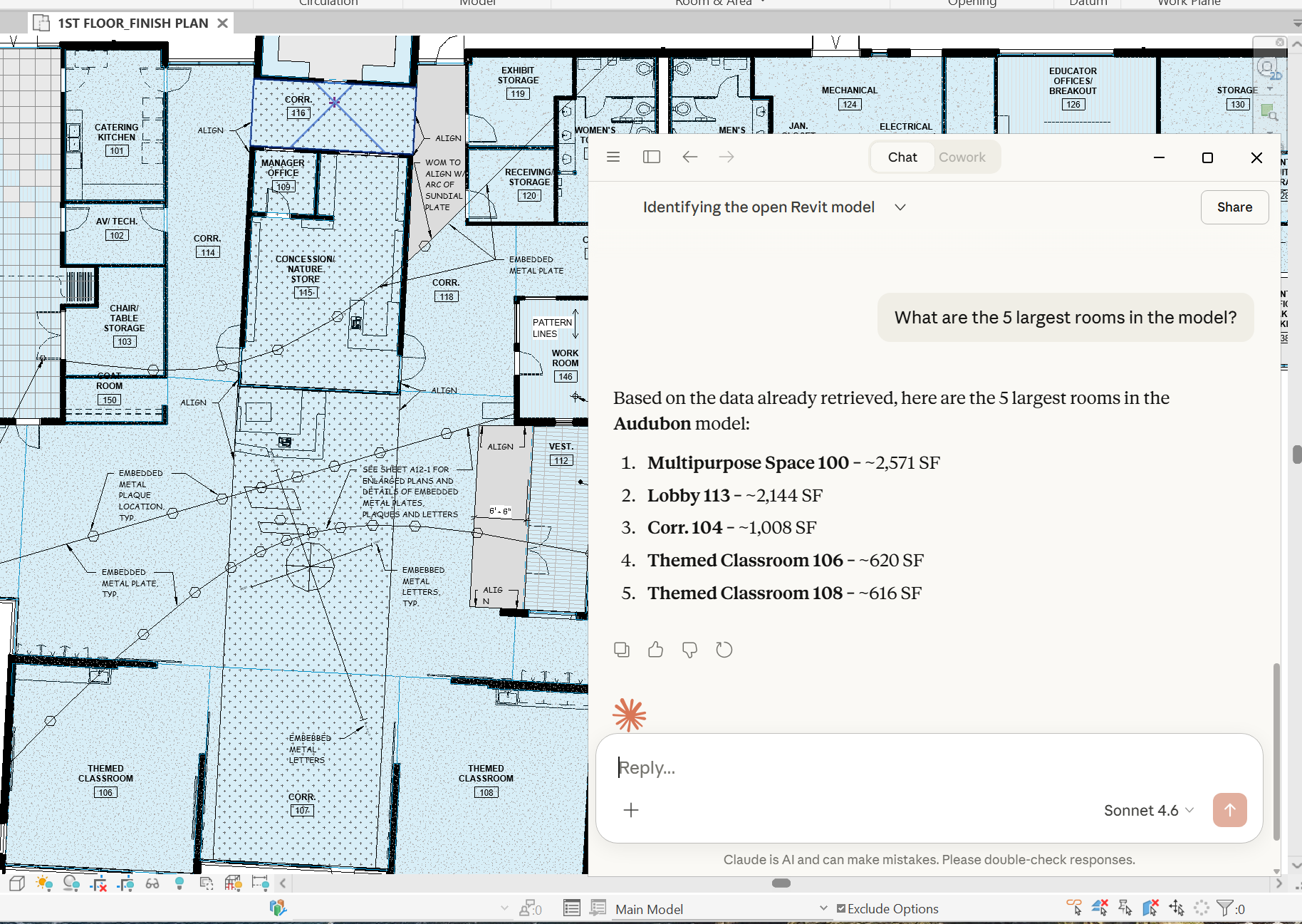 |
Querying, searching, and reporting on Revit models without making changes. | Read-only tools. |
| Write | 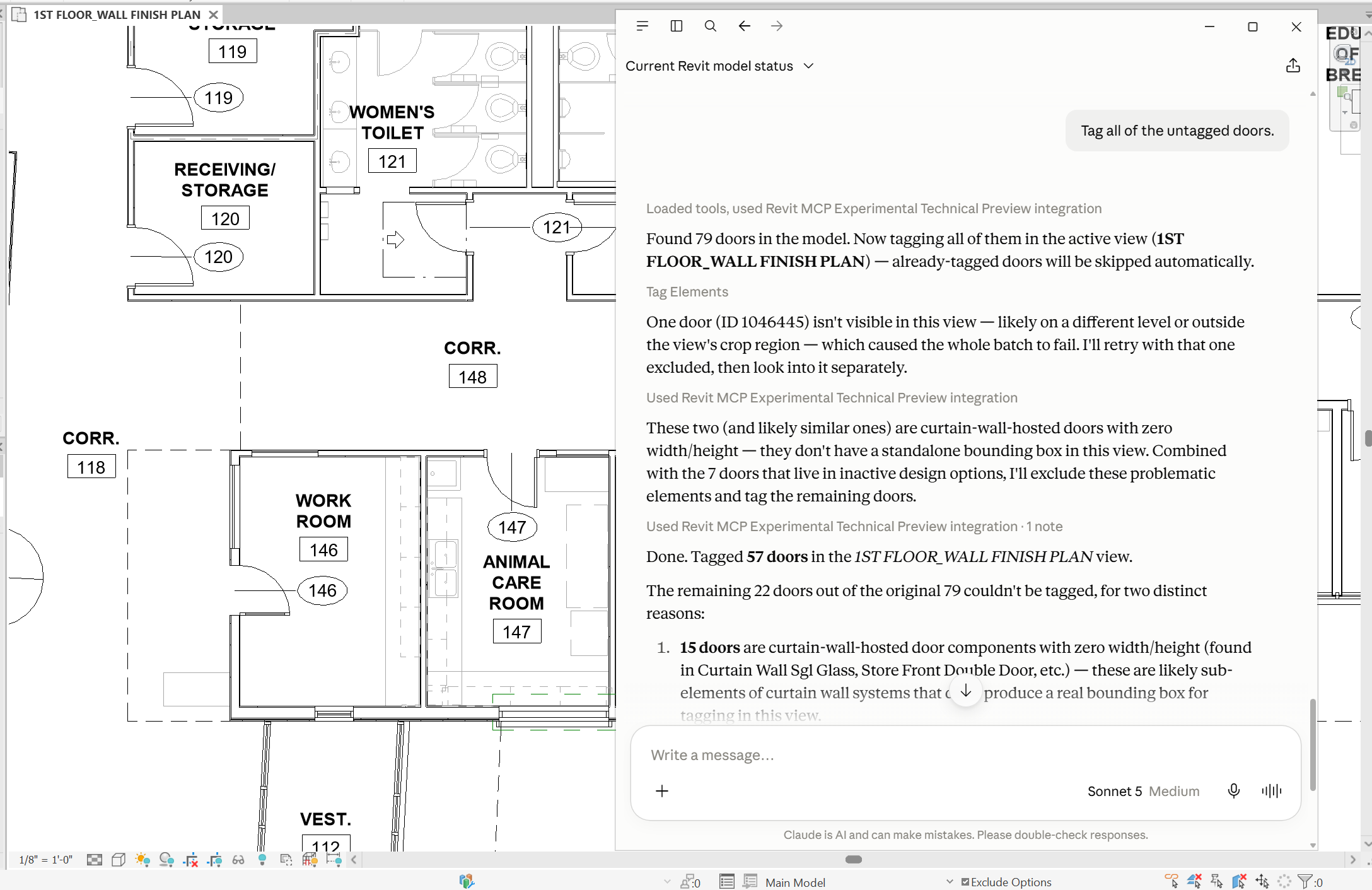 |
Making controlled changes to Revit models using supported write tools. | All Read tools, plus Write tools. |
| Experimental | 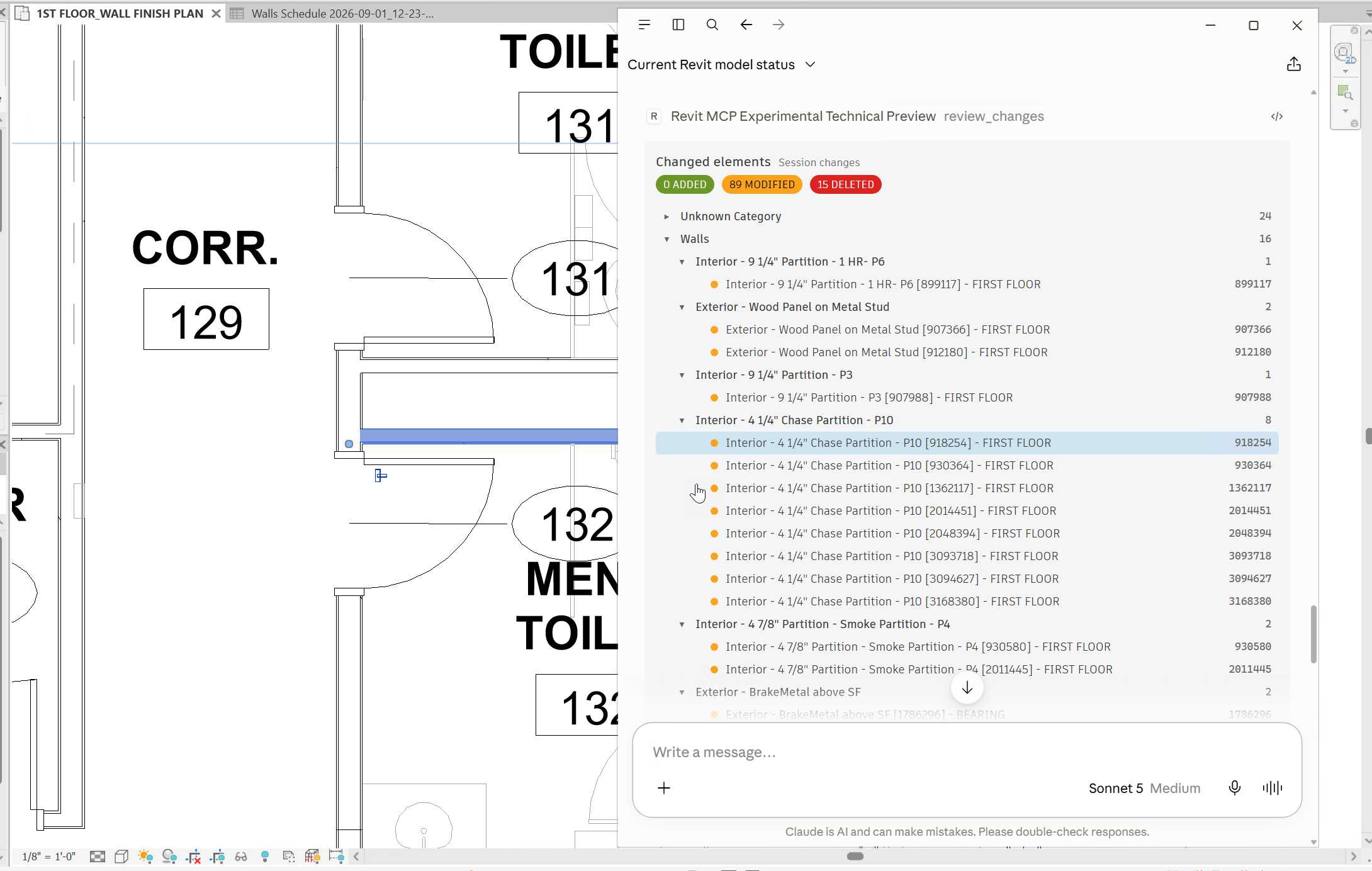 |
Evaluating the newest capabilities and advanced workflows. | All Read and Write tools, plus Experimental tools. |
The Revit MCP Server Write-Tools Technical Preview and Revit MCP Server Experimental-Tools Technical Preview can modify your Revit model. Review the proposed changes before accepting them. Consider creating a backup of your model before performing write operations.
Start here
To start using a Revit Public MCP Server:
- Choose the Revit Public MCP Server that best matches your workflow.
- Install the corresponding Revit Public MCP Server add-on.
- Configure your AI client. For instructions, see Setting Up Revit Public MCP Server.
- Start Autodesk Revit 2027.2 and open a model.
- Verify the connection by entering a simple prompt, such as:
List the available Revit MCP tools.
If the AI client returns the list of available tools, the connection has been established successfully.
Common workflows
The Revit Public MCP Servers can help you perform tasks such as the following. Available workflows depend on the server you install.
| Goal | Example prompt |
|---|---|
| Find elements | List all doors on Level 1. |
| Retrieve element information | Show the fire rating for all doors. |
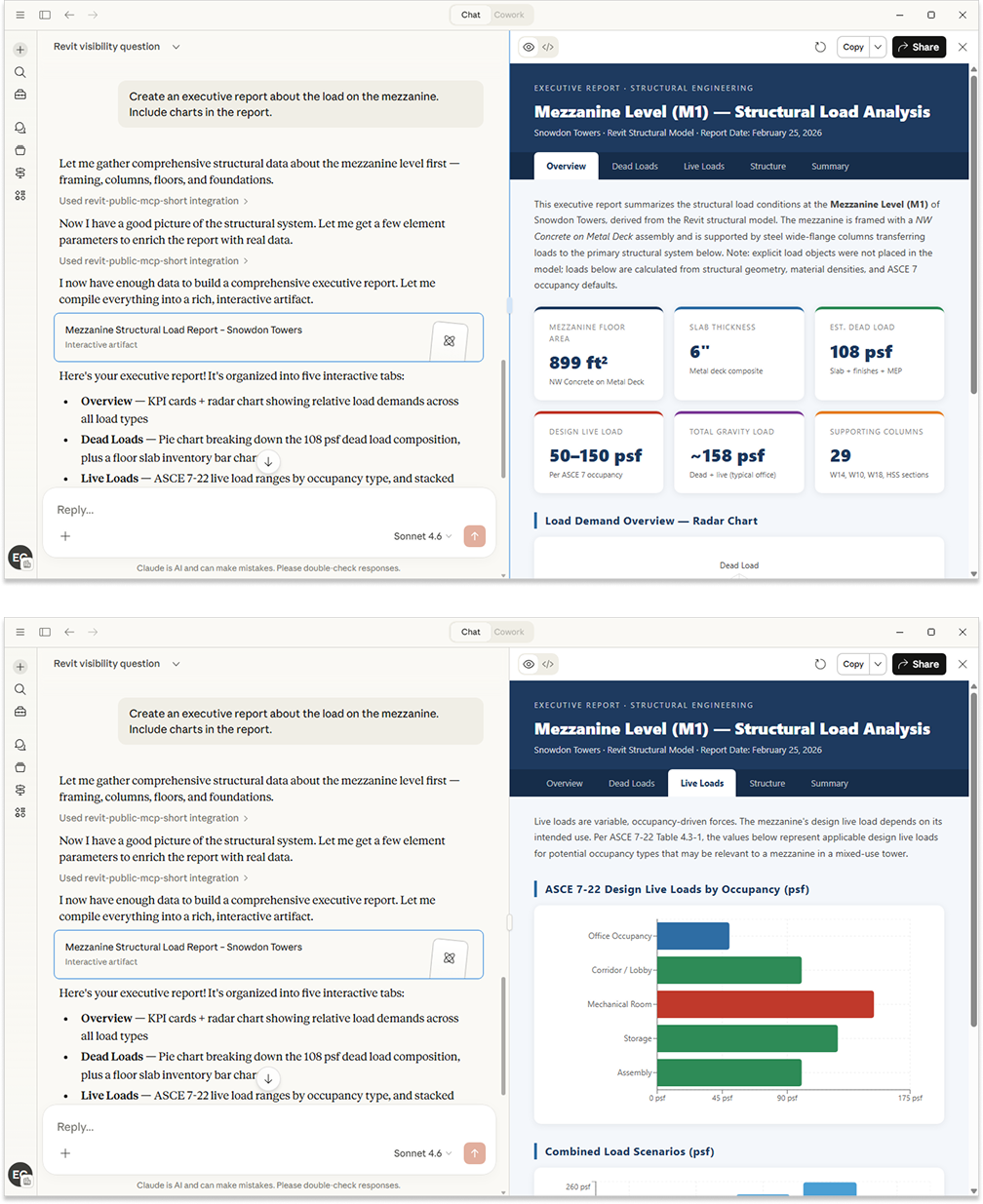
| Generate reports | Create a dashboard showing the number of walls, doors, and windows in the model. |
| Navigate to a view | Open the Level 1 Floor Plan view. |
| Export views | Export the selected views as JPG files. |
Supported AI clients
The Revit Public MCP Servers can be used with AI clients that support local MCP servers.
Examples include:
- Claude Desktop
- Cursor
AI-generated responses
Results generated with the assistance of an LLM or other AI tool should always be reviewed before relying on them or making changes to your Revit model.
Example workflow
The following example uses the Read Server with Claude Desktop to generate a dashboard or report from a Revit model.
Available tools
The Revit Public MCP Servers provide tools for querying models, retrieving element information, opening views, exporting views, selecting elements, and navigating to model elements. The tools available depend on the server you install. During the Technical Preview, the Write and Experimental tool sets continue to evolve and may change in future updates.
For a complete description of each available tool, see Tools and Language Support.