Rendering a Cloud tutorial
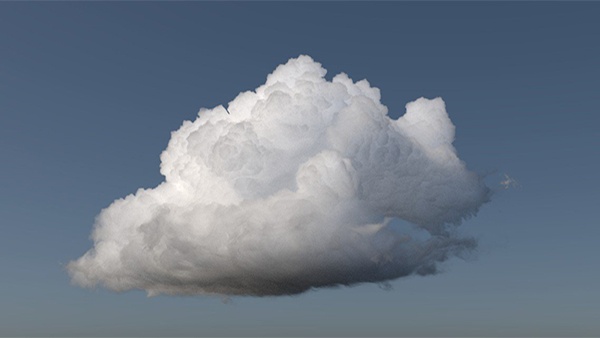 |
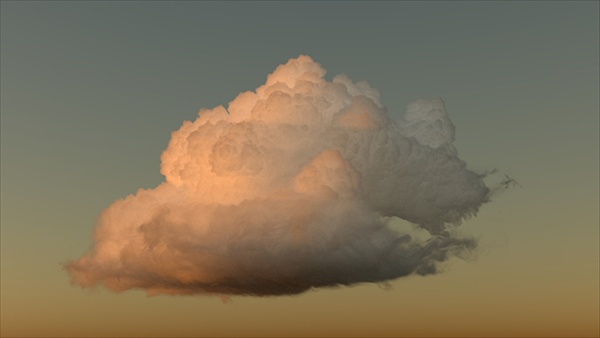 |
This tutorial gives a step-by-step approach on how to render the Walt Disney Animation Studios Cloud Data Set. The VDB files contained within the download are heterogeneous volumetric cloud models containing density data. We will render this VDB data using an Arnold Volume and shade it using a Standard Volume shader. We will light the scene using a Physical Sky connected to the color of a Skydome Light.
A scene file can be downloaded here.
Data
- Start off by downloading the cloud volume data from the link above and unzipping the contents of the file. You should see various VDB files of varying sizes, reference images, and a
README.txtfile.
Arnold Volume
- Create an Arnold Volume and under Filename open the file 'wdas_cloud_sixteenth.vdb'. This is the lowest-resolution version of the cloud data and will therefore load more quickly initially (we will replace it with the full-resolution VDB file at the end).
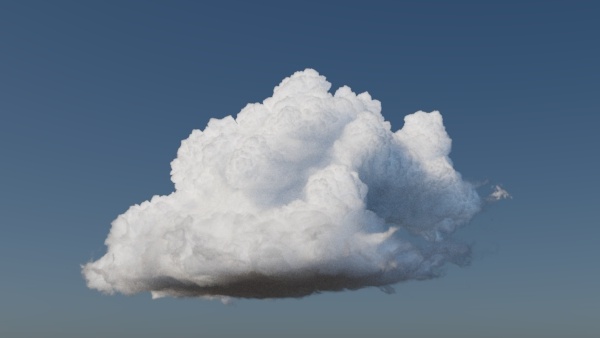
- Increase the Step Scale to make the volume softer with less scattering. A Step Size of zero means that the voxel size will be used as the step size. A recommended value for Step Scale is between 10 and 20 for this dataset.
 |
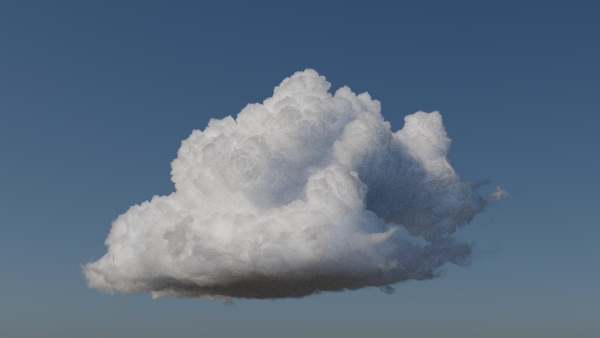 |
| 1 | 20 |
Lighting
- Connect a Physical Sky to the color attribute of a Skydome Light. Adjust the Elevation and Azimuth of the Physical Sky to get an interesting lighting effect. Alternatively, you can just rotate the Skydome Light in the Y direction.
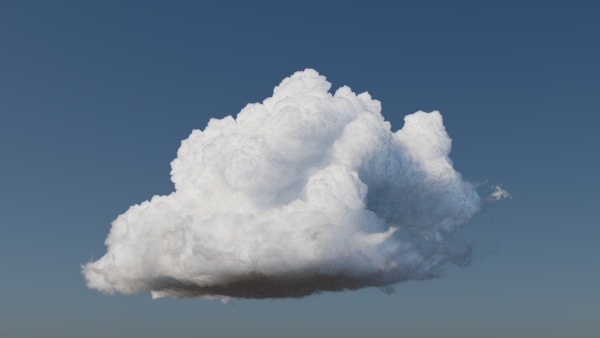 |
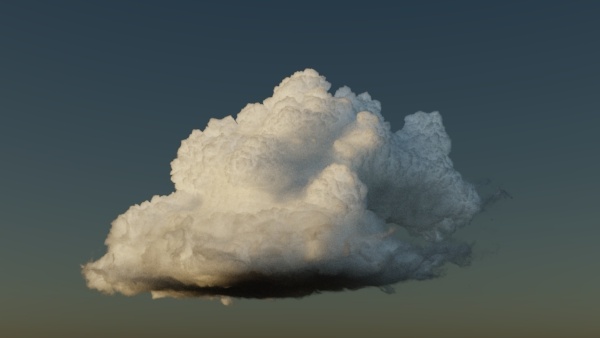 |
| Elevation: 45 (default) | Elevation: 10 (sunset) |
- In MAXtoA connect the Physical Sky to the Environment Map (Environment and Effects window (8)).
Ray Depth
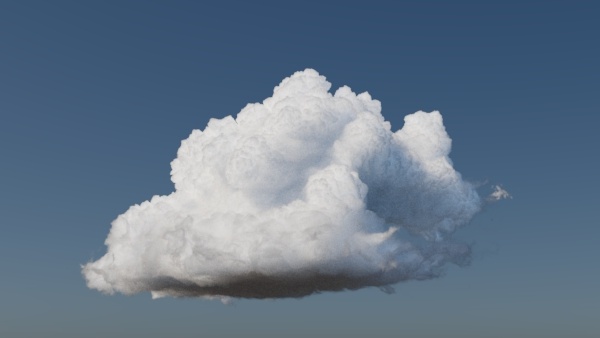
- Before you start rendering the volume, increase the Volume Ray Depth in the render settings to a high value like 50 (remember to increase the Total Ray Depth to 50). This is key to achieving a realistic cloud look, as the light will bounce multiple times inside the volume, making it appear much brighter.
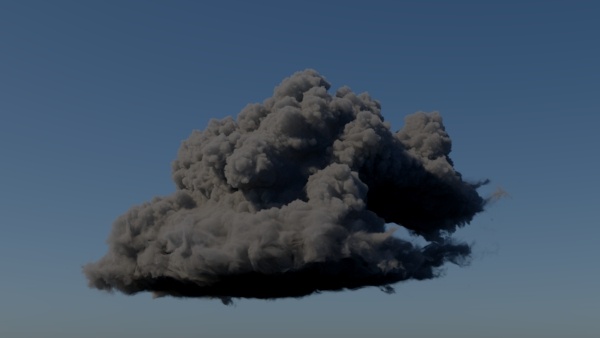 |
 |
| 0 (default) | 10 |
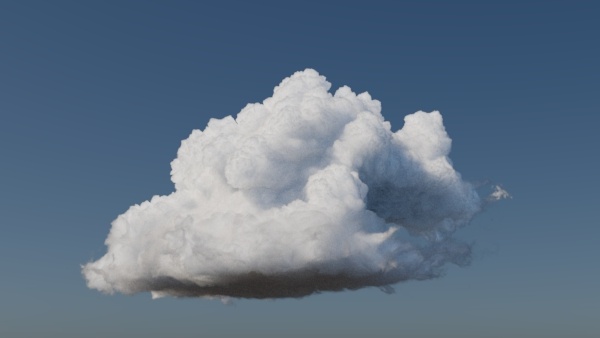 |
 |
| 25 | 50 |
Standard Volume Shader
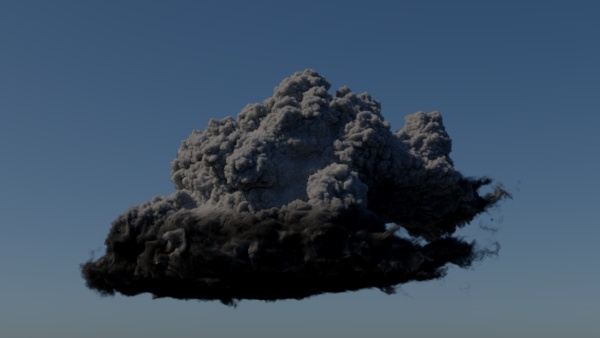
- Create a Standard Volume shader and assign it to the volume. The following attributes were adjusted to give the volume the appearance of a cloud.
 |
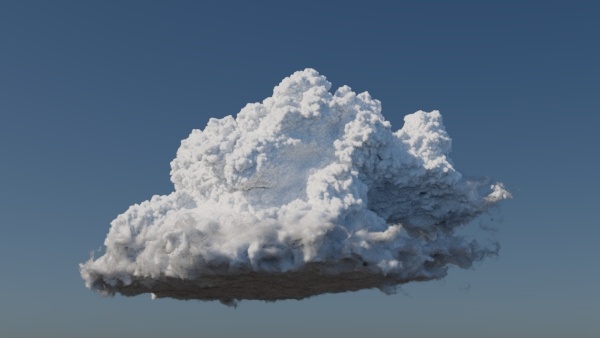 |
| Scatter Color: 0.5 (default) | Scatter Color: 10 |
The Scatter slider is maxed to 1. Increasing this value above 1 is a hack and should be used with care. The number should normally be below 1 to be energy-conserving.
Remember to add 'density' to the Scatter Color Channel.
 |
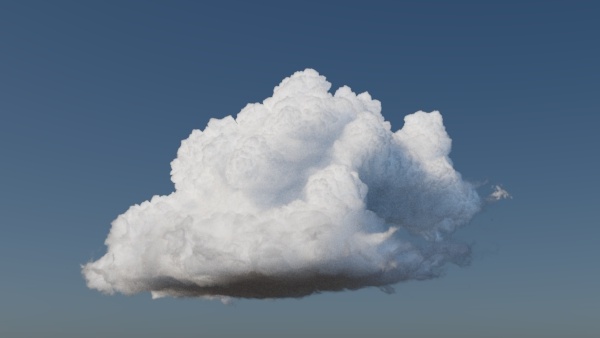 |
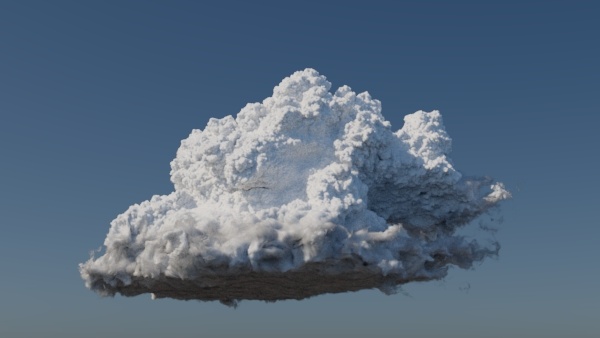
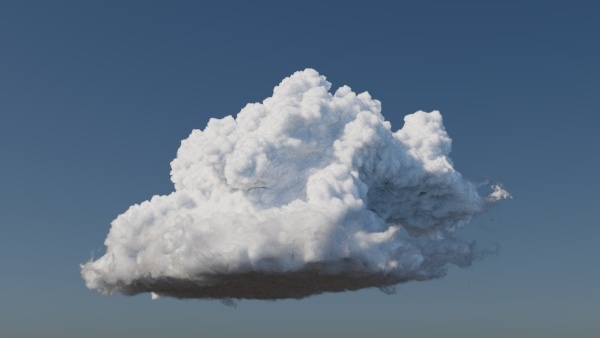
| Transparent Depth: 1 | Transparent Depth: 15 |
This controls the depth into the volume at which the Transparent Color is realized. Increasing this value gives the volume a much more cloud-like appearance.
Transparency Depth is unit-dependent.
 |
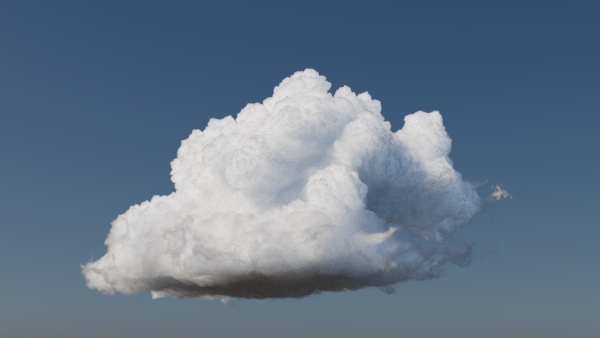 |
| Transparent Weight: 0.368 | Transparent Weight: 0.7 |
Increasing this value allows for more control over the density of the cloud volume.
 |
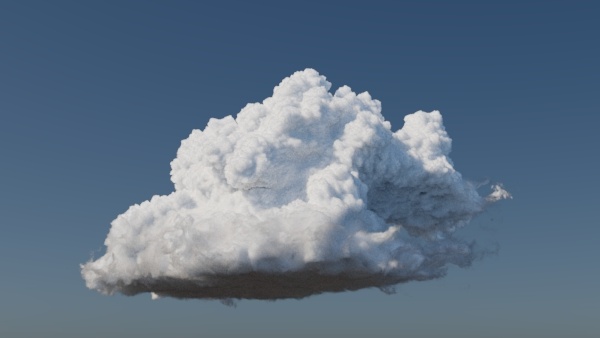 |
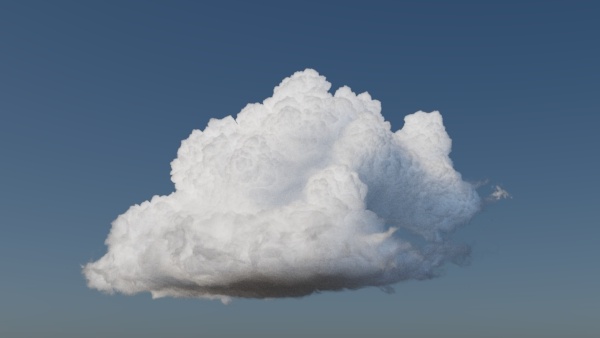
| Density: 1 | Density 4.3 |
Increasing this value gives the cloud volume a thicker appearance.
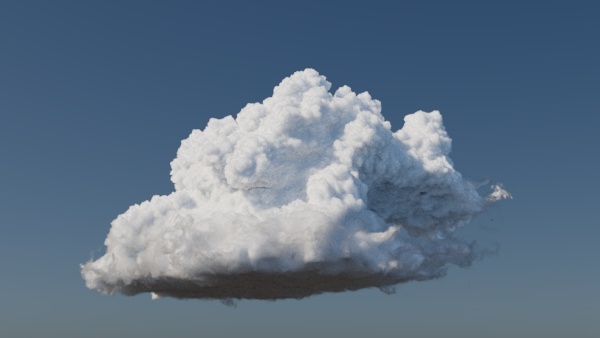 |
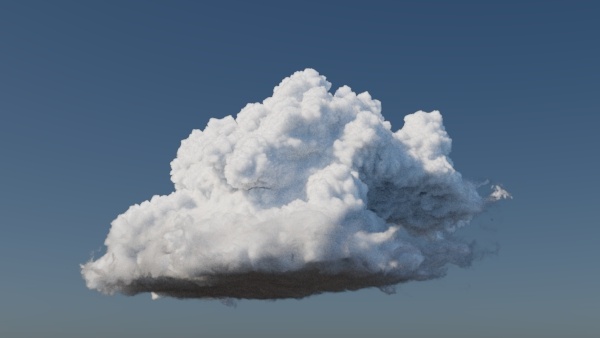 |
| anisotropy: 1 (default) | anisotropy: 0.5 |
Anisotropy should be above 0, as clouds are quite strongly forward scattering.
Final Render Settings
Once you are happy with how the cloud is looking, you are ready for final frame rendering.
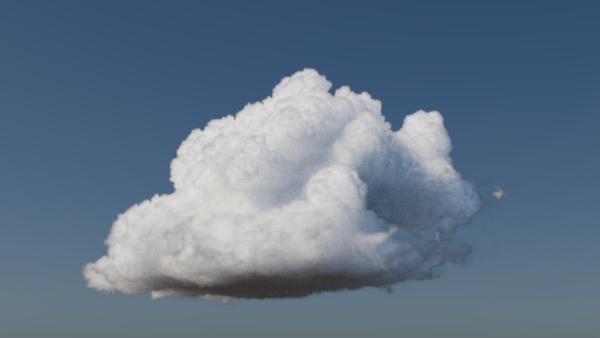
- Replace the VDB file 'wdas_cloud_sixteenth.vdb' with 'wdas_cloud.vdb.' Bear in mind that this is the full resolution VDB file and so will take longer to render.
 |
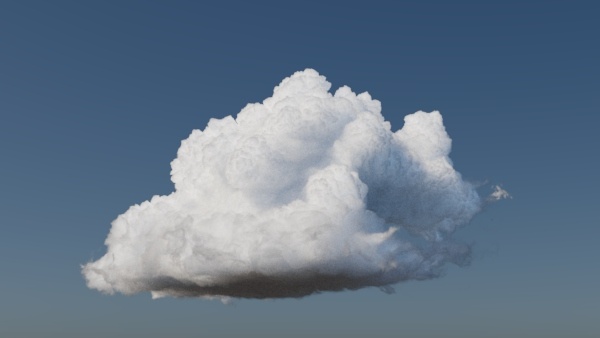 |
| 'wdas_cloud_sixteenth.vdb' | 'wdas_cloud.vdb' |
- Once you are happy with the lighting (and shading), increase the number of Volume Samples for the Skydome Light to around 5 or 6.
- Increase Camera (AA) to around 5.
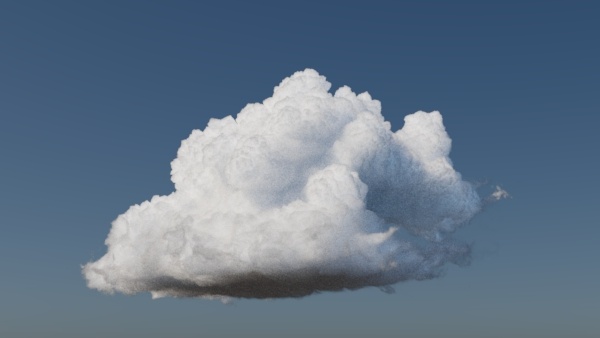
- Under Sampling in the render settings, increase Volume Indirect to around 3. This will help to remove noise from the indirectly lit areas of the volume.
 |
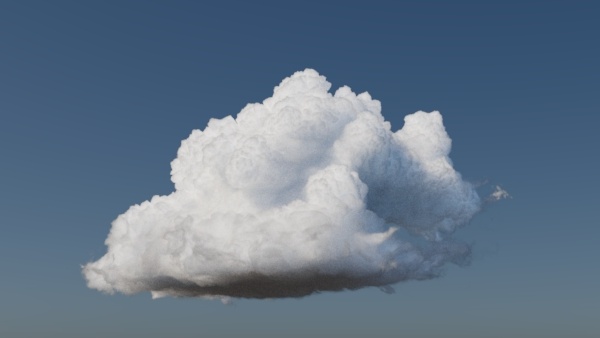 |
| Volume Indirect: 2 | Volume Indirect: 3 |
- Finally, render the scene. That concludes this tutorial on how to render a VDB cloud data set.
Once you have completed this tutorial, remember to take your head out of the clouds!
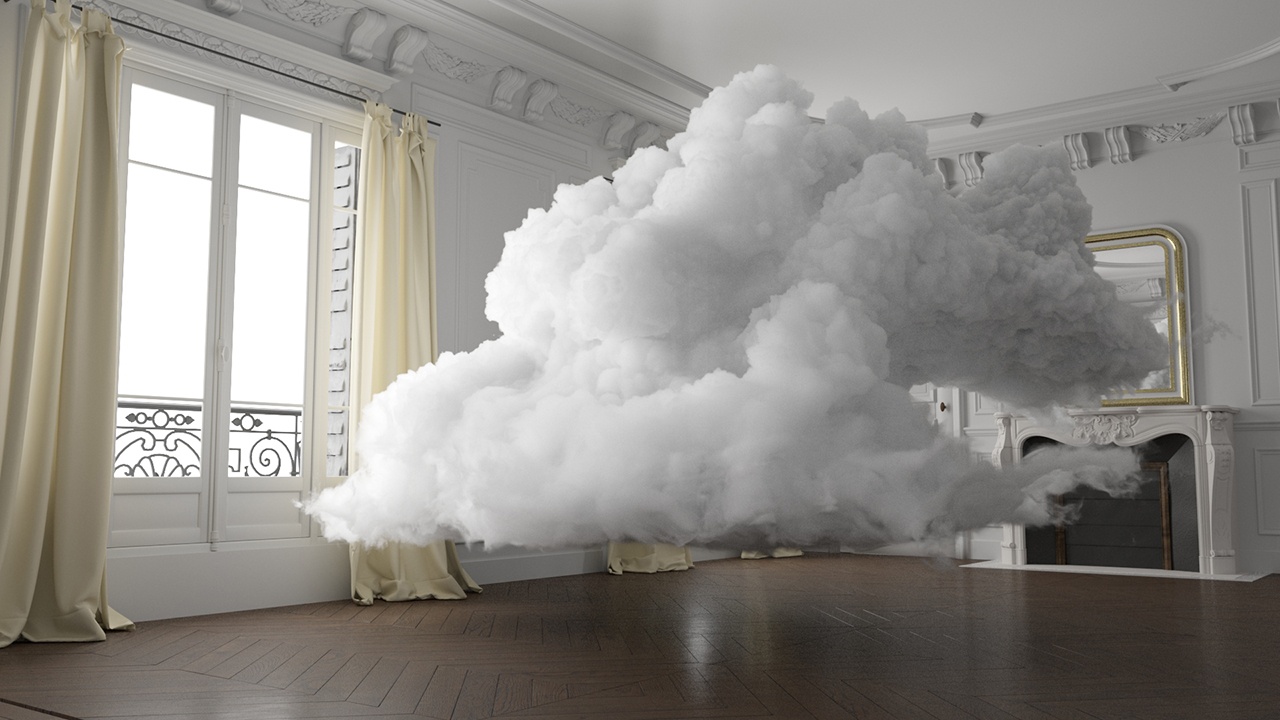
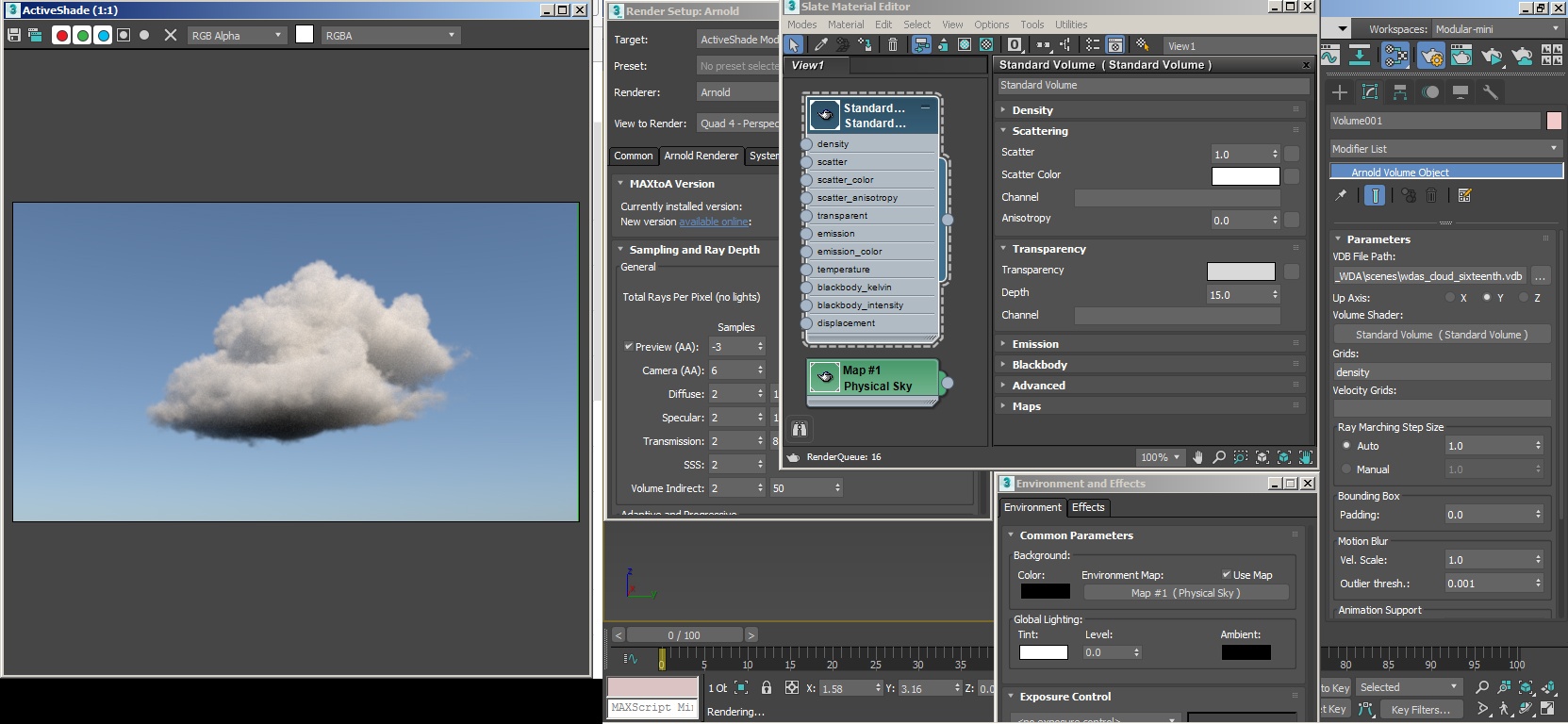
Settings used for this scene