Flow Render Tutorial
Submit a Render Job
When your scene is ready, and the cameras, output, and Render Settings are set, you can submit the render job. When submitting a render job, the scene is first exported to a USD file and uploaded to the cloud service. Then cloud workers are spawned and start rendering.
You need to sign in to your Autodesk account in order to submit Flow Render jobs.
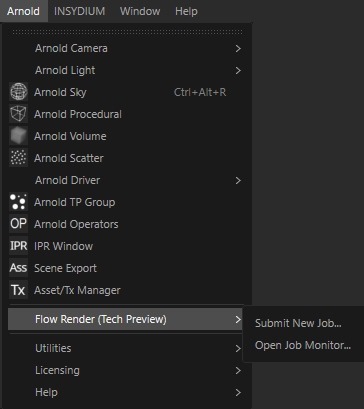
- Select Submit New Job in the Arnold menu.
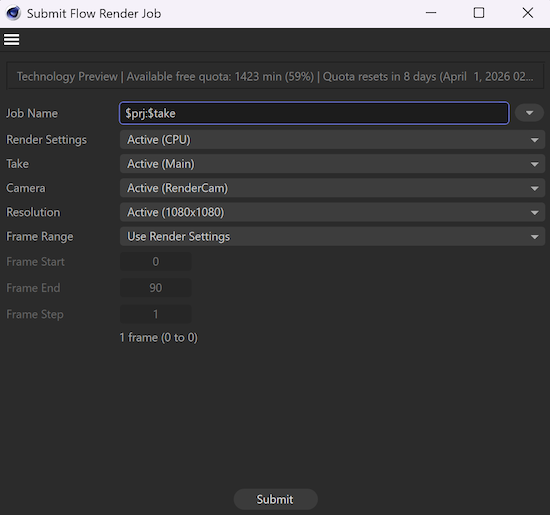
- The Flow Render Submitter window opens. Select your settings and click the Submit button to start exporting your scene.
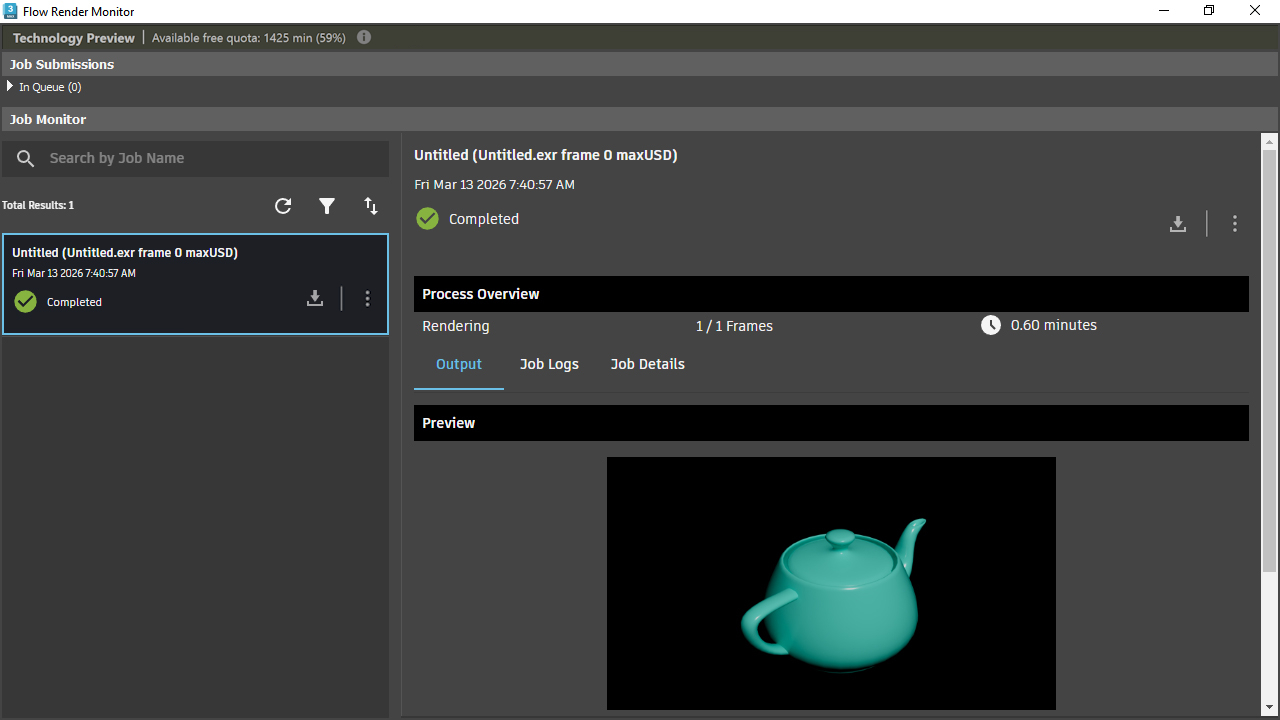
- Once the scene export is finished, the Flow Render Monitor window opens automatically (if it is not already open) and starts uploading your scene. One submission is running at a time, but you can submit multiple jobs, which are listed under the In Queue section.

Once the submission is done, the render job is added to the Flow Render Monitor job list. You can follow the progress and status of your job here.
Once the render is completed, select the job in the Flow Render Monitor window to show more in-depth information, view the render preview, and study the render log.
You can access the job monitor in a web browser as well at https://graphengine.autodesk.com/ with limited functionality.
Download Outputs
- Once the job has completed rendering, the output images are available to download. Click the Download icon and choose All (this will include all rendered images and logs).
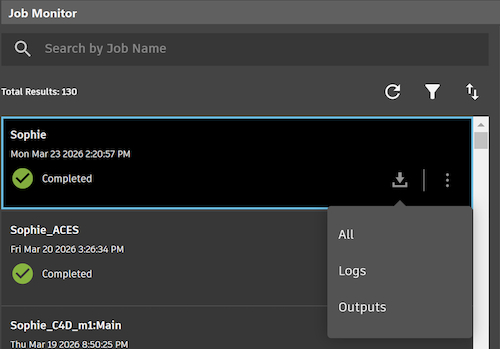
- Choose where you wish to save the files. Outputs are downloaded as a single zip file.
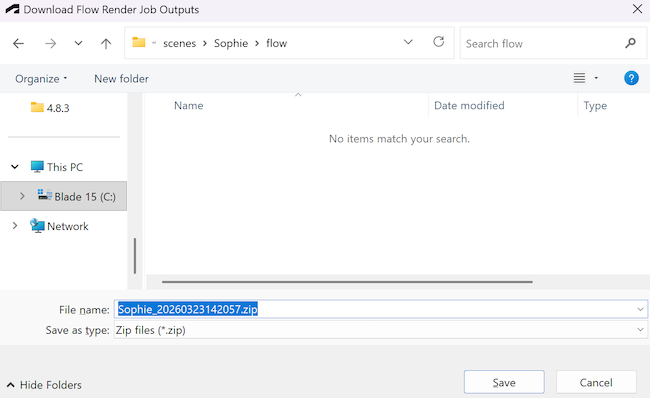
- Once downloaded, a window opens showing the folder where you find your downloaded file. Extract the zip file to see your rendered images and logs.
Troubleshoot
When a job fails, an error message is displayed in the job list under the job status. A job can fail during submission, that is running on the local machine or during rendering, that is running on the cloud worker.
Job Submission Error
When the job submission fails, no outputs or log files are available in the job details.
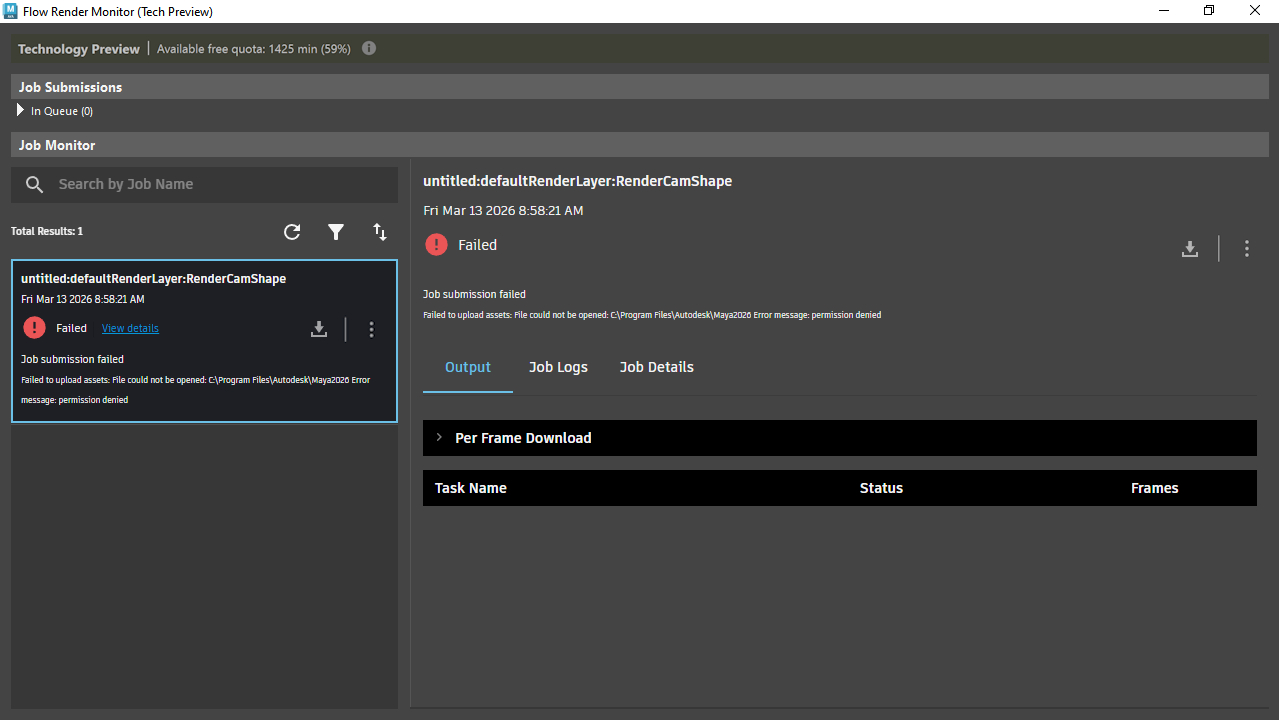
You can consult the Flow Render client log file for more details, which contains debug information of job submissions. The log file can be found here:
- Windows:
C:\Users\*<Username>*\AppData\Local\Autodesk\Logs\FlowRenderUI.log - Mac:
$HOME/Library/Logs/FlowRenderUI.log - Linux:
$HOME/.autodesk/Logs/FlowRenderUI.log
Render Error
When rendering fails, for example, because there are missing texture maps, you can check the Arnold render log file for more details. Select the job and go to Job Logs tab. Alternatively, you can download the log files via the Download button.
In case you need assistance, contact Autodesk support and refer to the ID of the render job. Select the job, go to Job Details, and copy the Job ID.