Installation
The HtoA installation contains everything you need to run HtoA, including the Arnold libraries, executables, and Python modules.
Houdini Compatibility
- The HtoA build must match exactly your Houdini install, down to the build number, or random crashes and glitches will occur.
- The default HtoA install (no Python version listed) uses the same Python version as the default Houdini install.
- HtoA requires a 64-bit Houdini, Houdini FX, or Houdini Education.
- Houdini Apprentice, unfortunately, cannot run HtoA as it does not support third-party renderers, see Houdini products comparison.
Installing HtoA
Here are step-by-step instructions to install HtoA for the current user.
- Go to the Product Updates page, click Extensions, and then download the HtoA installer matching your exact Houdini version and platform. Further information about downloading Arnold plugins can be found here.
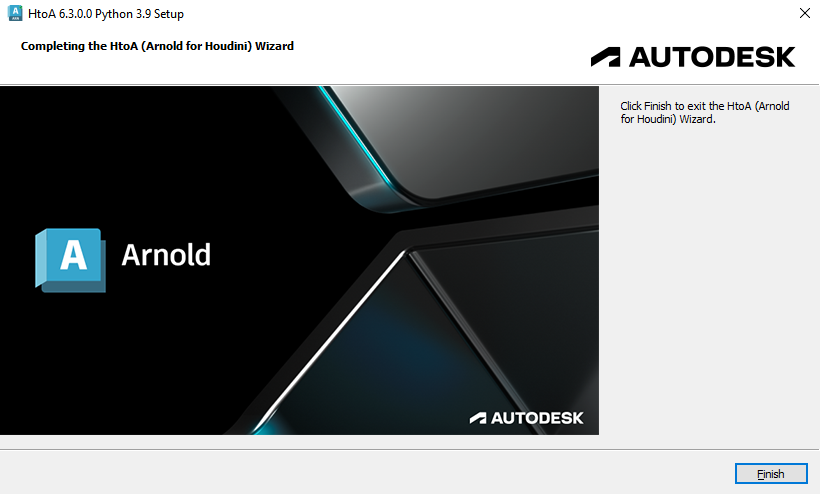
- Launch the installer:
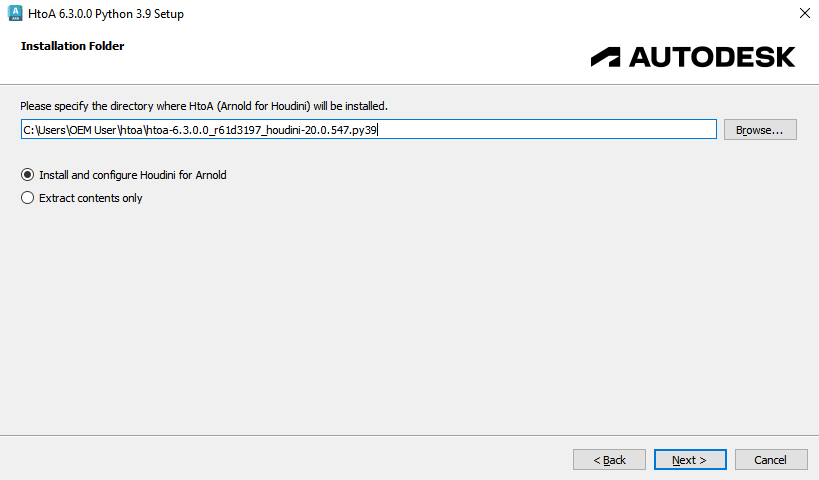
- Select the folder where you want the HtoA files to be extracted:
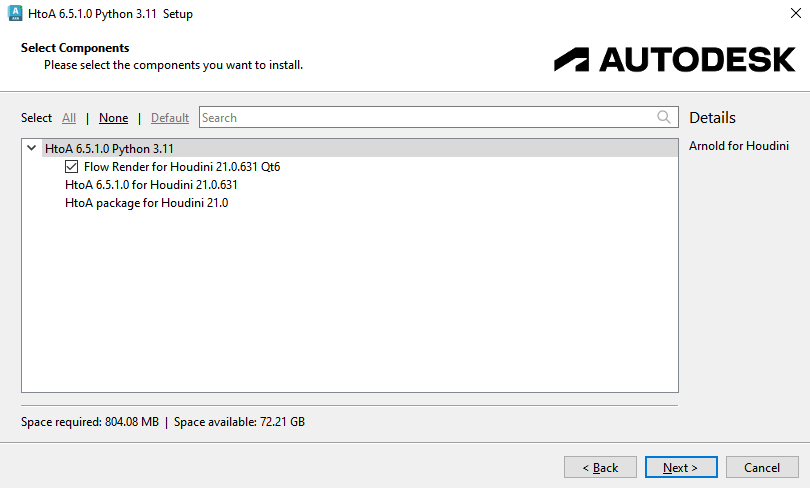
- Choose whether or not to install the Flow Render component (enabled by default).
Flow Render is available for the default Houdini Qt versions (Qt6 for Houdini 21, and Qt5 for Houdini 20.5 and Houdini 20.0)
- You can choose to either have the installer set up the HtoA package file automatically for you, or just extract the contents. The automatic installation generates a htoa.json package file in your Houdini user preference directory.
Important On Windows, HtoA puts the HtoA package file in your %HOMEPATH%\Documents folder (for example, C:\users\arnold\houdini20.5\packages\htoa.json). If your Houdini preferences folder is actually in %HOMEPATH%\OneDrive\Documents, you'll need to manually copy the htoa.json file that OneDrive location.
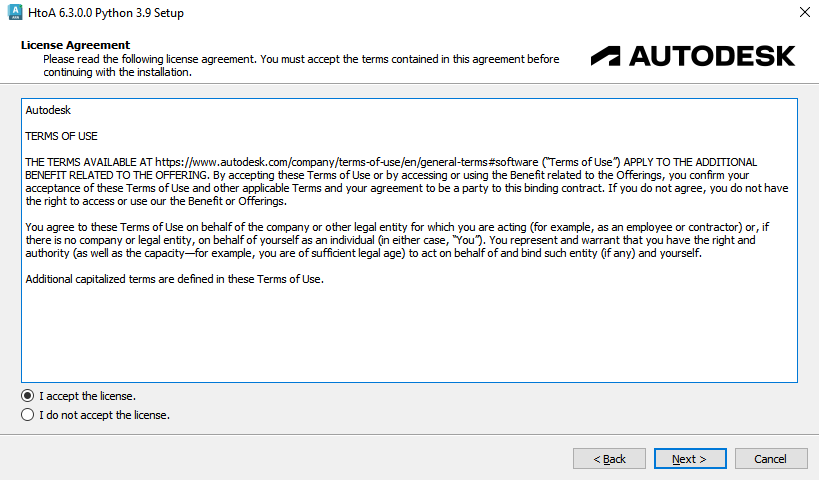
- You need to accept the End User License Agreement to continue the installation:
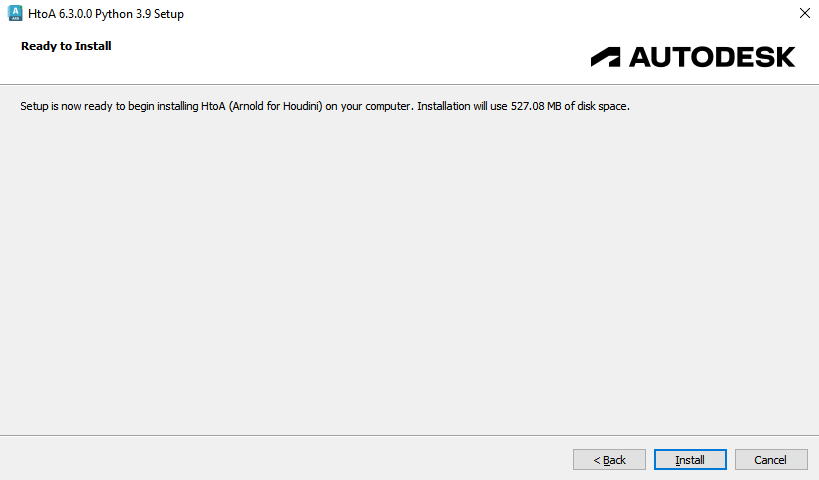
- You are now ready to install HtoA on your computer:
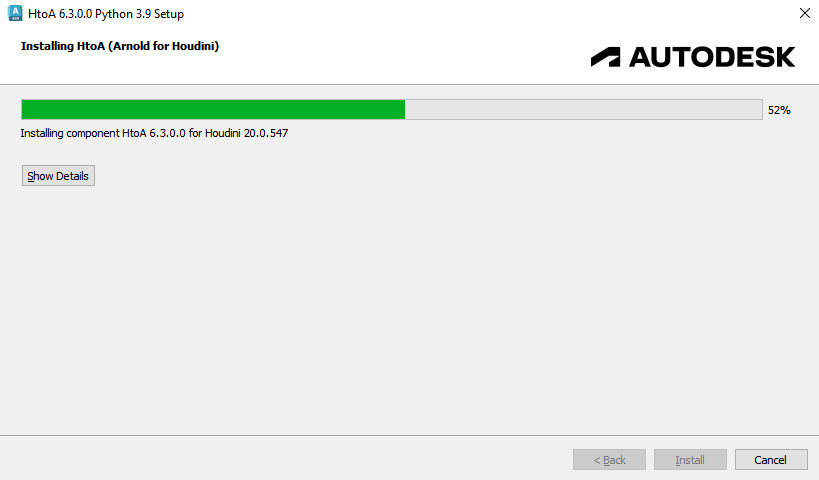
- The actual installation is then performed:
- Done! You can now launch Houdini and start using Arnold:
HtoA package file
The HtoA installer generates a Houdini package (in ~/houdiniX.X/packages/htoa.json).
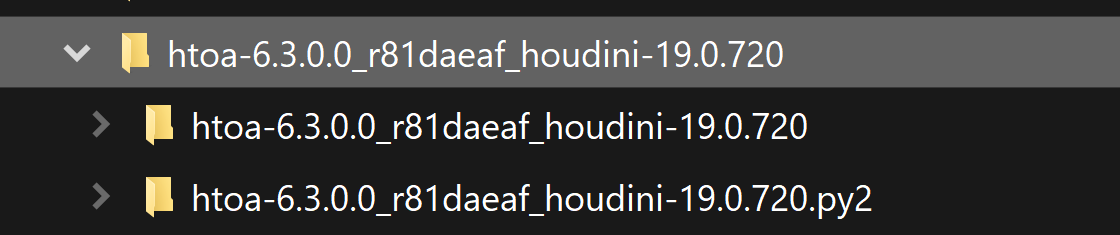
It is possible to manually copy the two Python versions of Houdini next to each other (shown below), and the package file will be smart enough to append the Python suffix if needed.
Using a Wrapper Script
The most flexible way to deploy HtoA is to use a wrapper to launch Houdini. On Linux, for example, you could use this script:
htoa.sh
 #!/bin/bash
# Sample bash script to launch Houdini with HtoA enabled

# edit these to suit your environment
HOUDINI_ROOT="/opt/hfs18.0.348"
HTOA="/path/to/htoa/htoa-5.0.2_raba8949_houdini-18.0.348"

# source houdini environment
cd ${HOUDINI_ROOT}
source houdini_setup
cd - &> /dev/null

# View docs in the default browser
export HOUDINI_EXTERNAL_HELP_BROWSER=xdg-open

# set HOUDINI_PATH
export HOUDINI_PATH="${HOME}/houdini${HOUDINI_MAJOR_RELEASE}.${HOUDINI_MINOR_RELEASE};${HTOA};${HFS}/houdini"

# launch houdini
houdini $@
Modifying individual HOUDINI_*_PATHs
If you have already used the individual HOUDINI_*_PATH environments for other plugins and scripts, you may find you need to set them for HtoA instead of using only the HOUDINI_PATH environment.
In case you also set one of the following environment variables, make sure you are appending "; @;&", at the end of its value, or alternatively, add the corresponding HtoA subfolder path to it:
| Environment variable | Sub-folder | Notes |
|---|---|---|
HOUDINI_DSO_PATH |
<htoa_folder>/dso |
|
HOUDINI_OTLSCAN_PATH |
<htoa_folder>/otls |
|
HOUDINI_SCRIPT_PATH |
<htoa_folder>/scripts |
|
HOUDINI_SOHO_PATH |
<htoa_folder>/soho |
It is critical that the HtoA soho sub-folder be placed before the factory Houdini folder. |
HOUDINI_TOOLBAR_PATH |
<htoa_folder>/toolbar |
|
HOUDINI_UI_ICON_PATH |
<htoa_folder>/config/Icons |
|
HOUDINI_UI_PATH |
<htoa_folder>/config |
Modifying the Houdini install path
On OSX installing Houdini to a location other than the default install path e.g. /Applications/Houdini/Houdini 18.5.696 will result in an error whilst rendering:
unable to load dynamic library: dlopen(<htoa_folder>/arnold/drivers/driver_houdini.dylib, 5): Library not loaded: @rpath/libHoudiniUT.dylib
Referenced from: <htoa_folder>/arnold/drivers/driver_houdini.dylib
Reason: image not found
If this is a requirement it is possible to update the rpath in libHoudiniUT.dylib to reference the libHoudiniUT.dylib in the new install location for example given an installation of Houdini in /Volumes/Houdini instead you can use:
install_name_tool -change @rpath/libHoudiniUT.dylib /Volumes/Houdini/Houdini18.5.696/Frameworks/Houdini.framework/Versions/18.5/Libraries/libHoudiniUT.dylib <htoa_folder>/arnold/drivers/driver_houdini.dylib See Also
Advanced Installation
Qt Installer 4.10
The Qt 4.10 installer has different command-line arguments than previous installers. HtoA respects these optional command line flags:
| Flag | Description |
|---|---|
ExtractOnly=true |
Skips Houdini package setup and only extracts HtoA. |
SkipLicenseUpdater=true |
Skips the license updater (which requires admin privileges). Enables non-root installations, provided the install directory is writable. |
Here are some usage examples:
- Silent install and Houdini package setup (Unattended usage in Qt Installer)
./htoa-6.5.0.0_rac559df_houdini-21.0.596_linux.run install --accept-licenses --confirm-command --root /opt/custom_htoa_install_dir
- Silent extraction and skip the license updater (which normally requires admin privileges)
./htoa-6.5.0.0_rac559df_houdini-21.0.596_linux.run install --accept-licenses --confirm-command --root /opt/custom_htoa_install_dir ExtractOnly=true SkipLicenseUpdater=true