Home
Description
On Autodesk Structural Bridge Design startup, the Structural Bridge Design Home will be displayed, unless starting the application from a double click on a model file.
If you are already running the application and working in a model, click on the Home tab (or Ctrl-D) which will take you to the Home screen. This will not close the active model.
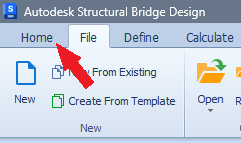
To switch back to the active model and you can go back with no loss of data using the ESC key or the top left back button.

Models can be opened from the recent files grid, together with actions to sort, remove files and more described below.
Form Graphic
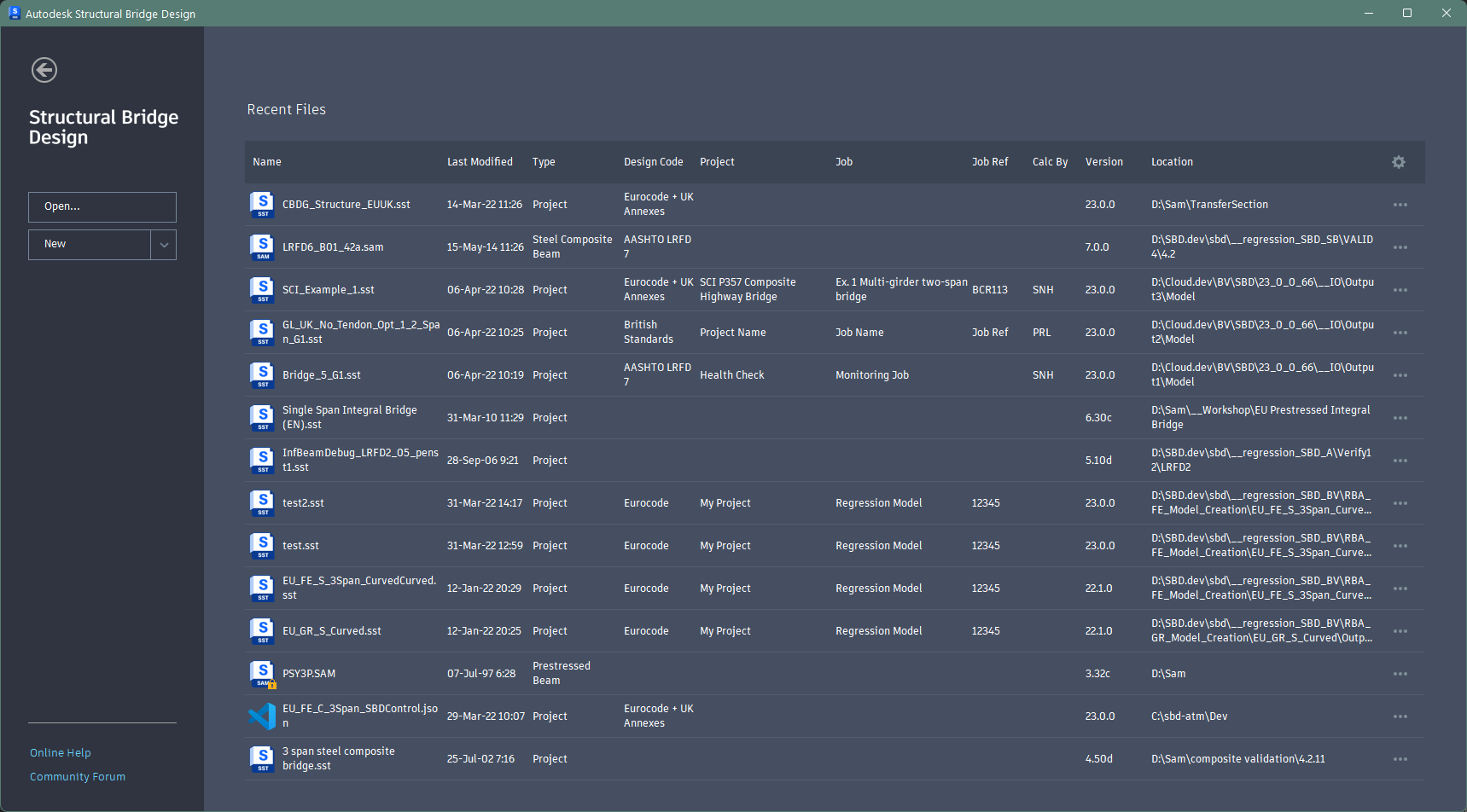
Field Help
Open
Click this button to browse and Load existing data files from your local system or a mapped network drive.
New
New From Existing (use drop down arrow)
Create From Template (use drop down arrow)
Refer to the New Data topic for details of the above 3 commands.
Online Help
Displays this product documentation.
Community Forum
Go to the Structural Bridge Design Forum to share your knowledge, ask questions, and explore popular topics.
Recent Files Grid Header
Click on a header row caption to sort the grid in ascending order by that column. Click again to sort in descending order. Ctrl-click to remove sorting of the column.
Columns can be resized.
The wheel icon button on the rightmost column gives access to the following options:
| Command | Description |
|---|---|
Unsort |
Removes grid sorting |
Refresh |
Updates the recent file list. The list is always updated on startup but external file changes are not reflected whilst the application is running. |
Recent Files Grid
All the information shown in the grid is read only.
Click on a file name to open that model. Only one model can be opened at a time.
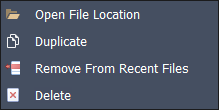
Click the ellipses or right click on a row in the grid to get some more file management options:
| Command | Description |
|---|---|
Open File Location |
Open File Explorer at path containing file. |
Duplicate |
Open a copy of the file as a new project. |
Remove From Recent Files |
Remove the file from the recent files list. (This does not delete the file.) |
Delete |
Delete the file from disk and remove from list following a confirmation prompt. |