Viewer Tools and Icons
The Assemble Model Viewer offers visual verification of your model inventory. Use the Viewer tools to investigate and navigate your model.
Orbit
To orbit in the Viewer, press and hold the left mouse button or select the object, and then drag the mouse. The model will rotate around the mouse pointer location or selected object.
The keyboard commands for orbit include:
CTRL + LEFT ARROW : Rotate (orbit) model left
CTRL + RIGHT ARROW : Rotate (orbit) model right
CTRL + UP ARROW : Rotate (orbit) model down
CTRL + DOWN ARROW : Rotate (orbit) model down
Pan
To pan in the Viewer, three options are available.
- Press and hold the center mouse button or mouse wheel.
- Hold the [Shift] key while holding the left mouse button to drag the model.
- Use the left, right, up, and down keyboard arrows to move the model.
Save Image
CTRL + S savse a screenshot of the Viewer in JPG format.
Right-click menu
Use the right mouse button to select an object in the Viewer. The menu provided will allow you to do basic manipulation of your model and data.
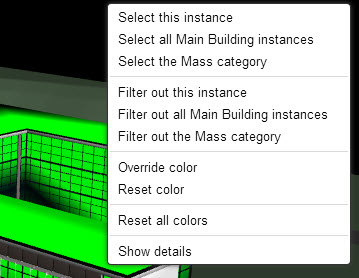
- Select this instance: Selects the element that the mouse pointer is on at the time of using the right mouse click.
- Select all [Type Name] instances: Selects all instances of the Type.
- Select the [Category Name] category: Selects all instances of every Type within the Category, effectively selecting the entire Category (such as Walls).
- Filter out this instance: Automatically creates a filter that removes the selected instance from the grid and viewer.
- Filter out [Type Name] instances: Automatically creates a filter that removes all instances of a Type from the grid and viewer.
- Filter out the [Category Name] category: Automatically creates a filter that removes the entire category from the grid and viewer
- Show details: Opens the Details pane (or Edit window) and provides details for the element(s) selected, or if nothing is selected, for the element that the mouse pointer is on at the time of using the right mouse click.
To toggle Orthographic mode
To toggle from Perspective mode to Orthographic mode, press [O](letter, not number zero). Orthographic mode offers plan, ceiling, and elevation views of your model. While in Orthographic mode, the Assemble Model Viewer displays "Orthographic" in the top-left corner of the Viewer window. In both Perspective and Orthographic modes, use of the keyboard shortcuts (0-9) will be briefly display text over the model to indicate which viewpoint you have selected.
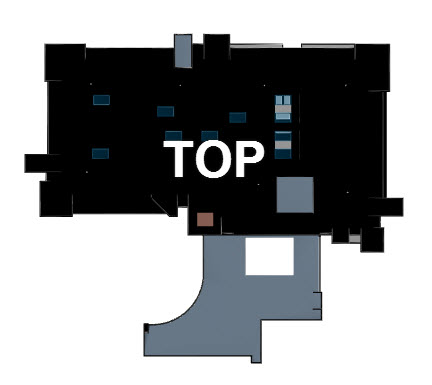
- To see a floor plan (top) of the model while in Orthographic mode, press [5].
- To see a ceiling plan (bottom) of the model while in Orthographic mode, press [0] (number zero).
- To see elevation views of the model while in Orthographic mode:
- Press [4] for left elevation.
- Press [6] for right elevation.
- Press [2] for front elevation.
- Press [8] for back elevation.
Move to Home viewpoint
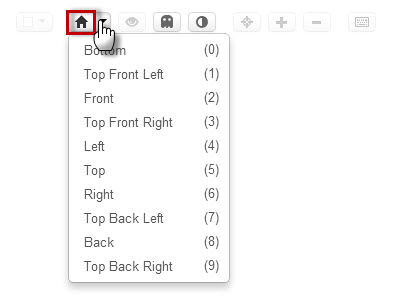
Click the Move to Home Viewpoint icon from the top-right corner of the Viewer window or keyboard shortcut [H], or [Home] key to return to the original starting viewpoint of your model. Using the drop-down menu next to the Home icon will allow you to select additional viewpoints.
Toggle X-ray mode
To toggle the view of the model between X-ray (transparent) mode and an opaque state, click the Toggle X-ray Mode icon or keyboard shortcut [X].
Toggle Ghost mode
Ghost mode allows filtered out objects to be visible in the model, though not selectable or apparent in the Grid. To toggle between Ghost mode on and Ghost mode off, click the Toggle Ghost Mode icon from the top-right corner of the Viewer window or keyboard shortcut [G].
- By default, Ghost mode is turned on for the Model Viewer in standard mode and compare mode.
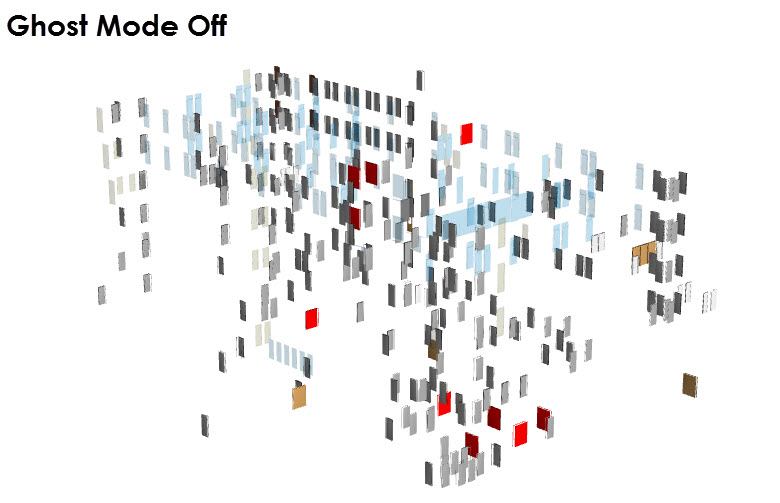
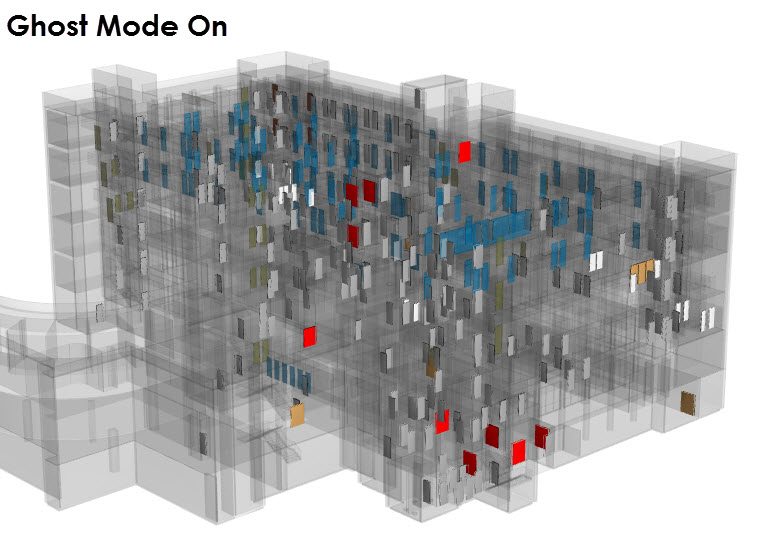
- After applying filters within Assemble, you can choose to see the remaining visible objects either free-standing (Ghost mode off) or prominently displayed with the rest of the model visible, but "grayed out" (Ghost mode on). Ghosted can only be selected by deleting the filter that suppresses them.
Toggle color overrides
To visualize color overrides applied to the model, turn on the Toggle Color Overrides button by clicking the icon in the top-right corner of the Model Viewer window or keyboard shortcut [T]. The Toggle Color Overrides icon is lighted when turned on. To hide the color(s) applied in the model, turn off the Toggle Color Overrides icon using the icon or keyboard shortcut [T].
Zoom extents
To zoom out to the full extents of your model, click the Zoom Extents icon in the top-right corner of the Model Viewer window, keyboard shortcut [Z] or [Page Up] key.
Zoom in
To zoom in to your model, click the Zoom In icon from the top-right corner of the Viewer window, use the scroll wheel on your mouse, or use the keyboard shortcut [+].
By using your scroll wheel on your mouse to zoom in, the model viewer will zoom in from the point where your mouse cursor is located, also known as zoom-to-point. As you change the location of your mouse cursor and continue to zoom in, the point where the viewer is zooming in to will also change.
Zoom out
To zoom out, click the Zoom Out icon from the top-right corner of the Viewer window, use the scroll wheel on your mouse, or use the keyboard shortcut [-].
By using your scroll wheel on your mouse to zoom out, the model viewer will zoom out from the point where your mouse cursor is located. As you change the location of your mouse cursor and continue to zoom out, the point where the viewer is zooming out from will also change.
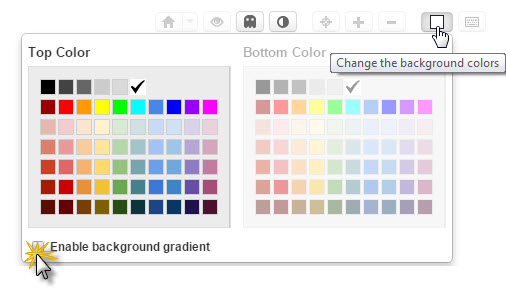
To change the background color
Click the Change Background Colors icon from the top-right corner of the Viewer window.
a) To change the top color, pick a color from the Top Color panel.
b) To change the bottom color, select the check box to Enable background gradient. Then, select a color from the Bottom Colorpanel.
Keyboard and mouse controls
To open the full list of keyboard and mouse commands available for use in both the Grid and Viewer, click the Keyboard & Mouse Controls icon in the top-right corner of the Viewer window or the keyboard shortcut [?].