Using Autodesk Assistant in Autodesk Forma
Autodesk Assistant in Autodesk Forma is available to customers with Enterprise Business Agreements (EBA) and Account Unlimited Agreements.
Autodesk Assistant in Autodesk Forma saves your team valuable time by quickly answering questions that would normally require manual searching of specifications, project documents, and help documentation. Ask questions in plain language to find, connect, and act upon data across your project.
To use Autodesk Assistant in Autodesk Forma, you can write any question you have about:
- Your specifications data
- Your project data
- Autodesk Forma product help content
You can also select a question to ask from a list of sample prompts.
Ask a Question about Your Project
In the Autodesk Assistant panel's prompt entry box, write and enter a question about any of the following:
- Specifications data from your project
- Project Data including specifications, RFIs, issues, submittals, schedules, and change orders
- Autodesk Forma product help content
The assistant can provide various answers, depending on your question or prompt. For example, you can prompt the assistant to:
- Answer specific questions about your data
- Generate lists of items
- Draft summaries that can be used for project communication purposes
- Answer how-to questions about Autodesk Forma products
Click Submit to enter the prompt.
Tip:- Save a prompt that you’ve submitted by hovering over it in the conversation thread and clicking the Bookmark
 icon that appears.
- Find your saved prompts in the Prompt Library, accessible from the Autodesk Assistant panel.
- Save a prompt that you’ve submitted by hovering over it in the conversation thread and clicking the Bookmark
Review the response and ask follow-up questions to refine the response.
Note: There is a limit of 100 queries per 24-hour period for each project member using Autodesk Assistant in Autodesk Forma.
Select a Question from the List of Sample Prompts
Autodesk Assistant provides a few sample prompts or questions that you can try. These are located right above the prompt entry box in the panel. Click one of the sample prompts and that question is automatically populated in the entry field.
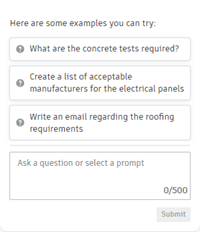
Many more sample prompts can be found in the Prompt Library, including your own saved prompts. Learn more about the Prompt Library.
Click Submit to enter the prompt.
Review the response and ask follow-up questions to refine the response.
Note: There is a limit of 100 questions per 24-hour period for each project member using Autodesk Assistant in Autodesk Forma.
Generated Responses
After you've entered a query, Autodesk Assistant will generate a response using your specifications data or project data. The response will include linked references to specific sections of the source project document that you can review directly within the document.
You can continue to ask follow-up questions to refine a response. Easily copy the text of a response to paste into another document. You can also give thumbs-up or thumbs-down feedback to indicate the quality of the response you receive.
Refine a Response
After receiving a response to your question, you can continue to ask follow-up questions that build on previous questions and responses to get the information you’re looking for.
If you are not getting a satisfactory answer after several questions in a thread, we recommend starting fresh. Try starting a new chat and rephrasing your new query differently.
Tip: Click the Plus icon at the far top right of the panel to start a new query.You can also regenerate or retry a query by using the Regenerate query link.
Copy a Response
Copy the content of a response in Autodesk Assistant by clicking the Copy to clipboard  icon that appears when you hover at the bottom right of a response. You can then paste the text of the response in another document.
Prompt Library
In the Prompt Library, you can access sample prompts and your own saved questions. Access the Prompt Library from the Autodesk Assistant panel to view a list of suggested prompts that you can use with the assistant.
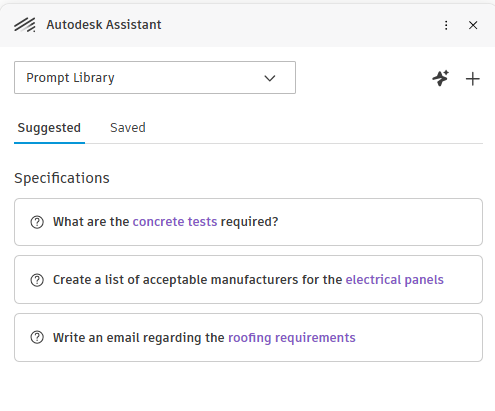
Use a Prompt in the Prompt Library
In the Suggested tab in the Prompt Library, click a prompt to populate it in the panel's prompt entry box as a query. You can then submit the query to get a response.
Save a Prompt
You can save your own submitted question to the Prompt Library for future use. Save a question to the Prompt Library by hovering over your question in the conversation thread and clicking the Bookmark icon that appears.
Find and reuse your saved prompts in the Saved tab in the Prompt Library. To use a saved prompt, click the prompt to populate it in the prompt entry box as a query. You can then submit the query to get a response with current data.
Chat History
You can view the chat history by clicking Chat History from the Autodesk Assistant panel. This opens a list of previous conversations.
Your Autodesk Assistant conversations are stored in Chat History for 30 days. Interacting with a stored conversation will restart the 30 day storage period.
Delete a conversation in the chat history by clicking the Trash  icon beside a conversation.
Autodesk Assistant in Autodesk Forma Legal Disclaimer
Per Section 11.1 of the Autodesk Terms of Use, our Offerings are tools that are intended to assist you, in the case of the Autodesk Forma services, with your construction management and planning activities. Our tools are not a substitute for your professional judgment or independent expertise. It is your responsibility to (a) determine whether the use of an Offering is appropriate for your purposes, (b) determine the appropriate use for the Offerings, and (c) select the Offerings and other computer programs and materials, in each case to help achieve your intended results or output. You are solely responsible for (i) your use of the Offerings and any results produced by the Offerings, including any output, and (ii) establishing the adequacy of independent procedures for testing the reliability, safety, accuracy, completeness, compliance with applicable legal requirements and industry standards, and other characteristics of any output, including insights, recommendations, and all items designed with the assistance of the Offerings.
For additional information, please review the Autodesk Terms of Use and visit the Autodesk Trust Center.