Upload a Specification
To upload a specification:
Navigate to the Smart Register tool.
Click Upload and choose Specifications.
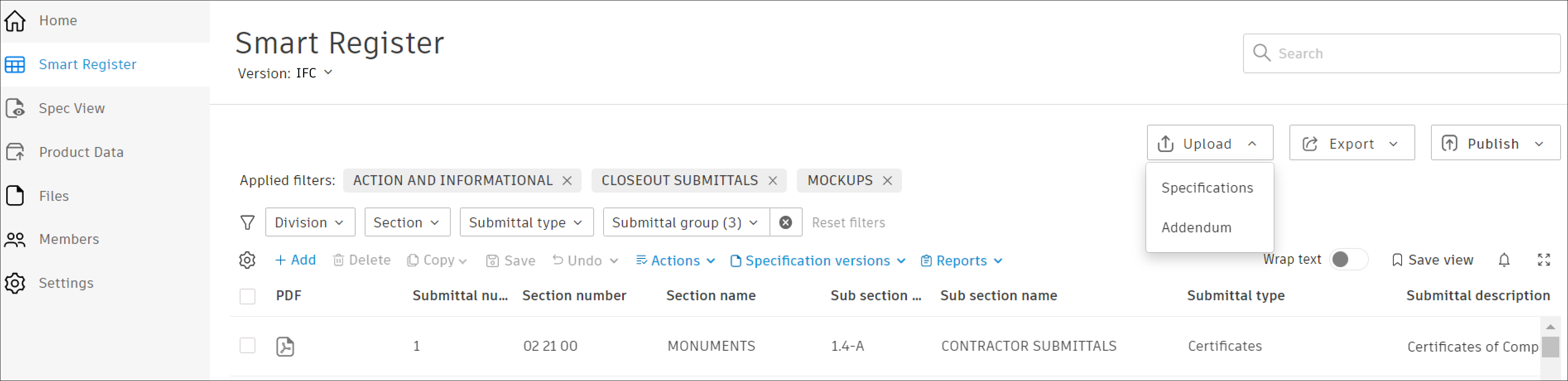 Note: You can also upload a Specification from the Homepage.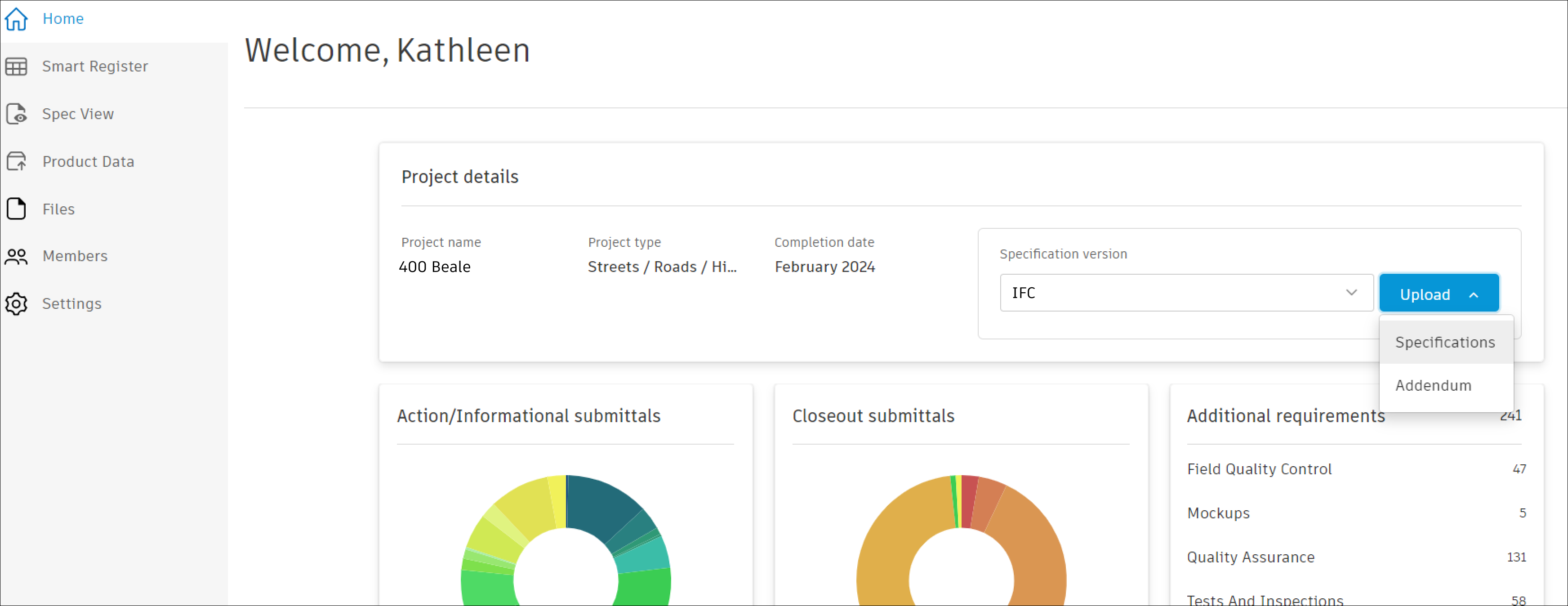
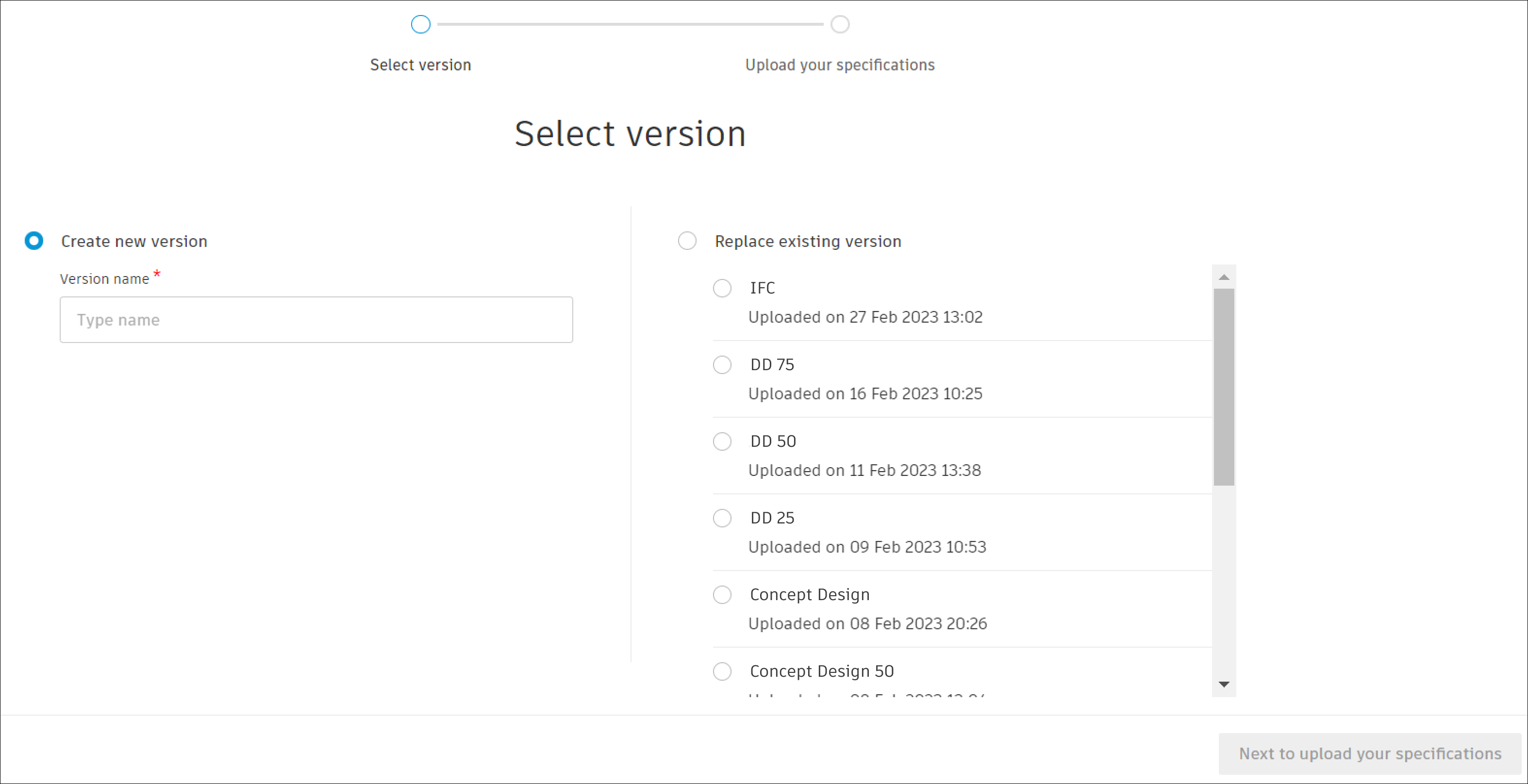
On the next screen, choose to Create a new version or Replace an existing version. If you create a new version, provide a unique version name.
Click Next to upload your specifications.
There are three ways to upload your specification:
- Drag PDF files on the screen.
- Click Upload from my computer, select the PDFs you want to upload, and click Open.
- Click Browse from project files to choose PDFs that are already uploaded to your project.
Once you’ve selected the files that you want to upload, click Next to verify country.
On the following screen, select your country to ensure that the right model is used to process your specs. Currently, AutoSpecs supports specifications for North America.
Specifications must be in CSI MasterFormat. AutoSpecs can process both US and Canadian specifications.
- Click Generate Submittals.
Individual PDF files uploaded to AutoSpecs can’t exceed 300 MB max and multiple PDF files cannot exceed 1 GB max.
Your submittals will begin generating immediately. This process may take up to 15 minutes and you’ll be notified by email when the process is complete.
Once the upload has been completed, you can select filters to configure your initial views in the Smart Register tool. You’ll be able to edit these at any point. Select the filters to include and click either Go to home or Go to Smart Register.
Specification Versions
AutoSpecs supports multiple versions of specifications and addendums.
To create a new specification version, follow the steps outlined at the top of the page for uploading a specification and choose to Create a new version.
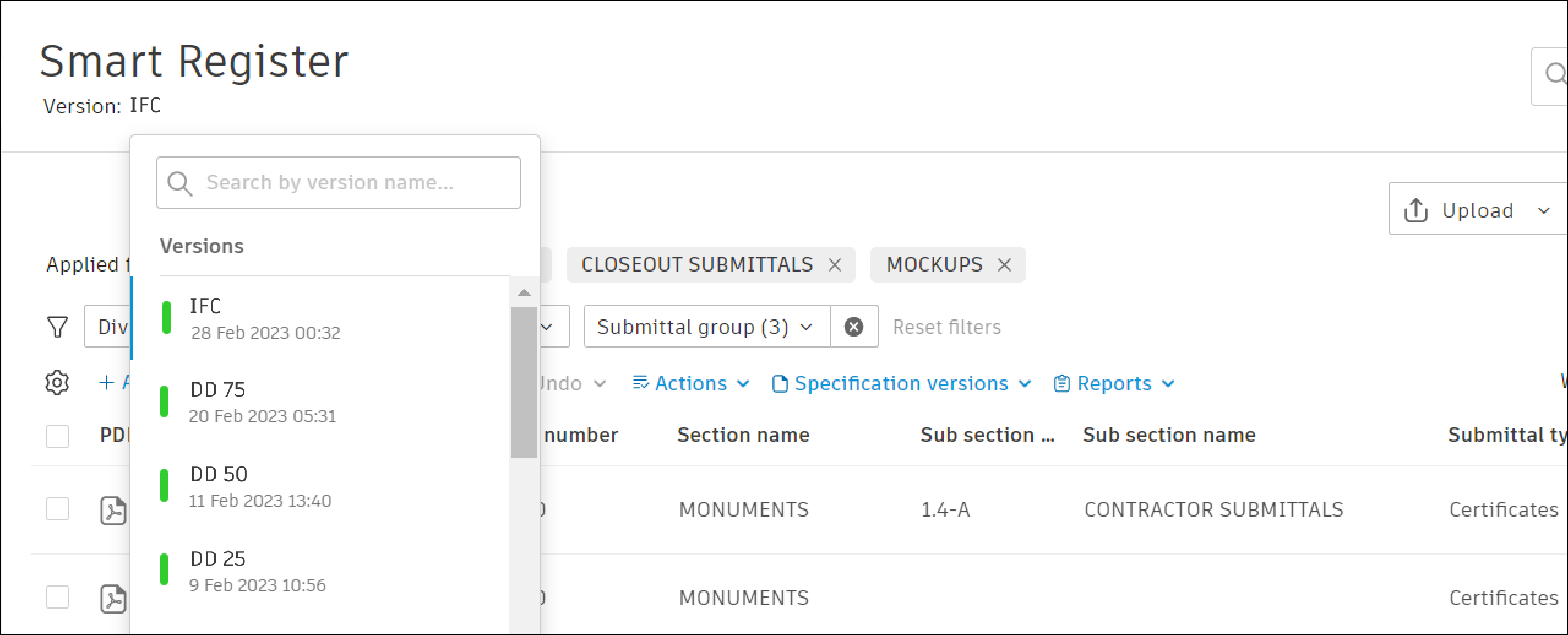
Once you've uploaded multiple versions of a specification, you can quickly switch between versions in the Smart Register tool. Click the Version drop-down to select the version you'd like to view.
Addendums
If you want to edit a specification item without uploading an entirely new specification version, you can add an addendum.
From the Smart Register tool, click Upload and choose Addendum.
Name your addendum and click Continue.
There are three ways to add your addendum:
- Drag PDF files on the screen.
- Click Upload from my computer, select the PDFs you want to upload, and click Open.
- Click Browse from project files to choose PDFs that are already uploaded to your project.
Click Next to append and replace.
When your results are generated, decide what action to take for each identified specification section.
Choose Append for every specification section for which you'd like to add the information contained within the addendum as a brand new specification section to your register.
Choose Replace for every specification section for which you'd like to overwrite the information in your current Smart Register with the updated information from your addendum.
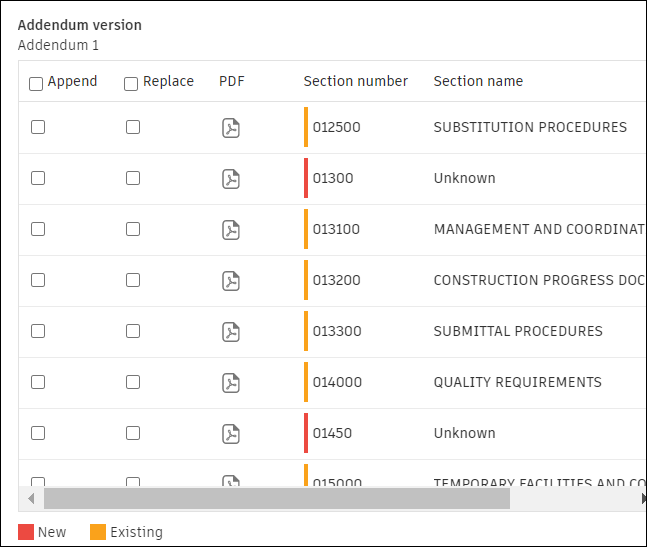
Click Append and replace once you've selected the appropriate action for all identified specification sections you'd like to add to your register from your addendum and confirm the selection.
Note:Don't choose specification sections that you don't want to append or replace.
Click View Smart Register to see the updates.
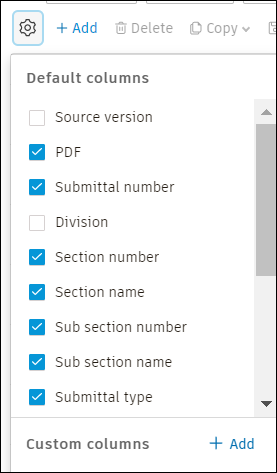
The submittal register will be updated within a few moments. Search the addendum name in the search bar or reveal the Source Version column to see and search all addenda uploaded to the current version of your project.
Compare Versions
Use the version comparison feature to quickly see all differences between specification versions.
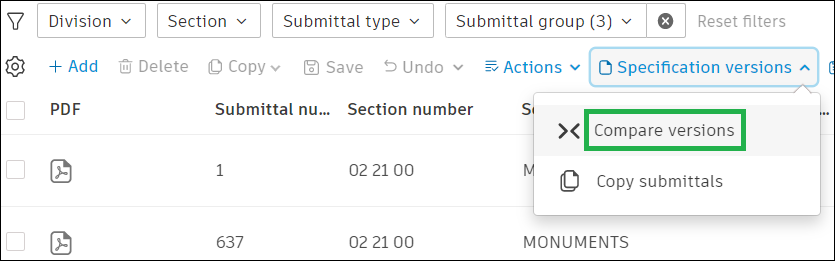
From the Smart Register tool, click the Specification versions drop-down menu and choose Compare versions. This will bring you to a comparison overview page.
From this screen, you can select which versions to compare, export version differences, and open up a detailed comparison of individual sections.
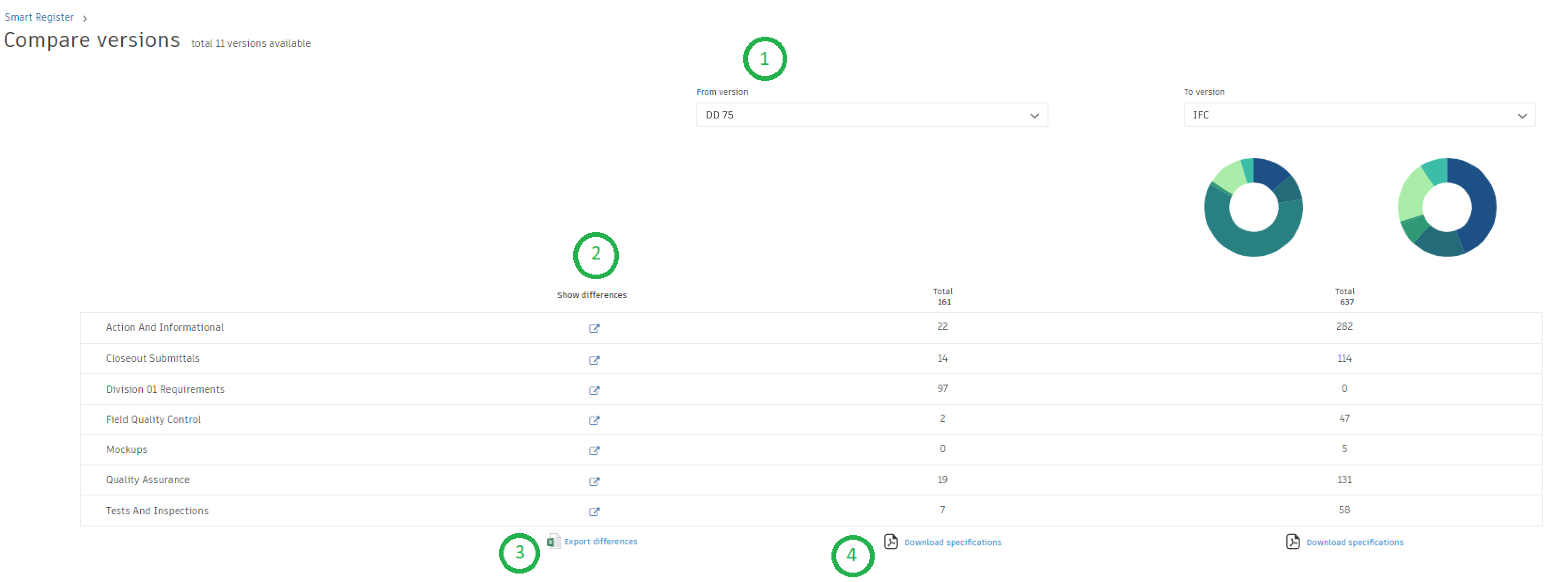
- Select which versions of your specification to compare.
- Click each icon to open up a detailed comparison.
- Export a spreadsheet of comparisons.
- Download specification PDFs.
When you open up a detailed comparison, changes between the two specification versions are shown in the form of what was added, deleted, modified, or unchanged.
- Added appears in green and shows a new requirement added to the version.
- Deleted appears in red and shown what was removed.
- Modified appears in yellow and shows what was changed from one version to the other.
- Unchanged has no color coding and means that the requirement wasn't changed between versions.