Cost Management Permissions
Cost Management offers various permission levels that allow you to control access to sensitive financial data. Understanding these permission levels is crucial for securely managing your organization's finances and enabling collaboration with external parties.
Permission Levels Overview
There are two sets of permissions levels. The different sets allow for collaboration with other companies. Owners and Suppliers may need an Autodesk Build subscription to collaborate in the system.
| Level | Project Settings | Budget, Expense, Cost Item and PCO Permissions | Main Contract, Budget Payment Application, Contract | Cost Payment Applications, RFQ, COR, OCO, and SCO Permissions |
| No Access | - | Use this for suppliers or others that need to work with your company but shouldn't see everything financial about the project. | Use this for suppliers or others that need to work with your company but shouldn't see every financial detail about the project. | |
| View All | Use this to allow individual project admins to have view-only access to Cost Management’s settings. A member will not be able to edit any settings. The “Edit” option will be dimmed. This ensures that defined cost settings are not accidentally changed. | Allows members to see everything in the budget and contract tabs, both the tables and charts. They can't add or import budget data. | Members are in a read-only state but can see all information in Cost Management. | |
| Collaborate | - | - | Use this for suppliers or an owner that may need to work on something, such as a collaborative PCO workflow. | Use this for suppliers or an owner that may need to work on something, such as an OCO approval or payment application. |
| Full Control | Use this to allow individual project admins to edit Cost Management’s settings. | Allows members to add, import, or edit items on the Budget and Contract tabs. | Members can create and work with cost items, Change Orders, and RFQs. | |
Understanding Each Level
- No Access: Restricts visibility to financial data. Use for external parties who shouldn't see project finances.
- View All: Read-only access. Members can view data but cannot make changes.
- View All (without subitems): Expense module only. View expense items without seeing the detailed breakdown.
- Collaborate: Limited access for external parties to respond to assigned items. See Collaborate Permission for details.
- Full Control: Complete access to create, edit, and manage items within the module.
Assign Permissions in Cost Management
Cost Management permissions can be set up and modified by project administrators. To do so:
Click the Module Selector


 .
.Select the Services tab.
Select Cost Management in the left panel.
Note: If you enter Project Admin directly from Cost Management, you start in this position.The General secondary tab is selected by default. Switch to the Permission tab.

You can add members, roles, or companies to the list. Project administrators have full control.
- Use the first drop-down list to find the relevant member, company, or role.
- Click Add.
- Use the drop-down list to select permissions for each column.
Collaborate Permission in Cost Management
To help streamline workflows and enhance collaboration with Owners and Suppliers, give them collaborative access to view and interact with certain information. The Collaborate permission is available for specific components within Cost Management and allows them to view and edit limited attributes on items assigned to them. An Autodesk Build license is required.
See the Collaborate with Others in Cost Management to discover the ways you can work with suppliers and owners.
Where Collaborate is Available
Collaborate is designed for agreement-based workflows where parties need to work together on items such as contracts, change orders, and payment applications. It is not available for internal tracking modules.
| Available | Not Available |
|---|---|
| Main Contract | Budget |
| Budget Payment Application | Cost Item |
| Contract | PCO |
| Cost Payment Application | Expense |
| RFQ | |
| COR, OCO, SCO |
What Collaborate Enables
Users with Collaborate permission can:
- View items assigned to them (change orders, payment applications, contracts)
- Respond to items with limited editing capabilities
- Upload and download documents and attachments
- Export reports from change order tables
Collaborators as Reviewers
For OCO (Owner Change Order) and Budget Payment Application workflows, users with Collaborate permission can be added as reviewers. This enables architects, consultants, and other external stakeholders to participate in the approval workflow. As reviewers, collaborators can:
- Respond to review tasks: Select Proceed, Revise, or Reject (Reject is available for OCO only; Budget Payment Applications do not have a Rejected status)
- Add documents: Upload attachments during the review process
- View item details: Access all information and documents related to the item under review
Learn more: Collaborate in Cost Management | Approval Workflows
Project Settings Control
The Project Settings permission level allows teams to alter whether individual project admins have view-only or edit access for Cost Management’s settings. This ensures that defined cost settings are not accidentally changed.
Select the member. Then, in the Project Settings column, click drop-down menu and select View All for viewing only or Full Control for being able to edit.
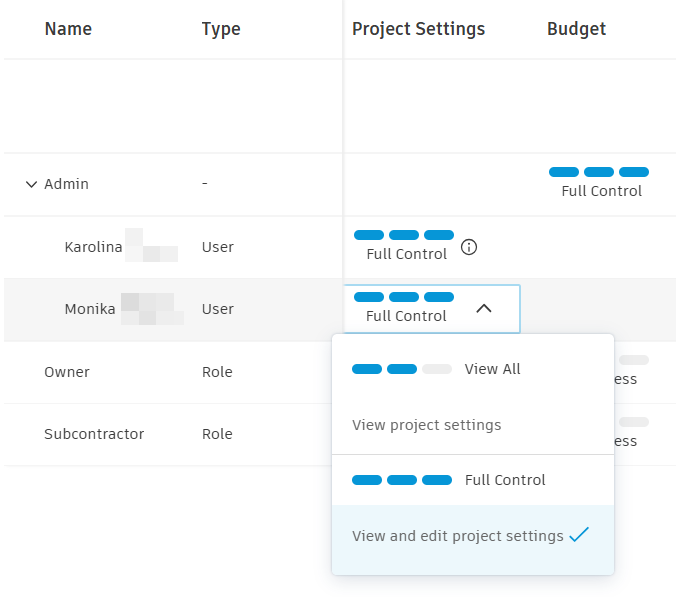
A member with View Project Settings will not be able to edit any settings for Cost Management. The Edit option will be dimmed.
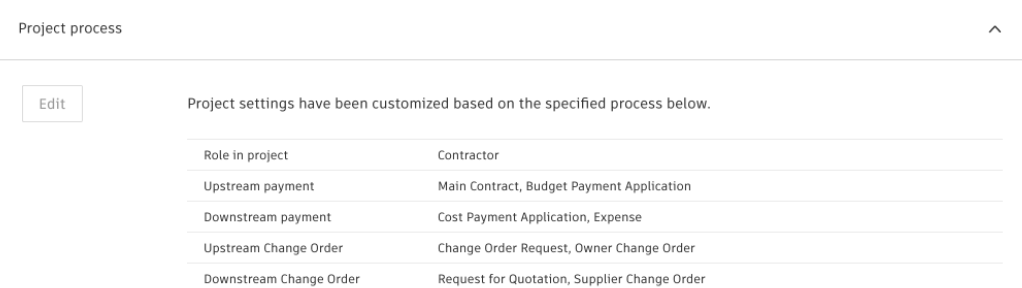
See the Project Process section in the General Cost Management Settings article to learn more.