Cost Management Permissions
Cost Management offers various permission levels that allow you to control access to sensitive financial data. Understanding these permission levels is crucial for securely managing your organization's finances and enabling collaboration with external parties.
In this article:
- Permission Levels Overview
- Assign Permissions in Cost Management
- Collaborate Permission
- Project Settings Control
Permission Levels Overview
Cost Management has five permission levels. The available levels vary by module, as shown in the table below.
| Level | Project Settings | Budget, Cost Item, and PCO | Main Contract, Budget Payment Application, Contract | Expense | Cost Payment Applications, RFQ, COR, OCO, SCO |
| No Access | - | Use this for suppliers or others who need to work with your company but shouldn't see all financial details about the project. | |||
| View All | View-only access to settings | View all information in the budget and contract tabs, including tables and charts, but cannot add or import data. | View expense items and subitems | Read-only access to all information | |
| View All (without subitems) | - | - | - | View expense items only (no subitems) | - |
| Collaborate | - | - | View and respond to assigned items | - | View and respond to assigned items |
| Full Control | Edit settings | Add, import, and edit items on Budget and Contract tabs | Create expenses and expense items | Create and manage cost items, change orders, and RFQs | |
Understanding Each Level
- No Access: Restricts visibility to financial data. Use for external parties who shouldn't see project finances.
- View All: Read-only access. Members can view data but cannot make changes.
- View All (without subitems): Expense module only. View expense items without seeing the detailed breakdown.
- Collaborate: Limited access for external parties to respond to assigned items. See Collaborate Permission for details.
- Full Control: Complete access to create, edit, and manage items within the module. Full Control is also required to batch edit fields across multiple items in a module.
Assign Permissions in Cost Management
Cost Management permissions can be set up and modified by project administrators. To do so:
Click the Module Selector


 .
.Select the Services tab.
Select Cost Management in the left panel.
Note: If you enter Project Admin directly from Cost Management, you start in this position.The General secondary tab is selected by default. Switch to the Permission tab.

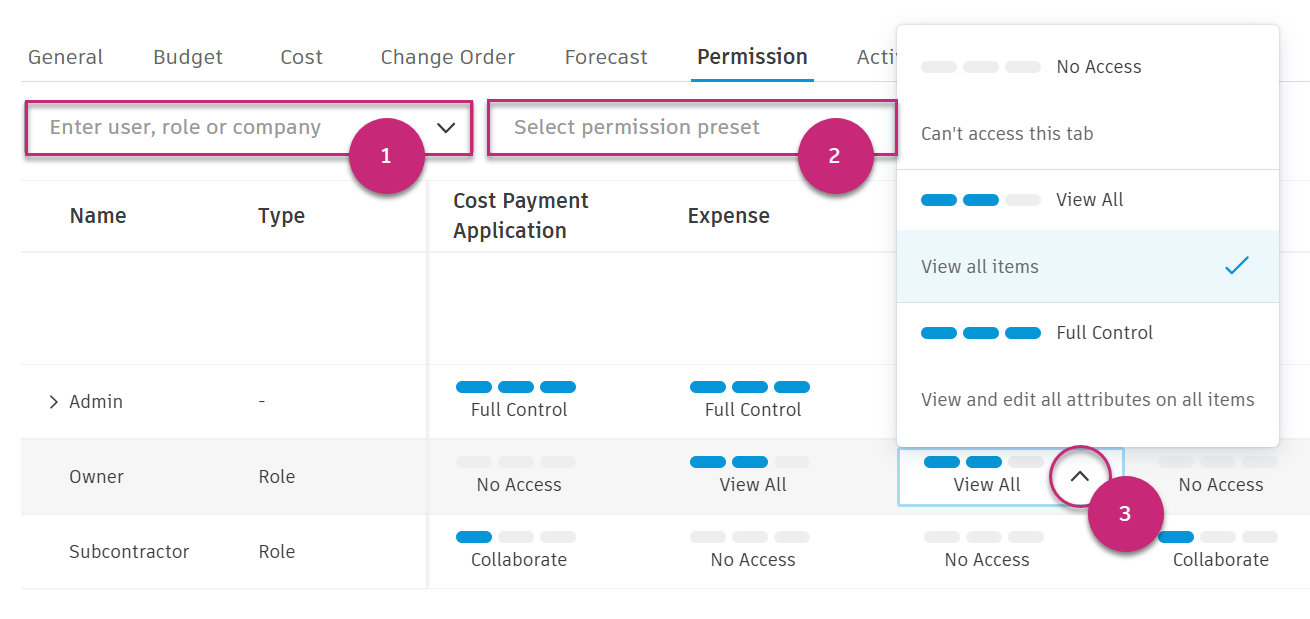
You can add members, roles, or companies to the list. Project administrators have full control.
- Use the first drop-down list to find the relevant member, company, or role.
- Click Add.
- Use the drop-down list to select permissions for each column.
Collaborate Permission
The Collaborate permission enables external parties (owners, architects, suppliers, and consultants) to participate in workflows that require agreement between multiple parties. A license is required.
Where Collaborate is Available
Collaborate is designed for agreement-based workflows where parties need to work together on items such as contracts, change orders, and payment applications. It is not available for internal tracking modules.
| Available | Not Available |
|---|---|
| Main Contract | Budget |
| Budget Payment Application | Cost Item |
| Contract | PCO |
| Cost Payment Application | Expense |
| RFQ | |
| COR, OCO, SCO |
What Collaborate Enables
Users with Collaborate permission can:
- View items assigned to them (change orders, payment applications, contracts)
- Respond to items with limited editing capabilities
- Upload and download documents and attachments
- Export reports from change order tables
- View or edit custom attributes based on the access level set by the administrator (No access, View only, or View + Edit)
Collaborators as Reviewers
For OCO (Owner Change Order) and Budget Payment Application workflows, users with Collaborate permission can be added as reviewers. This enables architects, consultants, and other external stakeholders to participate in the approval workflow. As reviewers, collaborators can:
- Respond to review tasks: Select Proceed, Revise, or Reject (Reject is available for OCO only; Budget Payment Applications do not have a Rejected status)
- Add documents: Upload attachments during the review process
- View item details: Access all information and documents related to the item under review
Learn more: Collaborate in Cost Management | Approval Workflows
Project Settings Control
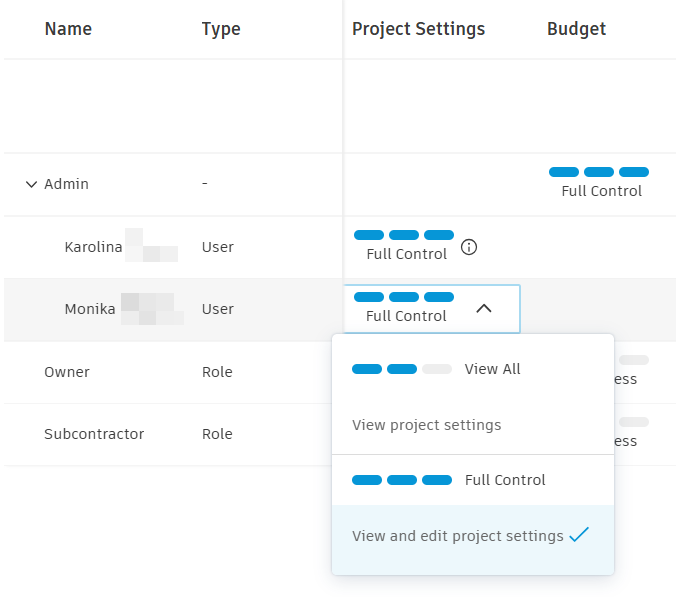
The Project Settings permission controls whether project admins can view or edit Cost Management settings. This helps prevent accidental changes to defined cost configurations.
| Level | Access |
|---|---|
| View All | View settings only. The "Edit" option is dimmed. |
| Full Control | View and edit all Cost Management settings. |
To configure:
- In the Permissions tab, find the member.
- In the Project Settings column, select View All or Full Control.
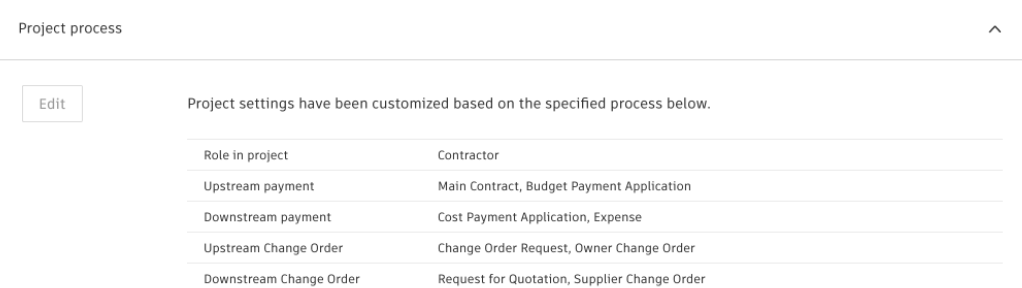
Learn more: Project Process