Issues in Field Management
In Field Management, the Issues tab is where you can view, create, edit, filter, and comment on project issues.Learn how to control your issue email notifications.
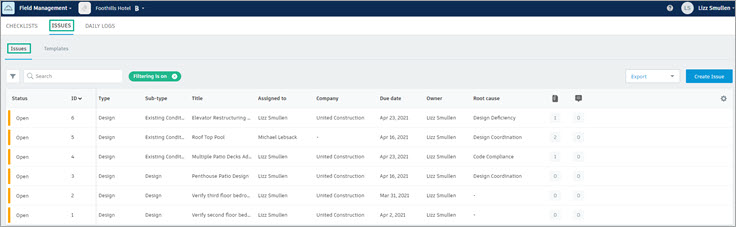
View a Field Issue
Your ability to view and work with issues depends on the permissions assigned to you or your role.
To learn more about the issue workflow and issue statuses, see Issues.
In the Issues list, click the the issue you want to review.
The dialog shows the issue number in the upper left and a status drop-down list in the upper right with a check mark indicating the current status.
The dialog has three tabs:
- Details
- Attachments
- Activity
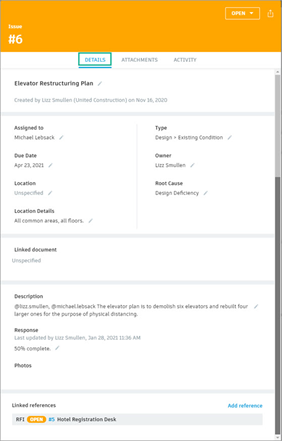
Click Linked document to view the issue in the document.
Issue Activity Log
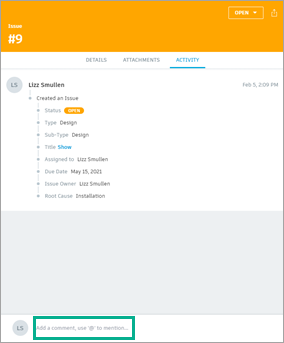
Click the Activity tab to view the issue activity log.
Users' names are recorded to the activity log alongside actions they take on an issue. If a user is removed from a project, their name will remain on the activity log with (Former user) appended.
Create a Field Issue
In the Issues tab, click Create Issue.

Enter issue details in the Create New Issue dialog.
Tip: You can select a template to use predefined settings for your new issue.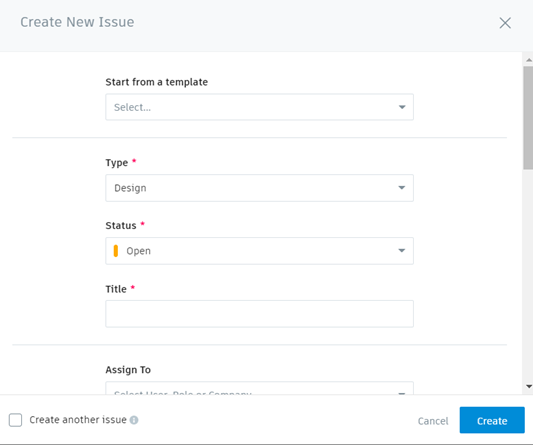
Specify the issue type.
- Commissioning
- Punchlist
- Quality
- Safety
- Warranty: Inactive by default
- Observation
- Coordination: Inherits a different status set and workflow
- Design: Inherits a different status set and workflow
Tip: Project administrators can configure custom issue types and subtypes. Users can then select from the list of types and subtypes while working with issues.Set the status to Draft, or to Open if you have all relevant issue information.
Enter a title.
You can also add a description.
For Assigned To, you can assign by users, roles, or companies. Assignees receive an email notification with a link to the issue.
The Location auto-fills if you insert a push pin in the document. If areas aren't defined or you aren't attaching a document you can manually select an area using the search and drop-down list.
Project administrators can:
- Add locations available for selection.
- Link documents to locations and add areas.
You can also specify a due date, root cause, and an issue owner.
Click Create.
Add References to RFIs and Assets
Members with create permissions or above can add references to existing RFIs and Assets from existing issues. Project administrators and RFI managers can also create new RFIs and reference them directly from existing issues.
Click the relevant issue in the Issues list.
Navigate to Linked references and click Add reference.

You can select either RFIs or Assets.
RFIs
To add a reference to an existing RFI.
Select RFIs from the Linked references drop-down list.
Search for the relevant RFI in the Add link to RFIs dialog.
Note: You can only search for the RFIs that you have created, are involved with, and are closed and distributed.Select the checkbox next to the required RFI.
Click Add.
Project administrators and RFI managers can create a new RFI from an issue:
- Select RFIs from the Linked references drop-down list.
- Click Create New in the Add link to RFIs dialog.
- Create the RFI by completing the fields.
- Click Create.
Assets
To add references to existing Assets:
- Select Assets from the Linked references drop-down list.
- Search for the Asset in the Add link to Assets dialog.
- Select the checkbox next to the required Asset.
- Click Add.
Edit a Field Issue
Click an issue in the Issues list.
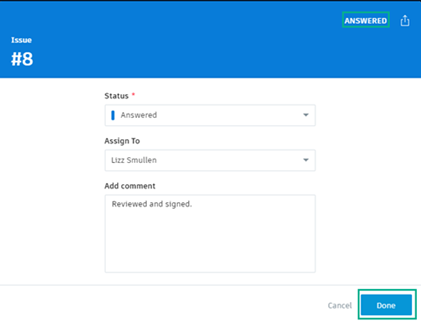
In the Details tab, select the status drop-down to change the status. Click into other fields to change them.
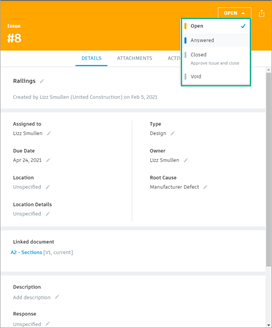
- Creators, assignees, and administrators can set an issue as Answered.
- Issue creators and project administrators can set an issue to Closed when the work is complete.
Filter Field Issues
In the Issues tab, the green Filtering is on button is activated by default and the default filters are set to active statuses. If you close the button, it will reappear once you click the filter icon.
Click the filter icon to open the menu of issue filters.
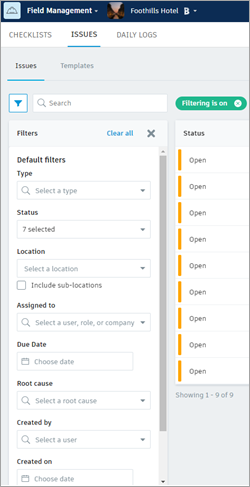 Note: The Search field is only for issue titles that are related to the filter criteria selected.
Filter by the desired criteria.
Comment on a Field Issue
Click an issue in the Issues list.
Click the Activity tab.
Click in the Comment field at the bottom of the dialog.
Enter a comment and click Send.
Former Users
When a user leaves a project, Field Management will retain that user's name in order to maintain a complete project record. To indicate that a user has left a project, the user's name will be appended with (Former user) anywhere the name appears.
This occurs in the following instances:
- Activity log
- Detail issue view
- Issue log view