Share Custom File Attributes using Bridge
When sharing files with other projects, you can share the custom file attributes on those files to preserve important details for the stakeholders you share with. You create and edit custom file attributes in the Files tool. Learn more about file attributes.
In Bridge, you select which custom file attributes to include when files are shared. When you share a file, the selected attributes are included if the required conditions are met.
In this article, you'll find the rules for sharing file attributes and instructions for selecting which attributes to share.
Rules for Sharing File Attributes
Custom file attributes values are shared when:
Manual sharing occurs
A member shares a file or folder from the Files or Bridge tool
A member imports a file or folder in the Bridge tool
An automation occurs
A member uploads a file into a folder with an automation
A member copies a file into a folder with an automation
A member updates a custom file attribute value in a file in a folder with an automation. Only the updated attribute value is shared.
Note:The Description attribute on a file is a system attribute and is always shared when a manual share or automation occurs.
When a member updates the Description for a file or folder with an automation, only the updated Description is copied into the corresponding folder in the target project.
The Review status is a system attribute and can be shared when a manual share or automation occurs. Only the final, latest status (Approved or Rejected) is shared.
All other attributes aren't shared.
Attributes must exist and have the same name and type in the source and target project. Here are some examples to illustrate this rule:
Scenario 1:
The source project has a Text field attribute called Phase.
The target project has a Dropdown attribute called Phase.
Result: The Phase attribute won't share because the types, Text and Dropdown, don't match.
Scenario 2:
The source project has a Date field attribute called Due Date.
The target project has no attribute called Due Date.
Result: The Due Date attribute won't share because the attribute doesn't exist in the target project.
If attribute values from the source project comply with the constraints for the attribute in the target project, the values are copied into the target project. Here are some examples to illustrate this rule:
If a Text attribute value in the source project conforms with the Text attribute definition in the target project, the value is copied. This includes matching character settings.
Otherwise, the Text attribute value is copied into the target project and marked as a 'legacy value'.
If a Dropdown attribute value in the source project matches a Dropdown attribute value in the target project, the value is copied.
The Date attribute value will always be conformant, and therefore be copied into the target project.
If the target file must adhere to a naming standard and the attribute update would cause the file to become non-conformant, the attempt to change the attribute value will be discarded.
If the target folder has attribute column headers that are hidden from the table view in the Files tool, attributes values will still be shared and updated even though the column is hidden. When the column is unhidden, the updated values will be visible.
If there are attributes in the target project that are not present in the target folder, the relevant attribute values of each file will still be copied. Similarly, if there are attributes in the source project that are not present in the source folder, we will still copy the relevant attribute values of each file. Here are some examples to illustrate this rule:
The Phase value isn't attached to target project's folder when shared, but attached later after share, the Phase value would still be copied.
The Phase value isn't attached to source project's folder when shared, but attached later after share, the existing and later changes from the source folder would still be copied to target folder.
Select File Attributes to Share
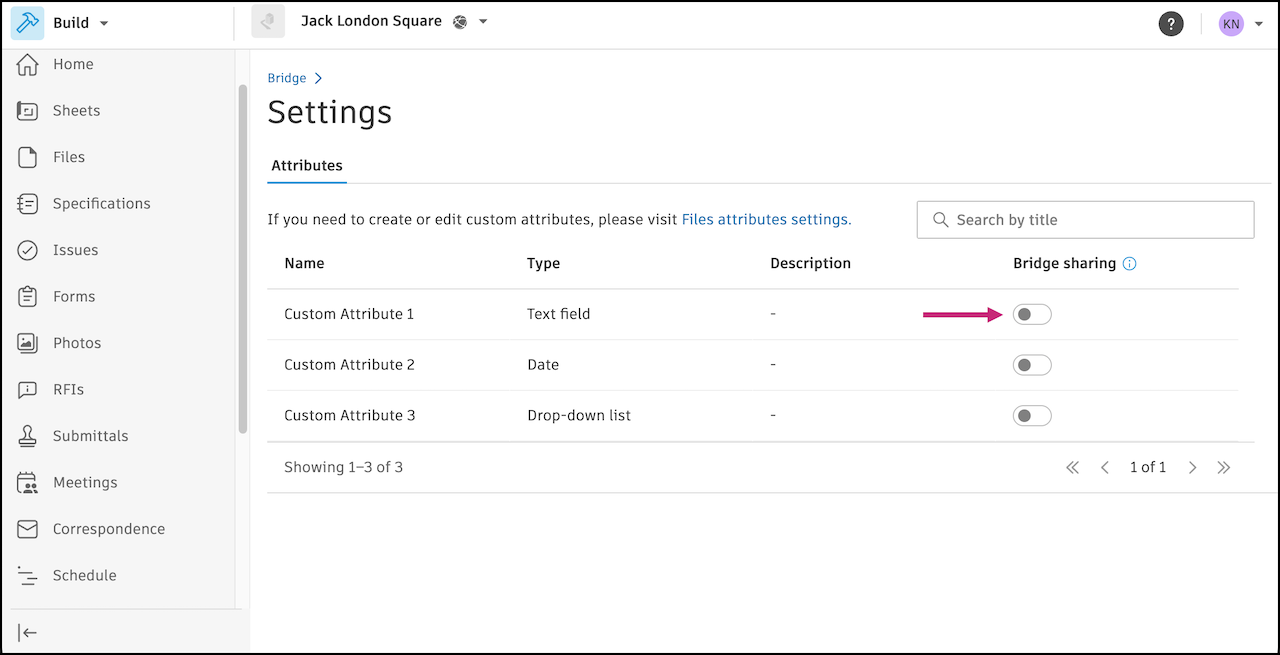
Project administrators can select which custom file attributes to share when files are shared through Bridge.
Open the Bridge tool using the left navigation menu.
Click
 .
.In the Bridge sharing column, toggle on the file attributes you want to share when files are shared.
Note: The list of attributes comes from the Files tool. To create or edit file attributes, click the File attributes settings link in the header to open the Attributes settings in the Files tool. Learn more about file attributes and how to create them..