Share Data Exchanges using Bridge
Using Bridge, Data Exchanges can be shared across Autodesk Forma projects and hubs to seamlessly share subsets of data with your teams. Also, sharing Data Exchanges using Bridge allows you to better record and monitor when Data Exchanges are shared by using the Incoming and Outgoing tabs in the Bridge tool. Learn more about Data Exchanges.
- Data Exchanges are supported for the US and EU data storage regions.
- Earlier versions of a Data Exchange cannot be shared.
In this topic, you'll learn how to:
- Share Data Exchanges with other Autodesk Forma projects
- Understand how actions affect the Data Exchange sharing
- Get support for Data Exchanges
Share Data Exchanges With Other Autodesk Forma Projects
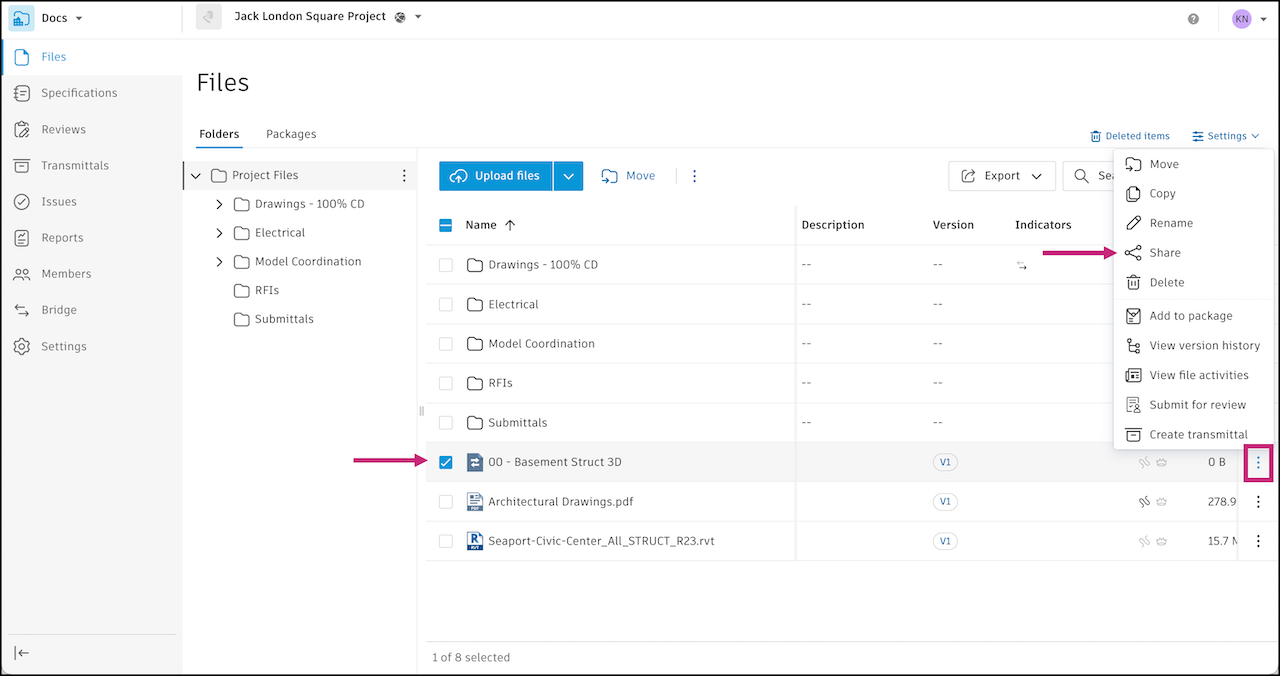
In the Files tool, find your Data Exchange file or create a Data Exchange. Your Data Exchange will display on web with a
 icon.
icon.Select the Data Exchange or the folder where the file is located. Click the More menu
 at the top or next to the Data Exchange file or folder.
Select Share.
Under Share with, select Another project.
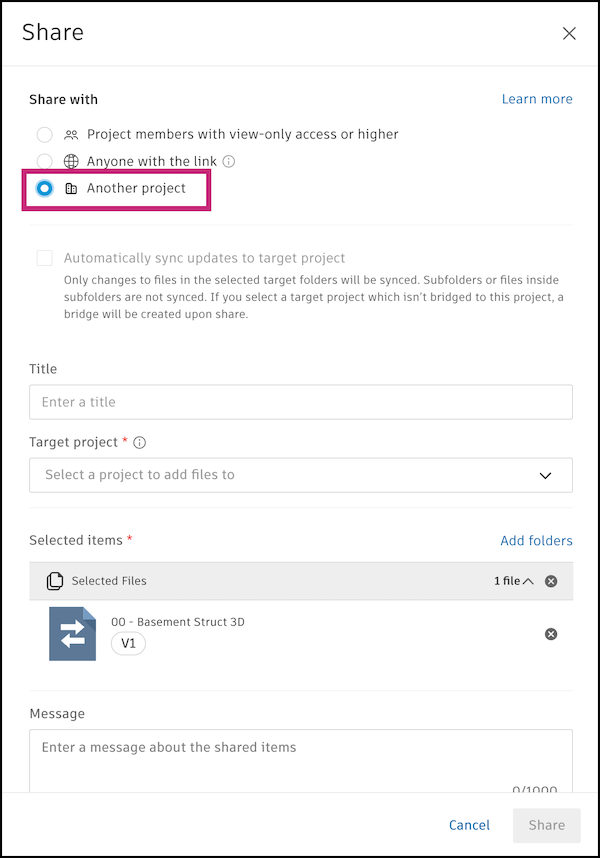
If you selected to share a folder with a Data Exchange inside, you could set up an automation where any updates to the folder will automatically sync to the project you are sharing with. This is not available for individual files.
Note: However, whether you can choose to automatically sync or not, once shared, new versions of a Data Exchange file will typically be automatically synced to the target project. You don't need to do any manual work for your team to receive the most up-to-date Data Exchanges.(Optional) Enter a title. This action will identify the items you have shared when you manage this in the Bridge tool.
Select the project and folder (if available) that you want to share the Data Exchange with.
Note: If you select a bridged project, you won't be asked to select a folder. The project administrators in the target project will review and approve what you are sharing and where it gets saved to in their project.Review the items that you will be sharing. Click Add folders to add other folders you want to share or click
 next to any items you no longer want to share.
Click Share.
In the Bridge tool, you can track the Data Exchange that was shared in the Outgoing tab. If you receive any data exchanges, you can track them in the Incoming tab. Learn more about the Outgoing tab and the Incoming tab.
Data Exchange Sharing Actions
The following tables show how certain actions performed on the Data Exchange file in the source project affect the file in the target project in various conditions.
Scenario: A data exchange at Version 1 (V1) in Project A is shared to Project B.
| Condition | Action in Project A (Source Project) | Outcome in Project B (Target Project) |
|---|---|---|
| One-time share or shared through folder automation | Data exchange file deleted | Data exchange file is not deleted and remains at V1 |
| One-time share or shared through folder automation | Data exchange file name changed | Data exchange file name is not changed |
| Exchanges - One-time share or shared through folder automation | New version (V2) of the data exchange created or new version of the Revit model is published | Data exchange file is auto-updated to V2 |
| Exchanges and shared through folder automation |
|
Data exchange file is auto-updated to V2 |
| Exchanges shared through folder automation |
|
Data exchange file is auto-updated to V2 |
| One-time share or shared through folder automation | Project A deleted | Data exchange file is not deleted, but it becomes an orphaned exchange file with no data, and cannot be loaded or updated |
Scenario: A data exchange at Version 2 (V2) is shared from Project A to Project B. This creates an exchange file at V1 in Project B.
| Condition | Action in Project A (Source Project) | Outcome in Project B (Target Project) |
|---|---|---|
| Exchanges - One-time share or shared through folder automation | New version (V3) of the data exchange is created or a new version of Revit model is published | Data exchange file is auto-updated to V2 |
| Exchanges - One-time share or shared through folder automation | Data exchange deleted and a new version of Revit model is published |
|
Support for Data Exchanges
For support for issues with Data Exchanges, you can use the Data Exchanges Forum or email data.exchange.support@autodesk.com.