Table Sections in Form Templates
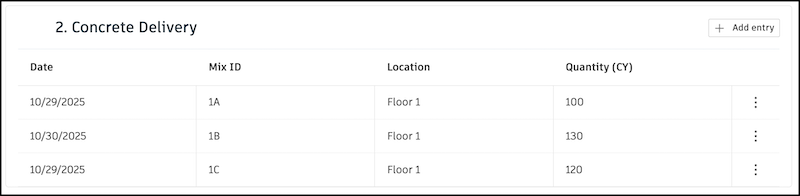
When you build a form template, you can create tables with custom columns and the rows will populate with information from form fillers, such as text, dates, or drop-down selections.
Use a table to:
- Capture detailed project information
- Track time, resources, and work progress
- Customize data collection to fit your needs
In this article, you'll learn how to:
- Add Table Sections to Form Templates
- Edit Table Columns in Form Templates
- Edit Table Section Name and Description
Add Table Sections to Form Templates
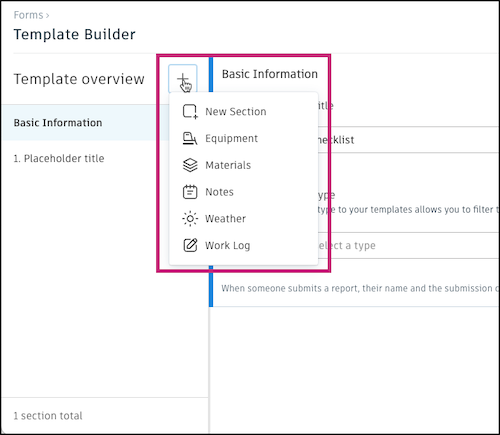
Open a form template in the Forms tool.
In the left panel, click the
 icon and select Table.Note:
A form template can have up to four table-based sections. The Equipment, Materials, Work Log and Table sections each count as a table-based section. For example:
- If the form template includes an Equipment section, you may add up to three Table sections.
- If the form template includes all three Equipment, Materials, and Work Log sections, you may add up to one Table section.
Enter a name for the table section.
Enter a value from 1 to 15 for the number of columns that you want in the table.
Note: You can add or delete columns later. You must have at least one column to start.Click Next.
Enter names for each column. Click the trash icon
 to delete a column.Note: Column names must be unique and 50 characters or fewer.
Click Create.
Next, choose the data type for each column. You can specify data types such as creating a drop-down or asking for a date field to get the information you need. Continue reading to learn how.
Edit Table Columns in Form Templates
After you add a table to a form template, you need to set the data type for each column. This customizes how form fillers complete the rows. You can configure a single column or bulk edit multiple columns.
Edit a single table column in a form template
Click a column header.
In the panel that appears, you can:
Click
 to delete the column.
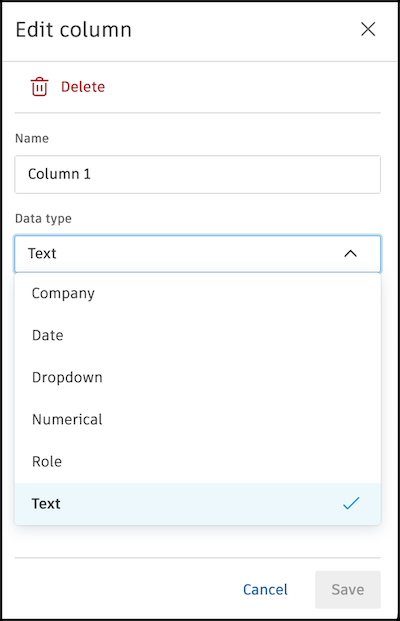
Edit the column name.
Select the data type for the column. Choose from:
Calculation: Lets you receive data from simple calculations on numerical or time fields in the same row. Learn more
Company: Form fillers select a company from the project's hub.
Date: Form fillers select a date from a calendar picker.
Dropdown: Form fillers select a value from a drop-down list.
- Enter the options for the drop-down.
- Click Add another option to add more options.
- Click the trash icon to delete an option.
(Optional) Turn on Allow free-form text responses to let form fillers enter their own values instead of selecting from the drop-down.
Note: You can add up to 100 options in a drop-down column. Each option must be 50 characters or fewer.Numerical: Form fillers can enter whole numbers or decimals. If they enter decimals, the value rounds to two decimal places. The value must be positive.
Role: Form fillers select a role from the project's hub.
Text: Form fillers can enter up to 200 characters.
Time: Form fillers select a time from a time picker.
Click Save.
Edit multiple table columns in a form template
Click the cog icon
 in the top-right of the table section.
In the dialog, edit column names.
To add columns, click Add column at the bottom of the dialog.
Note: You can add up to 15 columns.To remove columns, click the trash icon
next to the column name. Note: You must have at least one column in the table.To reorder columns, hover over the column and hold the drag icon
 to the left of the column name. Drag the column to the new location.
Click Save.
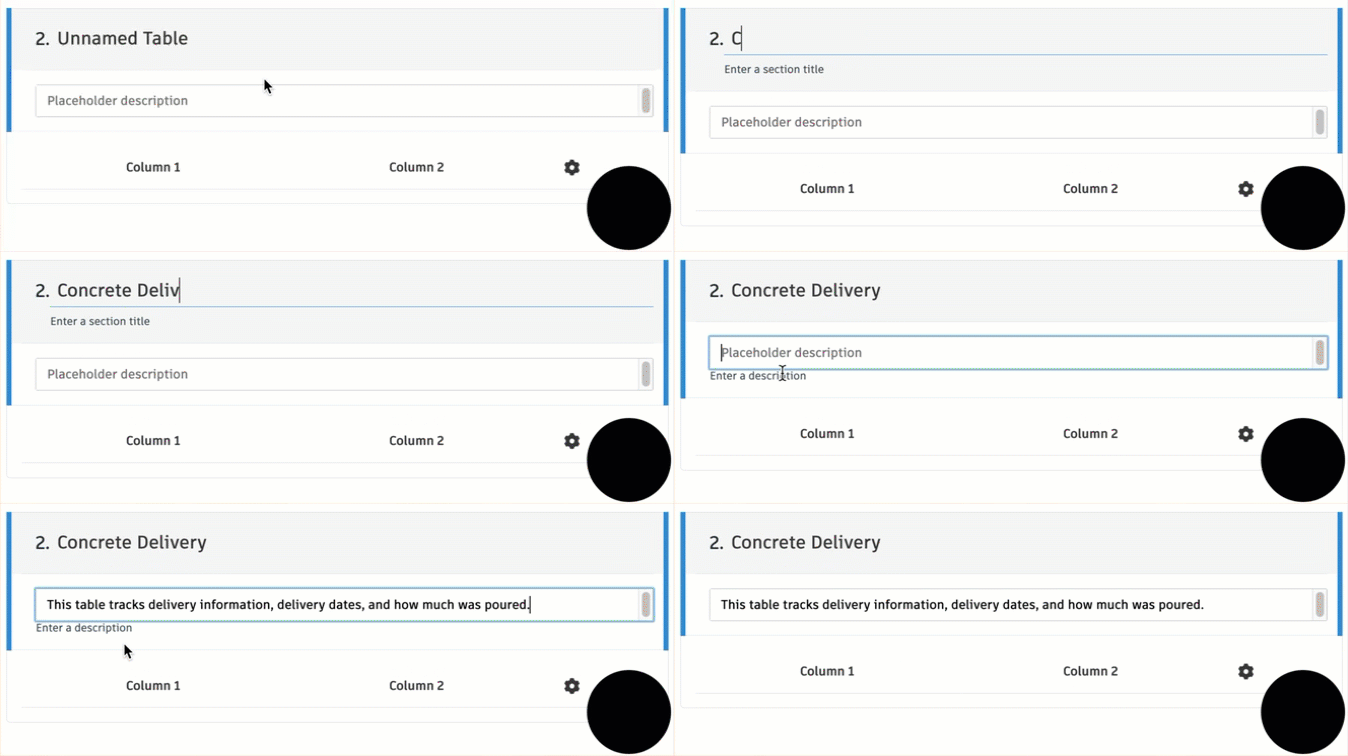
Edit Table Section Name and Description
To edit the table section name after you add it to the form template:
- Click the section title.
- Type a new name for the table section.
- Click away to save.
- (Optional) Add a description for the table section in the Placeholder description field.
You can also add a description for the table section in the Placeholder description field.