Import Issues from BCF File
You can import 3D issues from a BCF file into the Issues tool in Autodesk Forma while working on an IFC or RVT file. This feature allows you to streamline issue management and collaboration by bringing in issues from other platforms or previous projects.
In this topic, you will learn about:
- Importing Issues from a BCF or RVT File
- Auto-Placement of Issues in BCF Import
- Known Limitations for BCF Issue Import
Import Issues from a BCF or RVT File
The import workflow begins in the viewer. To access the viewer, either:
In the Issues tool, click the relevant issue from the Issues Log, and then click the link in the Placement field in the flyout panel on the right.
or
In the Files tool, click the relevant file in the Name column.
While in the viewer, you can import issues from a BCF file as follows:
Click
 in the left navigation to open the Issues list view.
Click the More menu
 at the top right of the Issues list and click Import from BCF.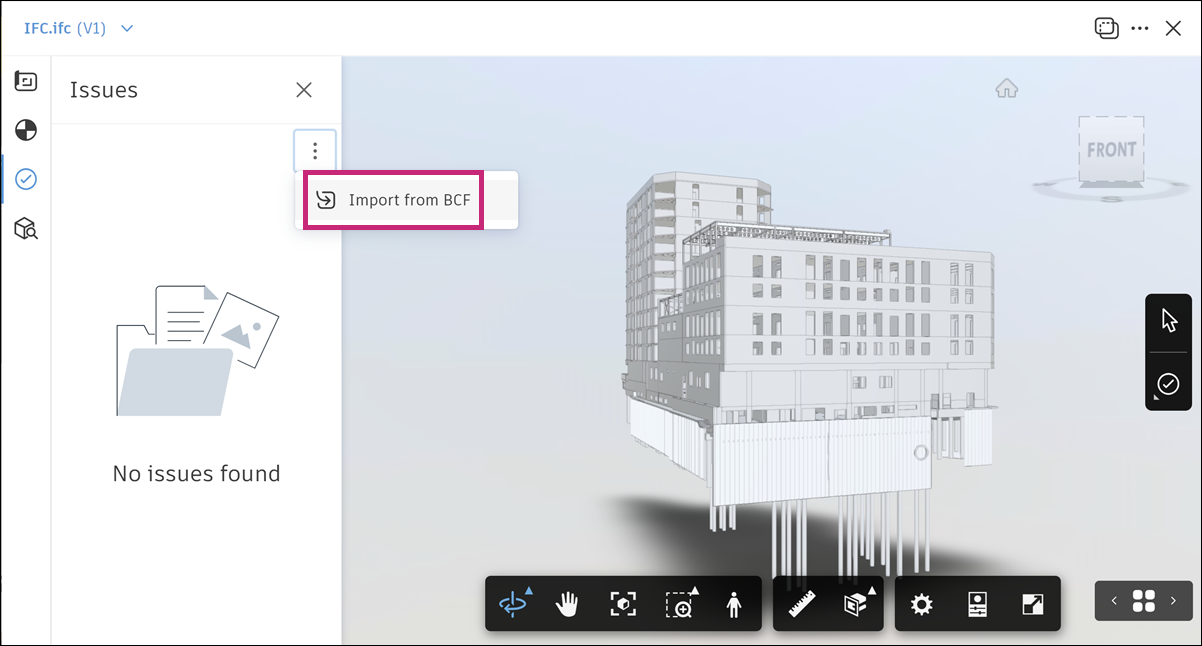
Locate the zipped BCF file that matches the IFC file that you've opened in the viewer and either:
Drag it into the upload area.
or
Add files from your computer.
Note: A BCF file can contain a maximum of 100 issues and their associated attachments.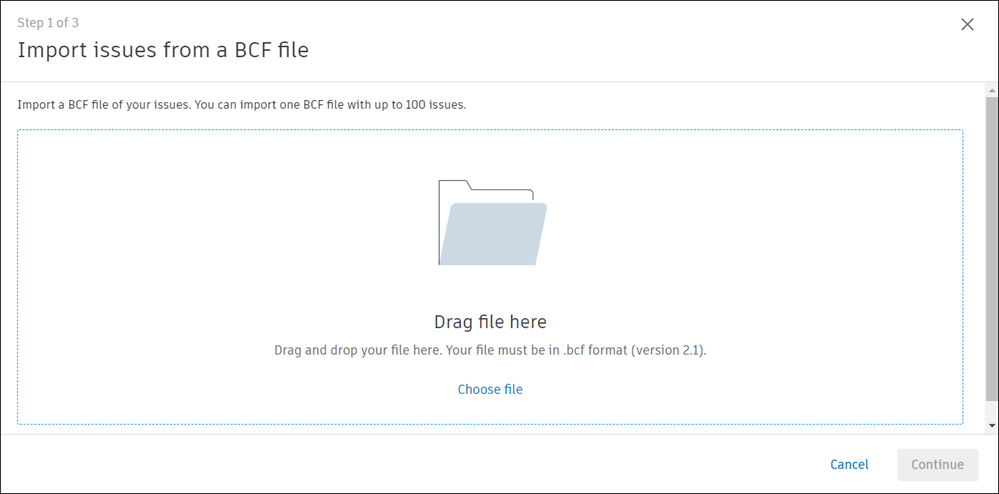
Attachments included in the BCF file will be imported as part of the issue data. The following rules apply:
- Attachments are imported in their original format and added to the issue.
- If multiple attachments with the same name but different content exist, a unique identifier; for example, "_1" will be appended to the filename to prevent conflicts.
In case of errors (for example, no status information), you will see the following message at the bottom left of the screen:

Click See why to review and resolve errors. This action opens the following modal:
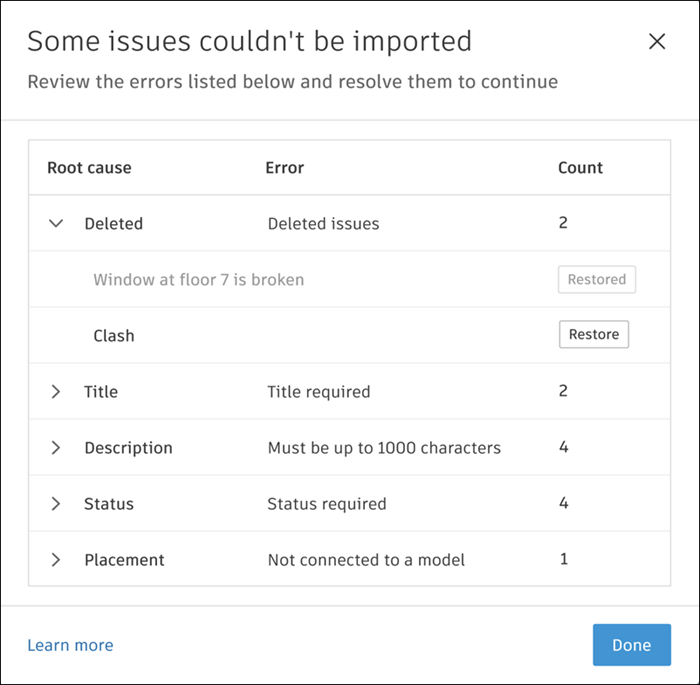
Errors related to attachments will be included in the email notification, specifying whether some or all attachments failed to import.
Click Restore to restore any deleted issues. Learn more about deleting and restoring issues.
Click Done to proceed.
On screen Step 2 of 3, use the Type drop-down list at the top left corner of the screen to assign a desired default type to new or updated issues.
 Note: On import, the status of all issues except closed ones defaults to Open.
Use the Assignee drop-down list at the top left of the screen to assign a relevant member, role, or a company as a default assignee to new or updated issues.
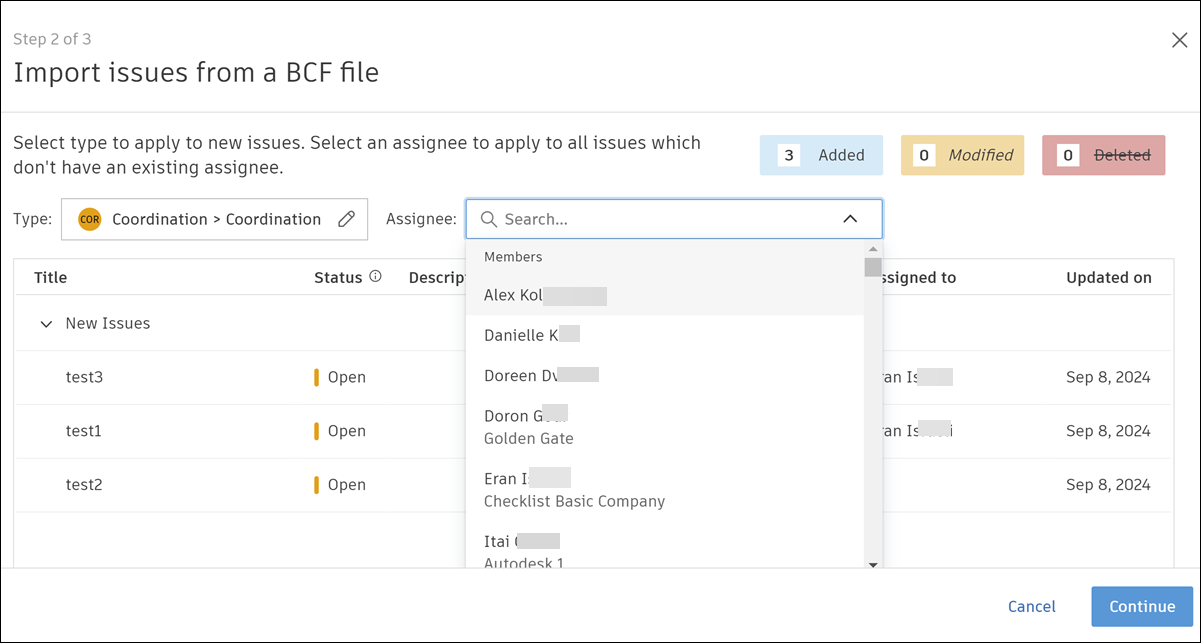
Click Continue to proceed.
On screen Step 3 of 3, review the details of the issues that you're about to import.
Tip: You can use the in-line drop-down list to edit the assignee as needed.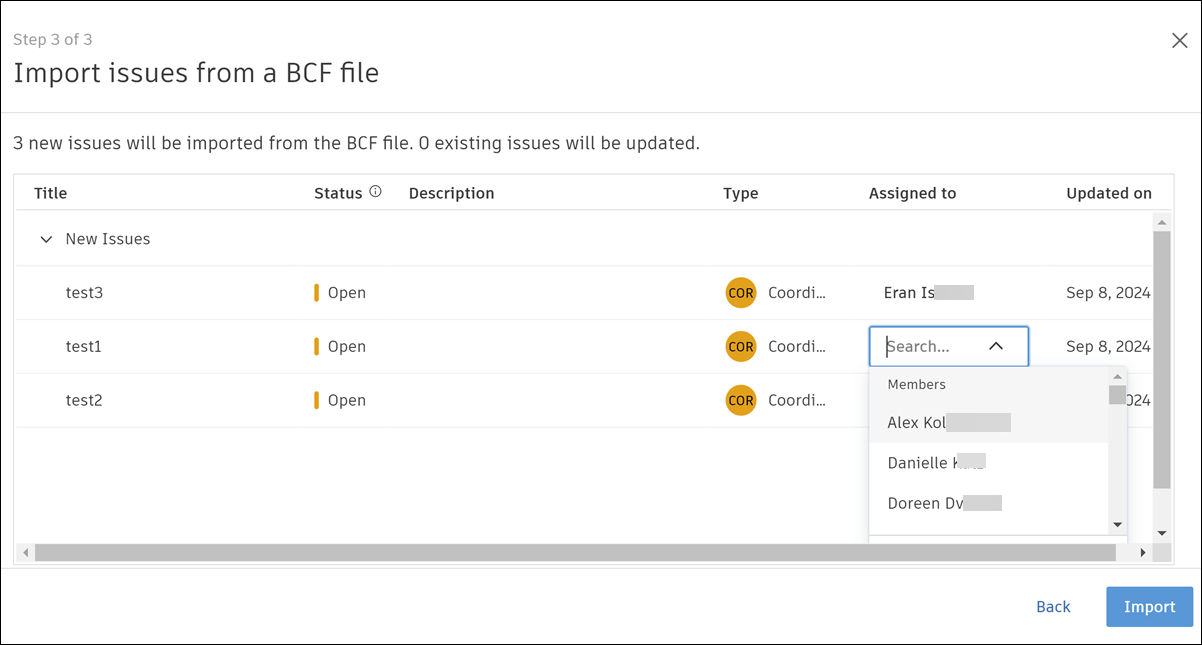
Click Import.
The message in the top right corner of the screen indicates import status.
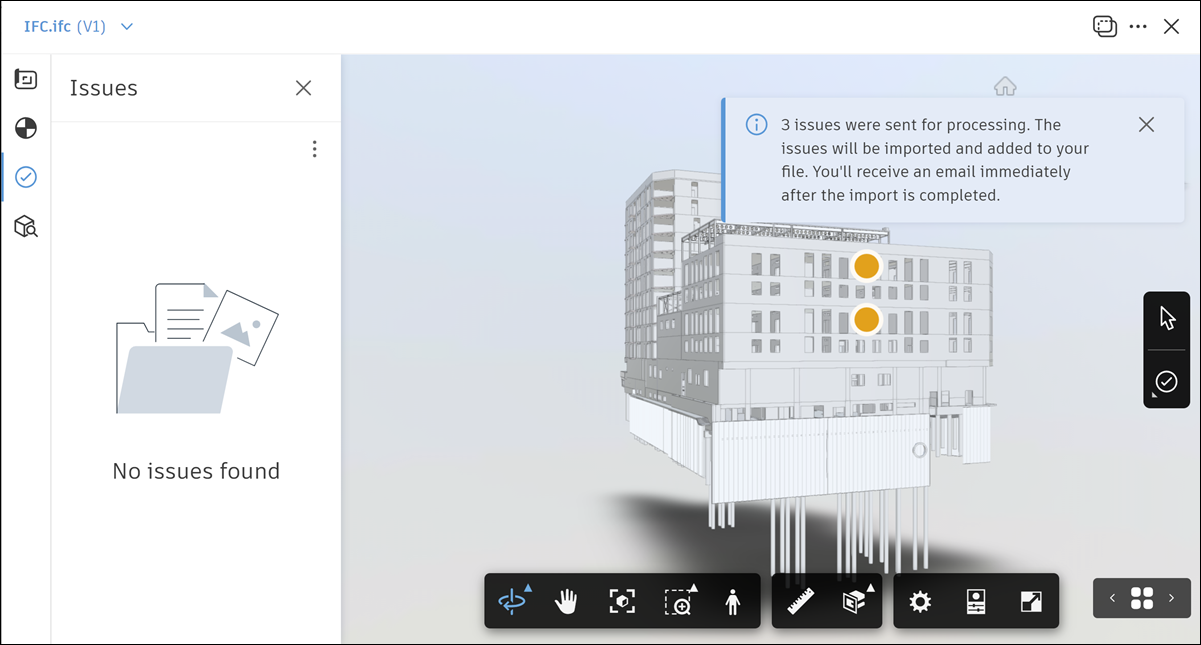
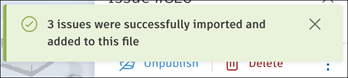
On success, you'll see the following message appear at the top right of the screen:
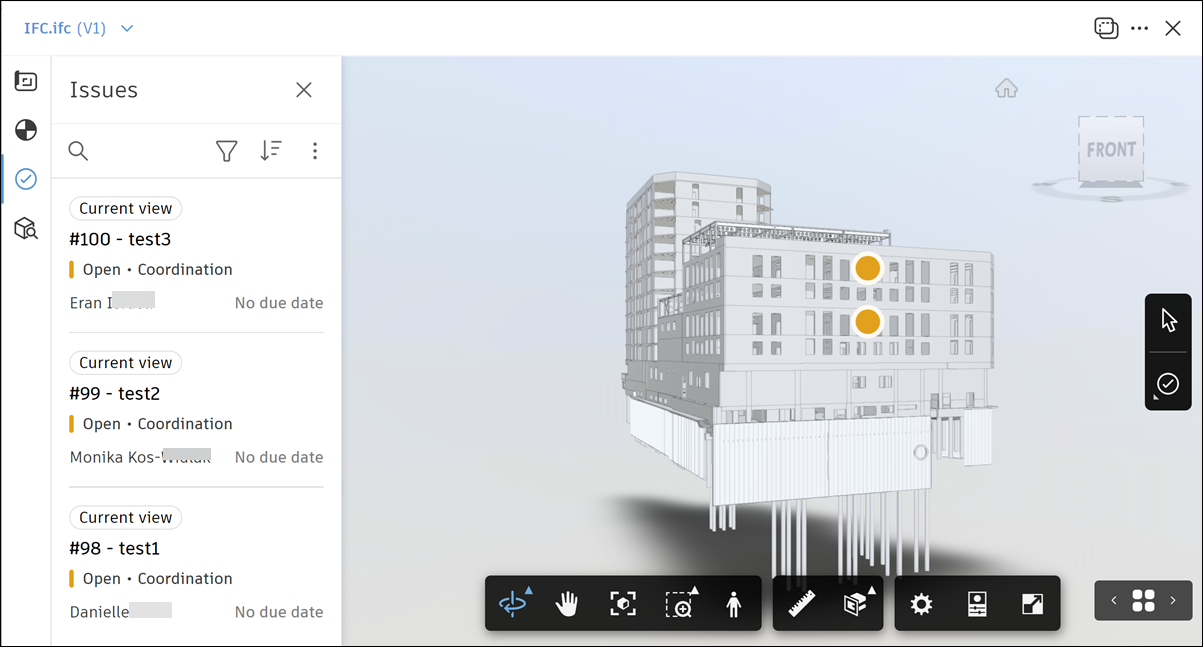
You'll also receive an email notification upon the completion of an import.
Auto-Placement of Issues in BCF Import
When you import BCF issues into the Issues tool, some issues may not include a selected element. Autodesk Forma requires each issue to be placed on a specific element in the model. If such issues are imported, you will be prompted to either import or skip them, as described below.
In the viewer, click
in the left navigation to open the Issues list view.Click the More menu
at the top right of the Issues list and click Import from BCF.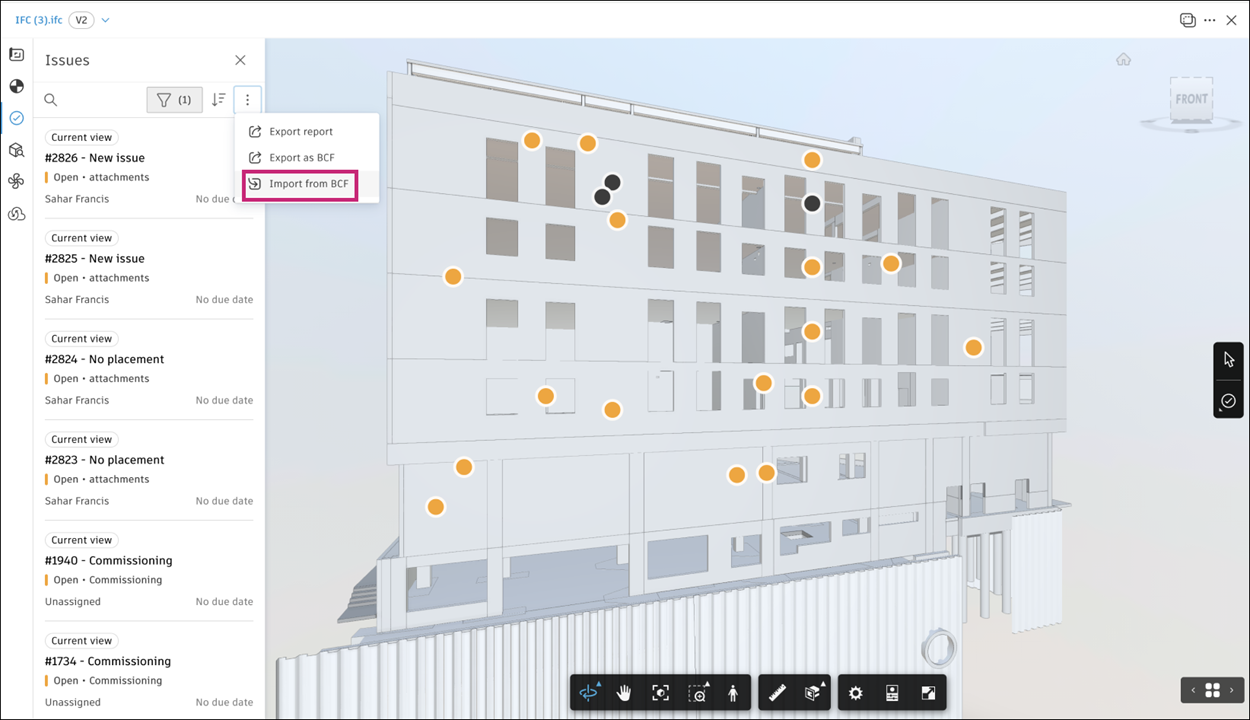
If the BCF file contains issues without a selected element, you will see the following message:
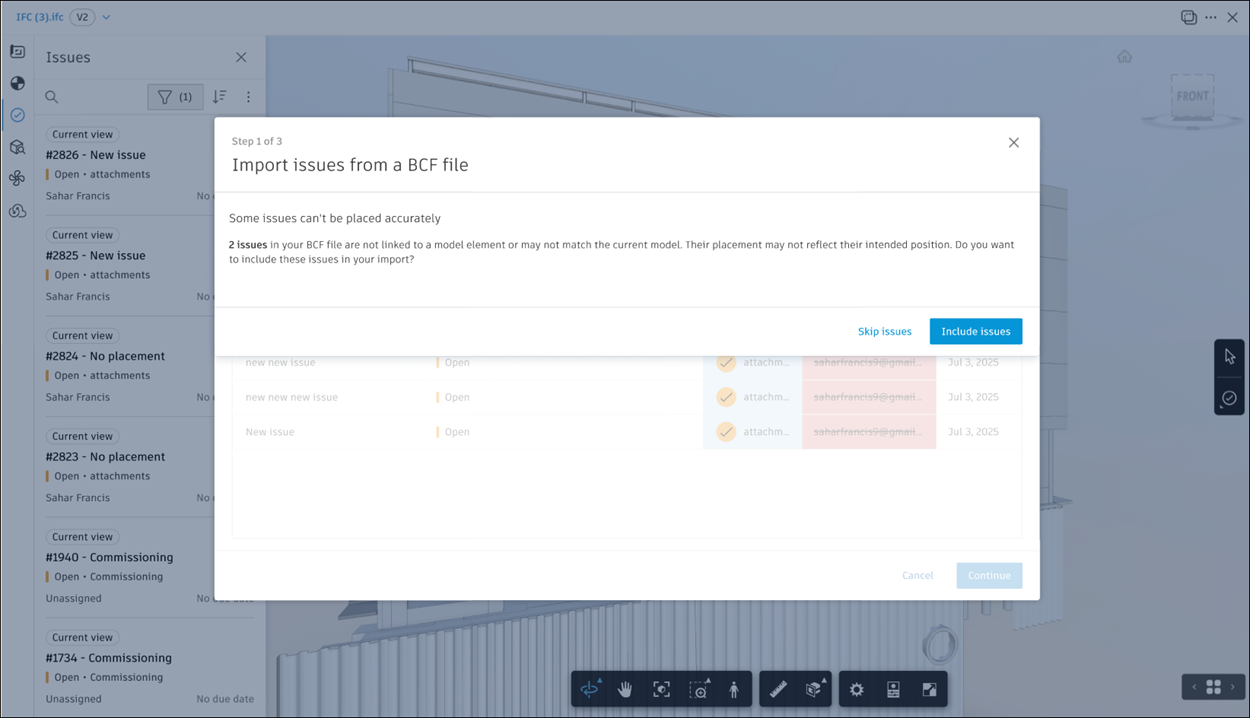
Click Include issues if you want to import issues without a selected element or click Skip issues to skip the import of such issues.
Select the type to apply to the issues without a selected issues element from the Type drop-down list at the top left corner of the screen. Select an assignee from the Assignee drop-down list in the upper right of the screen.
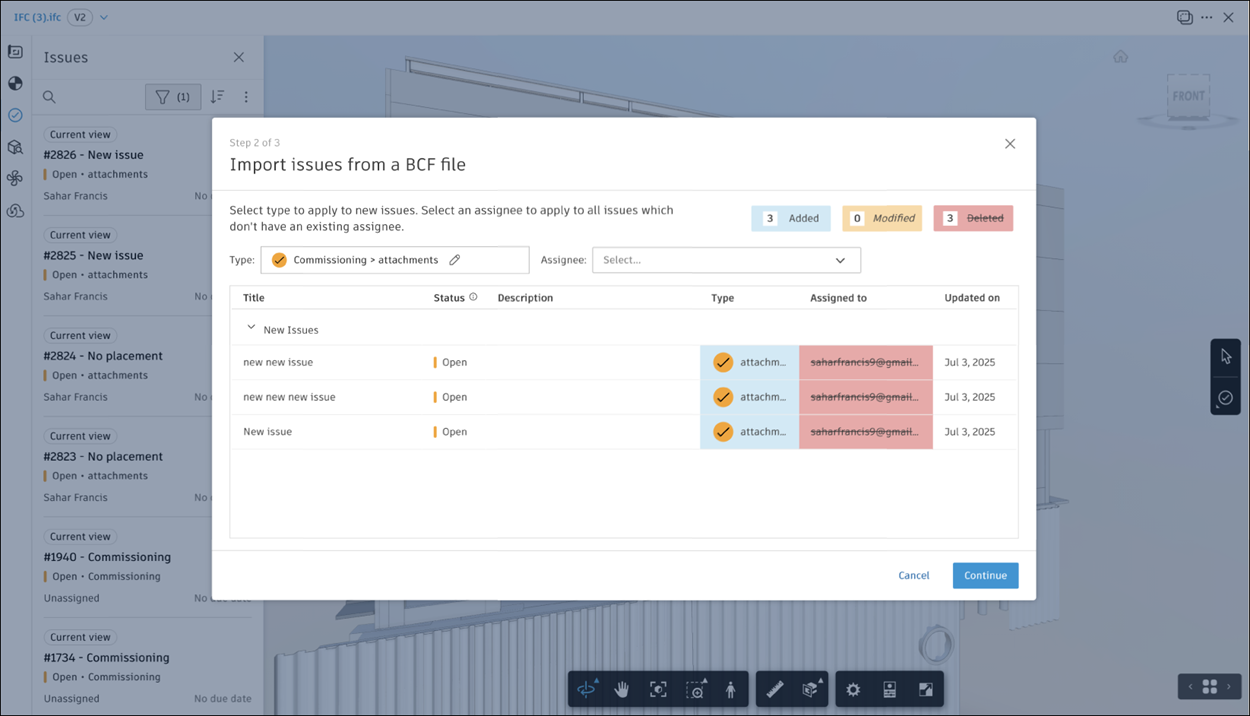
Click Continue to proceed.
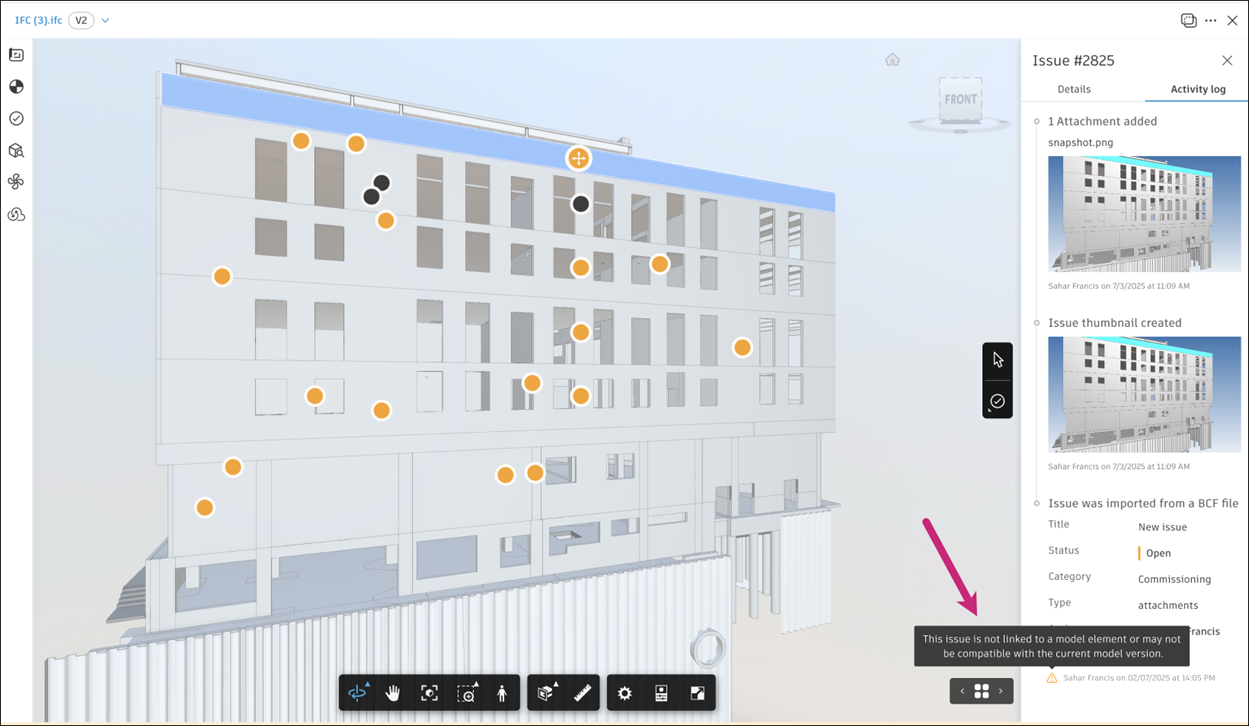
How Auto-Placement Works
Here is a summary of how the auto-placement of issues works when importing BCF issues into Autodesk Forma:
- Autodesk Forma checks each imported BCF issue for a selected element.
- If a selected element is present and matches a model element, Autodesk Forma places the issue on that element.
- If no selected element is present:
- Autodesk Forma places the issue at the center of the camera’s viewpoint, based on the camera position and direction.
- The pushpin appears in the model viewer when you select the issue.
- The pushpin is not attached to a specific model element.
- The issue’s location matches the BCF thumbnail viewpoint as closely as possible.
Known Limitations for BCF Issue Import
This section details known limitations and other considerations pertaining to the import of issues and attachments from a BCF or RVT file into Autodesk Forma.
BCF import is only supported on a single IFC or RVT file
BCF issues must have at least one selected element in an open model
RVT files must contain an IFC GUID – this is a default option for files created using Revit 2022 and newer.
Note: For older Revit files, you need to export to IFC and select the checkbox to save IFC GUID in the export settings before saving the RVT file. See IFC Export Setup Options for details.Only BCF version 2.1 is supported
A maximum of 100 issues can be uploaded in a single file
Showing multiple selected objects is not supported
Custom statuses are not supported. All issues are imported as "Open" status unless they are explicitly defined as "Closed" in the BCF file. Closed BCF issues in non-English languages may not be imported as closed.
See Troubleshooting Problems with BCF Issue Export and Import to learn about the solutions to some of the common problems with BCF issue import and export.