Search, Sort, and Filter Issues
All issues on your project are accessible in the Issues Log where you can sort, filter, and search for issues in your project.
From the Issues Log page, you can also access the Deleted issues area to view all issues that were deleted in your project.
To access the Issues Log, click the Issues tool.
To organize or refine your issue log selections, use the search, sort, and filter functions.
Search Issues Log
The search bar is on the top-right corner of the Issues Log. You can enter an issue title or ID into the search bar to surface the associated issues.

Sort Issues Log
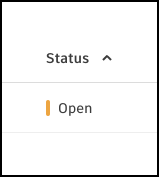
To sort the Issues Log based on a field, click the column name. Once you click the column name, an arrow will appear indicating that the column is sorted in ascending order. Click the column name again to sort in descending order.
The following columns are sortable:
- Title
- ID
- Status
- Description
- Location details
- Due date
- Start date
- Created on
- Updated on
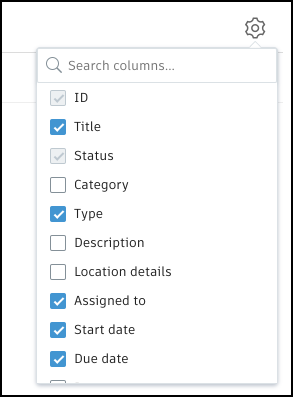
Add extra columns to the Issues Log by clicking the Gear icon  on the upper-right corner of the Issues Log. Once you select a new column, it will appear in the log immediately. Use the search bar to quickly find the column you'd like to add.
Filter Issues Log
To filter the Issues Log, click the Filter icon  This will open the Filter flyout. Configure the filter or filters that you want to use, and the Issues Log will update automatically.
Note the following:
- Filtering by a role returns issues assigned to that role and issues assigned to its individual members
- Issues assigned to companies don't appear when filtering by assignees
- You can clear filters individually or clear all applied filters by clicking Clear all or X next to the filter icon
- Click Reset to return to the default view which includes all issues except closed and deleted ones
The following filters are supported in Issues:
Issue ID
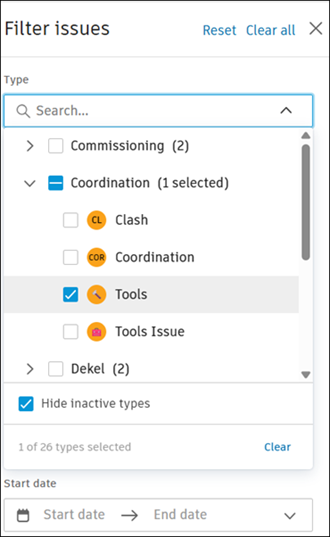
Type: Types and categories appear together in one list, with types grouped under their category. In the Type filter, you can:
Enter a keyword in the search box to find matching types and categories
Select a category to include all its types, or expand the category to select individual types
Select the Hide inactive types checkbox to remove inactive types from the list
Status:
Note: By default, issues with a Closed status and deleted issues are excluded from the Issues Log and not shown. All unresolved issues are shown by default.
Location (including sub-locations)
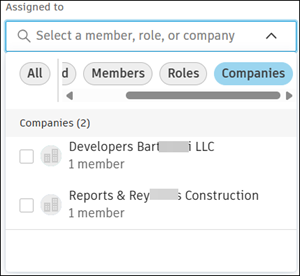
Assignees: You can filter issues by:
Unassigned
Members
Roles, including each role's members
Companies
All
Click the desired filter button to apply the filter.
Watchers
Start date
Due date
Root cause
Published or unpublished status
Created by
Creation date
Custom fields
Issue Placement
The Placement column in the Issues Log contains a link that allows your team to quickly access the issue markup.
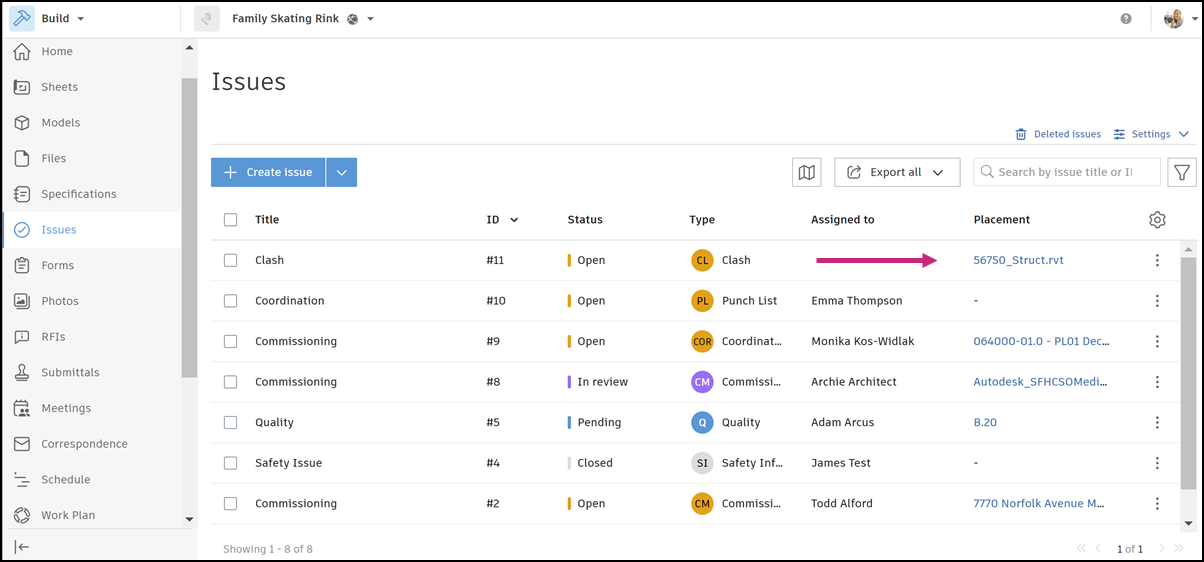
Click the link in the Placement column to access that sheet or file. The link will always take you to the latest version of that sheet or file.
View Deleted Issues
Project members with View, edit, and assign and Full visibility permission can view the deleted published and unpublished issues they'd originally created. Members with Manage issues or Administrator access can view and restore all published issues that were deleted in a project. In addition, they can see unpublished deleted issues if they're an issue watcher, assignee, or creator.
To view deleted issues, click Deleted issues at the top-right corner of the Issues Log. This action opens the Deleted issues area.
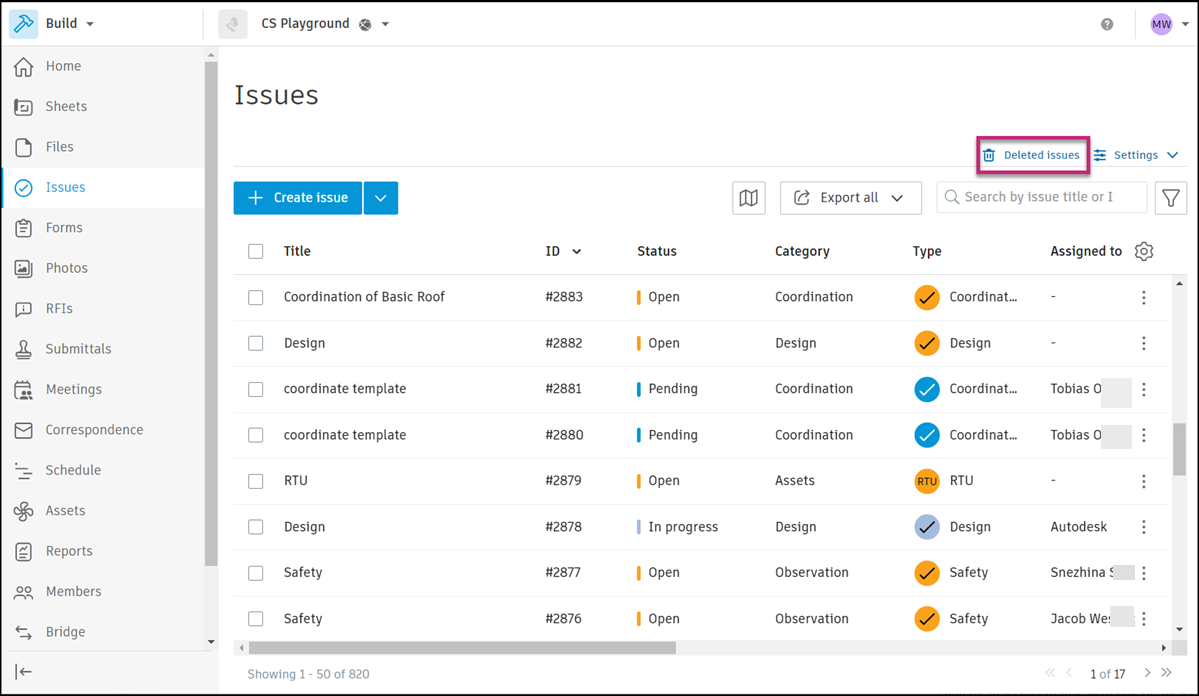
To view the details of a deleted issue, click this issue from the Deleted issues area. A flyout panel opens to display all the issue details.
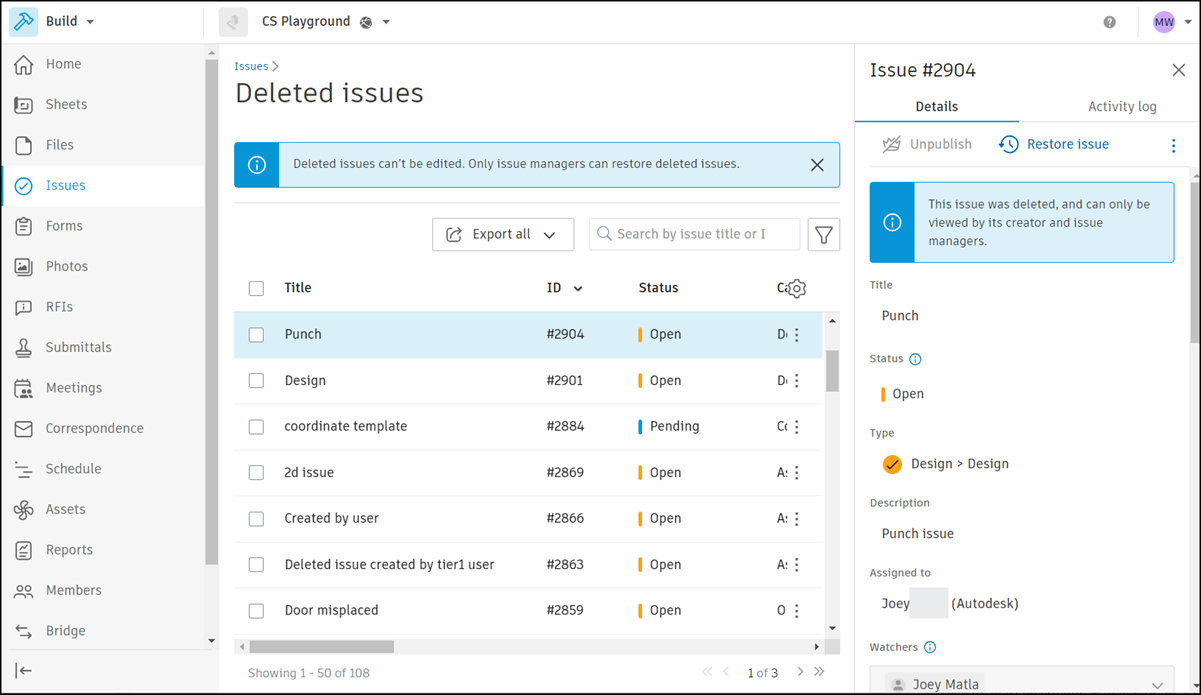
See Delete and Restore Issues for details about deleting and restoring issues.