Create Issues on Android
Use the Autodesk Forma mobile app on Android to create issues, add required details, and include attachments, references, placement, and GPS location information.
Create Issues on Android
Launch the Forma mobile app.
Tap the project that you want to open. If you open a project that has new data available, you may be prompted to sync to see the latest project data, but that is an optional step.
Tap the Issues icon. If you do not see Issues on the bottom menu, tap the More menu icon
 and then find Issues.
 Create an issue by tapping the Create issue button at the bottom of the screen.
Note: If no issue types are visible to you, the Create issue button is disabled. Tapping the disabled button shows a message explaining why issue creation is unavailable.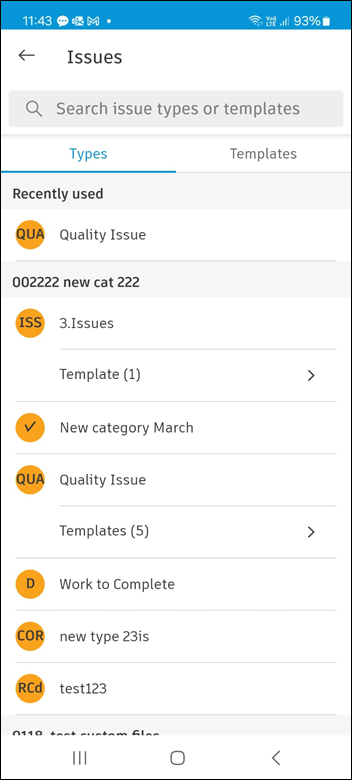
Select from the Types or Templates.
- Issues must have a type and types are preconfigured or created in the Types settings on web
- Templates have an associated type and can contain prepopulated information to make creating issues faster. You only see templates for issue types that are open to you. Templates are created in the Templates settings on web
Fill in all details about the issue. Required fields are displayed with a red asterisk.
Enter or select the following details:
Title
Status
Type
Description
Assignee
Watchers: Tap Members, Roles, or Companies.
Tip: Use the search box to find members, roles, or companies by name.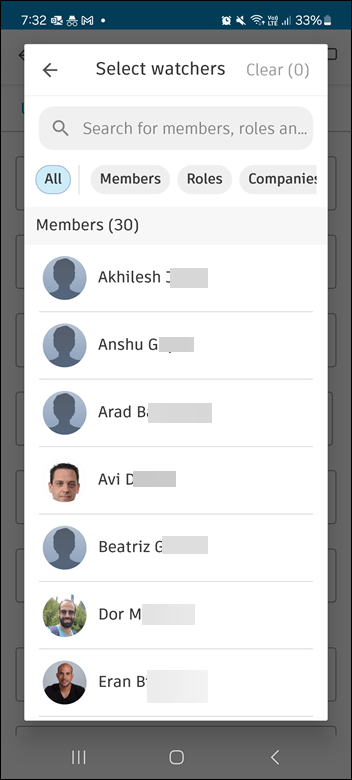
Location
Location details
Due date
Start date
Placement
Root cause
Note: If there is at least one empty required field, the issue will be created in the Draft status. You cannot change the status until all required fields are complete. Required fields are displayed with a red asterisk. Administrators set fields as required in the Types settings. When you try to leave an issue in the Draft status, you can tap Go back to finish editing or Save as draft.GPS locations: Tap the Map icon
 at the top of the Issues list to view the location of project issues on the map. Tap any issue pin to view and edit details for that issue. See GPS Locations on Issues on Android for more information.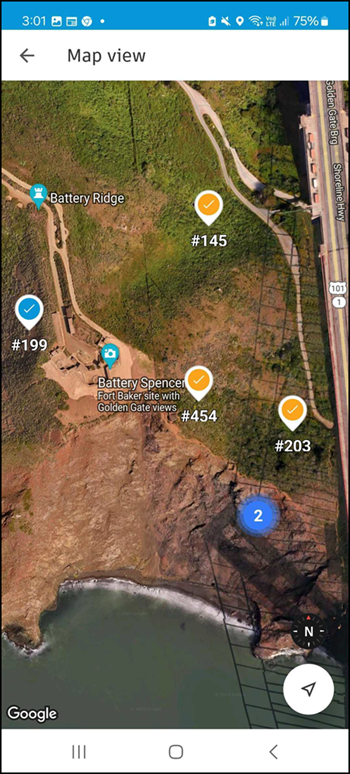
Attachments: Take a photo with your camera or attach a file from your device.
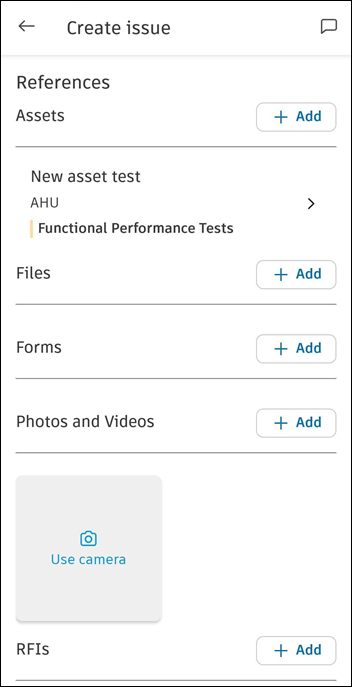
References: Navigate to the References section, tap Add next to the tool of your choice, and then select the file for which you want to create a reference. References are links to files that exist in other Autodesk Forma tools like Assets, Forms, Files, Photos, Sheets, or RFIs. See Issue References and Attachments for details.