Sync and Download Considerations for Issues on Android
When using Autodesk Forma mobile apps on devices, there are several important considerations regarding data sync and download behavior to ensure optimal performance and user experience.
Open the Autodesk Forma mobile app and sign in to your hub.
The app will open on the Projects page and with the Autodesk Forma tab open. This is where your Autodesk Forma platform projects are listed as:
- On this device: Projects which you've downloaded to your device and are available to work with offline.
- In the cloud: Projects which you haven't downloaded and are therefore not available offline.
Tap the name of the relevant project In the cloud you want to download to your device.
You have the following download options. See Sync and Download Projects for more details.
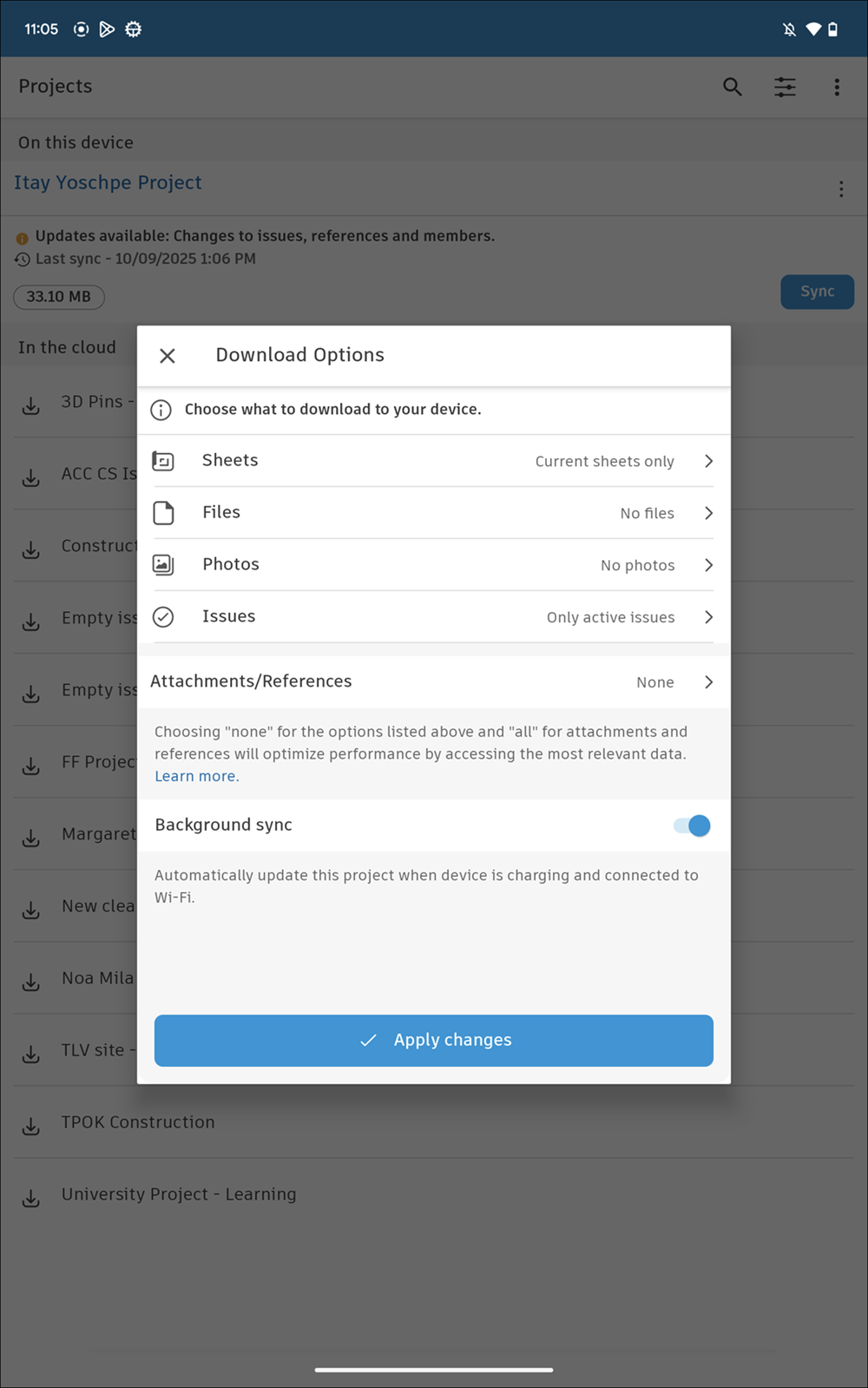
Tap Issues to modify the download options.
If you tap the All issues option, your device will download a larger amount of data, which may result in slower performance and increased storage usage.
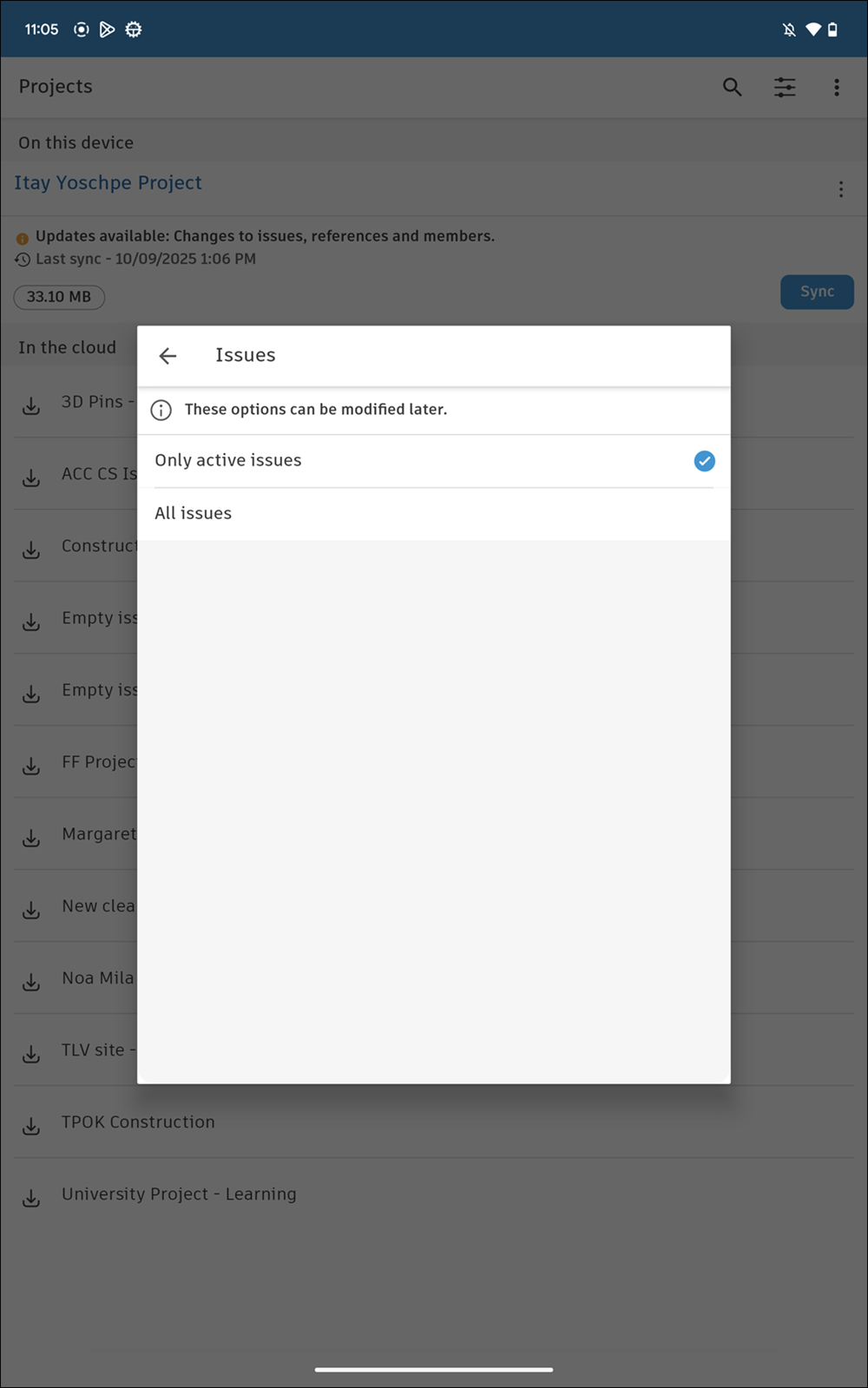
You can still access closed issues by manually downloading them, searching, or viewing issue details.