Work with Issues in the Viewer on Android
You can view, edit, and manage issues directly within the Autodesk Forma mobile app viewer on Android. This allows you to work with issues placed on 2D files, sheets, and 3D models, helping you visualize and resolve problems in context. Use viewer tools to navigate, measure, and markup your models and drawings for enhanced collaboration.
- Open Issues in the Viewer on Android
- Work with Issues Placed on 3D Models in the New Viewer on Android
- Create and Manage Markups
- Copy and Duplicate Issues with Markups
- Copy and Paste Considerations
- Permissions and Results
- Work with Nested Markups in the Viewer on Android
Open Issues in the Viewer on Android
Open the Autodesk Forma mobile app.
Tap the project that you want to open.
Tap the Issues icon. If you do not see Issues on the bottom menu, tap the More menu icon
 and then find Issues.
 Navigate to the issue that you want to open in the viewer.
Tap the Placement field.
Tap Go to file/Go to sheet. This action opens your issue in the viewer.
Note: If the file has not been downloaded yet, you may be prompted to download it.
Work with Issues Placed on 3D Models in the New Viewer on Android
Working with issues on 3D models in the new viewer for Android allows you to visually place, review, and manage issues directly within your project’s 3D environment. This feature helps teams identify and resolve design or construction problems in context, improving collaboration and accuracy. You can view issue pins on models, access issue details, and use specialized tools for navigation, measurement, and markup.
Follow steps 1-6 in Open Issues in the Viewer on Android to open your issue in the viewer.
You'll be able to view issues placed on a 3D model in the new viewer.
Tip:Tap Don't show me again to hide the banner. You can turn the new 3D model viewer back on in the Settings menu
 in the top right of the screen.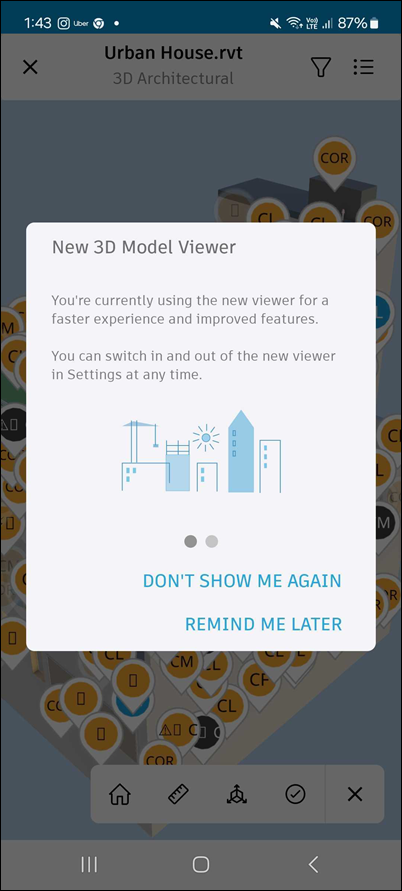
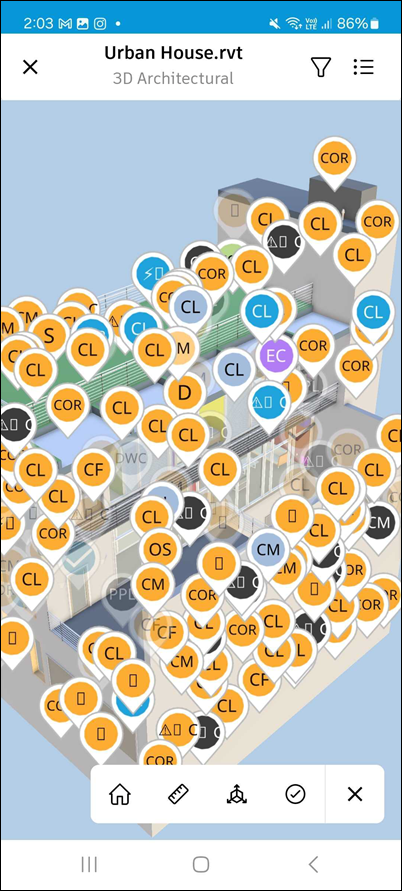
Issue pins visually mark the exact locations on the 3D model where issues have been placed, helping you quickly identify and access issue details in context.
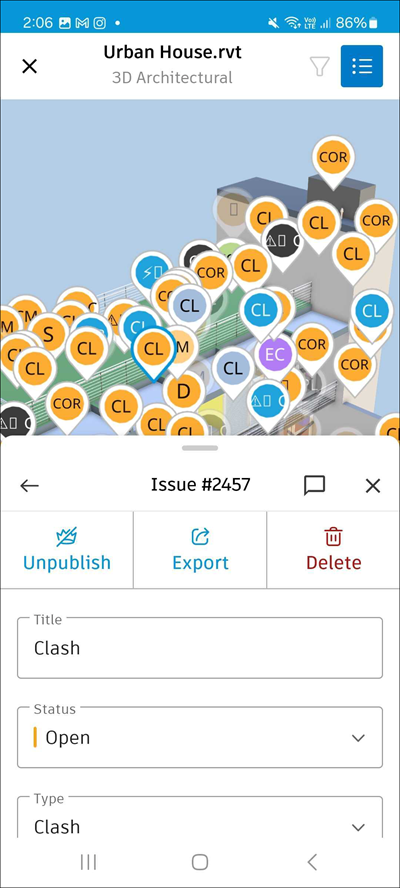
Tap the desired issue pin to open its details panel, where you can view, edit, comment, export, delete, publish, or unpublish the issue directly from the model.
The following tools are available in the toolbar.
Note: The letters correspond to the letters in this screenshot.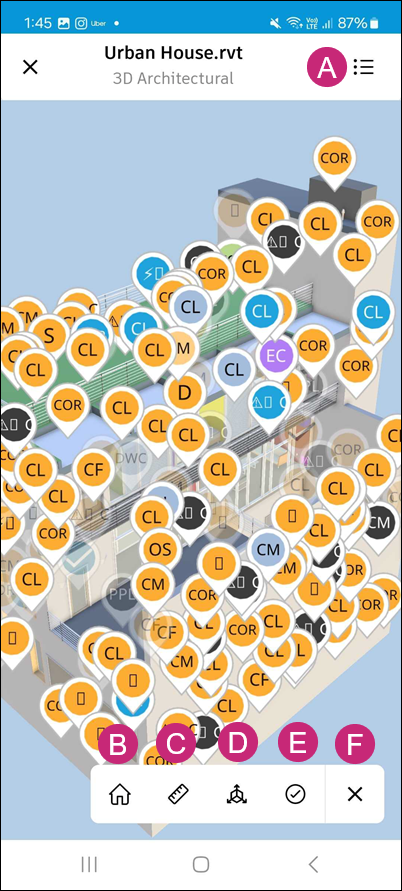
A: Menu: Tap the menu to access the following:
Views: Browse different 2D and 3D views associated with your model
Viewpoints: See different viewpoints associated with your model
Issues: View and edit the list of issues associated with your model
Model Browser: Browse through the model structure
Assets: View and edits assets associated with your model
Settings: Access the settings menu to adjust your viewing experience, such as:
Select units of measurement as needed
Change selection mode
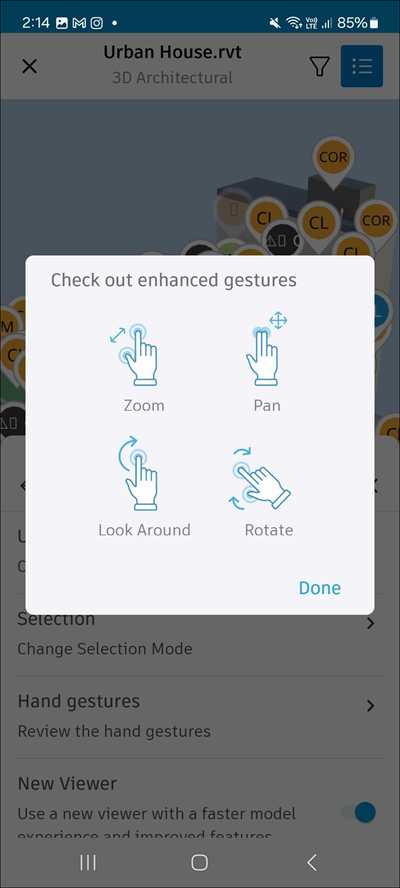
Review the hand gestures: zoom, pan, look around, and rotate
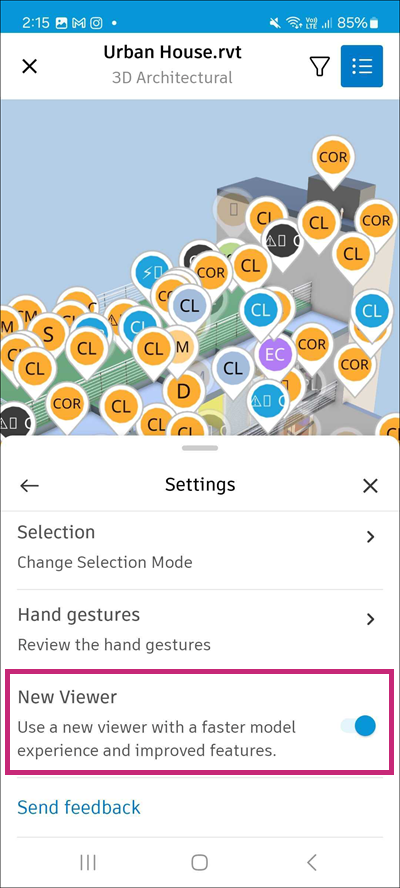
Toggle the new viewer option on or off to use the new 3D model viewer. This option is enabled by default. If you disable it, you will be able to use the legacy viewer.
Send feedback about the feature
Details: View details about the model, such as the file name, file size, and version.
B: Home view: Tap to return to the default view.
C: Measurement: The following four measurement tools are available:
Straight line measure: Tap two points on the model to measure the distance between them. You can also touch and hold to open a closeup of your touchpoint and let go to create the first point. Then hold and drag the point to measure a length.
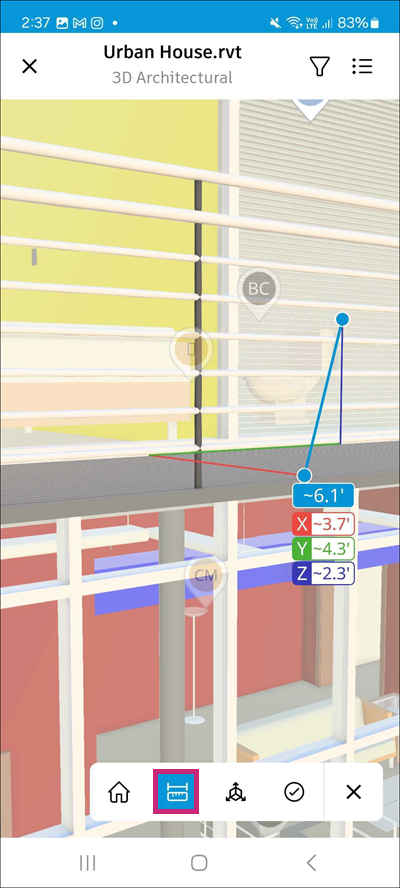
Laser measure: Tap any surface of the model to view measurements to the nearest edges.
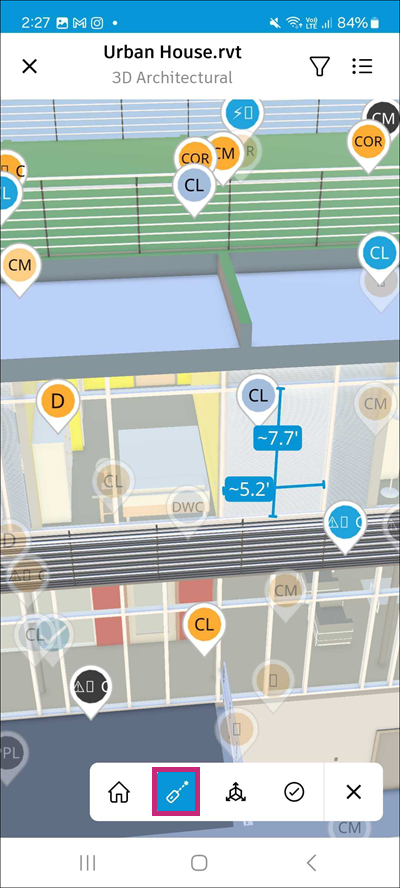
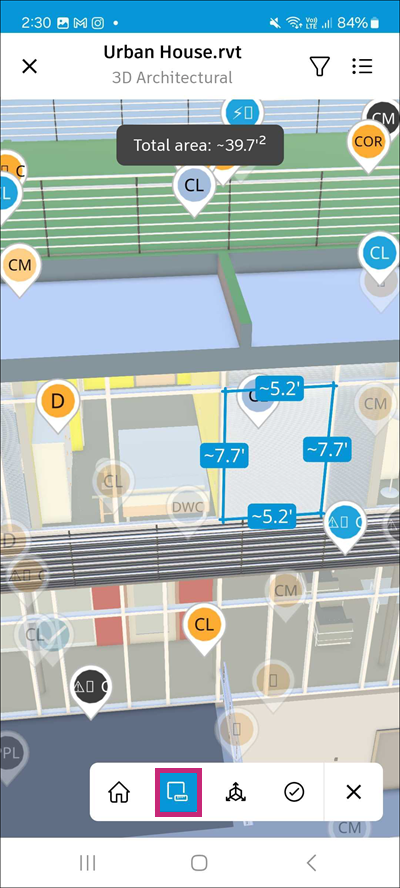
Surface measure: Tap a curved or flat surface to view its measurements. Depending on the surface type, you may see:
Straight edges - lengths of individual edges
Circles - circumference and diameter
Arcs- Arc length (can be circular or general arcs)
Ellipses - circumference, half-major axis, and half-minor axis
Cylinders and conic sections - Length dimension between the centers of two parallel circular ends
Total area - Displayed for flat surfaces only
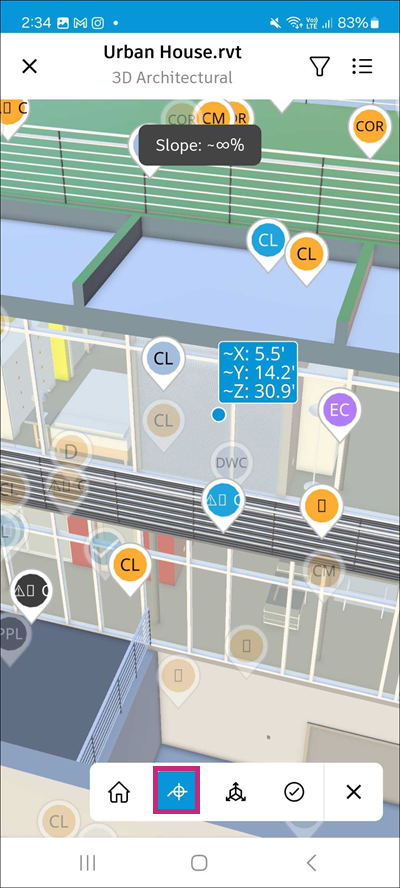
Spot coordinate: Tap a point on the model to view its:
X, Y coordinates
Elevation (Z)
Slope
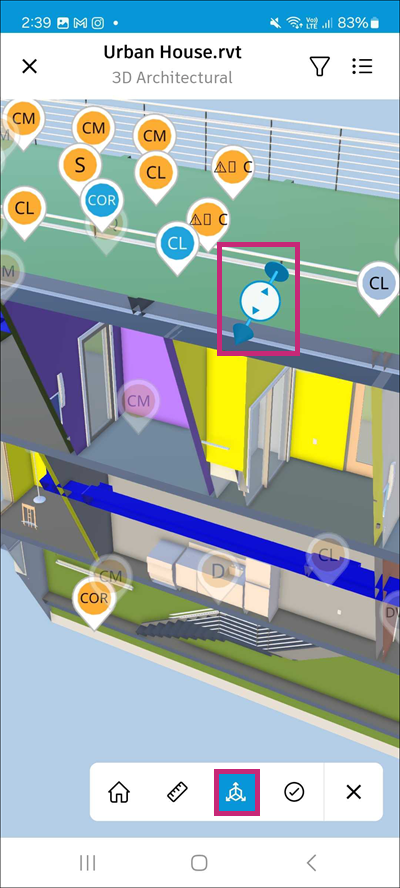
D: Sectioning: Tap a surface to create a section cut through the model. Tap to select either the X axis, Y axis, Z axis, or specific area.
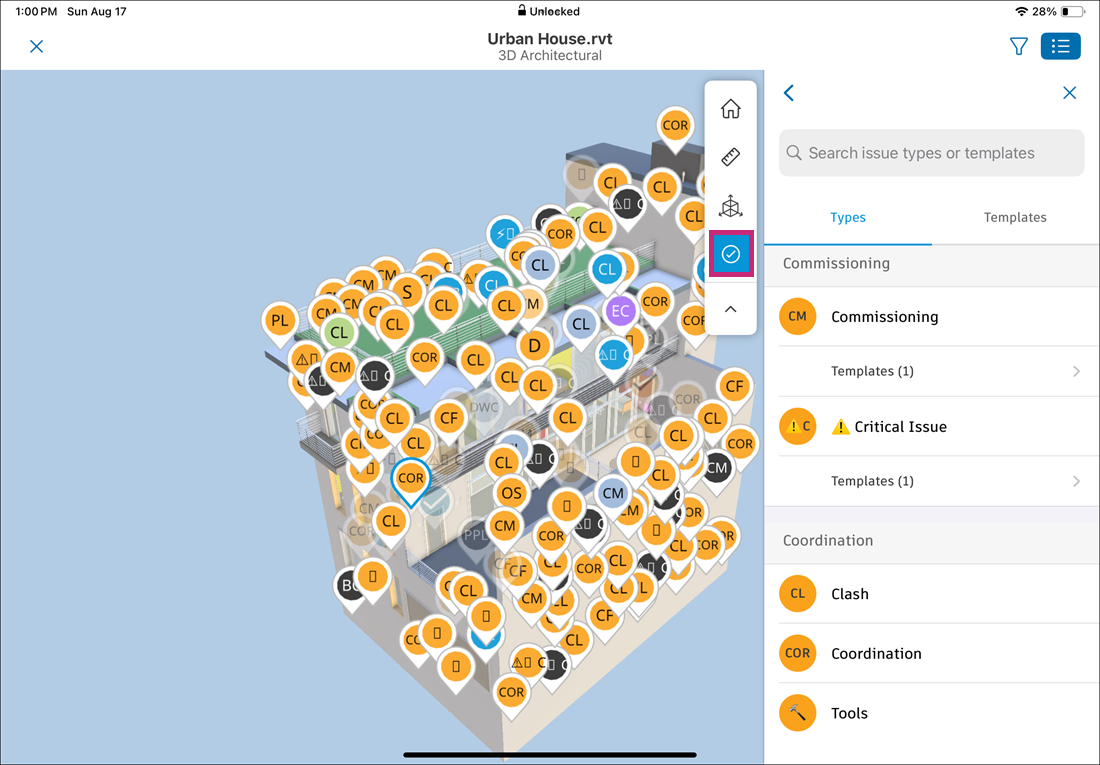
E: Issues: Tap to view the list of available of issue types and templates.
F: Collapse: Tap to collapse the toolbar.
See Measure 3D Modes in the Viewer on Mobile for more information on measurement tools.
More viewing options in the model viewer:
Tap on any object in the model to access more viewing options.
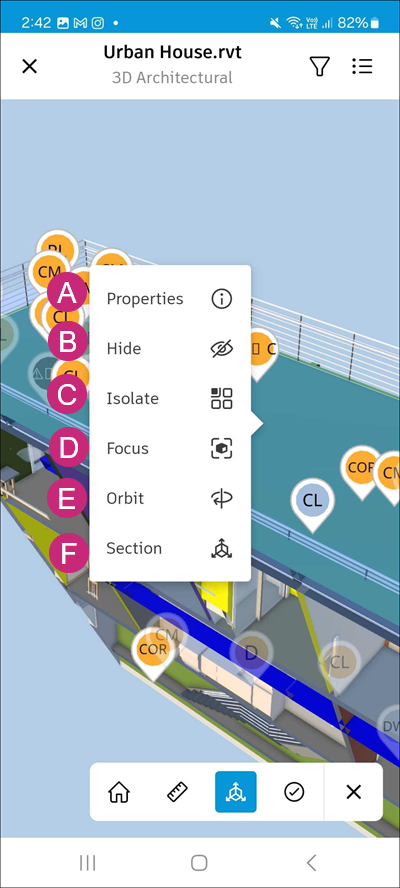
A: Properties: Tap to open the properties panel for the selected object, displaying its details such as name, type, dimensions, and other attributes.
B: Hide: Tap to hide the selected item from the view. This is useful for decluttering the model and focusing on specific elements.
C: Isolate: Tap to isolate the selected object, hiding all other elements in the model. This allows you to focus on the specific object without distractions.
D: Focus: Tap to bring the selected object into the center of your view.
E: Orbit: Tap to orbit around the selected object.
F: Section: Tap to create a section cut through the selected object. You can adjust the section plane by dragging it along the X, Y, or Z axis.
Other considerations:
Note the following when working with issues in the viewer on Android:
- Changing issue status is reflected in the change of color of the issue pin
- Changing issue type is reflected in the change of text displayed in the issue pin
- Deleting an issue removes a pin associated with this issue from the viewer.
Work with Markups in the Viewer on Android
You can create markups and use them with issues in the Android viewer.
Create and Manage Markups
Open a 2D file in the viewer.
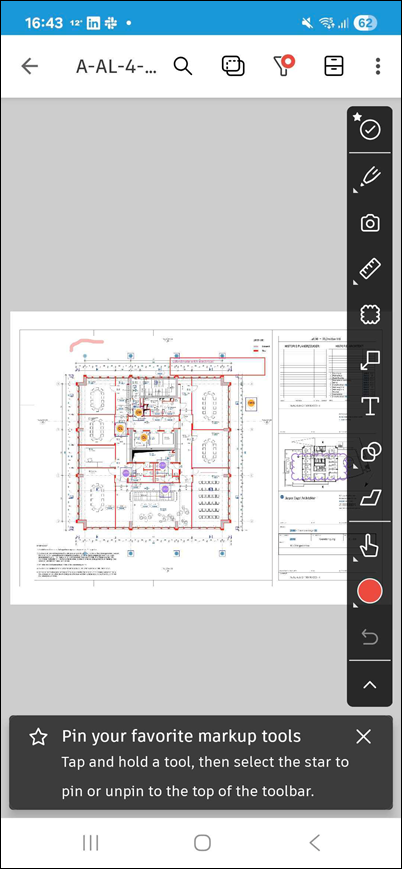
Tap the markup tools in the toolbar.
Select a markup type and draw the markup.
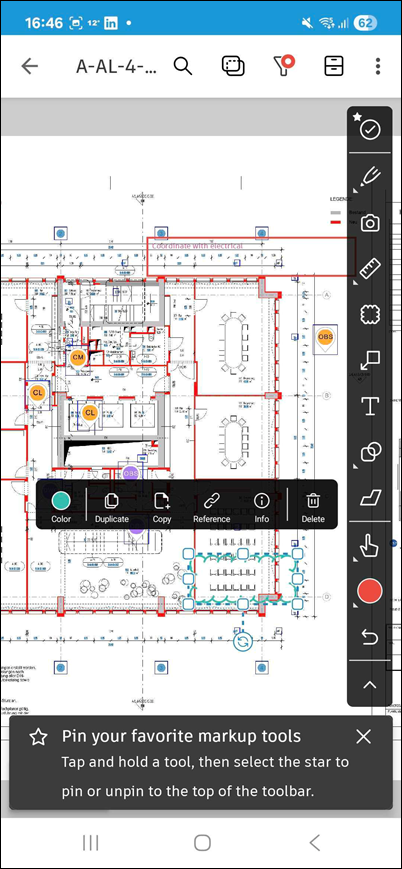
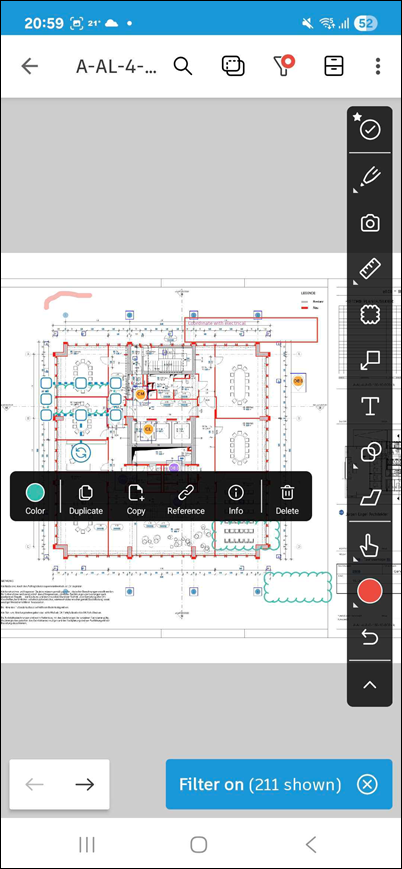
Tap the markup to open its contextual menu, where you can edit, copy, duplicate, or delete the markup.
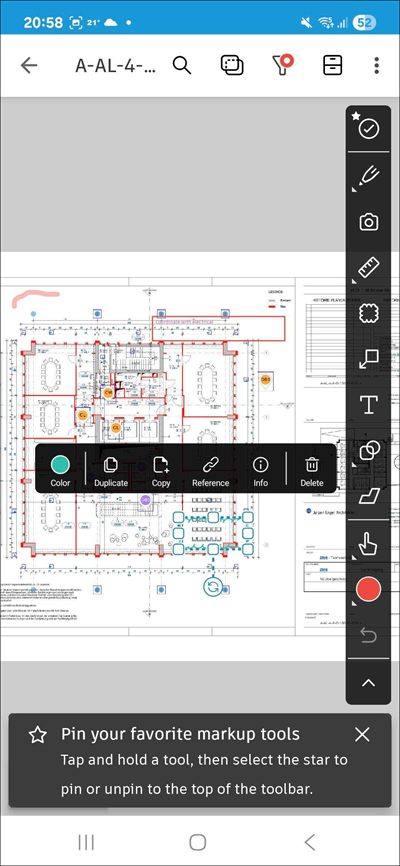
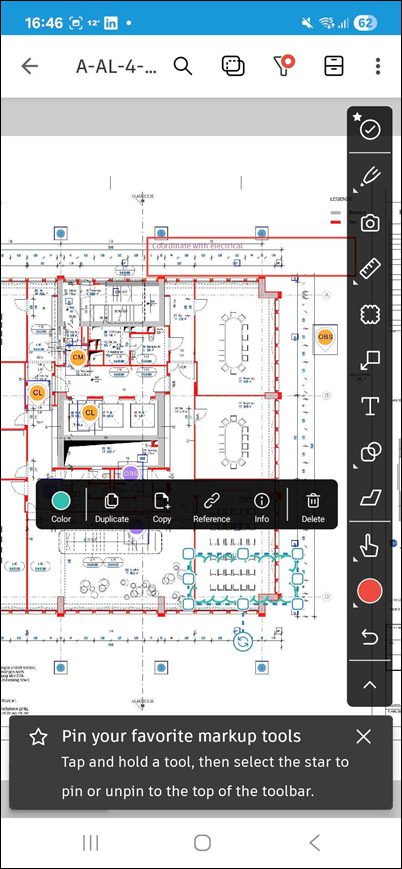
Tap
 to filter by share status, markup type, markup reference type, or markup color.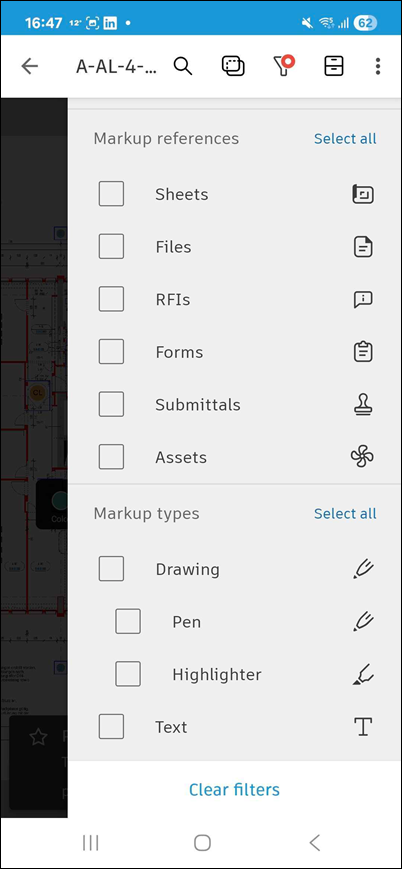
Copy and Duplicate Issues with Markups
You can copy and duplicate selected issues and markups in the same project.
Open a sheet, a 2D file, or a 2D view in a 3D file.
Select one or more issues, markups, or both.
Long press to open the contextual menu.
Select Duplicate to create copies in the same sheet or file.
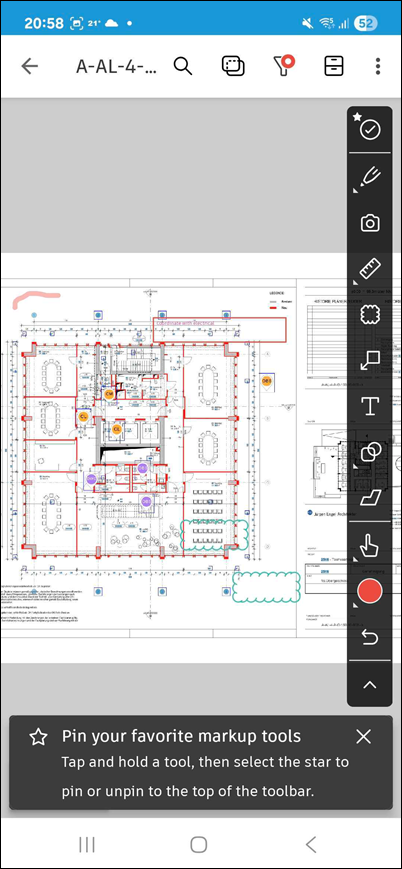
Select Copy to paste in the same sheet or file, or in another sheet or file in the same project.
Open the destination sheet or file, and press and hold to paste the copied selection.
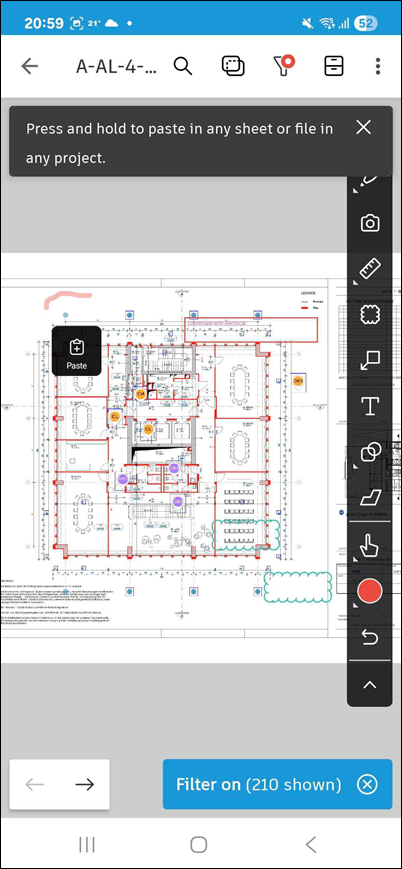
The markup is pasted with the contextual menu open.
Copy and Paste Considerations
Note the following when copying issues with markups:
The new issue keeps most source fields.
The new issue does not copy:
- Attachments
- References
- Comments
- Placement
- Location
- Activity log
- Thumbnail
- Created date
- Updated date
- Issue number
The new issue gets a new issue ID.
You can copy up to 200 issues in one session.
You can't copy issues between different projects.
Permissions and Results
Your current permissions apply to pasted issues.
If you can't assign copied values, the app clears those fields and shows a warning.
The app sends notifications for newly created issues.
The copy process uses all-or-nothing behavior when the user is online.
When offline, the system copies as many issues as possible. If some fields cannot be copied, those issues are skipped and a toast notification lists which fields were not copied.
If one issue fails, the app does not create any issues.
The new issue activity log records the source issue.
Work with Nested Markups in the Viewer on Android
Nested markups are markups attached to an issue pin instead of placed loose on the sheet. They stay linked to their parent issue, which keeps the visual context with the issue it explains.
On 2D sheets and files, you can create, edit, and delete nested markups in the Autodesk Forma mobile app for Android. Add them on site, right where you find the problem, instead of returning to web later. See Markups for the web workflow.
Add nested markups to an issue
Open the sheet or 2D file in the viewer where the issue is placed.
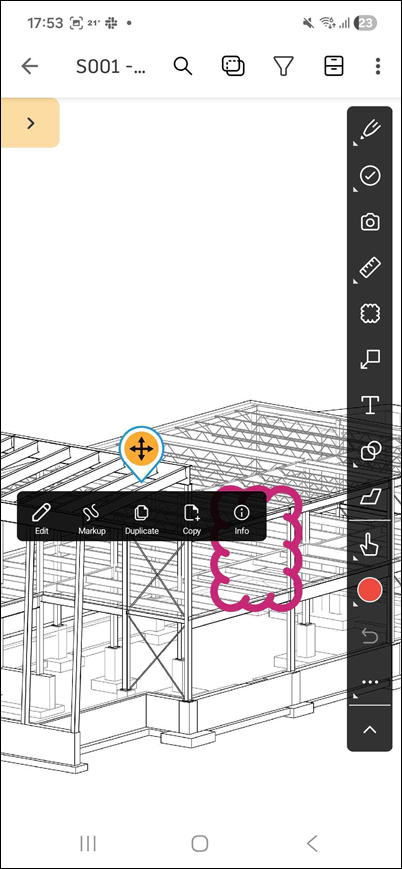
Long press the issue pin to open its contextual menu.
Tap Markup.
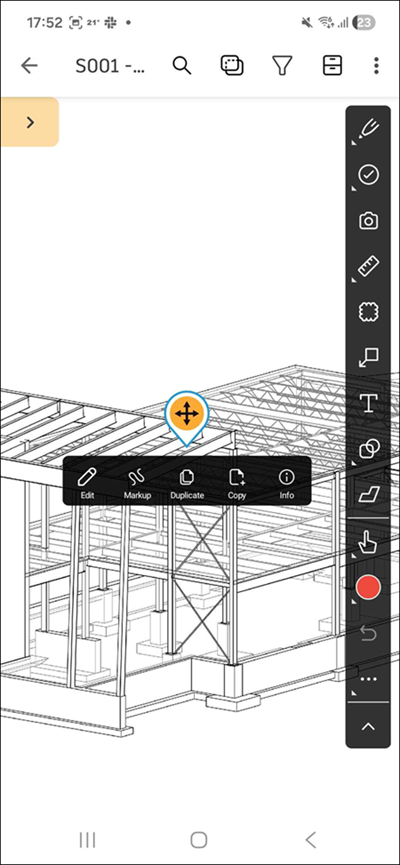
The viewer enters nested markup editing mode.
Tip: The viewer hides other markups and issue pins so you can focus on this issue, and the zoom level stays the same.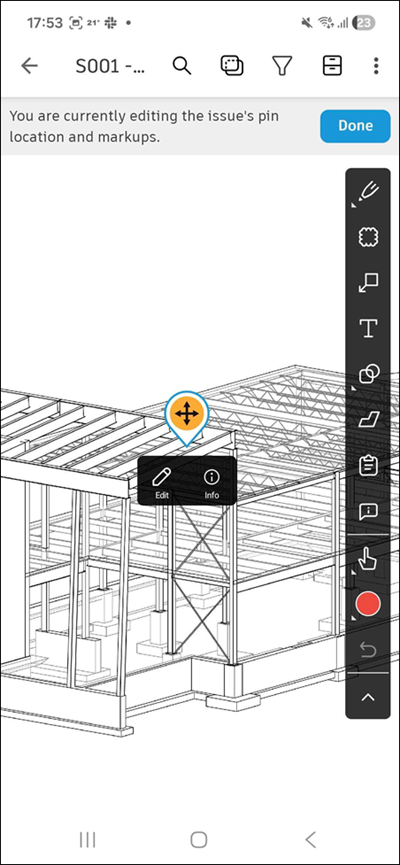
Select a tool from the markup toolbar and draw on the sheet.
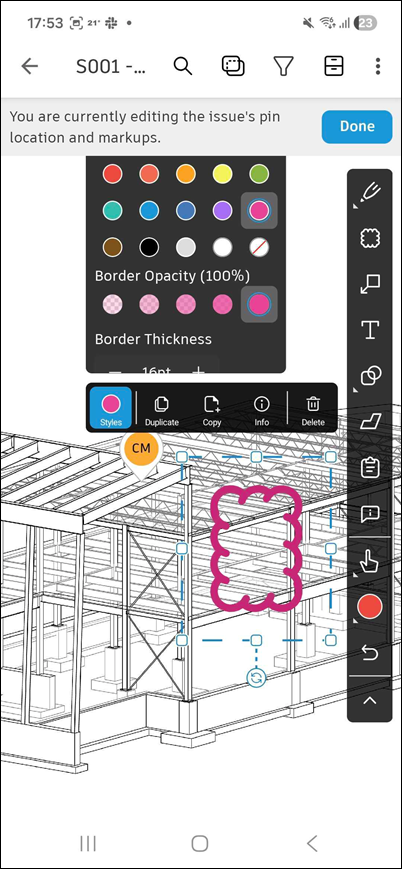
Pan and pinch to zoom to place each markup precisely.
Tap Undo or Redo to step through your changes.
Tap a markup you drew, then tap Delete to remove it.
Tap Done in the banner to leave nested markup mode.
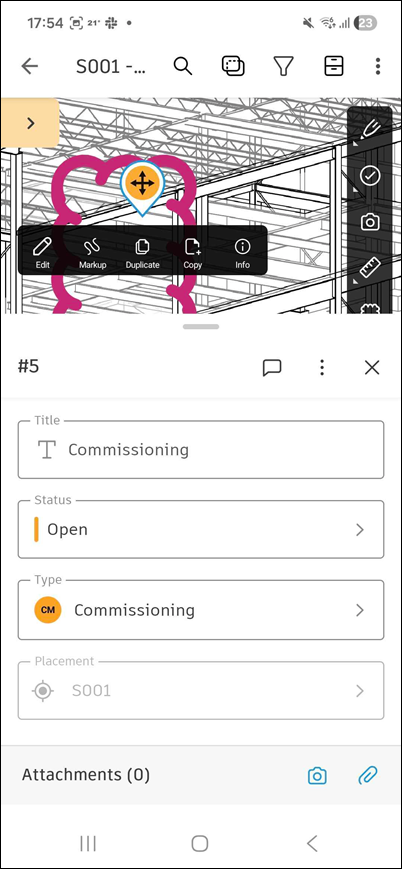
Tap outside the issue pin, and then again on the pin to reopen the issue detail panel.
 Note: Each markup saves as soon as you finish drawing it, so you won't lose work if you leave the viewer before you tap Done.
Edit nested markup properties
Tap a nested markup you drew to open its properties.
Adjust settings such as text, text color, font size, border color, border thickness, and fill color. These are the same properties you set on any other markup. See Markups Toolbar for what each tool does.
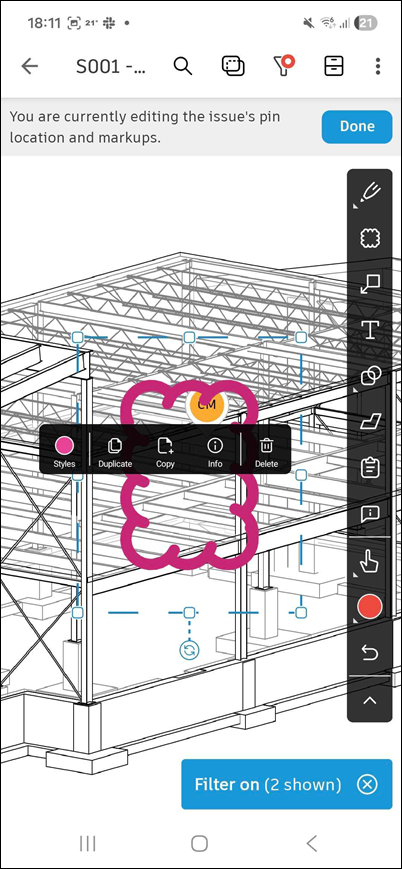
Tap Done in the banner.
Nested markup considerations on Android
Nested markups on Android have the following behaviors and limits:
Nested markups appear only while their parent issue is selected.
In nested markup mode, you can't select another issue, place a new issue pin, or open another sheet.
Undo and redo apply only to the current nested markup session. Leaving nested markup mode clears the history.
You can't link an existing markup to an issue on mobile. Draw the markup in nested markup mode instead.
Deleting an issue deletes its nested markups.
Nested markups you create on mobile appear the same on web. Changes you make on web sync to mobile with the latest issue snapshot.