Initial Project Download
You can choose to download only the data you need when you first download a project to your mobile device. This helps you manage storage.
Open the Autodesk Forma mobile app on your mobile device.
Tap a project in the In the cloud section.
Choose to set download options or download all data for the following tools.
Note: The tool options vary depending on your subscription and project access to Forma Build, Forma Data Management, or BIM Collaborate Pro.See FAQs about Downloading Projects to Mobile Devices for considerations when choosing download options.
Sheets: (Forma Build only)
- Current sheets only: Download only the current set of sheets, for example to get ready for your site walk
- All sheets: Download all versions of all sheets
- No sheets
Files:
All files and folders
No files
Note: Files download options are available only the first time you download each project to your device.
Forms: (Forma Build only)
All forms
Active forms only (In progress and In review)
Note: Forms download options are available only the first time you download each project to your device.
Photos: (Forma Build only)
- All photos
- Only photos created in the last seven, 14, 30, or 60 days
- No photos
Issues:
- Only active issues
- All issues
Tap Attachments/References:
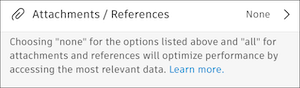
Attachments and References are references added to project items. For example, a photo may be referenced on an issue to provide more context. You can decide which attachments and references to download to your device.
Select all: Toggle on to download all attachments and references as detailed below.
Issues: Toggle on to download attachments and references for all active issues (all issue statuses except Closed).
Forms: Toggle on to download all attachments and references for all active forms (In progress and In review).
RFIs: Toggle on to download all Official Response Attachments for all RFIs.
Submittals: Toggle on to download all Official Response Attachments for all submittals.
Note: Some items, such as sheets or photos, can be both individual data and attached to or referenced by another item. Therefore, two sets of download options might apply. All items that meet each set of criteria are downloaded.
Toggle on Background sync if you want the project to sync automatically when there are updates and the device is charging and connected to Wi-Fi.
Tap Download to device. You can view the progress as your project downloads.
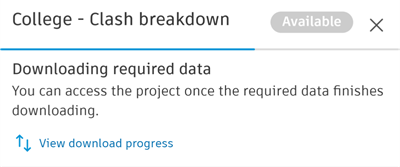
Your project moves to the On this device section when it is downloaded.
