Getting Started with RFIs in Forma Build
What is the RFI Tool?
A Request for Information (RFI) is a formal process used to obtain clarification or additional information from architects, engineers, clients, or other stakeholders involved in a construction project. The RFI tool in Forma Build helps teams manage these requests efficiently, ensuring work proceeds according to project specifications and plans. The tool is available both through web browsers and mobile devices.
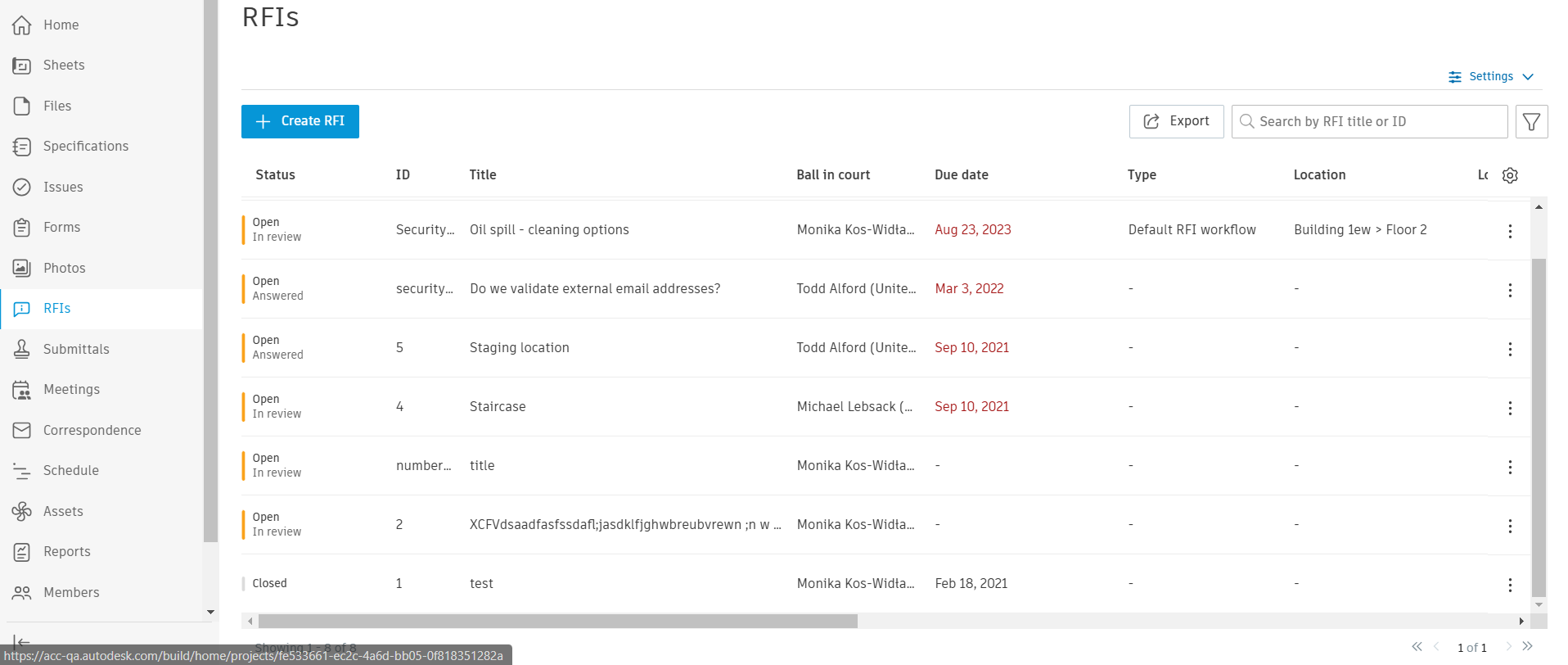
The RFI tool includes:
- Custom RFI Fields for tracking project-specific information
- Flexible workflow options for managing RFI lifecycles
- Comprehensive permission controls
- RFI Email Notifications and Replies system for stakeholder communications
- Mobile access for on-site RFI management
- Export capabilities for documentation and reporting
- Activity logging for tracking all RFI-related actions
- Integration with other Build tools through references
Forma Build supports two different RFI workflows to accommodate different project needs:
Default RFI Workflow
The default workflow provides a straightforward path for information requests and responses:
- Creation & Submission
- Creator prepares the RFI with relevant questions and references
- Once complete, Creator submits to the RFI Manager
- Manager Review
- Manager receives the RFI and evaluates the request
- Can assign up to 10 reviewers based on expertise needed
- Changes status to "Open" to initiate review process
- Review & Response
- Assigned reviewers provide their expertise and responses
- Responses are tracked separately for each reviewer
- Manager can indicate if certain reviewers should be skipped
- Official Response & Closure
- Manager reviews all responses
- Selects or composes the official response
- Distributes the completed RFI to project team
Enhanced Workflow with Coordinator
This workflow adds a coordination layer for more complex projects:
- Initial Steps
- Creator submits RFI
- Manager receives and assigns to Coordinator
- Coordinator Review
- Coordinator conducts preliminary review
- Can provide early feedback or clarification
- Routes RFI to appropriate reviewers
- Expert Review
- Selected reviewers conduct detailed assessment
- Provide specialized input and recommendations
- Response Coordination
- Coordinator synthesizes reviewer feedback
- Can provide official response or return to Manager
- Ensures consistent communication approach
- Closure
- Manager reviews final response
- Distributes to project team
- Creates permanent record
Access RFIs through the left navigation menu in Build
Use the RFI list view to see all RFIs
Click individual RFIs to view details
Use search and filter options to find specific RFIs
Access settings through the gear icon for additional configuration
Ball in Court: The current responsible party for action on an RFI
Co-reviewers: Additional reviewers who can provide input but aren't primary reviewers
Watchers: Team members who receive notifications but don't take direct action
Official Response: The final, approved response to an RFI
References: Links to related project documents, photos, or other items
Custom Fields: Project-specific fields added to track additional information
Draft: Initial creation stage
Waiting for Submission: Completed but not yet submitted
Open: In review process
Answered: Response provided
Closed: Process complete
Void: RFI marked as no longer relevant
For more detailed information about specific features or workflows, refer to the individual feature documentation in the Build help:
Check out our video courses to learn how to create, manage, review, and view RFIs.