Add schedule managers with certain permissions for all schedules at the tool level. Control remaining permissions individually for each schedule. This includes access to a schedule and specific actions.
This table identifies the primary actions members can take in schedules based on their permission level.
| View | Contribute | Update* | Manage | ||
|---|---|---|---|---|---|
| Administration | |||||
| Update schedules |  |
|
 |
|
|
| Delete schedules | |
|
|
|
|
| Rename schedules | |
|
|
|
|
| Schedule Interactions | |||||
| View tile | |
|
|
|
|
| View activities | |
|
|
|
|
| Comment | |
|
|
|
|
| Add and remove references | |
|
|
|
|
| Change Management | |||||
| Send update/change request | |
|
|
|
|
| Review change requests | |
|
|
|
|
| Schedule Permissions Management | |||||
| Manage schedule permissions | |
|
|
|
|
- Manage permissions can control the permissions of other members
- Members with Update permission or higher can update a schedule using Desktop Connector for Forma Data Management
- Members' access to the Schedule tool files folder is based on the above Schedule tool permission levels*
- Members with Update permissions or higher can delete the Schedule tool files folder*
- Tool manager role has Manage permissions on all schedules
- Tool creator role has Manage permission for the schedules they imported. Their permissions for other schedules (those they did not import) are defined in the specific schedule settings. They do not have default permissions to schedules they did not import.
*Overrides any Files tool folder permissions granted to members
Click Schedule from the left navigation to open the Schedule tool.
Click the More menu
 and choose Schedule > Permissions.
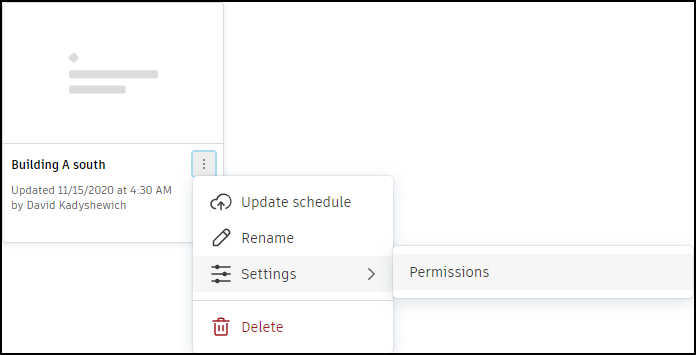 Tip: When viewing a schedule you can click the Schedule settings menu and choose Permissions.
Click Add member to add a new member.
Select individual members, roles, or companies to add.
Choose the permission level for the added members.
Click Add.
Click Schedule from the left navigation to open the Schedule tool.
Click the More menu
and choose Schedule > Permissions.Tip: When viewing a schedule you can click the Schedule settings menu and choose Permissions.Locate the member from the list and select a new permission level. If the member is a project administrator, you can't change their Schedule tool permissions.
Click Schedule from the left navigation to open the Schedule tool.
Click the More menu
and choose Schedule > Permissions.Tip: When viewing a schedule you can click the Schedule settings menu and choose Permissions.Click Manage access. By default, all project members can view and comment on the schedule's activities.
Click the Restricted radio button to limit viewing and commenting on the schedule's activities to added members. This setting only applies to the selected schedule.
Control sensitive information by choosing which schedule attributes are available to all members and which are available only to members with adequate permissions. To control the attribute:
Click Schedule from the left navigation to open the Schedule tool.
Click the More menu
on the schedule thumbnail and choose Settings > Attributes.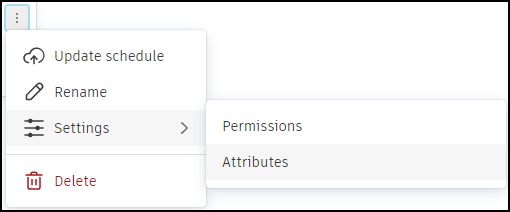
Turn on or off the attributes that are available to project members. Available attributes include:
- Free float
- Total float
- Dependencies
- Imported activity codes