Suggesting Schedule Updates
Members with Contribute permission or higher can suggest updates to a project's schedule in Suggesting mode. Only members with appropriate permissions have access to Suggesting mode.
Suggesting mode is a dedicated communication channel for collaborating on updates to your project schedule. After you submit suggestions, a manager reviews them.
Suggesting view and workflow
To enter Suggesting mode:
- Select the Viewing drop-down list in the Activities tab.
- Select Suggesting, or follow the instructions in the video.
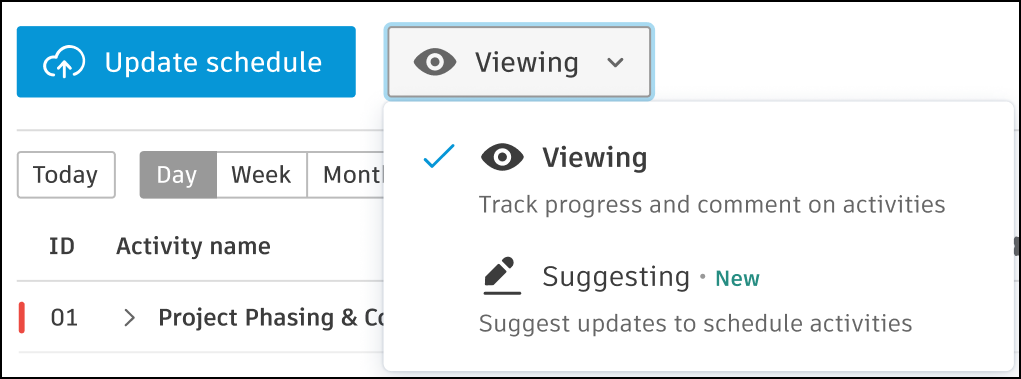
In Suggesting mode, you can suggest updates to the start date, finish date, duration, remaining duration, and % complete.
Delay and cost impact
Use the Impact column to tell the reviewer about delay and cost effects.
Use  Root cause to add a root cause and update suggestion details. The option is visible only while the pointer is over an individual activity.
Review and submit suggestions
To review all update suggestions:
- Select the number next to the Suggesting drop-down list
 .
- Review all your update suggestions in Review your suggestions.
- Click Submit to manager.
Track update suggestions
After you submit update suggestions, use the Suggestions log to track their status.
Use search and filter to find individual update suggestions.
Review update suggestions
Managers receive three types of notifications for suggested updates:
 in the Schedule tool homepage
- Gantt chart notification
The Suggestions log separates Open and Resolved suggestions.
Open update suggestions need the manager's review. To view all table columns, scroll the table horizontally.
Managers can leave a response note when they change a suggestion's status. The note appears in the Response Note column.
Available statuses:
- In review: for update suggestions that currently undergo review.
- Mitigated: for update suggestions that aren't necessary.
- Allowed: for update suggestions that passed review and are ready to apply to the schedule.
Reopen update suggestions
Setting and saving Mitigated or Allowed moves update suggestions to the Resolved list.
To reopen a resolved suggestion:
- Open the Resolved list.
- Click the More menu
 for the suggestion.
- Select Reopen.
Search and filter suggestions
Large and complex schedules can have many update suggestions. Search and filter to find them.
To search update suggestions, use the search bar in the top, right corner.
To filter update suggestions, click  Filters and select your criteria in the right navigation. Filters include:
- Milestone and Critical
- Status
- Contributors (Suggested by)
- Root cause
- Delayed and Cost impact
- Date range
- Updated in schedule: for activities that a reviewer marked as updated in an external tool with Activity updated