Updating a schedule enables the project teams to stay up-to-date with any changes to the project's schedule.
When updating you can rename schedule versions, add summaries (narratives), and notify people in the distribution list about the new update.
Summary and summary attachments are saved to Narratives folders in Files tool.
Each schedule can contain multiple versions. There are a few ways to update a schedule with a new version:
Click Schedule from the left navigation to open the Schedule tool.
Click the More menu
 on the schedule thumbnail and choose
  .
.Browse for the updated file and click Open.
Click Schedule from the left navigation to open the Schedule tool.
Click a schedule to open.
Click Update schedule.
Browse for the updated file and click Open.
Click Files from the left navigation to open the Files tool.
Navigate to the folder containing your schedule (Project Files > Schedule tool files > <Name of schedule>).
Click Upload files.
Choose the file and click Done.
The updated schedule will show in the Schedule tool.
Desktop Connector for Forma Data Management connects local files with those in the Files tool. To use Desktop Connector for Forma Data Management to update a schedule:
- Open Desktop Connector for Forma Data Management.
- Navigate to the folder containing the schedule.
- Open the schedule with the authoring tool.
- In the authoring tool, update the schedule and save changes. Saved changes are reflected as a new schedule version in the Files tool. This updated version is shown in the Schedule tool.
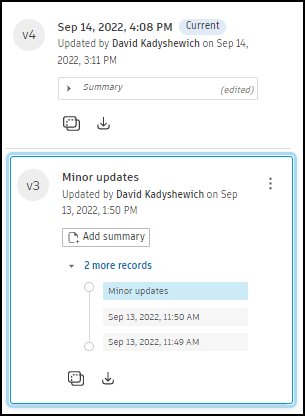
When using Desktop Connector for Forma Data Management or updating the schedule from Docs small edits are grouped as records under a single version to avoid clutter in the Version history pane.
A new version is cut off:
- every day (intraday changes are grouped)
- when a version is edited or distributed in the Schedule tool
- when a new schedule file is manually uploaded