Sheets Version Sets
Version sets are used by document managers to group specific versions of sheets together. When you add sheets, you can choose to add the sheets to an existing version set or to a new version set.
Version sets can be created during the sheets publishing process therefore they don't need to be created in advance. However, document managers with Create + Upload permissions or above may want to configure version sets ahead of time for other project members in sheets settings.
- Create a Version Set in Settings
- Edit Name and Date of Version Sets
- Delete a Version Set
- View Sheets in a Version Set
Create a Version Set in Settings
Click the Sheets tool.
On the right side of the screen, click Settings > Version Sets.
In the tab, you can see all the version sets created in the project. If you have collections enabled, click a collections to see all version sets associated to that collection. Version sets are sorted by issuance date, newest to oldest.
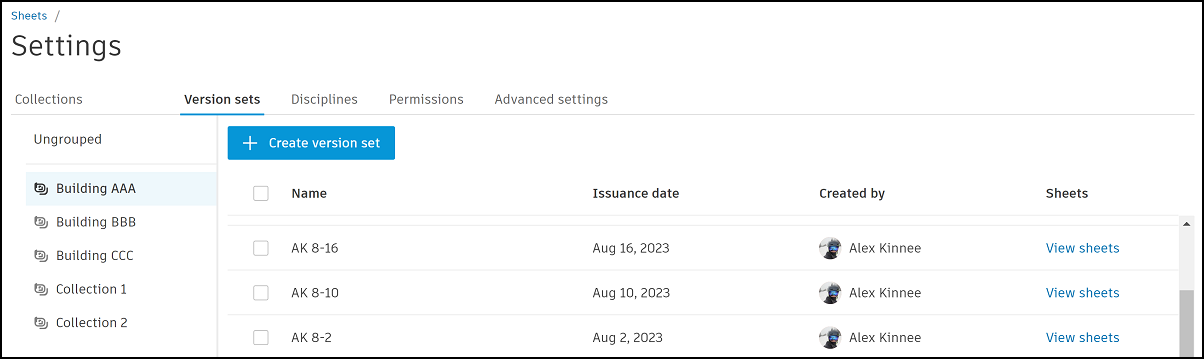
Click Create version set.
Enter a Version set name in the panel on the right.
Tip: As a best practice, you should name your version set in a way that communicates to the project team what a given collection of sheets represents. For example, a version set named 50% CD refers to a collection of sheet versions midway through construction documentation.Click the Issuance date field and select a date from the calendar. This represents the date that the sheets are issued to other project members. It can be a date in the past or in the future.
Click Save.
After the version set is created, you can edit the version set name or issuance date as needed. To do so:
Click the checkbox next to the version set name and click Edit
 .
.Adjust the version set name or issuance date as needed.
Click Save.
Any version sets that share an issuance date can be dragged up or down using the handle to the left of the checkbox.
Edit Name and Date of Version Sets
You can select a version set and edit its details
- Select your version set.
- Click Edit to edit the name and issuance date.
- Click Save.
Delete a Version Set
The version set and its sheets will be deleted. You can restore these sheets from the Deleted sheets page.
View Sheets in a Version Set
As a consumer of sheets, you can quickly find the sheets associated with a certain version set from the settings or by using a filter.
View sheets in a version set from Settings
Click Sheets from the left navigation to open the Sheets tool.
Click Settings > Version Sets .
Browse through the list to find your version set.
Tip: Click the Issuance date column header to sort the version sets by either the newest or oldest issuance date to quickly locate your version set.Click View sheets.
This opens the search and filter panel with your version set selected as a filter. The sheets list will display all sheets included in that version set.
View sheets in a version set using a filter
- Click Sheets from the left navigation to open the Sheets tool.
- Click the Filter icon
 .
. - Choose a version set from the drop-down menu to see only the sheets in that version set. If needed, search for the version set name to quickly locate it.