Local Drive Connectors
Starting with Desktop Connector v2027.0.0 (March 2026), Autodesk Docs has been rebranded to Forma Data Management. Throughout Desktop Connector and this help site, references to "Autodesk Docs" or "Docs connector" now appear as Autodesk Forma or Forma connector. Existing help links and local file paths (such as ACCDocs) remain unchanged.
- Overview
- No connected drives available
- Manage Files Locally
- Connector Hierarchy
- Check for Autodesk Drive Connector
Overview
Install Desktop Connector and local folders will be added to your Windows File Explorer to represent the supported cloud data sources you can access.
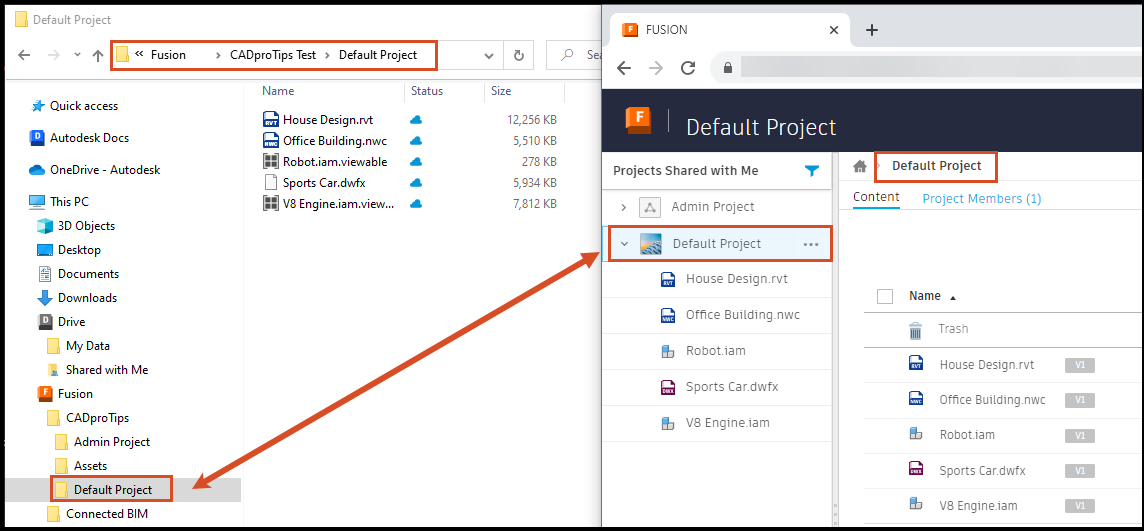
These folders are Connectors which replicate the folder structure of your cloud projects.
Refer to the following image as an example for Fusion:
No connected drives available
If Desktop Connector displays a "No projects available" message on the home screen, you currently don't have access to any connected drives. This can happen if:
- You don't have the required product entitlements for Autodesk Forma, Autodesk Fusion, or Autodesk Drive.
- Your account administrator hasn't added you to any projects yet.
To get access, contact your Autodesk account administrator and request the appropriate product subscription or project membership. Once you have access, you can select projects from the Desktop Connector home screen to add them as connected drives in File Explorer.
If your admin recently gave you access but you still see this message, try restarting Desktop Connector. Right-click the tray icon  , select Exit, and relaunch — or select Sign Out and sign back in. Desktop Connector checks your access at startup, so new access won't appear until you restart. For more details, see Basic Troubleshooting.
Manage Files Locally
While the folder structure is replicated in the connector, the files are not downloaded until they are opened.
You can open and add files through the connector, similar to how you access and modify files and folders using Windows® File Explorer. This can include dragging and dropping a file from another drive, or using an external application and saving a supported file to the connector. These changes will sync and update in the cloud data source.
This functionality allows you to manage data or update folder structures without having to restart the cloud data source application.
Connector Hierarchy
Connector
This is the parent local drive for the Desktop Connector service. All hubs, shared projects, and respective folders and files are contained under this drive.
Each connector has an icon representing one or more data sources:
| Cloud Data Source | Connector Icon | Location |
|---|---|---|
| Autodesk Forma |  |
The same tier as This PC in File Explorer. |
| Autodesk Drive |  |
A sub-tier under This PC in File Explorer. |
| Autodesk Fusion |  |
The same tier as This PC in File Explorer. |
Hub
Hubs are created to help organize your projects in the cloud data source. Expand the hub node to view and manage your project folders and files. Changes made in the hub are automatically synchronized with the corresponding hub in the data source.
 or
or  icon.
icon.Root Folders
Autodesk Forma
- Project Files
Autodesk Drive
- My Data
- Shared with Me
Autodesk Fusion
- Admin Project
- Assets
- Default Project
Check for Autodesk Drive Connector
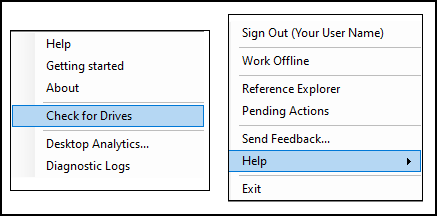
If you have access to Autodesk Drive and the connector hasn't displayed yet, you can force it to update with the following steps:
- Right-click on the Desktop Connector tray icon
- Select Help > Check for Drives as shown.
Related Concepts: