Fusion - Manage Files and Folders
Overview
The latest release of Desktop Connector includes various options to manage your file and folders in your Fusion connector subject to your permissions.
Starting with v17.0, Desktop Connector includes significant enhancements to file and folder operations including improved performance for navigate, move, copy, and rename operations, plus enhanced CAD file support.
Key Improvements:
- Enhanced stability: Significantly improved reliability for file operations
- Better sync performance: Faster initial sync and more efficient follow-up synchronization
- Improved CAD support: Better handling of Inventor Project Files (.ipj) and assembly references
- Streamlined workflows: More intuitive user experiences for common tasks
- Better error handling: Clearer error messages and recovery options for failed operations
- Enhanced View Online: Improved web linking for files and folders to their exact locations in Fusion
- Upload with References: Access the new upload workflow
- Context-aware troubleshooting: Right-click troubleshooting automatically scopes to the current project
Duplicate filenames
How will Desktop Connector handle duplicate file names? Desktop Connector will ignore any sync action that would result in adding a second file with duplicate name to a folder. If two files with the same name are added to the same folder in web, the initial Desktop Connector sync will ignore both files and neither file will be shown in File Explorer. To resolve files with duplicate names, go to the web client and rename one of the files with a unique name.
Upload, Move, and Copy
Drag and drop actions are supported in your connector.
Upload: Drag a file or folder into your connector to upload and sync it to your cloud data source.
Important: You can upload files that are a maximum of 6 GB.Note: Windows® users must select a project file when adding Inventor files. See Configure Inventor Project Library Paths for more information about customizing your Inventor Project file.Move: Drag and drop files and folders within your connector to move them.
Copy:
- On updated versions of Windows 10 and above, drag and drop files and folders outside of your connector to copy them to another location on your local machine.
- On earlier Windows versions, drag and drop files and folders outside of your connector to move them. This will delete these files from the cloud as they are moved out of Desktop Connector to the new local file location.
Files with references
Automatic Upload with References:
Starting with v17.0, dragging any files or folders into your Fusion connector will automatically trigger the enhanced Upload with References workflow by default. This provides better control over CAD assembly uploads with a wizard-based interface that allows you to:
- Preview all referenced files before upload
- Select which files to include or exclude
- Handle missing references with clear warnings
- See exactly where files will be placed in your project
If you would like to turn off this automatic behavior, go to the Desktop Connector home screen, click the gear icon, and uncheck the "Always ask to include references" checkbox.
Open and download
Double-click a file to open. This will also make a one-time download of the file to your connector.
Design files
Fusion design files are not downloaded by Desktop Connector in any workflows and therefore cannot be copied or exported from Desktop Connector.
Composite designs are viewable containers of related files in an assembly. Composite designs can be created using Fusion web client.
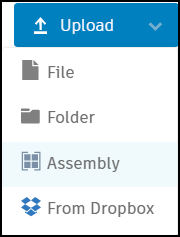
- In Fusion select Upload and then Assembly.
- Select the parent file and then specify the related files.
All files will be placed in a container which appears as a single file.
In Desktop Connector the composite design will have the filename extension of .viewable and will have a unique icon denoting that it's not a typical assembly file. When opening this file in Inventor or AutoCAD, the composite design viewable files are not considered valid CAD files. In Desktop Connector the Open command is never enabled if the selection set includes a composite design, and the file is never downloaded by Desktop Connector.
Cloud-only files
Starting with v17.0, certain Fusion file types are handled as cloud-only files in Desktop Connector. These files are designed to remain in the cloud and are not fully downloaded to your local filesystem.
Cloud-only file extensions
The following file extensions are treated as cloud-only files:
- .FusionDrawing
- .FusionDrawingTemplate
- .FusionDesign
- .ElectronicsBoard
- .ElectronicsSchematic
- .ElectronicsDesign
What you'll see with cloud-only files
When cloud-only files sync to Desktop Connector, you'll see:
- Local placeholder files: Desktop Connector creates placeholder files that contain no actual content
- Normal file appearance: These files appear in your connector like regular files, but they're empty locally
- File operations: Open and Copy operations will not work with these files. Other file operations work normally - you can rename, delete, move, and perform other standard file management tasks
Recommendation: Use the Fusion web interface or supported Fusion applications to work with the actual file content.
Working with cloud-only files
To access and edit cloud-only files:
- Use Fusion web interface: Open files directly in the Fusion web application. Use View Online from the right-click menu to open in Fusion
- Use Fusion: Open files in Fusion desktop
Troubleshooting cloud-only files
Empty files or unexpected behavior
Problem: Local files appear empty or don't open as expected
Solution:
- Verify the file has a cloud-only extension (listed above)
- Access the file through the Fusion web interface instead
- Use View Online from the right-click menu to open in Fusion
Sync errors from overwrite attempts
Problem: You tried to overwrite a cloud-only file with a local file and received sync errors
Solution:
- In Desktop Connector, click the ... button next to the error
- Choose Undo to revert the change
- The file status will return to "Available when online"
Upload conflicts
Problem: You uploaded a file to Fusion web with the same name as an existing cloud-only file, causing unresolved sync errors
Solution:
- Delete the uploaded file (the one with the extension) from the Fusion web interface
- Check the Troubleshooting Tool under "Unsynced Cloud Updates" to confirm the error is resolved
General troubleshooting
If you continue to experience issues with cloud-only files:
- Use the Troubleshooting Tool to identify specific sync conflicts
- Check Desktop Connector's Home Screen for pending jobs or error messages
Delete
Right-click a file or folder and select Delete to permanently delete the relevant file or folder from your connector and the cloud data source. This action removes the file from both your local machine and the cloud.
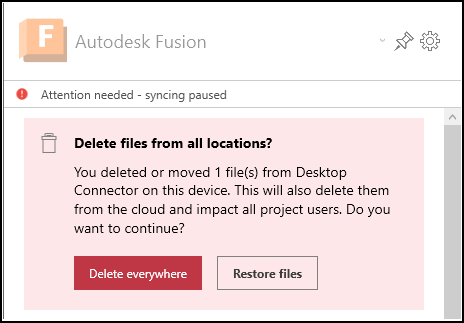
The delete workflow will trigger a confirmation dialog on the Desktop Connector home screen.
If you are looking to save space on your local machine, use Free up space instead. Using Delete will permanently remove the file from both the local machine AND the cloud.
Delete in Work Offline Mode
You can delete files and folders while in Work Offline mode. The file is removed from your connector right away, but the deletion won't sync until you go back online. Once you reconnect, Desktop Connector will ask you to confirm the deletion. If you confirm, the file is deleted from the cloud as well.
If you only want to free up local disk space without deleting the file from the cloud, use Free up space instead. This must be done while Desktop Connector is online.
Free Up Space
If disk space is a concern, the local copies of files can be deleted from the connector using the right-click Free Up Space command on a file or folder.
- File: The downloaded file will be removed locally.
- Folder: All the files in the folder will be removed locally.
For example, you may want to retain a project's folder and file structure on your connector but remove all downloaded files. You can select the top level folder and use Free Up Space to remove all the project files locally.
Other right-click commands
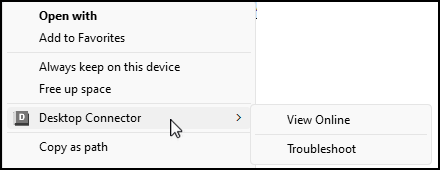
The right-click a file or folder to view all the available commands:
Open with: Opens the file or folder with your chosen application
Free Up Space: See the Free up space section above
View Online: Navigates to a file's location directly in the Fusion data source
Troubleshoot: Opens the Troubleshooting tool