Resolve File and Folder Conflicts
Overview
 provides a detailed workflow on how to resolve conflict resolutions in Desktop Connector, but please note that some information may be outdated. Always refer to the current written content on this page for the most up-to-date instructions and features. We encourage you to check the details after the video, as the written content provides useful tips and problem-solving methods that might not be in the video.
About Conflict Resolutions
The Forma and Fusion Home Screen will identify and display any file and folder syncing conflicts. These conflicts typically occur when you've modified a file or folder in your connector, while another project member has modified the same file or folder at the same time in the cloud.
After the home screen identifies these conflicts, the resolution workflow enables you to choose which changes to keep.
Conflict Notification
If you have a conflicting file or folder, you will see a conflict error notification  in the home screen.
Hover over the message to read the details of the conflict error.
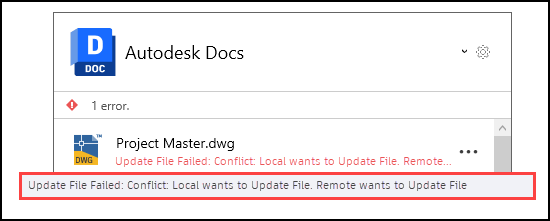
You have several options to resolve the conflict which are covered in the next section.
Resolve Conflicts
Select the More menu
 next to the conflicting file or folder error.
Select Resolve
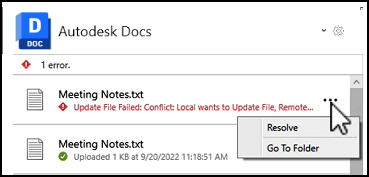
The conflict resolution dialog opens.
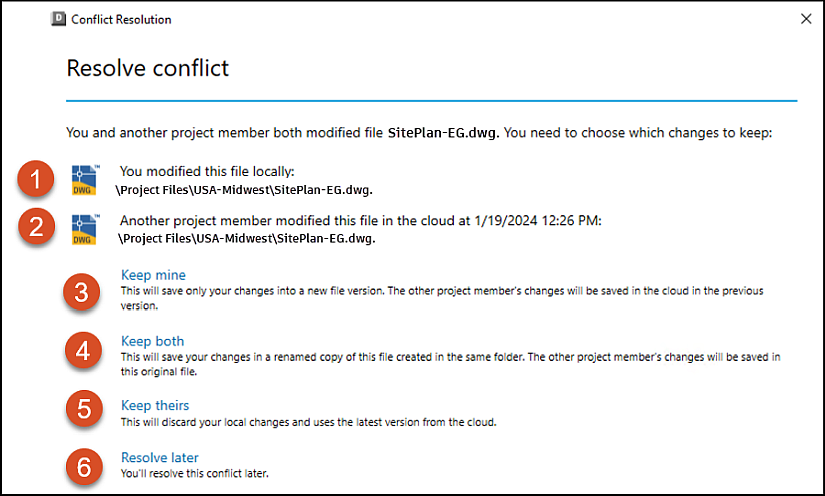
The dialog shows details of the conflict including the:
- Conflicted action including file or folder name noting that you modified the file locally.
- File or folder information including
date|time|folder pathnotifying you that the other member modified the file or folder. You will then be provided with four options to choose from. - Keep mine: This will save your changes into a new file version. The other project member's changes will be saved in the cloud in the previous version.
- Keep both: This will discard your local changes and use the latest version from the cloud.
- Keep theirs: This will disregard your changes and use the latest version from the cloud.
- Resolve later: You'll resolve this conflict later. However, this conflict error will remain on your home screen until you resolve it.
Go To Folder
The More menu also contains Go to folder
You can select Go to folder to open the folder where your conflicting file or folder is located.
See Related: