Member Folder Permissions
The setup of Design Collaboration, as part of Forma Design Collaboration, involves inviting members to Forma Data Management and Design Collaboration and assigning them roles and folder permissions.
Design Collaboration permissions can be set in two ways. You can set permissions in Forma Data Management to predefine the permissions that will show up in Design Collaboration, or you can set permissions directly in Design Collaboration, which can overwrite any permissions already set in Forma Data Management.
This topic explains the different permission levels for Design Collaboration team folders and the corresponding shared folders in Forma Data Management.
Understanding Permission Differences
Design Collaboration and Forma Data Management use different permission models, and these permissions apply to different folders and workflows.
Design Collaboration Permissions
In the Design Collaboration Settings tool, you can specify permissions for each team member, or see if permissions are inherited from Forma Data Management.
In Design Collaboration, open the Settings tool.
Click the Team Setup tab and find the team you want to manage permissions for.
Click in the Members column for the team.
Use the Manage members dialog to view and manage permissions:
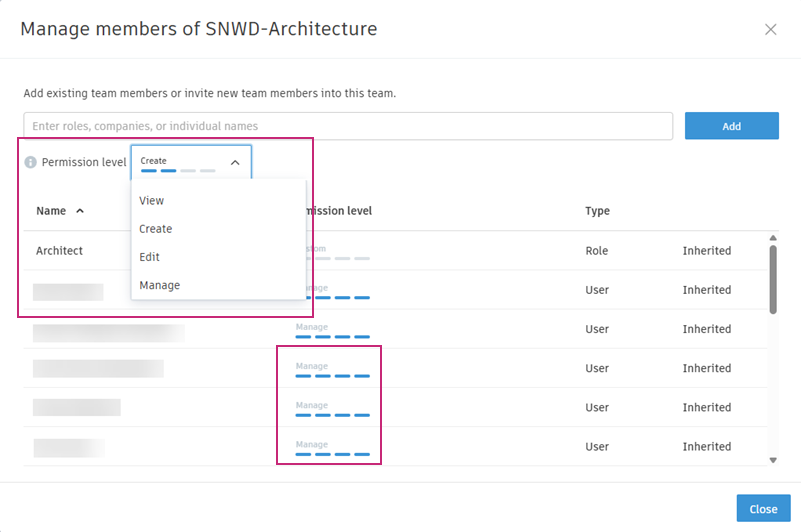
Each permission level is described below:
- View: Lets you view your team's work in progress (WIP) folders, which typically contain in progress sets, aggregated models, and packages.
Create: Lets you publish from Revit Cloud Worksharing or Forma Data Management into the team's WIP folder. You can create and update WIP packages, but not share them. You can also consume packages from other teams.
Note: This is in addition to the View permissions, which are added to the global Shared folder. The Create permissions are added to the team Shared folder in Forma Data Management.
Edit: Lets you share packages with other teams.
Note: You also get View and Create permissions. The View permissions are added to the global Shared folder. The Edit permissions are added to the Team folder and the team Shared folder in Forma Data Management.
Manage: Lets you schedule the regular publishing of a package and switch between teams. You get administrative control of the team folder and all other permissions.
Note: You also get View, Create, and Edit permissions. The View permissions are added to the global Shared folder. The Manage permissions are added to the team folder and the team Shared folder in Forma Data Management.
- Custom: When permissions are set in Forma Data Management for the team WIP folder, and they don’t match the above categories, the permission in Design Collaboration is shown as Custom:
| Custom permission in Design Collaboration | Reflected permission in Forma Data Management |
|---|---|
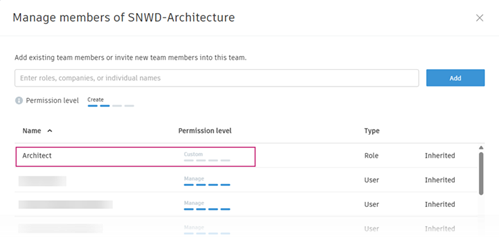 |
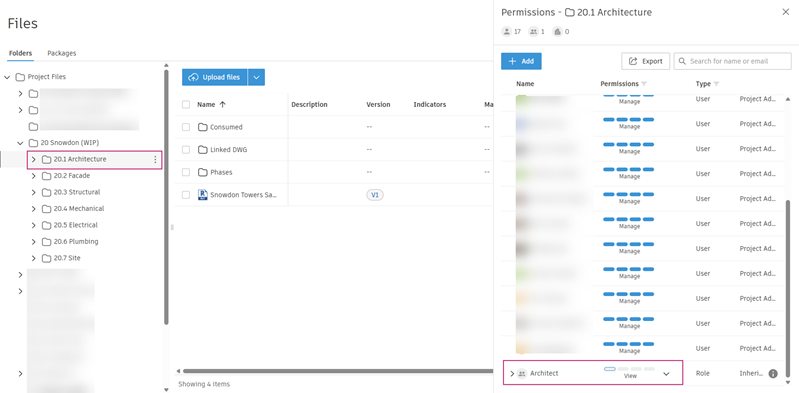 |
Forma Data Management Folder Permissions
Permissions in Forma Data Management are more granular and can be combined for different levels of access:
- View:
- View only: Lets you view files in Forma Data Management folders.
- View + Download: Lets you view and download files.
- Create:
- View + Export + Publish markups: Lets you create files and publish markups.
- View + Export + Publish markups + Upload: Lets you create files and publish markups, and upload files.
- Edit: Lets you view and download files, publish markups, and upload and edit files.
- Manage: Gives you full administrative control over folders.
Forma Data Management permissions are set for each folder and can be inherited or overwritten at subfolder levels. Design Collaboration permissions are mapped to specific folders and workflows, and may not always align directly with Forma Data Management permissions.
Permission Mapping Overview
Design Collaboration permissions map to the team WIP folder permissions in Forma Data Management as shown below:
| Permission Level in DC | Team WIP folder | Global Shared folder | Team Shared folder | Typical role |
|---|---|---|---|---|
| View | View | View only | View only (inherited) | PM, Intern, Project member |
| Create | Edit | View only | View only (inherited) | Assistant BIM manager, PM, Reviewer |
| Edit | Edit | View+Download | Edit (Not inherited) | Revit User |
| Manage | Manage | View+Download | Manage (Overwrite, not inherited) | BIM manager |
Certain permission settings on the team WIP folder in Forma Data Management, that don't have a direct match in Design Collaboration, are labelled as Custom in Design Collaboration. For example:
| Permission setting in Forma Data Management | Reflected permission in Design Collaboration |
|---|---|
| View (View + Download) | Custom |
| Create (View + Download + Publish markups) | Custom |
| Create (View + Download + Publish markups + Upload) | Custom |
Refer to the Folder Permissions topic to learn more about folder permissions in Forma Data Management.