Work with IFC Files
Teams can use Design Collaboration to share IFC files with other project teams. Many of the procedural workflows are similar to those used for Revit files. This includes:
- Viewing the file as a single model or as part of the aggregated project model
- Creating a package
- Previewing shared packages of IFC files using timeline nodes
- Comparing changes between IFC files
- Creating issues on IFC files
The process to share IFC files is as follows:
- Upload IFC files to your team folder in Docs.
- Create a package in Design Collaboration and share with other project teams.
- Other teams can consume the package to work with the IFC files in their team space.
- Other teams can also link the IFC file to the host model from the shared folder.
Let's explore each of these steps in more detail.
Upload IFC Files
IFC files are uploaded directly to Docs, either through the web interface or through Desktop Connector.
In Docs, open the Files tool and navigate to your Team folder in Project Files.
Click Upload Files.
Choose your IFC file to upload and click Open.
Tip: As an alternative to steps 1-3, you can use Desktop Connector to drag an IFC file from your local machine to your Team folder in Project Files.
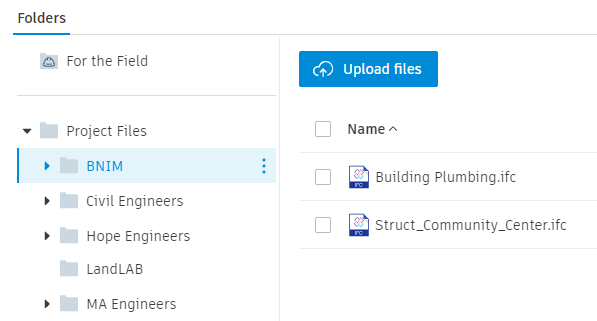
Data set courtesy of BNIM
Create and Share a Package
Creating a package using IFC files is the same as the process to create a package with Revit models. After your package is created, you can share the package with other teams just as you would a package of Revit models.
Consume a Package
After you've shared a package with other teams, those teams can consume the package to view the IFC files in their team space.
Link IFC File to Revit Model from Shared Folder
As mentioned above, when you consume an IFC file from another team, it is available for use in Design Collaboration. Behind the scenes, the model is made available in your team's Consumed folder in the Files tool.
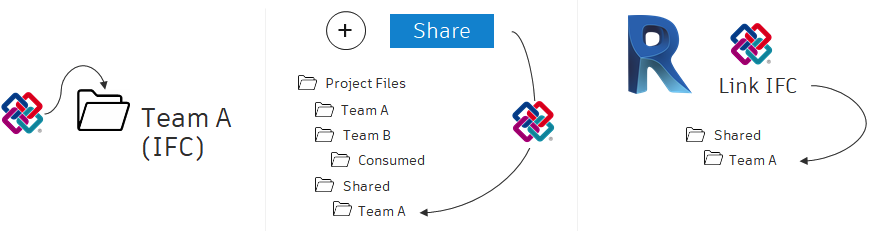
Use Desktop Connector to link the IFC file to the model:
Use Revit to open the host Revit model.
From the Insert tab in Revit, click Link IFC.
Navigate to your Desktop Connector drive in the file browser.
Note: You may have to select My Computer from the options on the left to see the drive.Navigate to your project.
Navigate to the shared folder and select the file (://Project Name/Project Files/Shared/Team Name/FileName.ifc)
Click Open.