Why can't I upload to Autodesk Drive?
No license/entitlement
Drive is included with most Autodesk subscriptions. This means you must have an Autodesk account, and must have a subscription tied to your account.
To confirm the list of apps you can access (also known as "entitlements"):
- Visit your Account Management page: https://manage.autodesk.com/home/
- Click "All Products and Services"
- Search the list for "Drive"
If you have a Drive entitlement, you should be able to upload to https://drive.autodesk.com/ (and also via the Desktop Connector app). If you still can't upload, here's what you can do:
Students
Check your access at https://manage.autodesk.com/home/, as described above.
If you don't see the "Drive" entitlement, please confirm you've enabled educational access. Learn more about that here.
Lastly: you can contact your license/site administrator to enable Drive for your account.
Individual users
If you've purchased an individual product for yourself (not as part of a corporate/student account): inspect your account at https://manage.autodesk.com/home/, as described above.
If you see "Drive" in your list of applications, but still are unable to upload, please contact support.
Group/corporate license
If you're part of a group license, where you've been assigned a "Seat" by an employer or other collaborator:
Contact your license/site administrator and ask them to enable the "Drive" entitlement for your account.
- They can do this at https://manage.autodesk.com/
- Login with their admin account, then locate your account (search by name or email address)
- Open your account's entitlements/permissions page
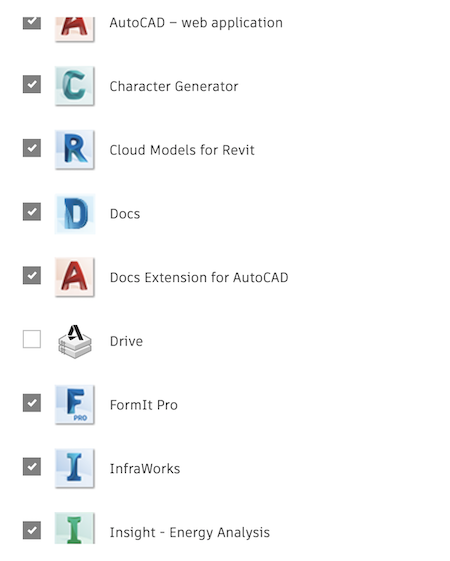
- Here is roughly what they'll see. If Drive is disabled, ask them to enable it!
Shared Folders
If you're viewing a folder that another Drive user has shared with you:
Your permissions
You can only upload if you have Edit permissions. If you're in a shared folder and the "Upload" button is locked/grayed out, you were only granted Viewer or Download permissions.
To upload files, you must ask the folder owner to grant you Edit permissions.
Here's what they must do:
The owner must open their Drive, find the folder, and click "Share"
They must find your name in the list of people. It looks something like this:
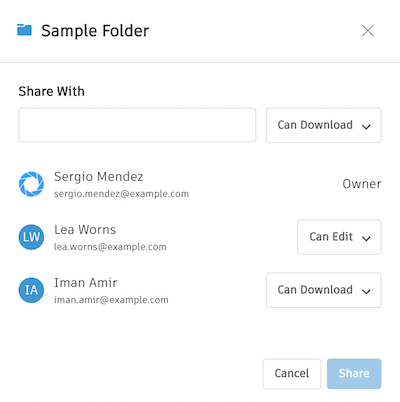 .
. - If it currently says "View" or "Download", that confirms the reason you can't upload.
Click the permission field next to your name, select "Edit", then hit the "Share" or "Save" button to confirm. Here's roughly how it looks:
 .
.
The owner's license
If the owner of this folder has an expired Drive license, nobody (either them or you) can upload to it.
If the owner believes they are entitled to Drive, please ask them to follow the troubleshooting steps at the top of this page.