Summary Report
This topic describes how to use the summary report after transitioning data using the Data Transition Tool and the actions you can take when reviewing a report.
Move to the Autodesk Docs tab.
On the Autodesk Docs tab, click the More menu
 on the right, select View summary reports.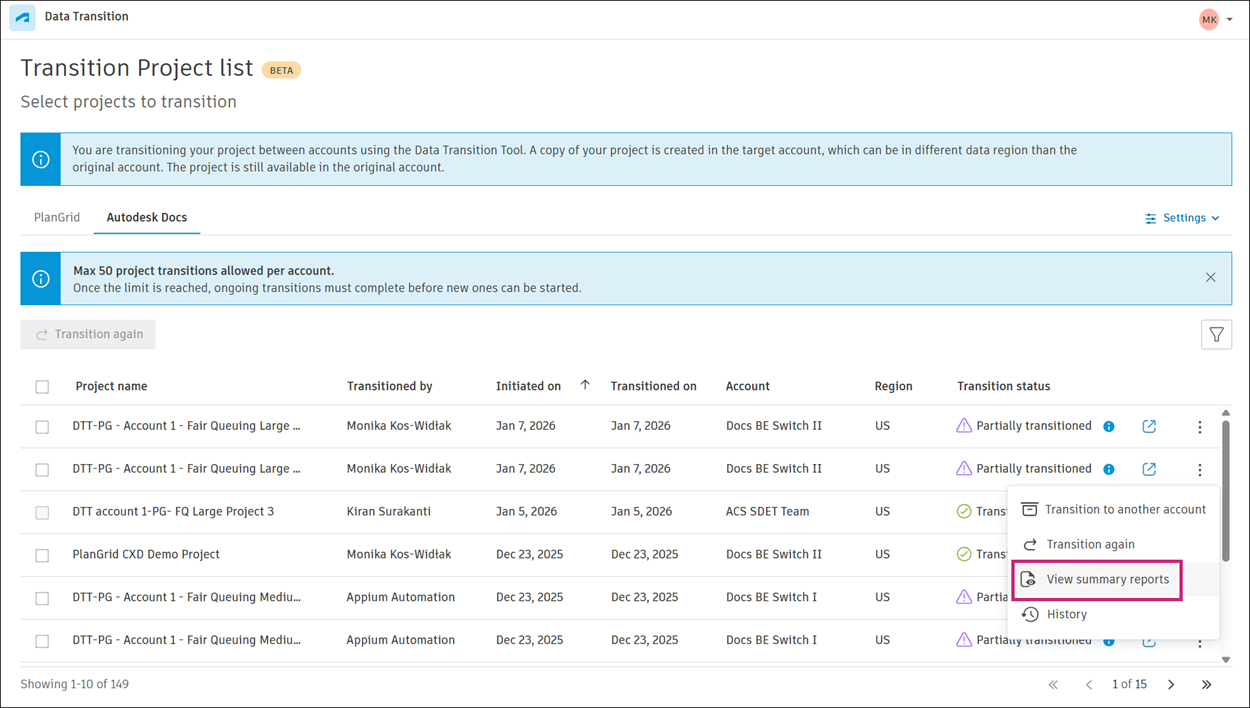
In the Summary reports dialog, click
 in the Link column to view the report in Autodesk Docs.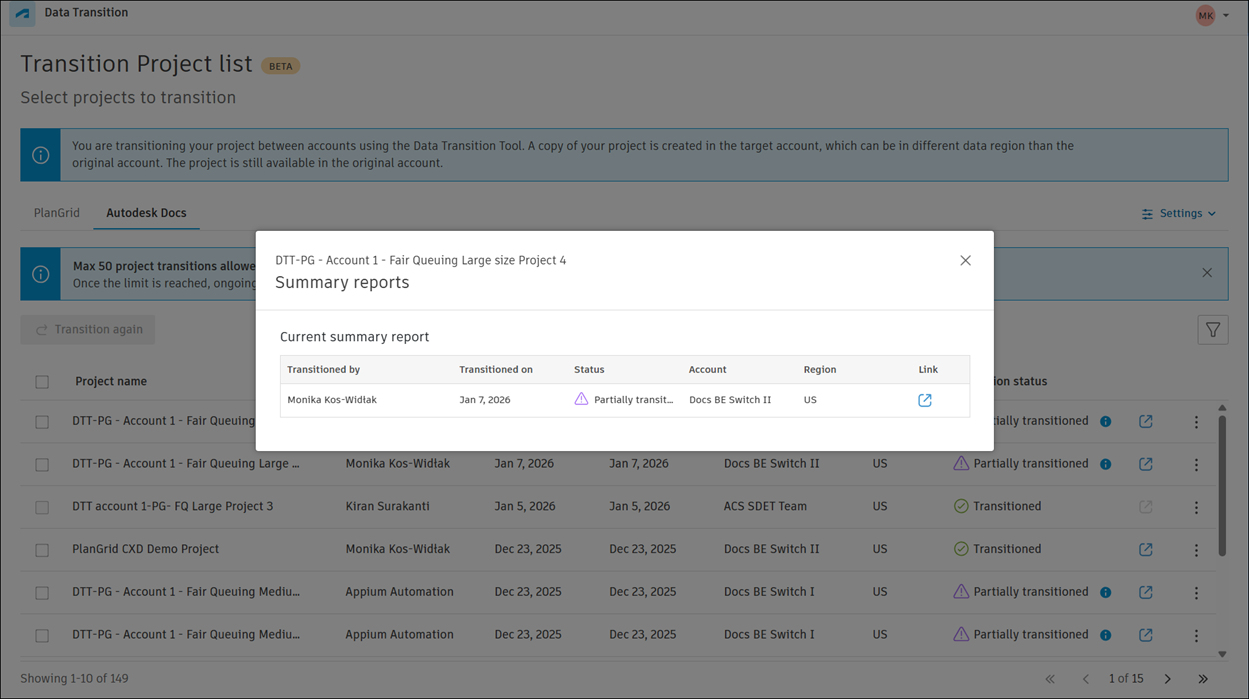
- The summary report consists of several sections, each providing insights into the data transition process. The report includes:
- Overview:
- Total number of items transitioned from PlanGrid
- Number of items successfully transitioned to Autodesk Docs
- Transition accuracy percentage
- Transition details:
- Modules transitioned
- Total items from PlanGrid transitioned
- Total items transitioned to Autodesk Docs
- Failure count
- Transition accuracy
Click the horizontal More menu in the top right of the page to access the following capabilities:
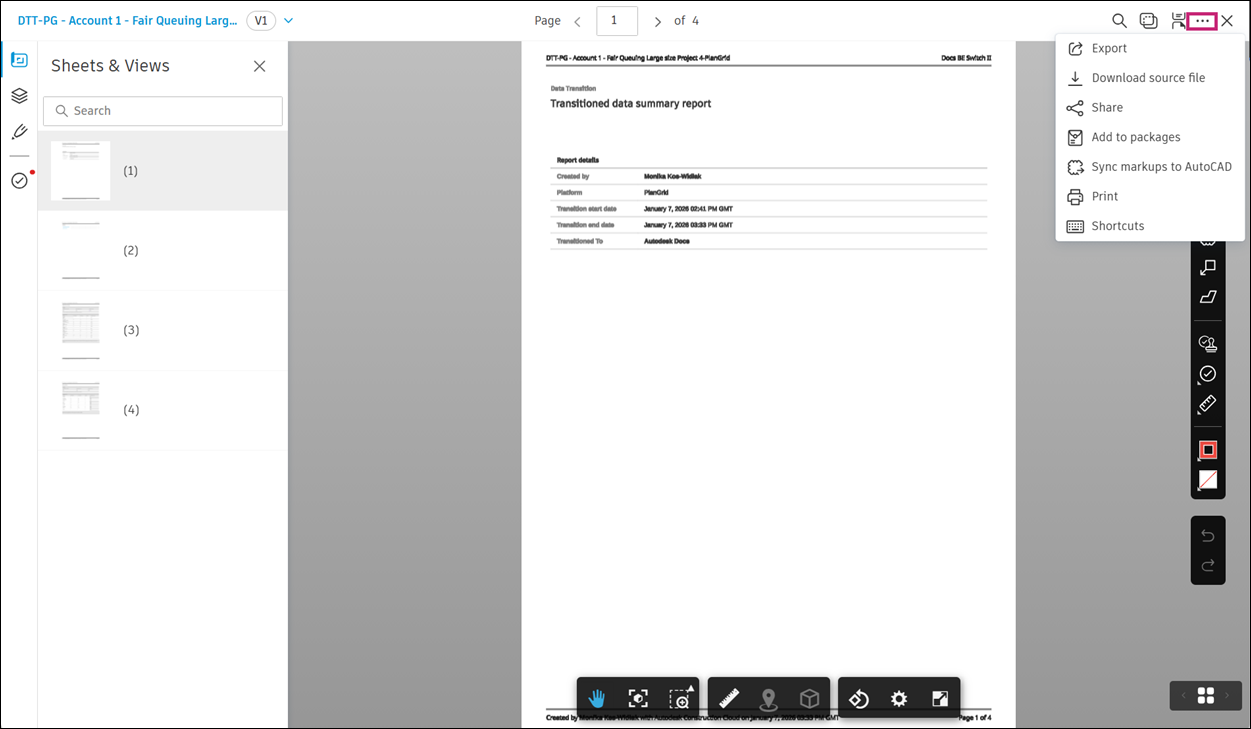
- Export: Downloads the summary report in CSV format for analysis or record-keeping.
- Download source file: Downloads the original source file used for the data transition. Use this to verify data before and after the transition.
- Share: Generates a shareable link to the summary report. Use this to share the report with team members or stakeholders.
- Add to package: Adds the summary report to a package for processing or archiving. Use this to keep related documents and reports together.
- Sync markups to AutoCAD: Syncs markups from the summary report with AutoCAD. This keeps design files up-to-date with changes.
- Print: Prints the summary report from the application. Use this to create a physical copy for meetings or presentations.
- Shortcuts: Opens a list of keyboard shortcuts for the summary report. Use shortcuts to work more efficiently.