Validating Transitions in Data Transition Tool
When a project has completed its transition, you should look through the report to see if there are any files that didn't transition. The report can show you files that didn't transition for different reasons. You can check to see if you can manually transition files in the event that a file does not transition.
There may be data that doesn't transition; if that happens, you can't manually bring that over. You can, however, transition again or check to see if there may be something wrong with the source data that is preventing the transition.
Transition a Project Again
Transitioning a project again overwrites any previously transitioned data in the target account.
- Click the More menu next to the project name.
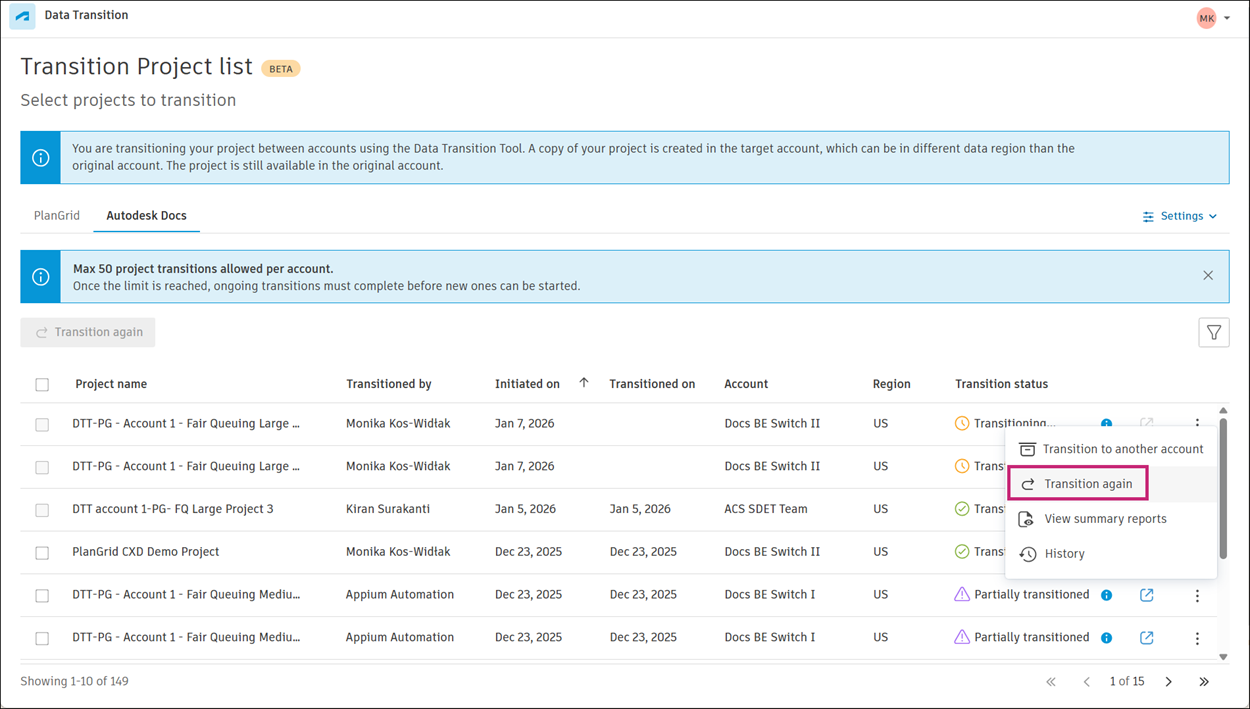
Select Transition again.
Select the target account from the drop-down menu, and then click Add and continue.
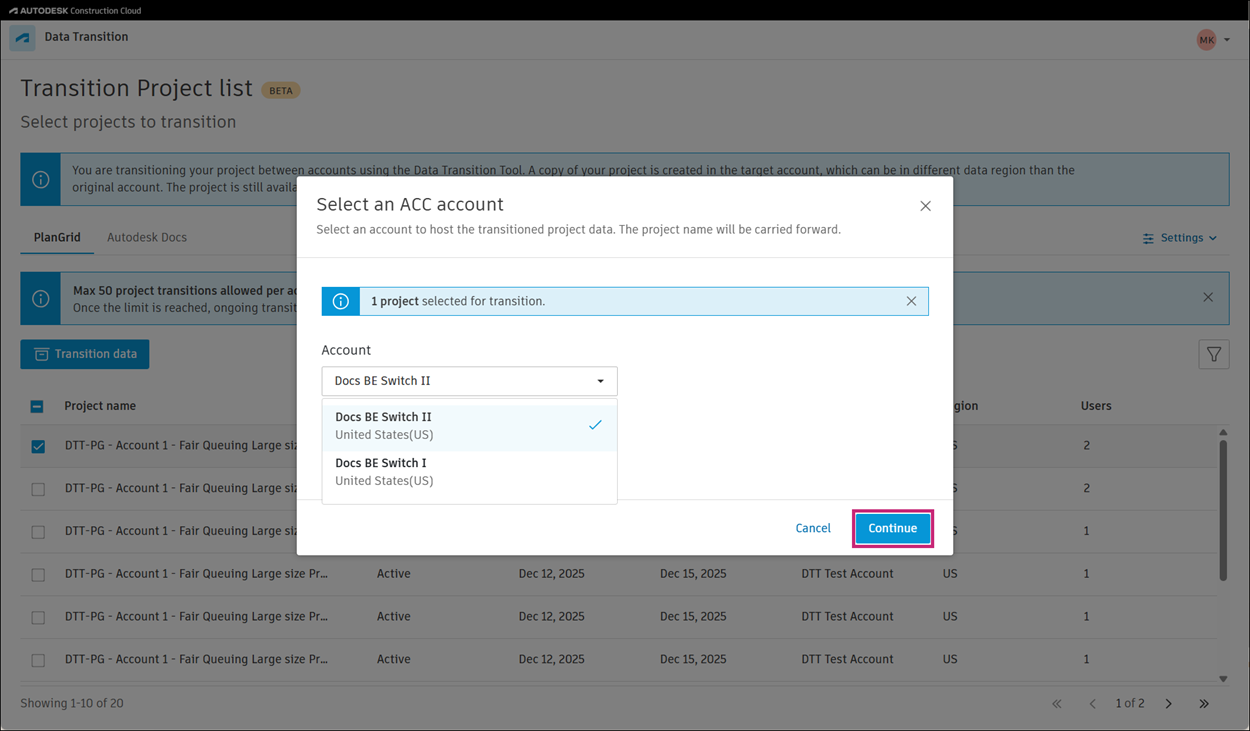
Click Continue to start the transition.
Note If the project was previously fully or partially transitioned to the same account, you will see a warning message. Click Overwrite to proceed with the transition.
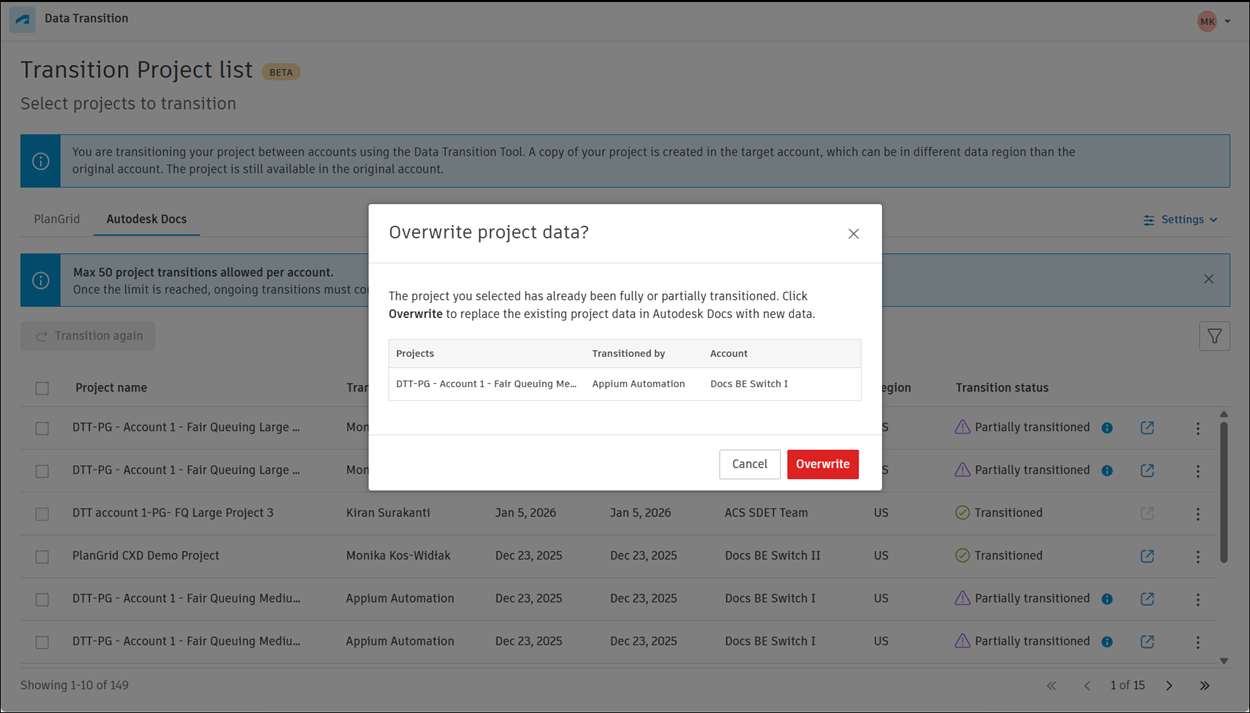
Also note that depending on the project size, the transition process may take some time. You can navigate away from the page while the transition is in progress. You'll receive a notification when the transition is complete.
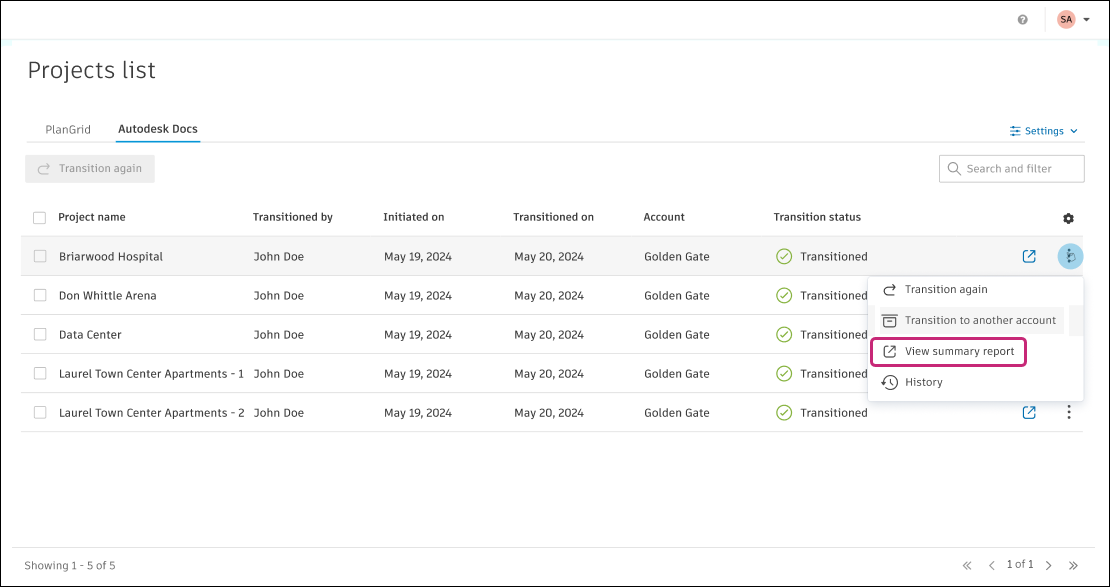
View Summary Report
If you need to cancel a data transition, you can do so by selecting the project and clicking on the "Cancel Transition" button. This will stop the transition process for that project.
View History
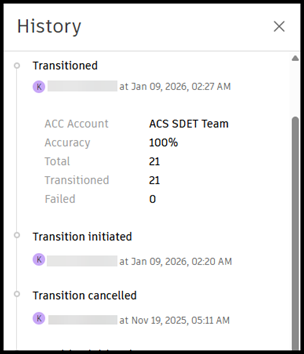
To see the history of transitions for a project, you can click on the More menu  next to the project name and select History.
This will show you a log of all transition actions, including dates, times, and the individual that performed the action.