Subscriptions
The Subscriptions tool in Hub Administration lets hub administrators manage and monitor the subscriptions assigned to the team that is associated with the hub. This also includes purchasing additional subscriptions for the team.
View Subscriptions
Navigate to Hub Admin.
Click Subscriptions in the left navigation menu.
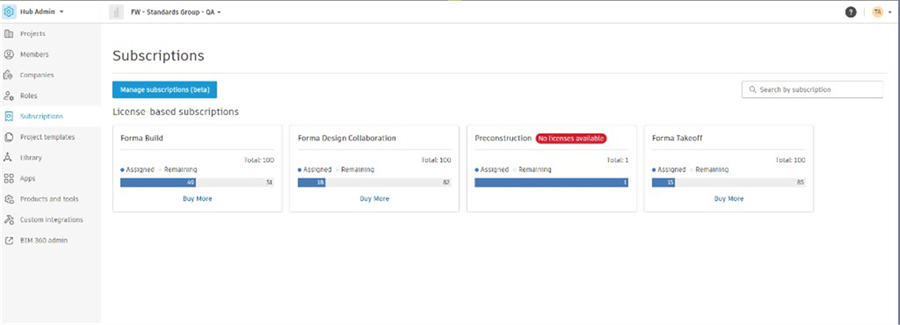
Review each card to see the details of the subscriptions assigned to the team. This includes seeing:
- Days remaining on any trials
- The number of purchased subscriptions
- The number of Assigned subscriptions
- The number of Remaining subscriptions
If applicable, License-based subscriptions and Unlimited subscriptions will be organized into separate sections.
License-based subscriptions can include:
- Standard individually purchased subscriptions
- Education: Subscriptions purchased for educational purposes
- Not for Resale (NFR): Subscriptions that are not intended for resale
Unlimited subscriptions, subscriptions that are not limited by quantity, can include:
- Subscriptions that are not limited by quantity
- Token Flex

The subscriptions listed in the Subscriptions tool will match the subscriptions that can be assigned to members in the Members tool.
Buy More Subscriptions
Hub administrators can use the Subscriptions tool in Hub Administration to purchase more subscriptions.
Navigate to Hub Admin.
Click Subscriptions in the left navigation menu.
Click Buy more to purchase more subscriptions. This will open the checkout window where you can specify the number of subscriptions you want to buy and complete the transaction.

The Subscriptions tool may take a few moments to update after a purchase is made.
Who owns a purchased subscription
- Education, Not for Resale (NFR), and Unlimited subscriptions can't be purchased using the Buy More flow.
- All subscriptions purchased using the Buy More flow will be automatically assigned to the team that is tied to the hub where the purchase was made.
- The hub administrator who purchases the subscriptions is the owner of the subscription and can:
- See it under the Billing and orders section on manage.autodesk.com
- Act on the subscription, such as canceling or autorenewing
- The hub administrator who purchases the subscription won't get access to User management in manage.autodesk.com unless they were already the primary admin for the hub.
- The Primary admin for the team will see the new subscription in manage.autodesk.com in the following locations:
- Home > Get Started
- Billing and orders > Subscriptions and contracts
- The Primary admin for the team can't act on the subscription, but will see the name and email of the purchaser.
Manage Subscriptions (Beta)
Hub administrators who opt into the Manage Subscriptions beta can manage subscription assignments for hub members in bulk from the Subscriptions tool. See Betas to opt in.
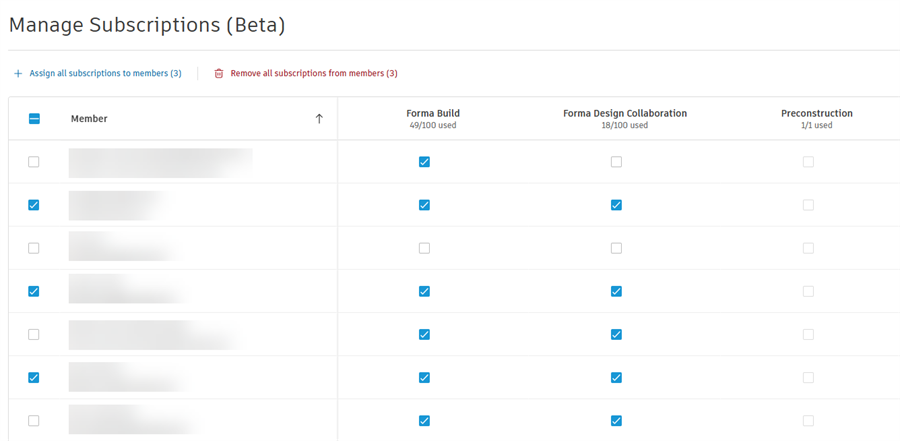
Bulk assign or remove subscriptions
- Click Manage subscriptions (beta).
- Select the checkboxes next to each member you'd like to assign or remove subscriptions for.
- Click Assign all subscriptions to members or Remove all subscriptions from members.
- Click Save Changes (#), where # shows the total number of changes you made.
Assign or remove a single subscription
- Click Manage subscriptions (beta).
- Select the checkboxes next to the member in the subscription column you'd like assign or remove the subscriptions from.
- Click Save Changes (#), where # shows the total number of changes you made.