As-built Export
As-built Export is being retired and will be removed on May 15, 2027. You can no longer create new as-builts. Existing as-builts will remain available to download for the full six-month retention period. Use Handover to export project data.
In this article, you'll learn how to:
- Download As-built Exports
- View and Use Downloaded As-built Exports
- Share As-builts with Other Projects Using Bridge
Download As-built Exports
For existing as-builts created before November 15, 2026, you can still download them from the As-built Export log during the six-month retention period.
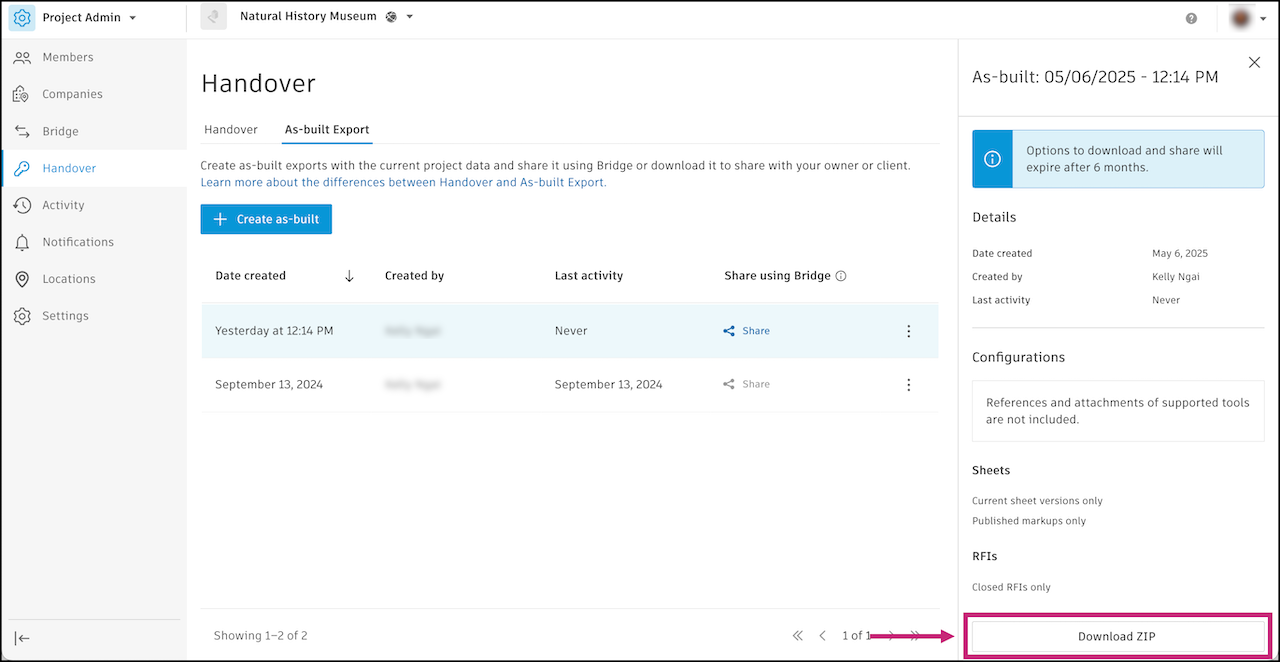
On the As-built Export tab, click the as-built. A panel opens.
Click Download ZIP at the bottom of the panel.
View and Use Downloaded As-built Exports
To access the as-built folders, unzip the downloaded file on your computer.
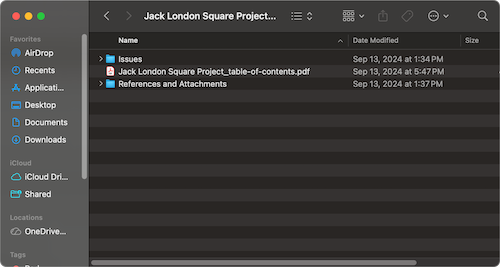
Each supported tool has its own folder. If you include references, you also see a "References and Attachments" folder.
The following is a macOS example of an as-built with only Issues selected and references and attachments included.
Local Linking in As-built Exports
The As-built Export feature supports local linking between files in the exported ZIP file. You can click links to referenced project items, and the corresponding downloaded file opens on your computer. This makes it easier so that you don't need to switch between the PDF export and Autodesk Forma on the web.
For example, if an issue has a form reference and that form was downloaded, clicking the link opens the downloaded form report.
- Links between RFIs and sheets are included as local URL links in the PDF.
- Photos linked to an RFI show up as thumbnails in the PDF.
- Titles of project items are not links, so they don’t open the item in Autodesk Forma on the web.
- Any links to unsupported references and attachments are disabled. For example, since Assets is not a supported reference type, a link to an asset is disabled. The color of disabled links stays the same as active links.
The Preview app on macOS has these limits:
- RFI references on sheets are not available.
- Local links between files in the exported folder are not available.
Share As-builts with Other Projects Using Bridge
Bridge lets you share project information with other Autodesk Forma projects and hubs. Learn more about Bridge in About Bridge.
Project administrators can share as-builts with other projects where they are a project administrator or a member. You also need Edit permission or higher in the target folder.
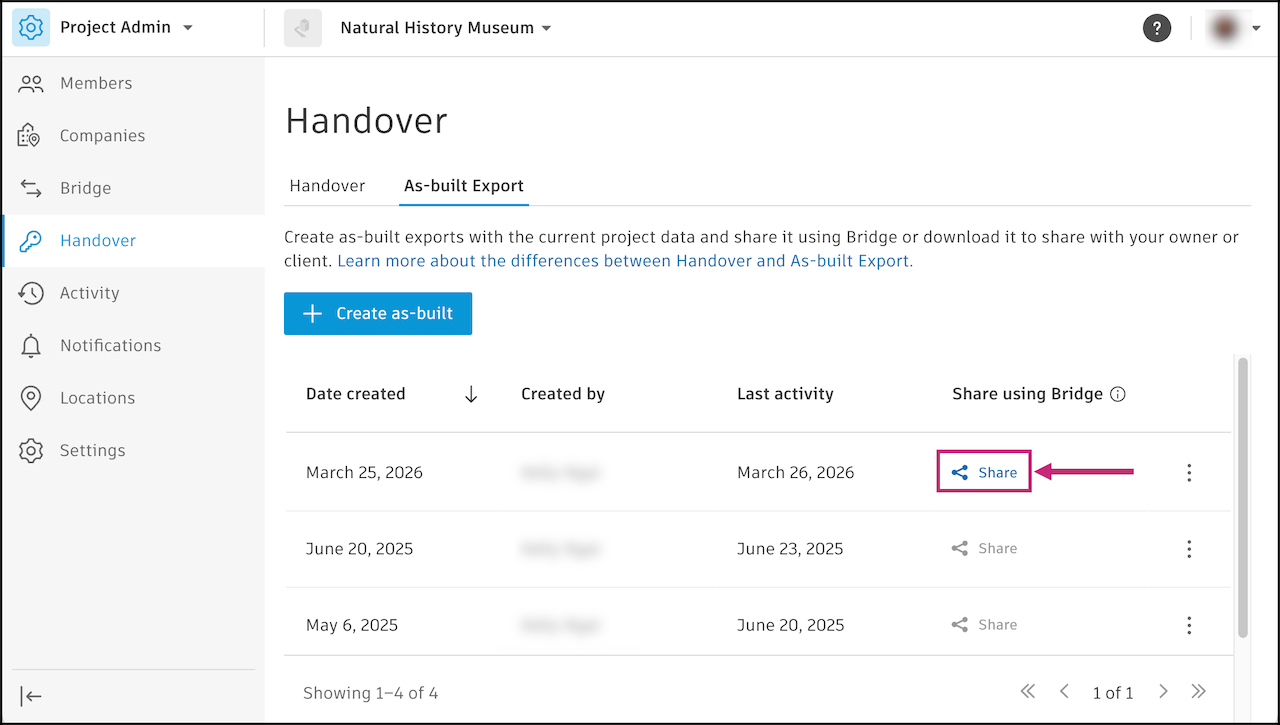
Click Share on the As-built Exports log.
(Optional) Enter a title for this event. In the Outgoing tab of the Bridge tool, this title appears as a line item in the log to help your team track what was shared.
Note:<>:"/\|?*`are not allowed.Select a target project. If the project you want to share with is in a different data storage region, first click Select another data region.
Note:You can share as-builts within the following groups of regions.
- Group 1: United States, European Union, and Australia
- Group 2: United Kingdom, Germany, Canada, India, and Japan
However, you can’t share as-builts between these groups.
Select a target folder for the as-built.
Click Share. You will get an email when sharing is complete.
You can track the shared as-built in the Outgoing tab of the Bridge tool. Learn more.