Organize Handover Package Folders and Files
Once you assemble the contents of your Handover package, review what will export. You can also customize the order of folders and files.
In this article:
Review Folder Contents
To review the contents of a folder, click the arrow next to the folder name.
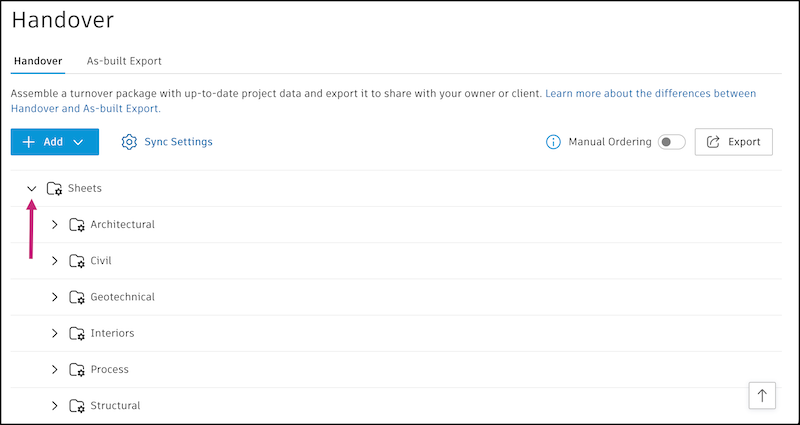
If a folder is empty, Handover shows that no items are available. Synced folders always stay up to date with your project. Changes that match your sync settings appear automatically, such as new issues, closed submittals, or added sheets.
By default, Handover sets the order of folders and files. To control the order in which they export, turn on Manual Ordering.
Turn On Manual Ordering
In the Handover tab, turn on Manual Ordering.
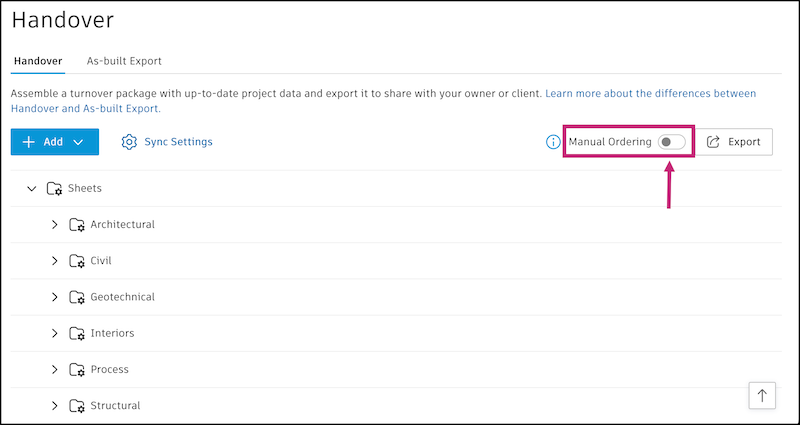
Handover adds a number prefix to each folder and file to keep their order on export. You can't edit these prefixes. Prefixes update when you move or add an item. The number of digits in each prefix depends on the number of items in the package.
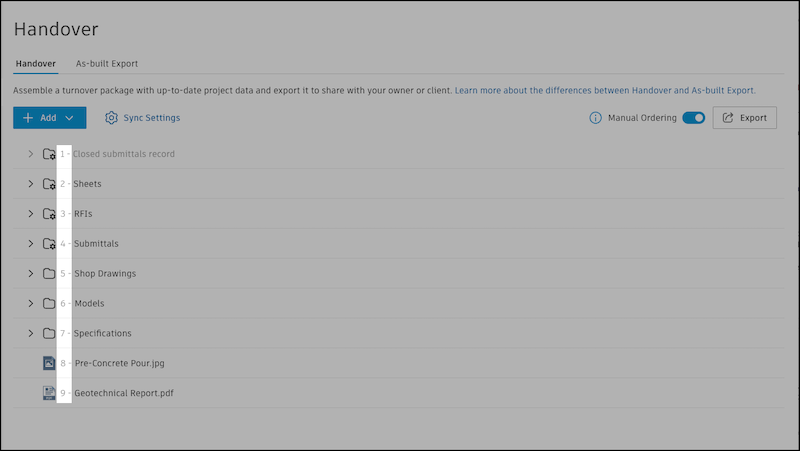
Move Files and Folders
To move folders and files, first turn on Manual Ordering. Handover groups each package into three sections that always export in this order:
- Synced folders, such as Forms, Issues, and RFIs
- Folders you add from the Files tool or create in Handover
- Files
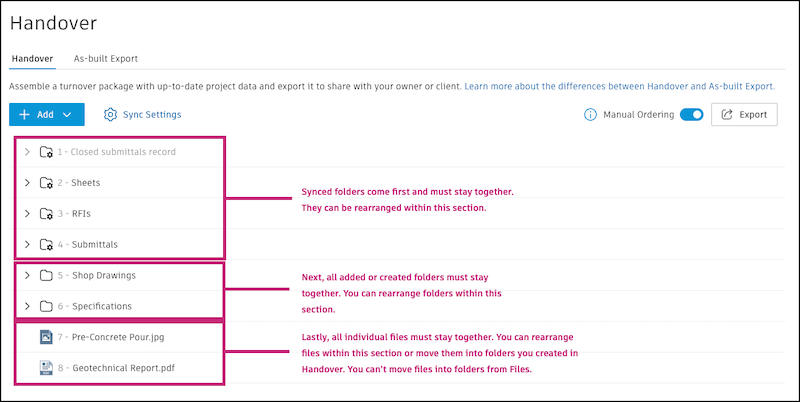
You can reorder items within a section, but you can't move an item to a different section. You also can't move folders or files inside a synced folder.
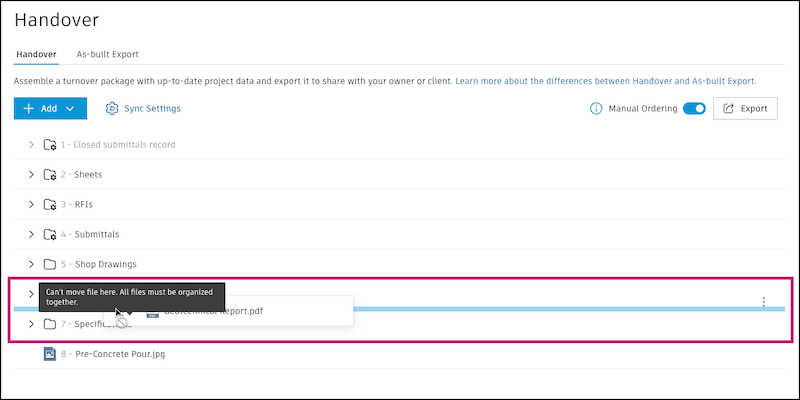
The exception is the Files section. You can move a file from the Files section into a folder you created in Handover. You can't move it into a folder added from the Files tool.
To move a folder or file:
- Hover over the folder or file.
- Drag the grab icon
 to a new location.