Copy and Paste Location Areas
Many projects repeat the same room layout across floors or sheets. Instead of redrawing those shapes, you can copy existing location areas and polygons, then paste them onto another sheet or the same sheet.
Pasted geometry always arrives as polygons that aren't assigned to a location. You assign each one to a location in your Location Breakdown Structure (LBS) yourself, so a copy never carries an existing location assignment with it.
Prerequisites
- You must be a project administrator or a location administrator to copy, paste, and assign areas.
- Both the sheet you copy from and the sheet you paste onto must be linked to a location.
- Copy and paste work inside a single project. You can't paste into a different project.
- Copy and paste aren't available in AI area mode. You need to exit AI area mode first.
Copy Areas and Polygons
You can copy location areas, unassigned polygons, or a mix of both. You copy the shape only, never the location assignment.
Open a linked sheet and go to the Locations tab.
Select the areas or polygons you want to copy. To select multiple areas or polygons, hold Cmd, Ctrl, or Shift while clicking, or use the Multi-Select tool
 in the viewer toolbar.
Copy your selection in one of these ways:
Press Ctrl+C on Windows or Cmd+C on Mac.
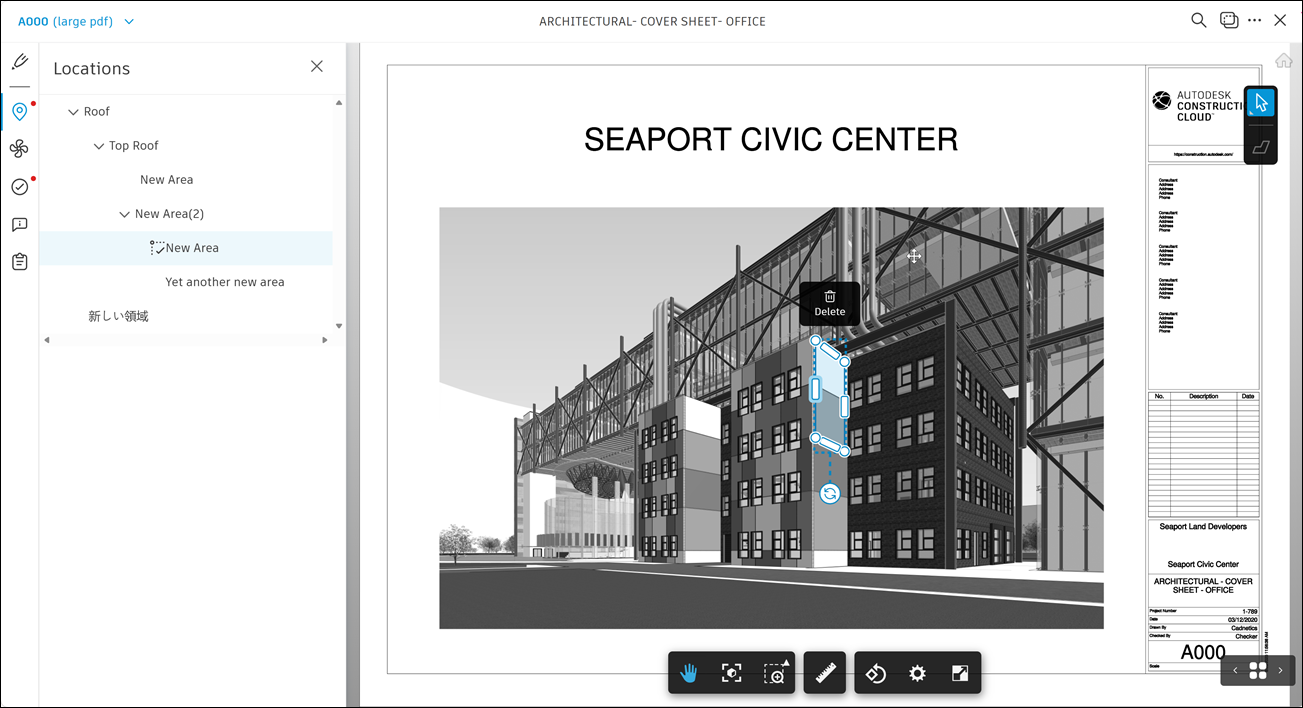
or
Right-click the selection, then select Copy.
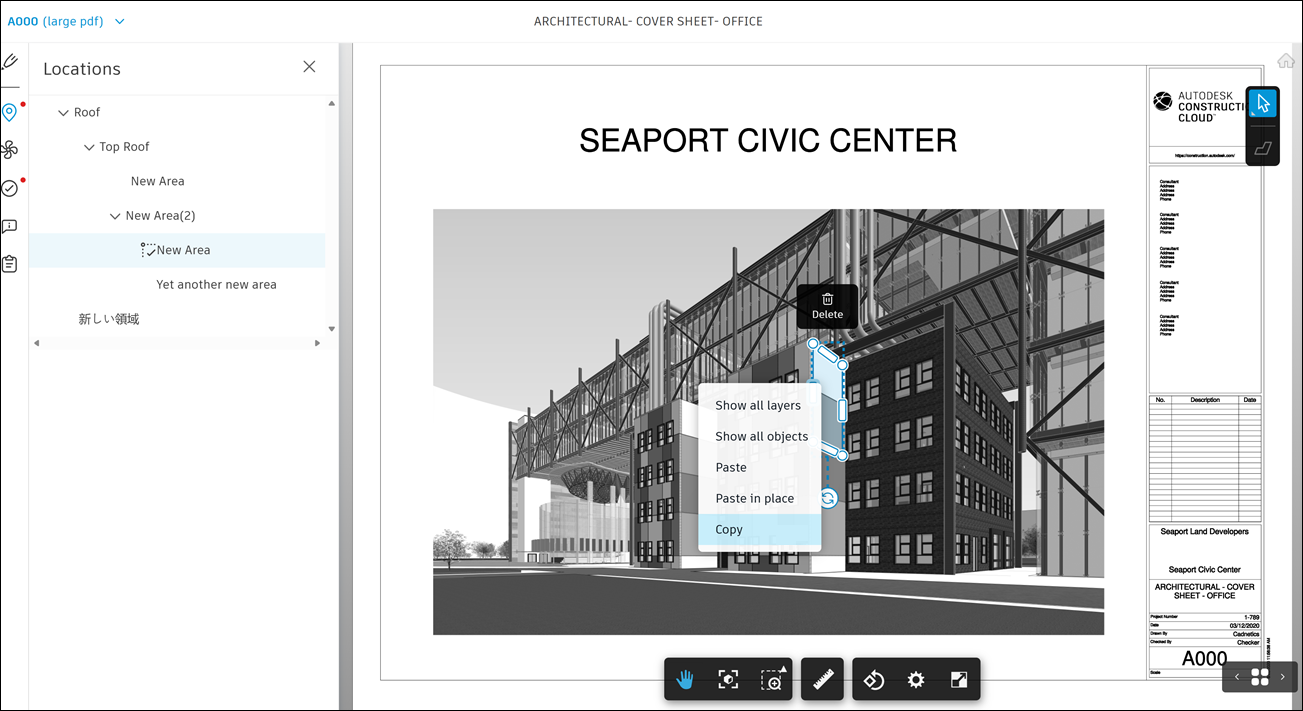
Everything you copied stays on the sheet, unchanged.
Note: You can copy a maximum of 500 polygons at a time.
Open the sheet you want to paste onto. This can be another sheet or the sheet you copied from.
Paste the shapes in one of these ways. Where they land depends on how you paste:
Press Ctrl+V on Windows or Cmd+V on Mac. When pasting on the same sheet, the shapes appear slightly offset from their original position. When pasting on a different sheet, they appear in the same position as on the source sheet.
or
Right-click the sheet, then select one of these options:
- Paste places the shapes at your cursor position.
- Paste in Place places the shapes in the exact position of the copied shapes.
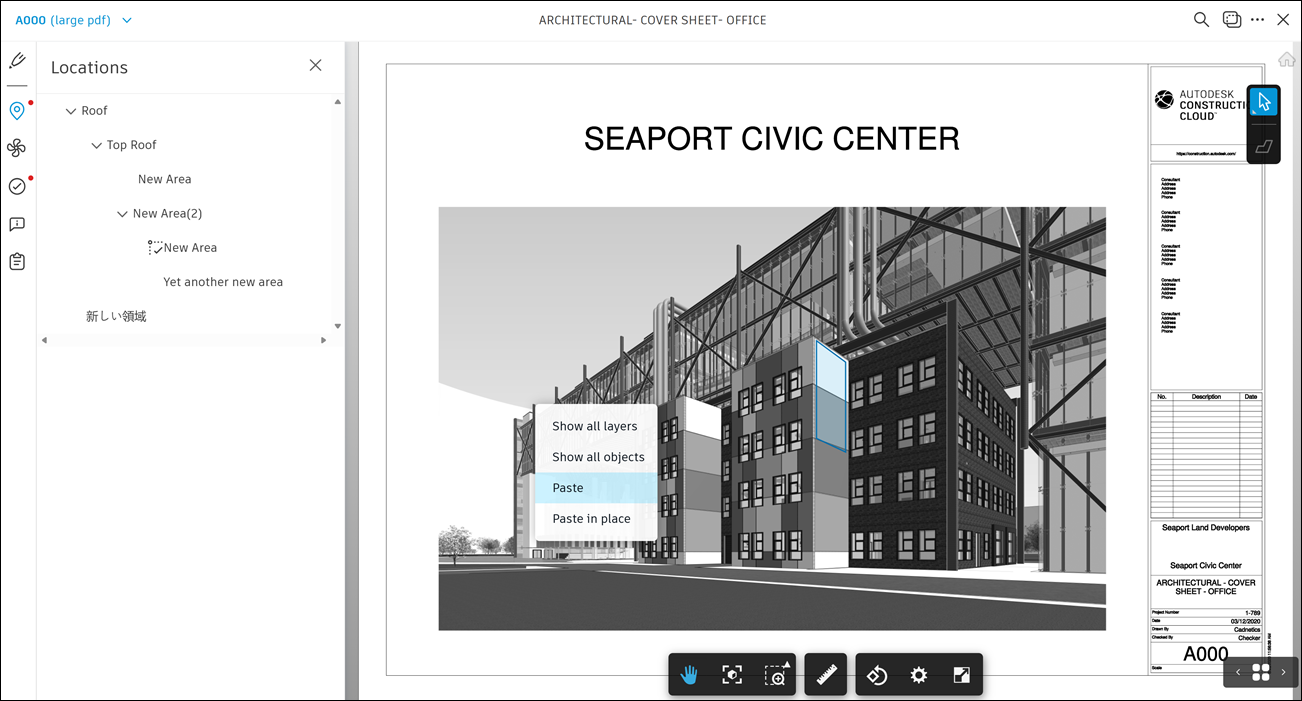
The pasted shapes appear as unassigned polygons.
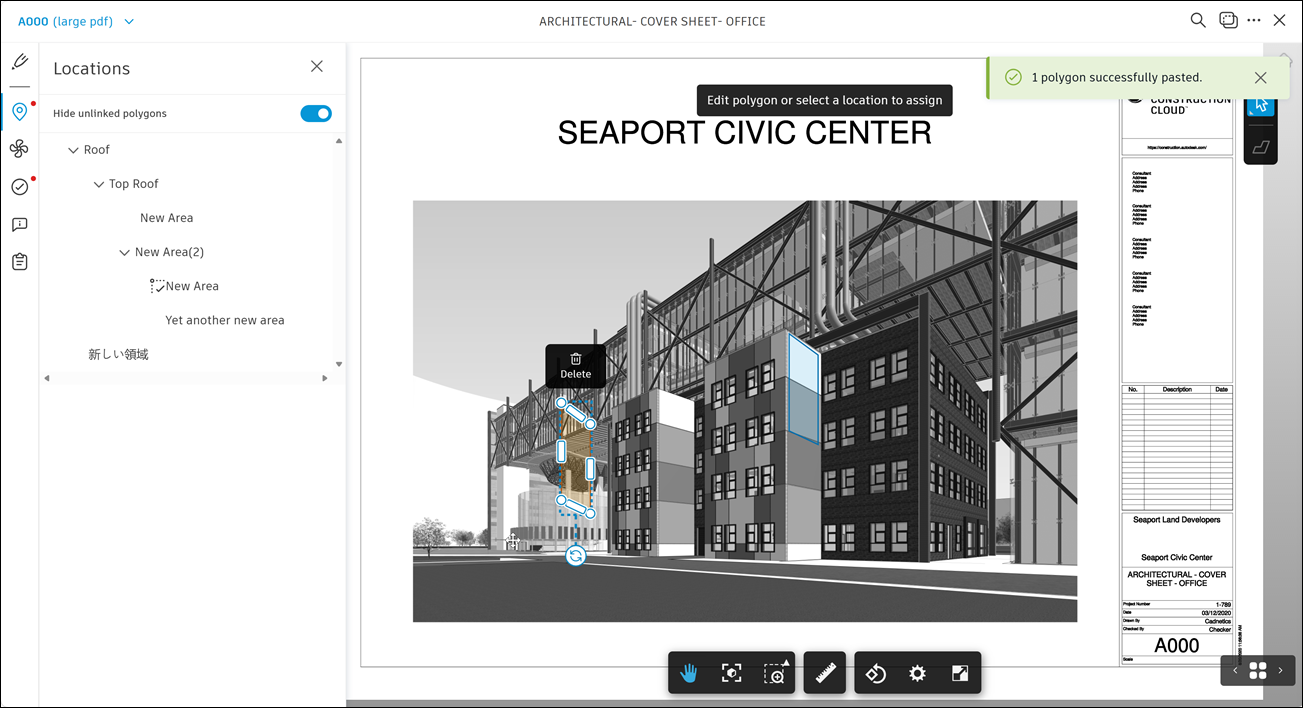
Assign each pasted polygon to a location in your LBS. You can do this from either direction:
Select a polygon, then select the location you want to assign it to.
Select a location, then select the polygon you want to assign to it.
Once assigned, the polygon becomes a location area.
Show or Hide Unassigned Polygons
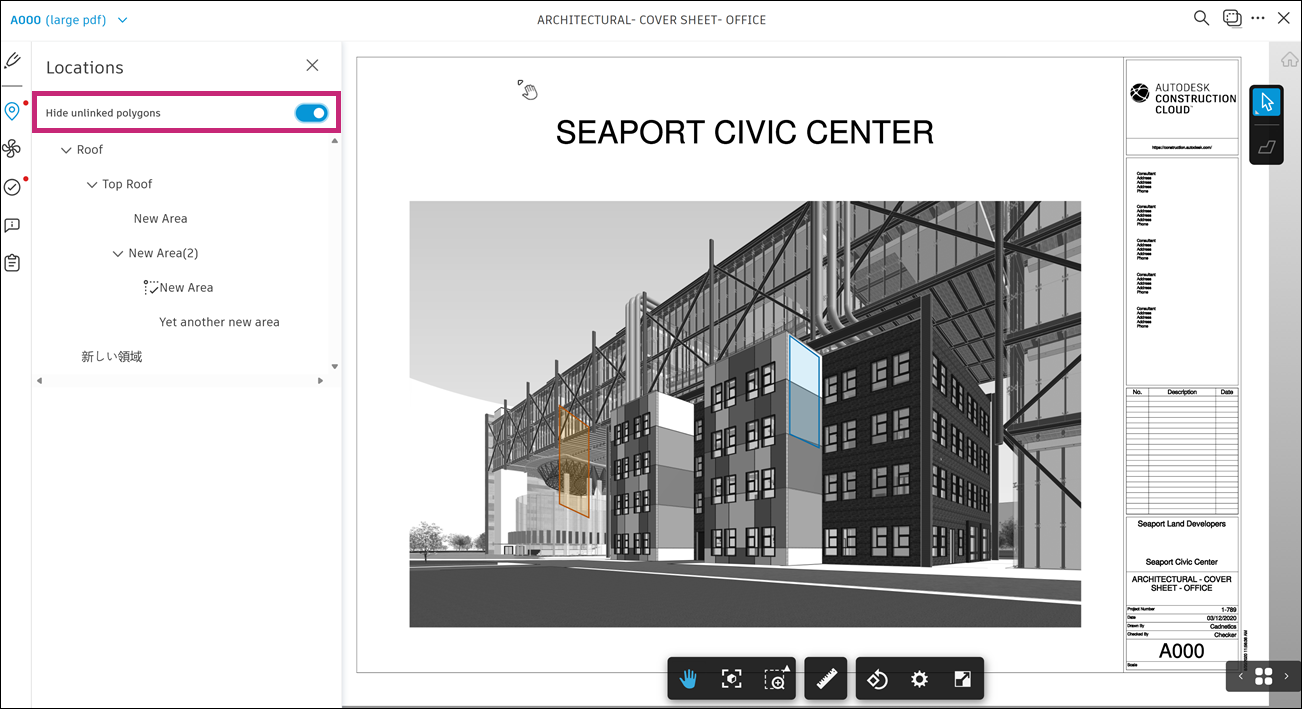
Pasted polygons that you haven't assigned yet stay on the sheet across sessions, and only you can see them. Hide them when you want to review your finished location areas without the extra shapes in the way.
Unassigned polygons are stored locally in your browser and remain available when you return using the same browser profile, as long as the browser data is preserved.
Use the Show/Hide Unassigned Polygons toggle in the Locations panel to control the visibility of unassigned polygons. Hiding them doesn't delete them or affect assigned location areas. You can show them again at any time.