Search and Filter Files
The search and filter function in the Files tool allows you to easily find folders and files you have permission to view. You can also search deleted itemsand save searches. Project administrators can share saved searches.
- Access Search and Filter
- Enter Search Terms
- Search Operators
- Search and Filter Settings
- Select Folders and Content
- Filters
- Search and View Results
Access Search and Filter
Click the Files tool.
Click Search and filter.
The search panel opens on the right. This is where you can refine the scope of your search and filtering.

Enter Search Terms
Click the search box.
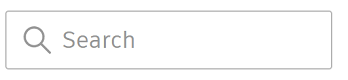
Your most recent 5 searches are available when you click in the search box. You can also view search tips to assist your search.
Enter the terms that you want to search for.
Search considerations
Enter between two and 255 characters.
Search results are based on name and description, review status, and custom attributes (selected in search and filter settings).
You can also search for file name extensions.
Use search operators such as "AND", "OR", "NOT" and "()" to further refine your results.
When searching for files with hyphen-separated file names, search for specific parts of the file name. For example, search for "DOC", "01", or "DOC 01 A" for a file named "DOC-01-A-02". The search term between dashes must be complete.
Search tips display when you click the search box.
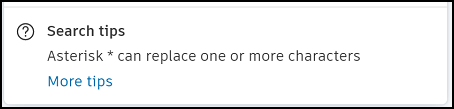
These provide guidance for using complex search operators including boolean operators, wildcards, and special characters. A randomly selected tip is shown. Click More tips to show all search tips which are also detailed in the Search Operators following section.
Search Operators
You can refine your search results by using search operators to modify your search terms. See the following table for details.
| Search Operator | Definition | Example |
| AND | ||
| OR | roof OR north
|
|
| NOT | Note: To apply the NOT operator, enclose the operator and the search term in parentheses. |
|
| () | Returns all files with "roof and north" or "roof and south", but no results without "roof". |
|
| * | - With the asterisk replacing any number of characters - With the asterisk ignored | Returns all files that begin with A and end in 09 with any combination of characters in between. For example, A109, A2109, ABC1234509. Also returns A09 with the asterisk ignored. |
Search and Filter Settings
You can choose to adjust the custom attributes within the scope of the search and filter. By default, a maximum of 50 custom attributes will be included from those added to folders you can access. If there are more than 50 custom attributes, or you want fewer custom attributes, you can specify which custom attributes to include.
Select the cog icon
 to the right of Search and filter settings.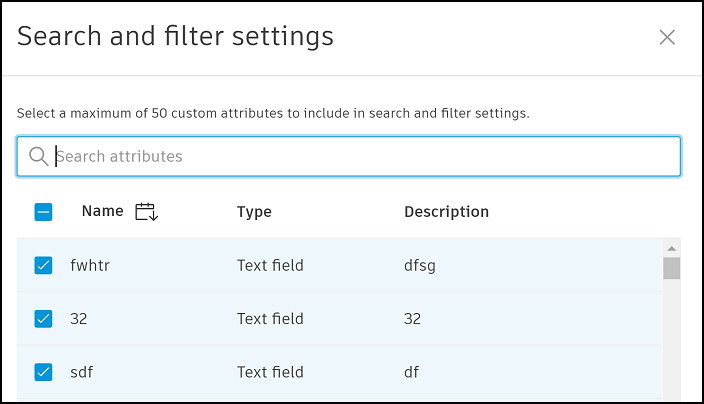
Select or unselect your desired custom attributes.
Click Save.
Select Folders and Content
As long as you have folder access, you can choose which folders to search and filter.
- Current folder: You can choose to search only the current folder, or select Subfolders as well to search the current folder and its subfolders.
- All folders: Select to search all folders you can access in the project.
- Selected folders: Click Select and choose the specific folders you want to search. You can choose Select all in the select folders dialog to search all folders.
- Content: Select to also search the content of vector PDFs.
Filters
By default, the following default system attributes are available as filters:
- Types: Filter by file or folder.
- File types: Filter by filename extension. For example, PDF.
- Version added by: Filter by members who added the current file version.
- File statuses: Filter by locked files.
- Current versions: Filter by current version number.
- Last updated: Filter by a date range.
- Review status: Filter by review status. Select (Empty) to include files with no review status.
You can also use any of the custom attributes you added in the search and filter settings.
Click the + icon to the right of Filters.
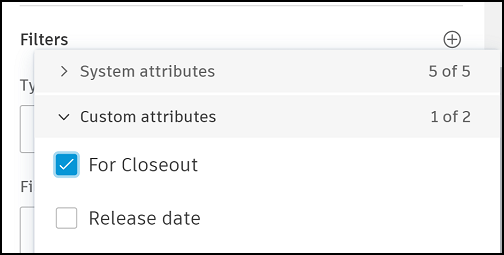
Deselect any of the system attributes to hide them from the filter area. Select any custom attributes to use them as filters.
Search and View Results
Click Search after you're entered your search term, changed your search and filter settings, and selected the relevant filter.
The files and folders matching your search criteria will display in the files list with the search terms highlighted.
Search results display in order of relevance to your search criteria. You can view search results in a list or as a thumbnail display. The search results also include the paths of each folder and document.
If a vector PDF a content result, this icon will display next to the file in the files list 
Click X next to the Search and filter box on the toolbar to clear the applied search terms and filters.